> For the complete documentation index, see [llms.txt](https://docs.daylite.app/help/llms.txt). Markdown versions of documentation pages are available by appending `.md` to page URLs; this page is available as [Markdown](https://docs.daylite.app/help/mac-fundamentals/tools-and-utilities/pipelines.md).
# Pipelines
How to use a Pipeline in Daylite once it's built — assign it to an Opportunity or Project, work the Stages and their tasks, advance through the Pipeline, and switch Pipelines when things change course
A Pipeline is a series of pre-set milestones, called Stages, that an Opportunity or Project moves through as you work it. Each Stage can carry its own tasks and appointments, so the next steps are waiting for you the moment a record reaches that Stage. This article covers using a Pipeline on a record. To build, configure, or change a Pipeline template, see Pipelines Settings.
{% content-ref url="/pages/tte3IHB9xboAmGdhKI8E" %}
[Pipelines Settings](/help/mac-fundamentals/settings/mac-settings/primary/pipelines-settings.md)
{% endcontent-ref %}
**Key facts:**
* A Pipeline applies to both **Opportunities** and **Projects**. Each type has its own Pipelines and Stages.
* Adding a Pipeline lets an Opportunity or Project appear on its corresponding **Board** view.
* Each Stage can have **tasks and appointments** attached. Completing a Stage's activities is your cue to advance to the next Stage.
* You work a Pipeline in two places: the **Tasks and Pipeline** view on the record, and the **Board**.
* You can change a record's Pipeline at any time.
### How Do Pipelines Work?
Each Pipeline is a set of named Stages arranged in order. For an Opportunity the Stages might be Inquiry, Proposal, and Negotiation. For a Project they might be Kickoff, In Progress, and Delivery.
When you assign a Pipeline, the record appears on its Board under its current Stage. As work progresses, you or your team move the card from one Stage to the next.
Each Stage can have predefined tasks and appointments built into the Pipeline template. Their due dates are set relative to when the Stage starts or ends, so no matter when a record reaches a Stage, the deadlines adjust automatically.
## How Do I Assign or Change a Pipeline?
An Opportunity or Project needs a Pipeline before it can move through Stages or appear on the Board. Because your work requires flexibility and quick workflows, there are multiple ways to assign a Pipeline on a Opportunity or a Project. Here are a few ways to asssign or change a Pipeline.
### When you create a Project or Opportunity
1. Create a New Pipeline
2. Click the Pipeline field
3. Select the Pipeline you wish to add
### On an existing record.
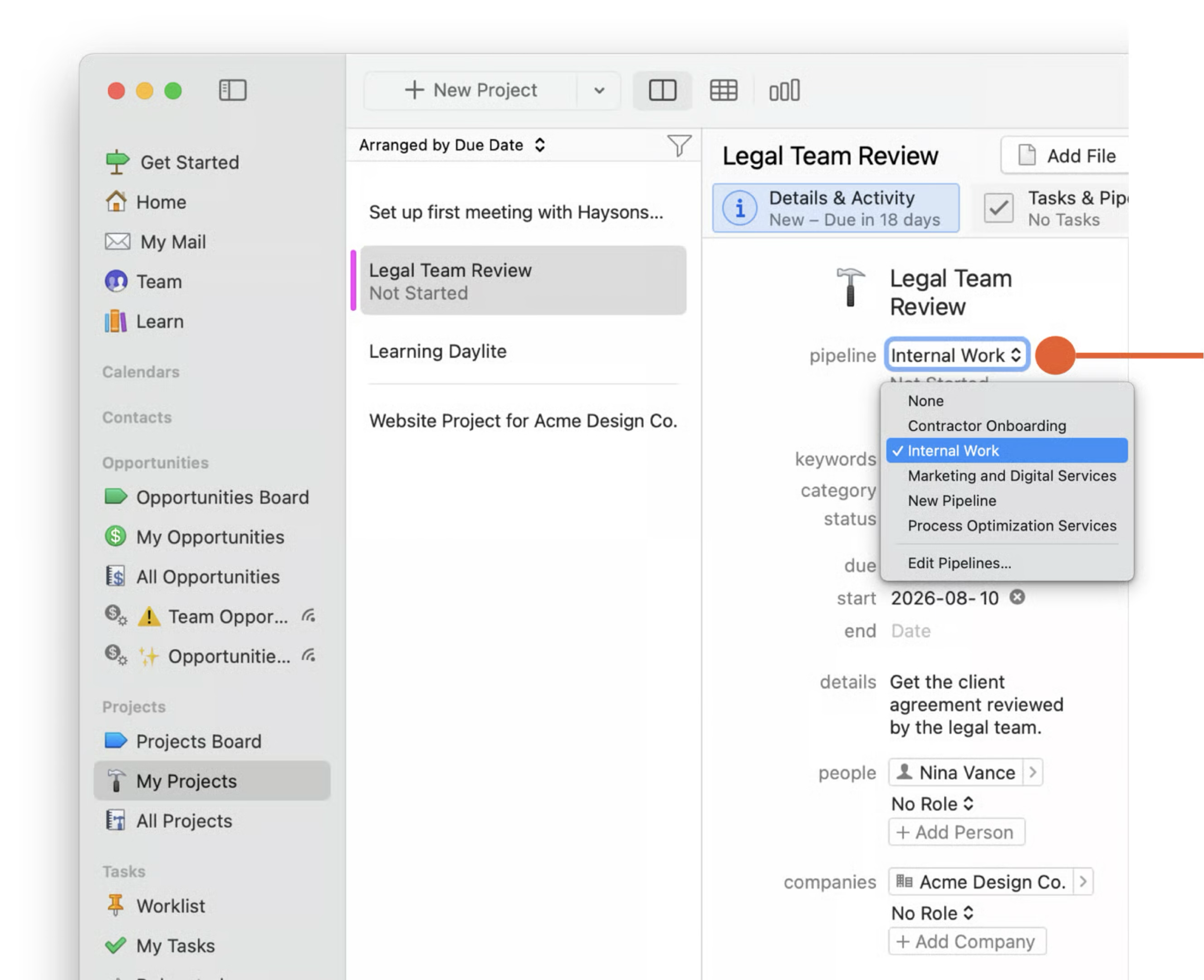
After you've already created a Pipeline, you can assign or change the Pipeline
1. Select the Project and Click **Edit**
2. Select a Pipeline from the **Pipeline** field.
3. Choose the Pipeline you with to use
4. Click **Save**
### From the Task & Pipeline View
**To assign a Pipeline:**
1. Open the Opportunity or Project and click **Tasks and Pipeline**.
2. Click **Choose a pipeline…**.
3. Select the Pipeline, then click **Choose Pipeline**.
**To change the Pipeline:**
1. Open the Opportunity or Project and click **Tasks and Pipeline**.
2. Click the Pipeline name.
3. Select the new Pipeline, then click **Change Pipeline**.
Alternatively, you can create a new Project directly from the Projects Board by selecting a Pipeline first and clicking **New Project**. The Pipeline is assigned automatically.
## How Do I Change a Pipeline Stage?
The quickest way to advance stage is on its **Board** — the Opportunities Board for an Opportunity, the Projects Board for a Project.
1. Open the Board and drag the record's card onto column of the next state, or drop on title of the next Stage's column for the advanced stage
2. In the **Advance Stage** window that opens, verify or adjust the **Start Date**, create any **tasks** and **appointments** for the new Stage, and add a **note**.
3. Confirm to complete the move.
Advancing this way keeps each milestone's follow-up work attached to the record, so the Stage you move into arrives with its next steps already in place.
## Frequently Asked Questions
**What's the difference between a Pipeline and a Stage in Daylite?**
A Pipeline is the whole path a record follows. A Stage is one milestone within it. A Pipeline is made up of several Stages, and each Stage can carry its own tasks and appointments.
**Where do I build or edit a Pipeline's Stages?**
Pipelines are built and edited in Settings > Pipeline
**Why doesn't my Opportunity or Project appear on its Board?**
It most likely has no Pipeline assigned. A Board shows only records that have a Pipeline and in an active state. Assign a Pipeline and the record appears in the Not Started column.
**Can one record be on more than one Pipeline at a time?**
No. An Opportunity or Project follows one Pipeline at a time. You can switch it to a different Pipeline, which moves it onto that Pipeline's Stages.
---
# Agent Instructions
This documentation is published with GitBook. GitBook is the documentation platform designed so that both humans and AI agents can read, navigate, and reason over technical content effectively. Learn more at gitbook.com.
## Querying This Documentation
If you need additional information that is not directly available in this page, you can query the documentation dynamically by asking a question.
Perform an HTTP GET request on the current page URL with the `ask` query parameter, and the optional `goal` query parameter:
```
GET https://docs.daylite.app/help/mac-fundamentals/tools-and-utilities/pipelines.md?ask=&goal=
```
`ask` is the immediate question: it should be specific, self-contained, and written in natural language.
`goal` is optional and describes the broader end goal you are ultimately trying to accomplish on behalf of the user. GitBook uses it to tailor the answer towards what is most useful for that goal.
The response will contain a direct answer to the question and relevant excerpts and sources from the documentation.
Use this mechanism when the answer is not explicitly present in the current page, you need clarification or additional context, or you want to retrieve related documentation sections.