> For the complete documentation index, see [llms.txt](https://docs.daylite.app/help/llms.txt). Markdown versions of documentation pages are available by appending `.md` to page URLs; this page is available as [Markdown](https://docs.daylite.app/help/mac-fundamentals/task-management/tasks-view.md).
# The Tasks View
Explore the five Tasks sections in the Daylite Sidebar — Worklist, My Tasks, Delegated, Done, and All Tasks — and learn how to display Tasks on the Calendar.
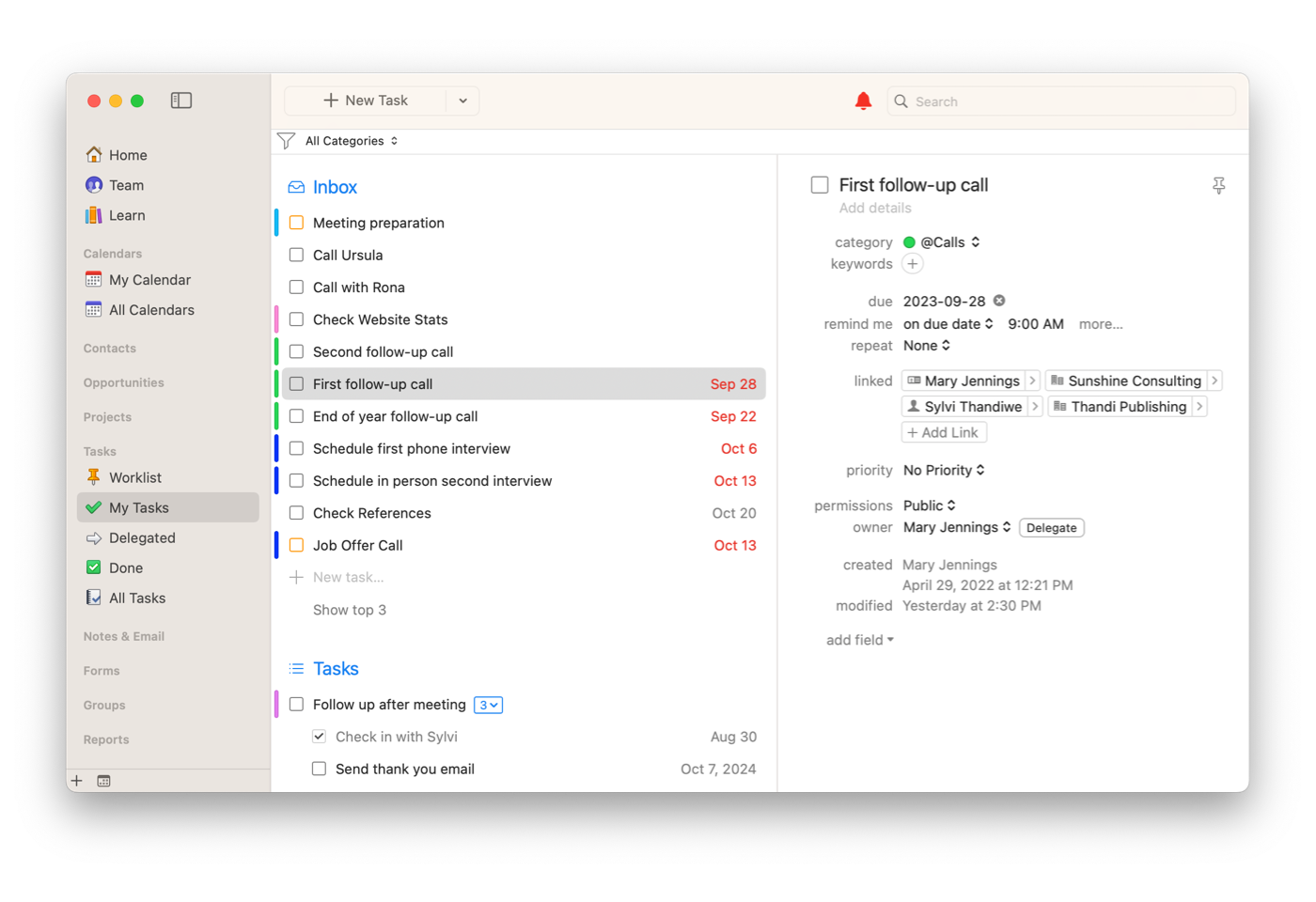
The Tasks View in Daylite is the interface for browsing and managing your Tasks. On Mac, you access it from the Sidebar, where Tasks are grouped into sections — Worklist, My Tasks, Delegated, Done, and All Tasks — so you can find Tasks by priority, ownership, or status.
**Key facts:**
* Mac Sidebar sections: Worklist, My Tasks, Delegated, Done, All Tasks
* iPhone and iPad Sidebar sections: Inbox, Worklist, My Tasks, Someday, Categories and Keywords, Delegated, Done
* My Tasks shows all Tasks owned by or delegated to you that are not yet done
* All Tasks (Mac only) shows every Task across all users and statuses
* Worklist Tasks also appear on the Home Screen (Mac) and Today Screen (iPhone and iPad)
* Tasks with due dates can be displayed in the Daylite Calendar on Mac
{% hint style="info" icon="lightbulb" %}
**Before you start:** This article covers the Tasks View interface. For an introduction to what Tasks are and how they fit into Daylite, see [Tasks Overview](https://docs.daylite.app/help/fundamentals/tasks/tasks-overview).
{% endhint %}
## What Is the Worklist?
The Worklist is a priority list of Tasks you have pinned as your most important items for the day. It appears in the Sidebar under **Tasks** and on the Home Screen (Mac) or Today Screen (iPhone and iPad), giving you a focused view of your top priorities as soon as you open Daylite.
A Task on the Worklist has an orange checkbox and a solid Pin icon, distinguishing it visually from other Tasks. The Worklist does not display the Due date by default, because a Worklist Task is something you intend to complete today or as soon as possible. You can still assign a due date to a Worklist Task if needed.
To add a Task to the Worklist:
1. Click the **Pin** icon on any existing Task. The Pin becomes solid and the checkbox turns orange.
2. Alternatively, right-click a Task and select **Add to Worklist**.
3. To create a new Task directly on the Worklist, click the **+** button next to **Worklist** on the Home Screen.
To remove a Task from the Worklist, click the **Pin** icon again. The Task remains in My Tasks but no longer appears on the Worklist.
{% hint style="info" icon="lightbulb" %}
Keep your Worklist small. 3-5 Tasks is recommended. If new priorities come up during the day, review your Worklist and remove Tasks that can wait before adding new ones.
{% endhint %}
On iPhone and iPad, the Worklist works the same way. Check the **Pin** icon on a Task in the Inbox or My Tasks to move it to the Worklist. The Pin shows as solid orange when the Task is on the Worklist.
## What Is My Tasks?
My Tasks shows all Tasks that are owned by or delegated to you and are not yet done. It is the primary view for managing your active workload.
{% tabs %}
{% tab title="Mac" %}
On Mac, My Tasks appears in the Sidebar under **Tasks**.
{% endtab %}
{% tab title="iPhone & iPad" %}
On iPhone and iPad, My Tasks is one of the Sidebar sections and displays Tasks grouped under their respective Projects, with Subtasks highlighted in orange next to the parent Task.
{% endtab %}
{% endtabs %}
{% hint style="info" icon="lightbulb" %}
On iPhone and iPad, the Sidebar also includes an **Inbox** section, which shows Tasks not yet assigned to a Project. The Inbox is an iPhone and iPad-only view; it does not appear on Mac on the side bar and instezd with My Tasks. Tasks in the Inbox can be moved to My Tasks by assigning them to a Project or adding a due date.
{% endhint %}
## What Is the Delegated List?
The Delegated list shows all Tasks that involve delegation — both Tasks you have delegated to other users and Tasks other users have delegated to you. It is grouped into **Delegated by Me** and **Delegated to Me**.
Delegation in Daylite means assigning a Task to another team member while retaining ownership. The Delegated list gives you oversight of every Task you have assigned to someone else, as well as every Task assigned to you by a colleague.
You can filter the Delegated list by user and Category using the filter bar. You can also add Keywords to delegated Tasks, which automatically creates a corresponding filter in the filter bar.
{% tabs %}
{% tab title="Mac" %}
{% endtab %}
{% tab title="iPhone & iPad" %}
On iPhone and iPad, the **Delegated** section appears in the Sidebar and shows the same grouping of Tasks delegated to and by you.
{% endtab %}
{% endtabs %}
For how to delegate a Task, see [How to Create a Task](https://docs.daylite.app/help/fundamentals/tasks/creating-a-new-task).
## What Is the Done List?
The Done list shows all Tasks that you have marked as complete. Tasks in this list are sorted by Start date.
When you check a Task's checkbox, Daylite marks it as done, sets an End Date, and moves it to the Done section. The Task remains in Done for reference — you can open it to review details, see its duration, or check which records it was linked to.
{% tabs %}
{% tab title="Mac" %}
{% endtab %}
{% tab title="iPhone & iPad" %}
On iPhone and iPad, the **Done** section appears in the Sidebar and works the same way.
{% endtab %}
{% endtabs %}
## What Is All Tasks?
All Tasks is a Mac-only view that shows every Task in Daylite across all users and all statuses. Tasks are sorted by Due date, with overdue Tasks displayed in red.
All Tasks supports filtering by User, Category, and Keywords, making it useful for reviewing the full scope of work across your team. You can see at a glance which Tasks are done and which are still open, regardless of who owns them.
{% hint style="info" icon="lightbulb" %}
All Tasks is not available on iPhone or iPad. On those platforms, use My Tasks and Delegated to see your own and your team's Tasks.
{% endhint %}
## How to View Tasks on the Calendar?
On Mac, Tasks with due dates can be displayed in the Daylite Calendar alongside your Appointments. This is a Mac-only feature. Tasks appear on the Calendar according to their due date and can be colour-coded by their assigned Category — for example, personal Tasks in blue and work Tasks in red.
### How to Show or Hide Tasks in the Calendar?
1. Open the Calendar view.
2. Click the gear icon ⚙️ in the top left corner of the Calendar.
3. Select **Show Tasks** to toggle Tasks on or off.
4. To include completed Tasks, toggle **Show Completed Tasks** from the same menu.
### How to View Task Details from the Calendar?
To see the full details of a Task displayed on the Calendar:
1. Select the Task in the Calendar view.
2. Open the Details pane using one of these methods:
* Click the **Details** icon in the top right corner of Daylite.
* Go to **View > Show Details** from the menu bar.
The Details pane shows the Task's Notes, attachments, linked Contacts, and other fields.
### How Are Completed Tasks Handled in the Calendar?
When you mark a Task as done, it stays on the Calendar for the rest of the day with its checkbox checked, then is removed the next day. You can change this behaviour at **Settings > General > Remove done tasks** — choose to remove completed Tasks immediately or keep them visible until the end of the day.
The Calendar can also display Projects and Opportunities alongside Tasks and Appointments. Projects are shown by their Project Due Date (with a hammer icon) and Opportunities by their Forecast Close Date (with a **$** icon). Toggle these on or off from the gear icon :gear: and click **Show Projects and Opportunities**. For full details on the Calendar, see [Using the Daylite Calendar](https://docs.daylite.app/help/fundamentals/calendars/using-the-daylite-calendar).
### Tasks on the iPhone and iPad
On iPhone and iPad, the Tasks Sidebar includes additional sections not available on Mac:
* **Inbox** — Tasks not yet assigned to a Project. A holding area for Tasks you have captured quickly and plan to organize later.
* **Someday** — Tasks with no specific due date. If you update a Someday Task with a due date or pin it to the Worklist, Daylite moves it to the appropriate section automatically.
* **Categories and Keywords** — Tasks grouped by their assigned Category or Keyword, giving you a filtered view based on how you have classified your Tasks.
## Frequently Asked Questions
**What is the difference between My Tasks and All Tasks in Daylite?**
My Tasks shows only Tasks owned by or delegated to you that are not yet done. All Tasks shows every Task in Daylite across all users and statuses. All Tasks is available on Mac only.
**How to Change a Task’s Due Date from the Calendar?**
You can drag and drop a Task to a different date on the Calendar to change its due date. This is a quick way to reschedule Tasks without opening them.
**Whose Tasks Are Visible in the Calendar?**
If you are viewing **My Calendar**, you see only your own Tasks. If you are viewing **All Calendars** or another user's Calendar, you also see that user's Tasks. Smart Lists that include other users display their Tasks as well.
**What Is the Difference Between Tasks and Appointments in the Calendar?**
Tasks and Appointments both appear on the Calendar, but they represent different things. A Task has a due date and a completion status — it is a date-anchored item that you mark as done when finished. An Appointment has a start time, end time, and duration — it is a time-block entry representing a scheduled meeting or event.
**Can you filter Tasks in the Tasks View?**
Yes. All Tasks supports filtering by User, Category, and Keywords. The Delegated list can be filtered by user and Category. On iPhone and iPad, you can also filter Tasks by Category, Keyword, Status, and Priority.
**What is the Inbox in the Tasks View on iPhone and iPad?**
The Inbox is an iPhone and iPad-only section that shows Tasks not yet assigned to a Project. It is a holding area for Tasks you have captured quickly and plan to organize later.
**Does the Tasks View look the same on iPhone and iPad as on Mac?**
The core sections — Worklist, My Tasks, Delegated, and Done — exist on all platforms. iPhone and iPad add Inbox, Someday, and Categories and Keywords views. Mac has All Tasks, which is not available on iPhone or iPad.
**How are overdue Tasks displayed in Daylite?**
In All Tasks on Mac, overdue Tasks have their Due date displayed in red. In the Calendar, overdue Tasks remain visible on their original due date until you move them or mark them as done.
**Can you view Tasks in the Calendar on iPhone or iPad?**
The Calendar Task overlay is a Mac-only feature. On iPhone and iPad, manage your Tasks from the Tasks section in the Sidebar.
**Can Tasks be colour-coded in the Daylite Calendar?**
Yes. Tasks displayed in the Calendar are colour-coded by their assigned Category — for example, personal Tasks in blue and work Tasks in red.
**Can you see other users' Tasks in the Daylite Calendar?**
Yes. View **All Calendars** or another user's Calendar instead of **My Calendar** to see their Tasks alongside yours.
---
# Agent Instructions
This documentation is published with GitBook. GitBook is the documentation platform designed so that both humans and AI agents can read, navigate, and reason over technical content effectively. Learn more at gitbook.com.
## Querying This Documentation
If you need additional information that is not directly available in this page, you can query the documentation by asking a question.
Perform an HTTP GET request on the following URL with the `ask` and `goal` query parameters:
```
GET https://docs.daylite.app/help/mac-fundamentals/task-management/tasks-view.md?ask=&goal=
```
`ask` is the immediate question: it should be specific, self-contained, and written in natural language.
`goal` is what the user is ultimately trying to achieve, the reason they need the answer. Sharing it helps GitBook give you a better, more relevant answer. A goal is most helpful when it describes the outcome the user wants rather than restating the question. For example, with `ask=how do I create an API token`, a goal like `automate deployments from our CI pipeline` lets GitBook tailor the answer to that use case.
The response will contain a direct answer to the question and relevant excerpts and sources from the documentation.
Use this mechanism when the answer is not explicitly present in the current page, you need clarification or additional context, or you want to retrieve related documentation sections.