> For the complete documentation index, see [llms.txt](https://docs.daylite.app/help/llms.txt). Markdown versions of documentation pages are available by appending `.md` to page URLs; this page is available as [Markdown](https://docs.daylite.app/help/mac-fundamentals/task-management/creating-a-new-task.md).

# How to Create a Task

Create a Task in Daylite from a button, a record, or an email — then set due dates, reminders, and everything else that keeps it on track.

You can create a new Task in Daylite from the New Record button, the Quick Action Bar on any record, or directly from an email in Mail in Daylite. Tasks can be standalone (unlinked) or connected to an existing record (linked) for context.

**Key facts:**

* Create a standalone Task from the New Record button or the File menu on Mac
* Create a linked Task from the Quick Action Bar (**…** button) on any record — the Task is automatically connected to that record
* Create a Task from an email in Mail in Daylite using the **New Task** button in the Action bar
* On iPhone and iPad, tap the **+ New Object** button from the Tasks tab or from a linked record
* A Quick Task Entry keyboard shortcut can be configured at **Settings > General > Quick Task Entry Shortcut**
* You can attach files to a Task on Mac copy, local reference, or URL and on iPhone and iPad photos or files from device or cloud storage

{% hint style="info" %}
**Before you start:** For an introduction to what Tasks are and how they fit into Daylite, see Tasks Overview.
{% endhint %}

## Creating A Task

Tasks help you turn plans into action. This should be a next specific, concrete step you can take to move something forward. Instead of creating a vague Task like “Work on proposal,” write “Draft the pricing section of the proposal.” This makes it easier to get started because you’ve already decided what to do.

In Daylite, you can link that Task to the relevant Project, Person, and supporting information, keeping both the action and its context together.

### From the New Object Button

This creates an unlinked Task — a standalone Task not connected to any other record.

{% tabs %}
{% tab title="Mac" %}

1. Click the **New Object** button in the toolbar when viewing the Tasks section.

<figure><img src="https://3475717408-files.gitbook.io/~/files/v0/b/gitbook-x-prod.appspot.com/o/spaces%2F6oVSyjL3UowOqokog3Vn%2Fuploads%2FDDZ36lVbeioHdrpP9r4g%2Fcreating-a-new-task%7Cnew-object-menu.png?alt=media&amp;token=0c04a956-384f-4b71-ba5d-05fe9403d8a0" alt=""><figcaption></figcaption></figure>

2. Alternatively, go to **File > New > New Task** from the menu bar.

<figure><img src="https://3475717408-files.gitbook.io/~/files/v0/b/gitbook-x-prod.appspot.com/o/spaces%2F6oVSyjL3UowOqokog3Vn%2Fuploads%2Fb7BoIJNkxXBVsYp8gS7q%2Fcreating-a-new-task%7Cfile-menu.png?alt=media&amp;token=e88b5811-6abf-4789-8042-1539bd1c63d6" alt=""><figcaption></figcaption></figure>
{% endtab %}

{% tab title="iPhone and iPad" %}

1. Tap the **+ New Object** button. This button is accessible from the Tasks tab and from the Today Screen.
2. Select **New Task**.

<figure><img src="https://3475717408-files.gitbook.io/~/files/v0/b/gitbook-x-prod.appspot.com/o/spaces%2F6oVSyjL3UowOqokog3Vn%2Fuploads%2Fm1OTw3GJgEjKdbgMFj4d%2Fcreating-a-new-task%5Cunlinked-task.png?alt=media&amp;token=931a9df5-908f-48f8-8d0d-8a5acd705ab3" alt=""><figcaption></figcaption></figure>

<figure><img src="https://3475717408-files.gitbook.io/~/files/v0/b/gitbook-x-prod.appspot.com/o/spaces%2F6oVSyjL3UowOqokog3Vn%2Fuploads%2FFvqTY8YVAoGYAFTsL83p%2Fcreating-a-new-task%5Cnew-task%20window.png?alt=media&amp;token=0274d9da-f8d1-4e53-bfeb-c862d6edcb13" alt=""><figcaption></figcaption></figure>
{% endtab %}
{% endtabs %}

{% hint style="info" icon="lightbulb" %}
**Quick Task Entry:** You can configure a custom keyboard shortcut for creating Tasks at **Settings > General > Quick Task Entry Shortcut**. This lets you create a Task from anywhere in Daylite without navigating to the Tasks section first.
{% endhint %}

### From the Quick Action Bar

This creates a linked Task — a Task automatically connected to the record you are viewing. Linking a Task gives it context: the Task appears on the record's timeline, so you and your team can see what needs to happen for that Person, Company, Opportunity, or Project.

{% tabs %}
{% tab title="Mac" %}

1. Open the record you want to link the Task to (a Person, Company, Opportunity, Project, Appointment, or another Task).
2. Click the **…** button in the top right corner of the record.

<figure><img src="https://3475717408-files.gitbook.io/~/files/v0/b/gitbook-x-prod.appspot.com/o/spaces%2F6oVSyjL3UowOqokog3Vn%2Fuploads%2FkkT1Ii7xnzHe9jJGhWrr%2Fcreating-a-new-task%7Cright-object-menu.png?alt=media&amp;token=a5c3e9e4-248f-4510-ba7e-91cb72d986f6" alt=""><figcaption></figcaption></figure>

3. Select **New Task**.
4. The new Task is automatically linked to the record.

{% hint style="success" icon="sparkle" %}
Command + L will allow you to quickly make a contextual link with any Object in your Daylite.
{% endhint %}

<figure><img src="https://3475717408-files.gitbook.io/~/files/v0/b/gitbook-x-prod.appspot.com/o/spaces%2F6oVSyjL3UowOqokog3Vn%2Fuploads%2FU3eGf7nVmyejTPPXryoJ%2Fcreating-a-new-task%7Cquick-task-entry.png?alt=media&amp;token=b8ed6686-5366-4a4f-a5c6-bfc822727427" alt=""><figcaption></figcaption></figure>
{% endtab %}

{% tab title="iPhone and iPad" %}

1. Open the record you want to link the Task to.
2. Scroll to the **Activity** section.
3. Tap **New Task**.

<figure><img src="https://3475717408-files.gitbook.io/~/files/v0/b/gitbook-x-prod.appspot.com/o/spaces%2F6oVSyjL3UowOqokog3Vn%2Fuploads%2FtO8Khnw6BSLcSdT0jUQu%2Fcreating-a-new-task%5Cnew-task-appointment.png?alt=media&amp;token=0d066b74-ebc7-4252-95bc-8a8579e8aaa4" alt=""><figcaption></figcaption></figure>

4. The new Task is automatically linked to the record and visible under **All Tasks** or **My Tasks** in the Activity section.

<figure><img src="https://3475717408-files.gitbook.io/~/files/v0/b/gitbook-x-prod.appspot.com/o/spaces%2F6oVSyjL3UowOqokog3Vn%2Fuploads%2FdgAkj68wNohqxHJxhJuu%2Fcreating-a-new-task%5Cexisting-task-appointment.png?alt=media&amp;token=0fe05e01-2f32-4acc-a068-a8b817710086" alt=""><figcaption></figcaption></figure>

<figure><img src="https://3475717408-files.gitbook.io/~/files/v0/b/gitbook-x-prod.appspot.com/o/spaces%2F6oVSyjL3UowOqokog3Vn%2Fuploads%2FRZpft3yH6u98yxxOpgUf%2Fcreating-a-new-task%5Ccreated-new-task-appointment.png?alt=media&amp;token=6a20c4cd-8d0e-4fb7-bccf-4f83edd0d681" alt=""><figcaption></figcaption></figure>
{% endtab %}
{% endtabs %}

### From a Parent Task (Subtask)

Tasks can also be used as checklists within other records. A Subtask is a Task created inside another Task's Activity section, linked to the parent Task in a parent-child relationship. Use Subtasks to break a larger action item into smaller steps — for example, a Task called "Prepare Q3 client report" might contain Subtasks for "Pull revenue numbers," "Draft executive summary," and "Send to client for review."

On iPhone and iPad, Subtasks are highlighted in orange next to the parent Task in My Tasks.

<figure><img src="https://3475717408-files.gitbook.io/~/files/v0/b/gitbook-x-prod.appspot.com/o/spaces%2F6oVSyjL3UowOqokog3Vn%2Fuploads%2FzUdemo76BgBtKIju6I4c%2Fimage.png?alt=media&amp;token=a5c7229a-28ba-4311-8c39-b22f897bda4e" alt=""><figcaption></figcaption></figure>

A single Task is often enough. Use Subtasks when you need to track individual due dates, details, or delegates for each step.

To create a Subtask on Mac, hold **Option** and drag an existing Task onto the Task you want as its parent.

<figure><img src="https://3475717408-files.gitbook.io/~/files/v0/b/gitbook-x-prod.appspot.com/o/spaces%2F6oVSyjL3UowOqokog3Vn%2Fuploads%2F1BFUeMw8ASBCD2b57jFd%2Fsubtask-option-drag.gif?alt=media&amp;token=aa08f7c4-79e0-41da-a227-d3df388997d7" alt=""><figcaption></figcaption></figure>

#### As a Follow-up Task

A Follow-up Task is a new Task created from an existing one, carrying the original Task's links across so you do not have to rebuild them. Use it for the next step in a sequence.

To create a Follow-up Task

* Right-click the Task and select **New Follow-up Task**.
* The new Task is automatically linked to the parent. Rewrite the title or keep it as "Follow-up of \[parent Task name]," which Daylite fills in by default.

<div align="left"><figure><img src="https://3475717408-files.gitbook.io/~/files/v0/b/gitbook-x-prod.appspot.com/o/spaces%2F6oVSyjL3UowOqokog3Vn%2Fuploads%2F2zxQk6pF5wVBCzIgvsij%2FScreenshot%202026-09-24%20at%2016.57.00.png?alt=media&amp;token=c66aa847-5b16-42a6-b4c1-f0bf5d6d7c2f" alt="" width="375"><figcaption></figcaption></figure></div>

<div align="left"><figure><img src="https://3475717408-files.gitbook.io/~/files/v0/b/gitbook-x-prod.appspot.com/o/spaces%2F6oVSyjL3UowOqokog3Vn%2Fuploads%2FuilhY90ByhUW23fTFCr5%2FScreenshot%202026-09-24%20at%2017.29.48.png?alt=media&amp;token=b5d112ba-66a3-4bf4-9723-03bade0a5284" alt="" width="563"><figcaption></figcaption></figure></div>

### From an Email

You can create a Task directly from an email in Mail in Daylite. The Task is automatically linked to the email, so you have full context without switching between apps.

1. Open the email in Mail in Daylite.
2. Click **Add to Daylite** in the Action bar.
3. Click the **New Task** icon <i class="fa-square-check">:square-check:</i> .

<figure><img src="https://3475717408-files.gitbook.io/~/files/v0/b/gitbook-x-prod.appspot.com/o/spaces%2F6oVSyjL3UowOqokog3Vn%2Fuploads%2F4Xf5yqIfXB4TCj0HhCfO%2Fimage.png?alt=media&amp;token=54309bde-22b9-4aec-828b-ecc7ec87ed3f" alt=""><figcaption></figcaption></figure>

4. Fill in the Task details and save.

<div align="left"><figure><img src="https://3475717408-files.gitbook.io/~/files/v0/b/gitbook-x-prod.appspot.com/o/spaces%2F6oVSyjL3UowOqokog3Vn%2Fuploads%2FD4AVRd7GBSTntHnMHXwk%2FScreenshot%202026-09-15%20at%2018.20.11.png?alt=media&amp;token=377f2245-0aca-417c-ab5f-35653cb05de3" alt="" width="563"><figcaption></figcaption></figure></div>

The Task is now linked to the email. You can then delegate the Task, set a due date, or link it to additional records such as a Person or Opportunity.

For more on working with email in Daylite, see [Adding Emails to Daylite](https://docs.daylite.app/help/fundamentals/email/adding-emails-to-daylite).

{% hint style="info" icon="lightbulb" %}
**Tasks from Pipelines and Activity Sets:** Tasks can also be created automatically. When you advance an Opportunity or Project to a new Pipeline stage, Daylite prompts you to create the Tasks defined for that stage. Similarly, when you apply an Activity Set to a record, Daylite creates all the Tasks and Appointments in the template and links them to the record. See [Pipelines](https://docs.daylite.app/help/mac-fundamentals/tools-and-utilities/pipelines) and [Activity Sets](https://docs.daylite.app/help/mac-fundamentals/tools-and-utilities/activity-sets) for setup details.
{% endhint %}

### Viewing and Editing a Task

Once a Task exists, it is displayed on a detail card. The detail card shows the information you have collected on that Task — the fields that hold a value, plus any fields you have chosen to display by default. Fields you have not set and have not made default stay hidden, so the card stays readable.

When you open a Task in edit mode, every field you display becomes visible and editable, including empty ones. This is where you fill in details you skipped at creation, change a due date, update the Status, or delegate the Task.

There are three ways to enter edit mode on a Task:

1. Click the **Edit** button on the detail card.
2. Double-click the Task name in the list.
3. Double-click an empty area of the detail card.

To change which fields appear on every Task by default, go to **Settings > Edit Cards > Tasks**. The fields available on a Task are described in the next section.

<figure><img src="https://3475717408-files.gitbook.io/~/files/v0/b/gitbook-x-prod.appspot.com/o/spaces%2F6oVSyjL3UowOqokog3Vn%2Fuploads%2FuMZVDw8xlLGHNU0TF5F0%2Fimage.png?alt=media&amp;token=ce143444-4ba0-4f07-89b0-d45dc310b37f" alt=""><figcaption></figcaption></figure>

<figure><img src="https://3475717408-files.gitbook.io/~/files/v0/b/gitbook-x-prod.appspot.com/o/spaces%2F6oVSyjL3UowOqokog3Vn%2Fuploads%2F9YrvtcigaEEibhvcDT1P%2FScreenshot%202026-09-24%20at%2019.10.30.png?alt=media&amp;token=e780d474-3951-4b5c-8517-a7eeb5b759d8" alt=""><figcaption></figcaption></figure>

## Task Fields and Options

When you create a Task, Daylite presents a set of fields you can fill in. Not all fields are visible by default — you can customize which fields appear on Task cards at `Settings > Edit Cards > Tasks`. The fields below are grouped by purpose to help you understand what each one does.

### Describe the Task

1. **Name**

The Task name is the title that appears in the Tasks View, the Worklist, the Calendar, and on linked records. Use a descriptive name that captures the specific action — for example, "Send revised proposal to Sarah" rather than "Proposal." A clear name makes it easier to review and prioritize your Tasks later.

2. **Description**

The Description field (labeled **Details** on the Task card) is for any supporting information that does not fit in the name — additional instructions, reference numbers, context, or notes. This field is optional but useful for Tasks that require explanation.

<div align="left"><figure><img src="https://3475717408-files.gitbook.io/~/files/v0/b/gitbook-x-prod.appspot.com/o/spaces%2F6oVSyjL3UowOqokog3Vn%2Fuploads%2FAGnpyBXslddun4UZq15I%2Fimage.png?alt=media&amp;token=dd129e68-0d57-49cd-ae7d-96f0b3089d22" alt="" width="563"><figcaption></figcaption></figure></div>

3. **Location**

An optional text field that records where the Task should be carried out. You can select from a list of predefined Locations or enter a custom one. This field is also available on Appointments.

**Extra Fields and Dates**

Daylite records metadata on every Task automatically:

* **Created** — the date the Task was created and which user created it. This cannot be changed after creation.
* **Modified** — the date and time of the most recent changes to the Task. Daylite does not record which user made the change.

You can add more fields to a Task by clicking **Add Field** on the Task card. This lets you select fields that are not displayed by default, such as Estimated Time, Location, or Start Date. To make additional fields appear on all new Tasks by default, go to **Settings > Edit Cards > Tasks** and check the boxes for the fields you want.

4. **Add Files**

You can attach files to a Task to keep supporting documents, photos, and links organized alongside the work they relate to. You can attach multiple files to a single Task.

{% tabs %}
{% tab title="Mac" %}

1. Open the Task.
2. Click the **…** button on the Task.

<figure><img src="https://3475717408-files.gitbook.io/~/files/v0/b/gitbook-x-prod.appspot.com/o/spaces%2F6oVSyjL3UowOqokog3Vn%2Fuploads%2FsY8Mt1IeolwI79PXCn3S%2Fimage.avif?alt=media&amp;token=a70a4a2c-c9c7-42e0-92d1-91acd55df966" alt=""><figcaption></figcaption></figure>

3. Select **Add File**.
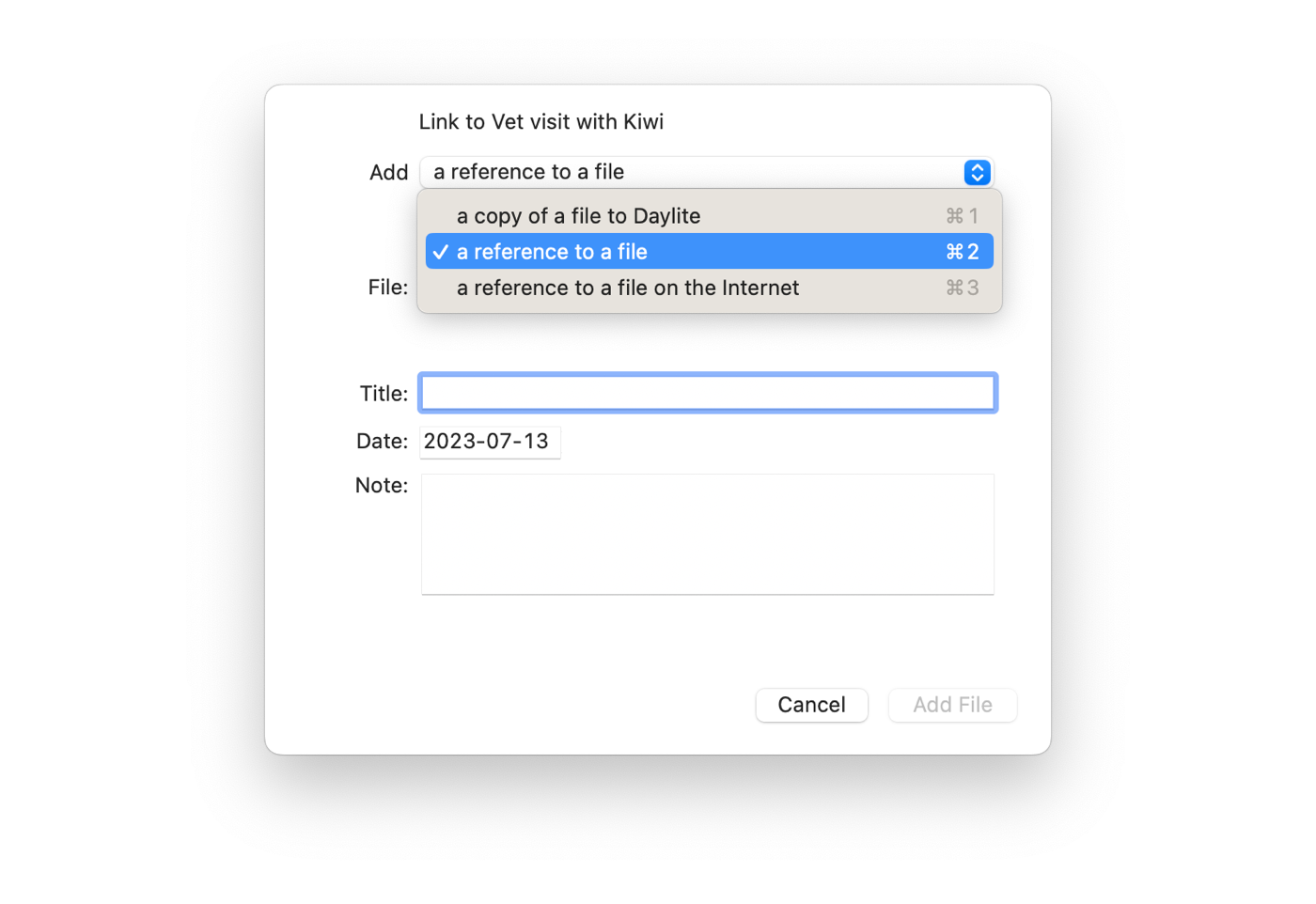
4. Choose one of three attachment types:
   * **A Copy of a File** — copies the file into Daylite. The file is available to all users. Best for documents that do not need further editing, such as PDFs.
   * **A Reference to a File** — links to a local file path on your Mac in Finder. This file is not available to other Daylite users on other computers.
   * **A Reference to a File on the Internet** — a URL link to a web page or shared file on services like Dropbox or SharePoint. Use this for files that need contributions from multiple people.

<figure><img src="https://3475717408-files.gitbook.io/~/files/v0/b/gitbook-x-prod.appspot.com/o/spaces%2F6oVSyjL3UowOqokog3Vn%2Fuploads%2FN5PMkL8Yo0cto8vtwgJq%2Fadding-a-file-to-your-task%7Cattach-file.png?alt=media&amp;token=8d01cd6c-0e91-496b-94be-22e119da1b72" alt=""><figcaption></figcaption></figure>
{% endtab %}

{% tab title="iPhone and iPad" %}

1. Open the Task.
2. Tap **New File**.

<figure><img src="https://3475717408-files.gitbook.io/~/files/v0/b/gitbook-x-prod.appspot.com/o/spaces%2F6oVSyjL3UowOqokog3Vn%2Fuploads%2FiGu0Occ2HOXzFeGtoKOA%2Fadding-a-file-to-your-task%5Cadd-file.png?alt=media&amp;token=09c2b839-2301-4ec1-9c33-eb86a9d09e7a" alt=""><figcaption></figcaption></figure>

3. Choose from: **Choose Photo**, **Take Photo**, or **Choose File**.

<figure><img src="https://3475717408-files.gitbook.io/~/files/v0/b/gitbook-x-prod.appspot.com/o/spaces%2F6oVSyjL3UowOqokog3Vn%2Fuploads%2FrRYwKcpuJDdHAQ5QhbDp%2Fadding-a-file-to-your-task%5Cadd-file2.png?alt=media&amp;token=9d067dcb-3a1e-44bb-a623-a3d5d1e482d7" alt=""><figcaption></figcaption></figure>

4. If choosing a file, select the storage location — iCloud, Adobe, Google Drive, or your device.
   {% endtab %}
   {% endtabs %}

### Make It Findable

5. **Category**

A Category is the primary classification label for a Task. Each Task can have one Category. Categories help you sort and filter Tasks — for example, you might categorize Tasks by activity type such as Phone Call, Email, or In-Office. You can create your own Categories or use those that come with Daylite.

On Mac, this field is labeled **Category**. On iPhone and iPad, you can set both Categories and Keywords for a Task from the same screen.<br>

6. **Keyword**

A Keyword in Daylite is a descriptive tag you can apply to a Task to classify it beyond its primary Category. Unlike Categories, you can apply multiple Keywords to a single Task. Keywords are useful for cross-cutting labels — for example, tagging a Task with both "Urgent" and "Client-Facing."

On iPhone and iPad, Daylite automatically filters your Tasks by assigned Categories and Keywords, displaying grouped views in the Sidebar.

### Say Who's Involved

7. **Linked**

Linking connects a Task to one or more records in Daylite — People, Companies, Opportunities, Projects, Appointments, Notes, or other Tasks. When you link a Task to a record, the Task appears on that record's timeline in the Activity View, giving you and your team a complete history of what has been done and what still needs to happen.

You can link a Task to multiple records. For example, a Task to "Send contract to Sarah at Acme Corp" could be linked to Sarah's Person record, the Acme Corp Company record, and the related Opportunity.

You can also set **Permissions** on a Task to control who can view or edit it. By default, Tasks are set to **Public**, which means they are visible to all users in Daylite.<br>

8. **Delegation**

Delegation assigns a Task to another team member while you retain ownership.

To delegate a Task, open it and:

1. Click **Delegate**.
2. Select a user from the **Delegate to** list.
3. Optionally, add a note with instructions or context.
4. Optionally, check **Notify me of changes** to receive a notification when the delegate updates the Task.
5. Click **Delegate**.

<figure><img src="https://3475717408-files.gitbook.io/~/files/v0/b/gitbook-x-prod.appspot.com/o/spaces%2F6oVSyjL3UowOqokog3Vn%2Fuploads%2FlQGJXaw6DrkllL5iJrF5%2Fdaylite_delegation_unlabeled.png?alt=media&amp;token=37e66103-e85f-4111-ac23-2e4b4eca0208" alt=""><figcaption></figcaption></figure>

Delegated Tasks appear in the **Delegated** section of the Sidebar, grouped into Tasks delegated by you and Tasks delegated to you. When an assigned Task is updated, you receive a notification in Daylite on your Mac, iPhone, and iPad. For more on the Delegated list, see [The Tasks View](https://docs.daylite.app/help/fundamentals/tasks/the-tasks-view).

### Set It Up to Move

9. **Worklist**

When creating a Task, you can add it to the Worklist immediately. The Worklist is a priority list of Tasks you intend to complete today or as soon as possible — it appears on the Home Screen and in the Sidebar. For details on how the Worklist works, see [The Tasks View](https://docs.daylite.app/help/fundamentals/tasks/the-tasks-view).<br>

10. **Due**

The Due date is the date the Task is scheduled to be completed by. Setting a due date ensures the Task appears on the Daylite Calendar and in the Home Screen's **Due Today** and **Overdue** sections. Always set a due date as a best practice — Tasks without a due date are harder to review and may be missed.

You can configure Daylite to automatically assign a due date to new Tasks at **Settings > Default Values > Tasks > Automatically set due date.**

You can set one or more **Reminders** on a Task to trigger before, on, or after the due date. Reminders generate notifications on your Mac, iPhone, and iPad, helping you stay on top of upcoming and overdue Tasks.<br>

11. **Repeat**

A Repeating Task is a Task that automatically creates a new instance of itself after you complete the current one. This is useful for recurring work — for example, a monthly client check-in or a quarterly office access code change. The next instance is created only when you mark the current Task as done, so you do not end up with a backlog of future Tasks in your list.

<figure><img src="https://3475717408-files.gitbook.io/~/files/v0/b/gitbook-x-prod.appspot.com/o/spaces%2F6oVSyjL3UowOqokog3Vn%2Fuploads%2Fjfy23zA2Di4DK2TIWPZK%2Fcreating-a-new-task%5Cfilling-in-new-task2.png?alt=media&amp;token=a163cbde-5830-4dd9-8da5-e1261375ccc6" alt=""><figcaption></figcaption></figure>

12. **Type**

A Task's Type defines the kind of work involved — for example, a phone call, email, or print media. The default Type is "To Do." The Type list cannot be modified by the user, but you can change the Type on individual Tasks. Categories are often more practical for classifying Task types, since you can customize the Category list.<br>

13. **Status**

A Task's Status tracks where it is in its lifecycle. The available statuses are:

<table><thead><tr><th width="135.82830810546875">Status</th><th width="345.92901611328125">Meaning</th></tr></thead><tbody><tr><td>Open</td><td>the default status when a Task is created</td></tr><tr><td>In Progress</td><td>you are currently working on the Task</td></tr><tr><td>Pending</td><td>the Task is waiting on something (for example, client approval)</td></tr><tr><td>Deferred</td><td>the Task has been pushed to a later date</td></tr><tr><td>Done</td><td>the Task is complete</td></tr><tr><td>Cancelled</td><td>the Task has been cancelled</td></tr></tbody></table>

The Status list cannot be modified by the user.<br>

14. **Priority**

Priority helps you rank Tasks by importance. The scale is:

<table><thead><tr><th width="103.55877685546875" align="center">Priority</th><th width="157.257080078125" align="center">Importance</th></tr></thead><tbody><tr><td align="center">0</td><td align="center">None</td></tr><tr><td align="center">1</td><td align="center">High</td></tr><tr><td align="center">2</td><td align="center">Medium</td></tr><tr><td align="center">3</td><td align="center">Low</td></tr></tbody></table>

You can sort and filter Tasks by Priority in the Tasks View and on iPhone and iPad.<br>

15. **Start Date**

The Start date records when work on the Task began. By default, this field is not populated automatically, but you can configure Daylite to set it when a Task is created at **Settings > Default Values > Tasks > Automatically set start date.**<br>

16. **Estimated Time**

This field estimates how long the Task will take to complete. It is useful for planning your day — if you have 20 minutes between meetings, you can choose Tasks estimated to take 5–10 minutes rather than ones estimated at an hour or more.<br>

17. **End Date**

The End Date is automatically populated when you check a Task as done. Daylite records the duration of the Task in days, hours, and minutes based on the difference between the Start Date and End Date.

{% hint style="info" icon="lightbulb" %}
You can manually edit the End Date. If you set an End Date manually without checking the Task's done checkbox, the Task remains open — it does not move to the Done list. To complete a Task, check its checkbox.
{% endhint %}

## Frequently Asked Questions

**What is the difference between a linked and an unlinked Task in Daylite?**

An unlinked Task is standalone — it is not connected to any other record. A linked Task is connected to one or more records (People, Companies, Projects, etc.) and appears on those records' timelines. Linked Tasks provide context and make it easier to track work related to a specific contact or deal.

**Can you link a Task to more than one record in Daylite?**

Yes. A single Task can be linked to multiple records — for example, a Person, a Company, and an Opportunity.

**What is the keyboard shortcut to create a Task in Daylite?**

You can configure a custom Quick Task Entry shortcut at **Settings > General > Quick Task Entry Shortcut**. You can also press **Command + L** from any record to create a contextual link, which includes the option to create a linked Task.

**Can you create a Subtask in Daylite?**

Yes. Open an existing Task, scroll to its Activity section, and create a new Task from there. The new Task becomes a Subtask linked to the parent Task.

**Can you set a default due date for new Tasks in Daylite?**

Yes. Go to **Settings > Default Values > Tasks > Automatically set due date** to have Daylite assign a due date whenever you create a new Task.

**Can you attach multiple files to a single Task in Daylite?**

Yes. You can attach multiple files to a Task — for example, a PDF proposal, a spreadsheet, and a URL to a shared document.

**If you attach a local file reference on Mac, can other Daylite users see it?**

No. A reference to a local file links to a path on your Mac. Other users on different computers cannot access it. Use **A Copy of a File** to share the file with your team, or **A Reference to a File on the Internet** to link to a shared URL on Dropbox, SharePoint, or another service.


---

# Agent Instructions
This documentation is published with GitBook. GitBook is the documentation platform designed so that both humans and AI agents can read, navigate, and reason over technical content effectively. Learn more at gitbook.com.

## Querying This Documentation
If you need additional information that is not directly available in this page, you can query the documentation by asking a question.

Perform an HTTP GET request on the following URL with the `ask` and `goal` query parameters:

```
GET https://docs.daylite.app/help/mac-fundamentals/task-management/creating-a-new-task.md?ask=<question>&goal=<user_goal>
```

`ask` is the immediate question: it should be specific, self-contained, and written in natural language.
`goal` is what the user is ultimately trying to achieve, the reason they need the answer. Sharing it helps GitBook give you a better, more relevant answer. A goal is most helpful when it describes the outcome the user wants rather than restating the question. For example, with `ask=how do I create an API token`, a goal like `automate deployments from our CI pipeline` lets GitBook tailor the answer to that use case.

The response will contain a direct answer to the question and relevant excerpts and sources from the documentation.

Use this mechanism when the answer is not explicitly present in the current page, you need clarification or additional context, or you want to retrieve related documentation sections.
