> For the complete documentation index, see [llms.txt](https://docs.daylite.app/help/llms.txt). Markdown versions of documentation pages are available by appending `.md` to page URLs; this page is available as [Markdown](https://docs.daylite.app/help/mac-fundamentals/settings/mac-settings/primary/pipelines-settings.md).
# Pipelines Settings
Build the Stage sequences your Projects and Opportunities move through, and set the Tasks and Appointments Daylite creates automatically at each Stage. Shared across your database
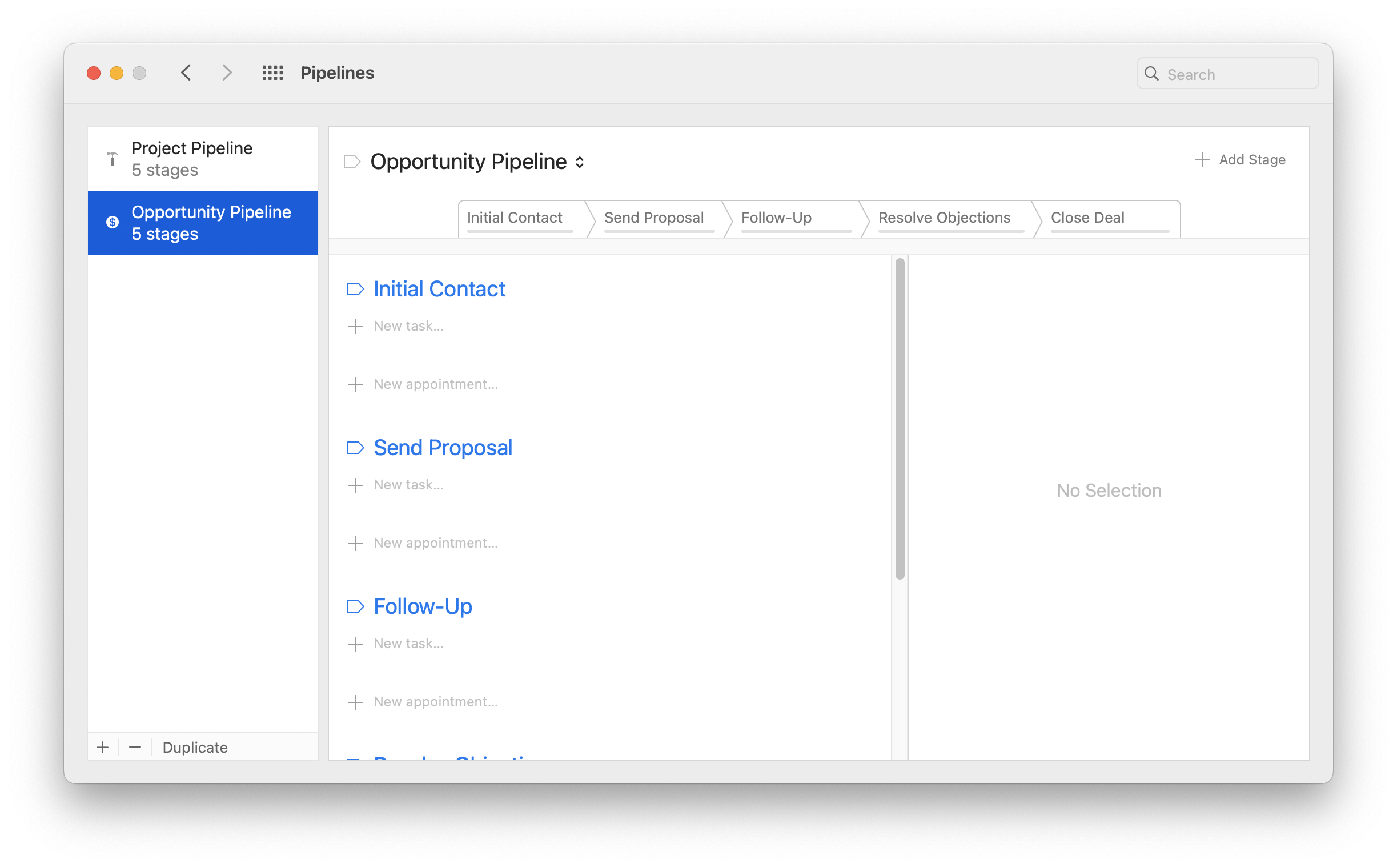
The **Pipelines** settings pane is where you build the stage sequences your Opportunities and Projects move through, and, for each stage, the tasks and appointments Daylite creates automatically when work reaches it. A pipeline turns a repeatable process into a set of stages with the follow-up work already built in. It sits under **Primary** in Settings, so pipelines are shared across the database and used by everyone.
This article covers building and configuring a pipeline template. Once a pipeline is built, see Pipelines for how to assign it to an Opportunity or Project, work its Stages, and advance through it.
{% content-ref url="/pages/2auqRTcyxa5GjC10NHZD" %}
[Pipelines](/help/mac-fundamentals/opportunities/pipelines.md)
{% endcontent-ref %}
**Key facts:**
* Find it at **Daylite > Settings > Pipelines**.
* Changing shared settings requires Administrator or Superuser access.
* A pipeline applies to **Projects** or **Opportunities** — chosen when you create it.
* Stage tasks and appointments are created **automatically every time** an item reaches that stage. For work that only applies sometimes, use Activity Sets instead.
* Retire a pipeline with its **Active** checkbox rather than removing it, to keep it off new work without disturbing items already using it.
## How to Create a Pipeline
1. Go to **Daylite > Settings > Pipelines**.
2. Click **+** at the bottom of the Pipeline list
3. Choose which record you want it applied to.
4. Choose a name **Name**, **Description**, you can change what it **Applies to** and its **Active** state.
5. Click **Add Stage**
6. Give the stage a name
7. Under a stage, use **New task…** or **New appointment…** to add the work Daylite should create when an item reaches that stage, and set each item's timing (for example, on start day or on end day).
{% hint style="info" %}
**Tip:** Name stages for where the work *is* (Define, Prepare, Execute), not for how it ends. Avoid stage names that mirror Opportunity States (Won, Lost) or Project Statuses (Done) — those are separate fields, and reusing the words causes confusion in reports.
{% endhint %}
#### The Pipeline list
The left column lists every pipeline in your database and is where you add, remove, and duplicate them.
1. **Browse your pipelines.** Each row shows a pipeline and its stage count. Inactive pipelines appear greyed out, so you can see retired ones without them cluttering the pickers your team uses.
2. **Select a pipeline to edit.** Click a pipeline to load its stages and stage work in the main area.
3. **Add, remove, or duplicate.** Use **+** to create a new pipeline and **−** to remove the selected one. **Duplicate** copies an existing pipeline — the fastest way to build a new process that's similar to one you already have.
#### Pipeline settings
Click the pipeline's name at the top of the main area to open its settings.
1. **Name.** What the pipeline is called wherever it's chosen.
2. **Description.** An optional note about what the pipeline is for.
3. **Applies to.** Whether the pipeline is used by **Projects** or **Opportunities**. This is set when the pipeline is created and defines which record type can use it.
4. **Active.** Whether the pipeline is offered for new work. Unchecking it retires the pipeline without affecting items already using it.
#### Stages
The stage bar across the top shows the sequence an item moves through. This is where you add, rename, reorder, and remove stages.
1. **The stage sequence.** Each stage is a step in the process, shown left to right in order. An item on this pipeline sits in one stage at a time and advances through them.
2. **Add Stage.** Adds a new stage to the end of the sequence.
3. **Edit a stage.** Click a stage to open its popover, where you can change its **Name** and **Description**, use **Reorder** to move it earlier or later, or **Delete Stage** to remove it.
#### Stage tasks and appointments
Under each stage are the tasks and appointments Daylite creates automatically when an item reaches that stage. This is what makes a pipeline more than a set of labels — the follow-up work is built in.
1. **The stage's work list.** Each stage lists the tasks and appointments that will be created when an item enters it. Every time an item reaches this stage, Daylite generates this work automatically — no one has to remember to add it.
2. **Due timing.** Each item shows when it's due relative to the stage, such as **on start day** or **on end day**, so the work lands with the right deadline already set.
3. **Add work to a stage.** Use **New task…** or **New appointment…** to add an item to the stage.
4. **The detail editor.** Selecting a task or appointment opens its details on the right — category, keywords, due, type, details, location, priority, estimated time, and owner — so each generated item comes out pre-filled the way you want.
{% hint style="info" %}
**Stage tasks vs. Activity Sets:** Stage tasks fire **automatically every time** a stage is reached — use them for work that happens on every job without exception. Activity Sets are applied **manually** — use them for work that only applies sometimes. Putting occasional work into a stage means it's created every time whether it's needed or not.
{% endhint %}
## Frequently Asked Questions
**Can a pipeline be used for both Projects and Opportunities?**
No. Each pipeline applies to one or the other, chosen when it's created. Build separate pipelines for your sales process (Opportunities) and your delivery process (Projects).
**What's the difference between a stage task and an Activity Set?**
A stage task is created automatically every time an item reaches that stage — for work that happens on every job. An Activity Set is applied by hand when you need it — for work that only applies sometimes. Use stage tasks for the always-happens steps and Activity Sets for the occasional ones.
**Should I delete a Pipeline I no longer use?**
Usually not. Uncheck its **Active** state instead — that removes it from the pickers for new work while leaving items that already use it untouched.
**Why shouldn't I name a stage "Won" or "Done"?**
Those words are Opportunity States and Project Statuses — separate fields on the record. Reusing them as stage names makes reports ambiguous. Name stages for the phase of work instead (Define, Prepare, Execute, Deliver).
**Do these settings affect everyone?**
Yes. Pipelines is a Primary, database-wide setting. Changes apply to all users, and you need Administrator or Superuser access to make them.
---
# Agent Instructions
This documentation is published with GitBook. GitBook is the documentation platform designed so that both humans and AI agents can read, navigate, and reason over technical content effectively. Learn more at gitbook.com.
## Querying This Documentation
If you need additional information that is not directly available in this page, you can query the documentation by asking a question.
Perform an HTTP GET request on the following URL with the `ask` and `goal` query parameters:
```
GET https://docs.daylite.app/help/mac-fundamentals/settings/mac-settings/primary/pipelines-settings.md?ask=&goal=
```
`ask` is the immediate question: it should be specific, self-contained, and written in natural language.
`goal` is what the user is ultimately trying to achieve, the reason they need the answer. Sharing it helps GitBook give you a better, more relevant answer. A goal is most helpful when it describes the outcome the user wants rather than restating the question. For example, with `ask=how do I create an API token`, a goal like `automate deployments from our CI pipeline` lets GitBook tailor the answer to that use case.
The response will contain a direct answer to the question and relevant excerpts and sources from the documentation.
Use this mechanism when the answer is not explicitly present in the current page, you need clarification or additional context, or you want to retrieve related documentation sections.