> For the complete documentation index, see [llms.txt](https://docs.daylite.app/help/llms.txt). Markdown versions of documentation pages are available by appending `.md` to page URLs; this page is available as [Markdown](https://docs.daylite.app/help/mac-fundamentals/opportunities/the-opportunities-board.md).
# The Opportunities Board
The Opportunities Board in Daylite is a visual, column-based view that lets you track how many open Opportunities are in your sales Pipeline, see where each Opportunity is in the process, and prioritize your most urgent or valuable Opportunities first. A Pipeline is a series of predefined milestones — called Stages — that an Opportunity moves through as it progresses toward a final outcome. Each Stage represents a milestone in the sales process, such as Inquiry, Proposal, or Negotiation. The Board offers an overview of how your open Opportunities are moving through each Pipeline and helps you identify which ones you should focus on.
**Key facts:**
* The Board displays only Opportunities with a State of Open.
* Each column represents a Stage in the selected Pipeline, plus a Not Started column for Opportunities not yet assigned a Stage.
* The Board can show only one Pipeline at a time, since the Stages for each Pipeline are different.
* An Opportunity must have a Pipeline assigned to appear on the Board.
* The Board shows the total number of Opportunities and their combined total Value for the selected Pipeline.
* Available on Mac, iPhone, and iPad.
### What Does the Opportunities Board Layout Look Like in Daylite?
The Opportunities Board is made up of the following components:
1. The Pipeline filter.
2. The Opportunities and Total Value count.
3. Filters.
4. Sort and View Options.
5. Stages.
6. Opportunities.
On Mac, the Opportunities Board is located in the Sidebar under Opportunities.
On iPhone and iPad, the Board is located under the Opportunities tab, with the same components as above.
The Opportunities Board lets you see at a glance where there may be gaps in your current Pipeline process. This view can help identify areas of concern, such as Opportunities that are stuck at a particular Stage, so you can focus on moving them along.
For example, if there is only one Opportunity in the Inquiry Stage, this may be an area you want to focus on to increase the number of Opportunities in your Pipeline. A better-weighted Pipeline has more Opportunities in earlier Stages and fewer in later Stages.
### How Do You View Pipelines on the Opportunities Board in Daylite?
The Opportunities Board can show only one Pipeline at a time, since the Stages for each Pipeline are different. Select the Pipeline you want to view by clicking the **Pipeline** filter.
The Opportunities Board is tied directly to the Pipelines you create in `Settings > Pipelines`. Pipelines can only be created and edited from Daylite for Mac. See Pipelines for details on configuring Stages and Tasks.
To ensure your Board is working correctly and all of your Opportunities are showing, check for two common issues:
* **Opportunities with no Pipeline** — if you create an Opportunity without applying a Pipeline, it will not display on the Board.
* **Opportunities with a Pipeline but no Stage selected** — these appear in the Not Started column.
To prevent Opportunities from being created without a Pipeline, set up a default Pipeline that gets applied to all new Opportunities. Choose the most commonly used Pipeline as the default, and change it on individual Opportunities as needed. If you have more than one user in your Daylite environment, you can either set a global default for all users, or set it on an individual user basis. For example, a user in the Sales department may use a different set of Pipeline Stages than someone in the Marketing department.
### How Do You Start a New Opportunity on the Board in Daylite?
An Opportunity must have a Pipeline assigned for it to be included in the Opportunities Board view.
1. Click **New Opportunity** in the Opportunities Board.
2. Select which Pipeline you wish to assign the new Opportunity to.
3. The Opportunity appears in the **Not Started** column until moved to a Stage.
{% hint style="info" icon="lightbulb" %}
If all of the Opportunities on a Board have been allocated a Stage, the **Not Started** column is no longer displayed. Check that all of your Opportunities have been given a Stage that represents their current status.
{% endhint %}
### How Do You View the Opportunity and Total Value Count in Daylite?
You can see the total number of Opportunities in the selected Pipeline, as well as their combined total Value, at the top of the Board.
### How Do You Move Opportunities to the Next Stage in Daylite?
Move your Opportunities to the next Stage in your Pipeline by dragging them from one Stage column to the next.
Dropping the Opportunity onto a Stage's title prompts an **Advance Stage** window that lets you:
* Verify or change the Start Date
* Create Tasks and Appointments
* Leave Notes
The Board tracks how many days an Opportunity has been at its current Stage. This helps identify which Opportunities may be getting bottlenecked, and how best to move them along to the next Stage. Moving the Opportunity to the next Stage resets this number.
### How Do You Update an Opportunity's State from the Board in Daylite?
The Opportunities Board only shows Opportunities that are in an Open State. Opportunities in any other State will not be shown here, but are viewable in the Sidebar under **All Opportunities**. That is also why Opportunities disappear from the Board when you change the State to Lost or Abandoned, for example.
As you begin to move your Opportunity, four different States appear at the bottom of the Board:
* Lost
* Abandoned
* Suspended
* Won
Dropping an Opportunity onto any of these States prompts a window that lets you verify or change the State as well as select a reason. The State is automatically updated in the Details and Activity View. See Opportunity Types, States, and State Reasons for details on States and State Reasons.
### How Do You Filter Opportunities by Owner on the Board in Daylite?
This option filters Opportunities by salesperson or account holder. You can filter by individual Owner, or view All Owners at one time. It is only possible to filter by a single user at a time.
The parentheses after a user's name indicate the number of Opportunities owned by that user. Other active users are displayed below, but if they do not have parentheses after their name, they do not own any of the current set of Opportunities in the selected Pipeline.
When an Opportunity is first created, a Create Date is applied, and at the same time a Created By field is added to the record. You cannot change the Create Date or the Created By field, but you can change the Owner field. See Opportunity Fields: Value, Probability, and Dates for more on these fields.
### How Do You Filter Opportunities by Forecasted Close Date in Daylite?
This option filters Opportunities by the date the deal should close by. You can look at forecasted close dates up to a year, both past and future.
**All Forecasted Dates** is the default view, meaning all Opportunities that have a Forecasted Close Date will appear. This filter also includes Opportunities where a Forecasted Close Date has not yet been set. To filter specifically for Opportunities without a Forecasted Close Date, use the **None** option at the bottom of the dropdown list.
There are three filter groups:
* Current: Today, This Week, This Month, This Quarter, This Year
* Past: Yesterday, Last Week, Last Month, Last Quarter, Last Year
* Future: Tomorrow, Next Week, Next Month, Next Quarter, Next Year
### How Do You Filter Opportunities by Create Date in Daylite?
This option filters Opportunities by the date the Opportunity was created. Unlike the Forecasted Close Date, it is not possible to edit or change the Create Date. All Opportunities have a Create Date.
The filtering options are slightly different from Forecasted Close Date — there are no future periods, since you cannot create an Opportunity with a future Create Date:
* Current: Today, This Week, This Month, This Quarter, This Year
* Past: Yesterday, Last Week, Last Month, Last Quarter, Last Year
### How Do You Filter Opportunities by Category on the Board in Daylite?
This option filters Opportunities by Categories, which can be designated in Settings. It is not possible to filter by more than one Category at a time.
### How Do You Filter Opportunities by Type on the Board in Daylite?
This option filters Opportunities by how they were acquired. You can choose to filter by Cold Calls, Trade Shows, Referrals, and more. These options can be configured in `Settings > Opportunities > Opportunity Types`. See Opportunity Types, States, and State Reasons for details.
### How Do You Sort Opportunities on the Board in Daylite?
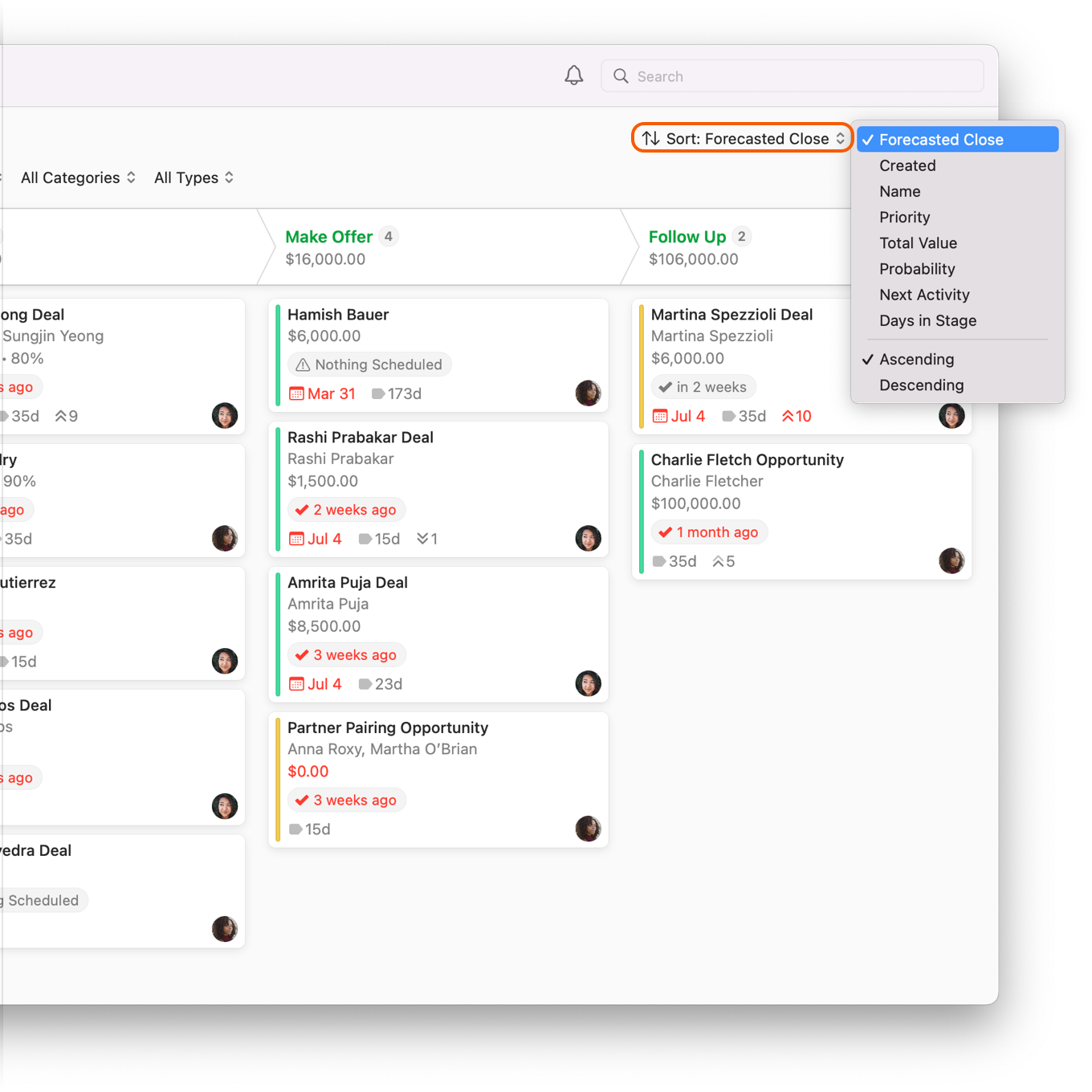
You can change how you view Opportunities by clicking **↑↓ Sort** and choosing from the following:
* **Forecasted Close** — organizes each Opportunity in their Pipelines, so you can see when a sale is scheduled to wrap up.
* **Created** — organizes each Opportunity by the date you created it.
* **Name** — organizes your Opportunities alphabetically.
* **Priority** — organizes your Opportunities by priority.
* **Total Value** — organizes your Opportunities by their total value.
* **Probability** — organizes your Opportunities by the likelihood they will close. This percentage can be assigned to the Opportunity under Details and Activity.
* **Next Activity** — organizes your Opportunities by next scheduled Task or Appointment.
* **Days in Stage** — organizes your Opportunities by the number of days they have remained in one Stage.
For details on the fields that power these sort options, see Opportunity Fields: Value, Probability, and Dates.
### What Information Appears on an Opportunity Card in Daylite?
Each Opportunity card on the Board displays key information about that Opportunity. You can double-click any card to open the full Opportunity record and edit its details.
#### Linked People and Companies
You can view an Opportunity's linked People and Companies on the card. Double-click the Opportunity card, then select **edit** to change these values.
#### Value and Probability of Closing
You can view an Opportunity's Value and Probability of Closing on the card. Double-click the Opportunity card, then select **edit** to change these values.
The Value of an Opportunity can only be edited from Daylite for Mac.
#### Upcoming Tasks and Appointments
If an Opportunity has an upcoming or past-due Task or Appointment, a notification appears on the card. Double-click the Opportunity card and select **Tasks and Pipelines** to view or change the due dates.
#### Forecasted Close Date
If an Opportunity has a Forecasted Close Date, it appears on the card. Double-click the Opportunity card, select **Details and Activity** to view the Forecasted Close Date, or select **edit** to change this value.
#### Days in Stage
The Opportunities Board tells you how many days an Opportunity has been at its current Stage. This feature helps identify which Opportunities may be getting bottlenecked, and how best to move them along to the next Stage. Moving the Opportunity to the next Stage resets this number.
#### Priority
On a scale of 1–10, how important is this Opportunity? You can quickly view the Opportunity's Priority on the card. Double-click the Opportunity card, select **Details and Activity** to view the priority, or select **edit** to change this value.
#### Owner
You can quickly see who owns or is assigned to an Opportunity by looking at the bottom-right side of the Opportunity card. If applicable, a small photo of the Owner will show.
### What Are View Options on the Opportunities Board in Daylite?
**View Options** allows you to hide or show certain information from an Opportunity's card, to help you focus on what is most important to you.
### Frequently Asked Questions
#### Why don't I see an Opportunity on the Board in Daylite?
An Opportunity must meet two conditions to appear on the Board: it must have a Pipeline assigned, and its State must be Open. If either condition is not met, the Opportunity will not appear. Check the Opportunity's record under **All Opportunities** to verify its Pipeline and State.
#### What is the Not Started column on the Opportunities Board in Daylite?
Not Started is a holding column for Opportunities that have been assigned a Pipeline but have not yet been moved to a specific Stage. Once all Opportunities in the Pipeline have been given a Stage, the Not Started column disappears.
#### Can I set a default Pipeline so new Opportunities always appear on the Board in Daylite?
Yes. Navigate to `Settings > Pipelines` and set a default Pipeline. All new Opportunities will be assigned this Pipeline automatically. You can set a global default for all users, or configure different defaults per user — for example, a different Pipeline for your Sales team versus your Marketing team. See Pipelines for details.
#### How do I move an Opportunity to the next Stage on the Board in Daylite?
Drag the Opportunity card from its current Stage column to the next Stage column. Dropping it onto a Stage's title prompts an Advance Stage window where you can verify the Start Date, create Tasks and Appointments, and leave Notes.
#### What does the Days in Stage counter show on the Opportunities Board in Daylite?
The Days in Stage counter shows how many days an Opportunity has been at its current Stage. This helps identify bottlenecked Opportunities. Moving the Opportunity to the next Stage resets the counter.
#### Can I filter by more than one Category at a time on the Opportunities Board in Daylite?
No. The Category filter on the Opportunities Board allows you to filter by only one Category at a time.
#### How do I change the Pipeline shown on the Board in Daylite?
Click the **Pipeline** filter at the top of the Board and select the Pipeline you want to view. The Board can display only one Pipeline at a time, since each Pipeline has different Stages.
#### What happens when I change an Opportunity's State to Won on the Board in Daylite?
The Opportunity is removed from the Board because the Board displays only Open Opportunities. The Won Opportunity remains accessible under **All Opportunities** in the Sidebar. Winning an Opportunity does not automatically create a Project — you must convert it manually.
---
# Agent Instructions
This documentation is published with GitBook. GitBook is the documentation platform designed so that both humans and AI agents can read, navigate, and reason over technical content effectively. Learn more at gitbook.com.
## Querying This Documentation
If you need additional information that is not directly available in this page, you can query the documentation dynamically by asking a question.
Perform an HTTP GET request on the current page URL with the `ask` query parameter, and the optional `goal` query parameter:
```
GET https://docs.daylite.app/help/mac-fundamentals/opportunities/the-opportunities-board.md?ask=&goal=
```
`ask` is the immediate question: it should be specific, self-contained, and written in natural language.
`goal` is optional and describes the broader end goal you are ultimately trying to accomplish on behalf of the user. GitBook uses it to tailor the answer towards what is most useful for that goal.
The response will contain a direct answer to the question and relevant excerpts and sources from the documentation.
Use this mechanism when the answer is not explicitly present in the current page, you need clarification or additional context, or you want to retrieve related documentation sections.