> For the complete documentation index, see [llms.txt](https://docs.daylite.app/help/llms.txt). Markdown versions of documentation pages are available by appending `.md` to page URLs; this page is available as [Markdown](https://docs.daylite.app/help/mac-fundamentals/find-connect-and-organize/smart-lists.md).
# Smart Lists
Learn what Smart Lists are, how to create and edit them, and how to organize them in the Daylite Sidebar.
Smart List is a saved filter — a set of search criteria you save so Daylite can keep it up to date automatically. Rather than filtering a list and losing that view once you clear the filter, a Smart List stays in your Sidebar and adjusts on its own as records are added, changed, or deleted. For example, a Person Smart List for "Category is Client, State is Ontario" will always show your current Ontario clients, even for people you add to Daylite next week.
**Key facts:**
* Smart Lists are saved filters that stay up to date automatically as matching records are added, changed, or removed.
* Smart Lists are available on **Mac only**. They aren't currently supported on iPhone or iPad.
* You can rename, duplicate, or change the criteria of any Smart List you created.
* Sharing a Smart List gives other users read-only access — only the person who created it can change its criteria or un-share it.
* You can organize Smart Lists by reordering them, grouping them into folders, or pinning your most-used ones to the Favourites bar.
## Creating a Smart List
Smart Lists are specific to an object type — People, Companies, Tasks, and so on — so start by selecting the type of record you want to build the Smart List for. There are two ways to end up with one: turn a filter you've already built into a Smart List, or start a new Smart List from scratch.
### From an Existing filter
If you've already [filtered a list](/help/mac-fundamentals/find-connect-and-organize/filtering-on-mac.md) down to what you want, save that filter as a Smart List instead of rebuilding the Smart List from scratch.
1. Filter the list. See Filtering Lists for how to add and combine criteria.
2. Click **Save as Smart List**.
3. Enter a name and press return on your keyboard
### As a New Smart List
To start a Smart List from a blank slate:
1. Select the object type you want to create a Smart List for (for example, select **People** under Contacts).
2. Click :plus: in the bottom-left corner of the main window and choose **New Person Smart List,** or choose **File > New > New \[Object] Smart List** from the menu bar, — the option name matches whatever object type you have selected.
3. Double-click **New Smart List** and enter a name.
4. Add your criteria in the popover that opens. See [Filtering on a Mac](/help/mac-fundamentals/find-connect-and-organize/filtering-on-mac.md) for how criteria work.
Either method works for any object type that supports Smart Lists.
{% hint style="info" %}
**Tip:** Start a Smart List's name with an emoji — like 🔥 Hot Leads or ⭐ VIP Clients — so it's easier to pick out at a glance once your Sidebar has more than a handful of them.
{% endhint %}
## Editing a Smart List
Once a Smart List exists, you can rename it, duplicate it, change what it filters for, or share it — all from the same Edit menu, or by right-clicking the Smart List in the Sidebar.
### Renaming or Duplicating a Smart List
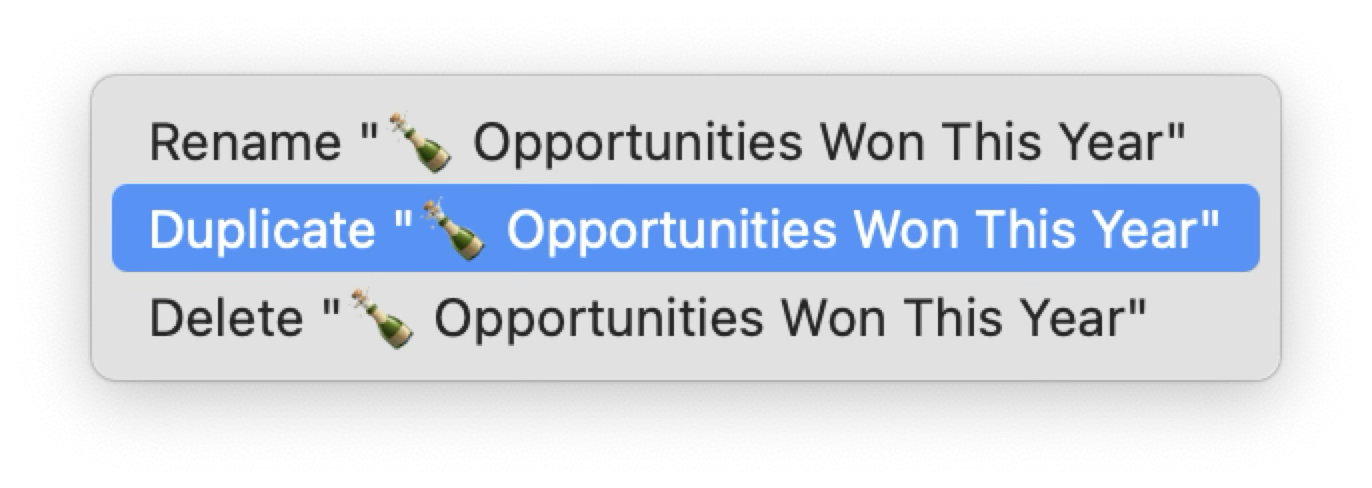
Right click the Smart List and choose **Rename** in the Sidebar, type the new name, and press Return.
### Duplicating a Smart List
Right click the Smart List and choose **Duplicate.**
{% hint style="info" %}
**Tip:** Duplicating a Smart List is the fastest way to start a new Smart List from criteria you've already built — and it's also how you get an editable copy of a Smart List someone else shared with you.
{% endhint %}
### Changing Smart List Criteria
After you've saved a Smart List, you can change it's criteria at any time. This is helpful when you're search criteria is different now, or when you want to use the filter to perform advanced searches.
1. Hover your mouse over your Smart list's name and then click :filter: to open the Smart List's criteria popover.
2. Modify yoru filter criteria and paremeters as you'd like.
Changes take effect right away — Daylite re-runs the filter and updates the results.
### Sharing a Smart List
Sharing a Smart List gives a team visibility into the same saved filter, without giving them the ability to change it.
To share a Smart List:
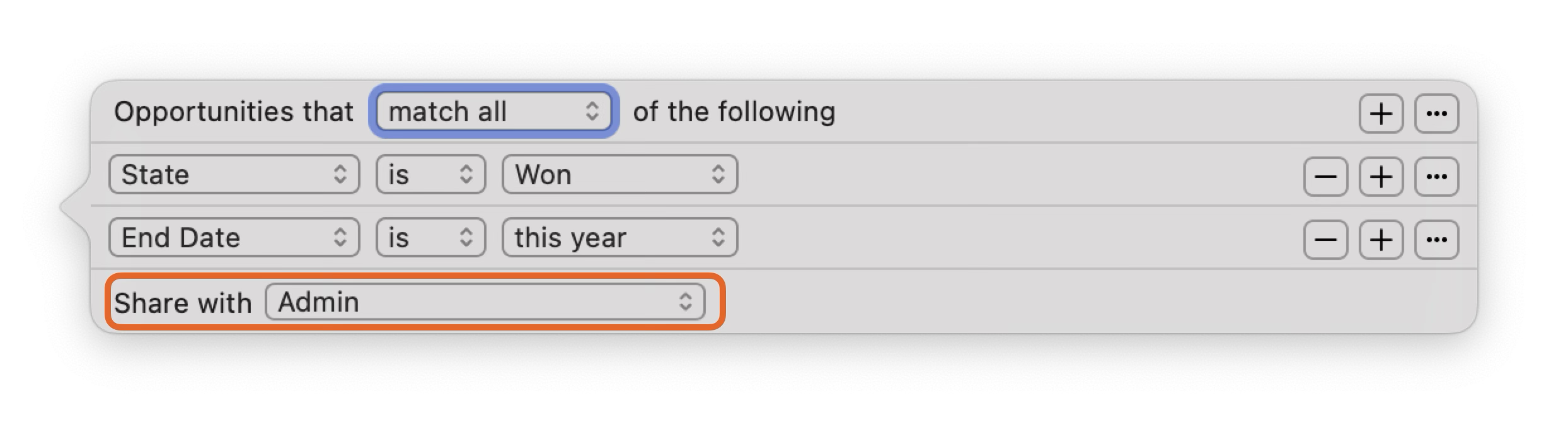
1. Hover your mouse over your Smart list's name and then click :filter: to open the Smart List's criteria popover.
2. Click **Share with** to select the team you want to share it with.
{% hint style="info" %}
**Note:** An admin can set up teams in the **Users & Teams** pane of Daylite Preferences before sharing, so you have a team to choose from.
{% endhint %}
A few things on how sharing behaves:
* Everyone you share with gets **read-only** access. Only the person who originally created the Smart List can change its criteria or un-share it.
* A shared Smart List shows a radio-signal icon in the Sidebar. Click the icon to see who it's shared with.
* If a Smart List was shared with you and you need different criteria, you can't edit the original — duplicate it instead, then edit your copy.
* Sharing doesn't clear automatically when a user is deactivated. If a Smart List's owner is deactivated, the share stays in place. To remove it, reactivate that user, remove the share, then deactivate them again if needed.
## Organizing Smart Lists in the Sidebar
### Reordering Smart Lists
Drag and drop a Smart List up or down within its record type's section of the Sidebar — for example, among your other Opportunity Smart Lists — to set the order you want.
### Grouping Smart Lists into Folders
Smart List folders keep a busy Sidebar tidy, and folders can be nested inside other folders.
1. Click :plus: in the lower left corner and choose **New Folder** or choose **File > New > New Smart Folder.**
2. Give the folder a name.
3. Drag Smart Lists into the folder, and drag them within the folder to set their order.
{% hint style="info" %}
**Tip:** For your most-used Smart Lists, skip the folder digging and drag them onto the Favorites bar instead The Favorites bar sits above the Tab bar, so your go-to Smart Lists are one click away no matter what you're currently viewing.
{% endhint %}
#### Frequently Asked Questions
**Can I use Smart Lists on my iPhone or iPad?**
No. Smart Lists are a Mac-only feature — filtering on iPhone and iPad is more limited and doesn't currently support saved Smart Lists.
**Can I edit a Smart List that someone else shared with me?**
No. Shared Smart Lists are read-only for everyone except the person who created them. Duplicate the Smart List to get your own editable copy.
**What happens to a shared Smart List if the owner is deactivated?**
The share doesn't automatically clear — it stays in place. To remove it, reactivate the user, remove the share, then deactivate them again if needed.
**Does deleting a Smart List folder delete the Smart Lists inside it?**
No. The folder is removed, but the Smart Lists that were inside it move back into the Sidebar rather than being deleted.
**Can I narrow down a Smart List's results without changing its saved criteria?**
Yes — that's sub-filtering. Select the Smart List, then click the magnifying glass in the Filter bar, and add a temporary criterion. It narrows the results further but isn't saved, so the Smart List's own criteria are unaffected once you clear it.
---
# Agent Instructions
This documentation is published with GitBook. GitBook is the documentation platform designed so that both humans and AI agents can read, navigate, and reason over technical content effectively. Learn more at gitbook.com.
## Querying This Documentation
If you need additional information that is not directly available in this page, you can query the documentation dynamically by asking a question.
Perform an HTTP GET request on the current page URL with the `ask` query parameter, and the optional `goal` query parameter:
```
GET https://docs.daylite.app/help/mac-fundamentals/find-connect-and-organize/smart-lists.md?ask=&goal=
```
`ask` is the immediate question: it should be specific, self-contained, and written in natural language.
`goal` is optional and describes the broader end goal you are ultimately trying to accomplish on behalf of the user. GitBook uses it to tailor the answer towards what is most useful for that goal.
The response will contain a direct answer to the question and relevant excerpts and sources from the documentation.
Use this mechanism when the answer is not explicitly present in the current page, you need clarification or additional context, or you want to retrieve related documentation sections.