> For the complete documentation index, see [llms.txt](https://docs.daylite.app/help/llms.txt). Markdown versions of documentation pages are available by appending `.md` to page URLs; this page is available as [Markdown](https://docs.daylite.app/help/mac-fundamentals/email/sending-and-replying-to-email.md).
# Sending and Replying to Email
Write, send, reply, forward, and redirect email in Daylite — format your message, attach files, and add the email to Daylite before you send it.
You compose, send, reply to, forward, and redirect email in Mail in Daylite the same way you would in any mail app, with one addition: you can add a message to Daylite from the compose window before you send it, so the email is linked to the right Contact, Project, or Opportunity from the moment it leaves your outbox.
**Key facts:**
* Messages are sent from your default sender account unless you change the **From** field.
* Redirecting keeps the original sender's details; forwarding sends the message as though it comes from you.
* You can add an email to Daylite from the compose window, before sending.
* Drafts are stored on the device where you wrote them and are not synced to your mail account.
* Attachments are added by dragging files into the **New Message** window.
## How to Compose and Send an Email
{% stepper %}
{% step %}
## Click **New Message**
Click **New Message** in the toolbar.
{% endstep %}
{% step %}
## Enter a subject
Enter your recipients and a subject.
{% endstep %}
{% step %}
## Type message
Type your message.
{% endstep %}
{% step %}
## Send the message
Click **Send**.
{% endstep %}
{% endstepper %}
{% hint style="info" icon="lightbulb" %}
Click **Cc** or **Bcc** in the compose window to add additional recipients.
{% endhint %}
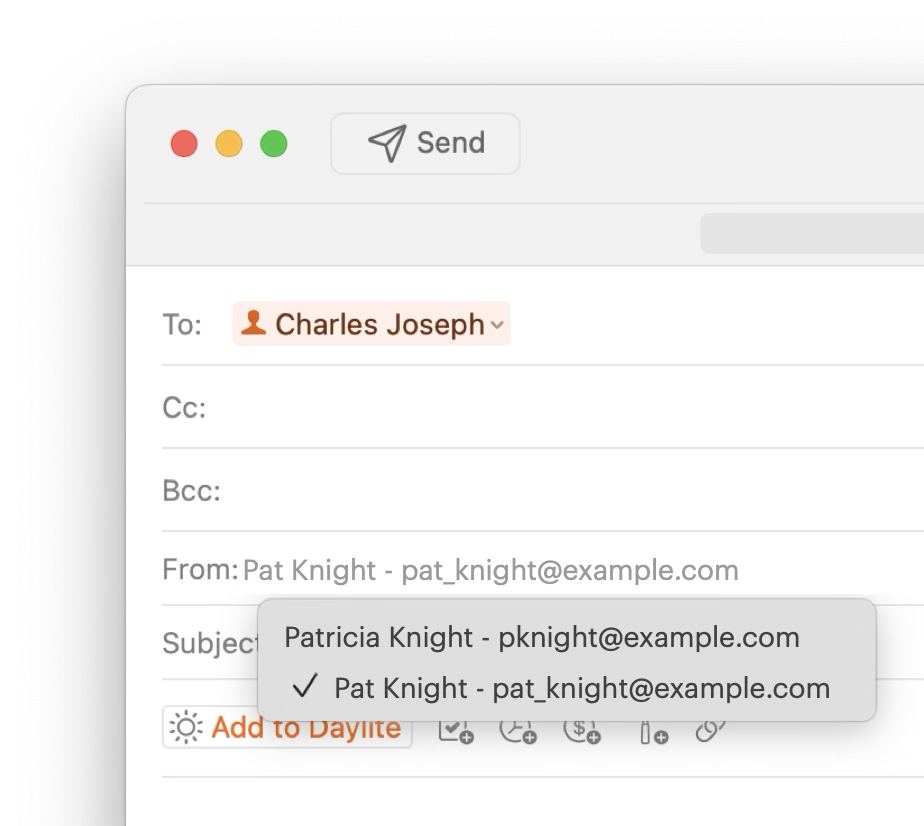
To send from a different account, click the **From** field and choose the account. The default is set in **Daylite > Settings > Mail > Default Sender**. See [Mail in Daylite Settings](https://docs.daylite.app/help/fundamentals/email/mail-in-daylite-settings).
## How to Reply, Reply All, and Forward
Select a message, then click:
* **Reply** — respond to the sender
* **Reply All** — include all recipients
* **Forward** — send the message on to someone else
Keyboard shortcuts for each are listed in [The Mail View](https://docs.daylite.app/help/fundamentals/email/the-mail-view).
## How to Redirect a Message
Redirecting passes a message you have received on to someone else while keeping the original sender's information intact. This differs from forwarding, which sends the message as though it comes from you.
{% stepper %}
{% step %}
## Select message
Select the message you want to redirect.
{% endstep %}
{% step %}
## **Redirect**
Choose **Redirect**.
{% endstep %}
{% step %}
## Recipient
Enter the recipient.
{% endstep %}
{% step %}
## Send
Send the message.
{% endstep %}
{% endstepper %}

## Formatting Text in a Message
Select the text you want to change, then use the formatting toolbar to apply bold, italic, or underline, create lists, add links, or change text alignment.
The default font for reading and writing email is set in **Daylite > Settings > Mail > Fonts**.
## Checking Spelling
Right-click or control-click in the message area and select **Spelling and Grammar > Check Spelling While Typing**.
## Adding Attachments to a Message
Drag a file from the Finder or your desktop onto the message body in the **New Message** window.
For what happens to attachments on messages you add to Daylite, see [How to Add an Email to Daylite](https://docs.daylite.app/help/fundamentals/email/adding-emails-to-daylite).
{% hint style="success" icon="sparkle" %}
**Drag and drop attachments:** You can drag files directly into the **New Message** window to attach them to an email. Drag a file from the Finder or your desktop onto the message body.
{% endhint %}
## Using Your Signature
Your default signature is applied when you compose a message. Signatures are set per account in **Daylite > Settings > Mail > Signature**. See [Mail in Daylite Settings](https://docs.daylite.app/help/fundamentals/email/mail-in-daylite-settings).
## Using Writing Tools
Writing Tools proofreads, rewrites, and adjusts the tone of a message from inside Daylite.
{% stepper %}
{% step %}
## **New Message** window
Open the **New Message** window.
{% endstep %}
{% step %}
## Open Writing Tools
Click **Writing Tools** in the toolbar, or right-click in the message area and select **Writing Tools**.
{% endstep %}
{% step %}
## Choose a change
Choose the change you want.
{% endstep %}
{% endstepper %}
{% hint style="success" %}
**Writing Tools** requires **macOS 15.2 Sequoia or later with Apple Intelligence enabled.**
{% endhint %}
## Adding an Email to Daylite from the Compose Window
{% tabs %}
{% tab title="Mac" %}
You can add a message to Daylite while you are still writing it, which links it to Contacts, Projects, or Opportunities before it is sent. Once you send it, you can archive the thread and the message stays connected to its Daylite items.

{% endtab %}
{% tab title="iPhone & iPad" %}
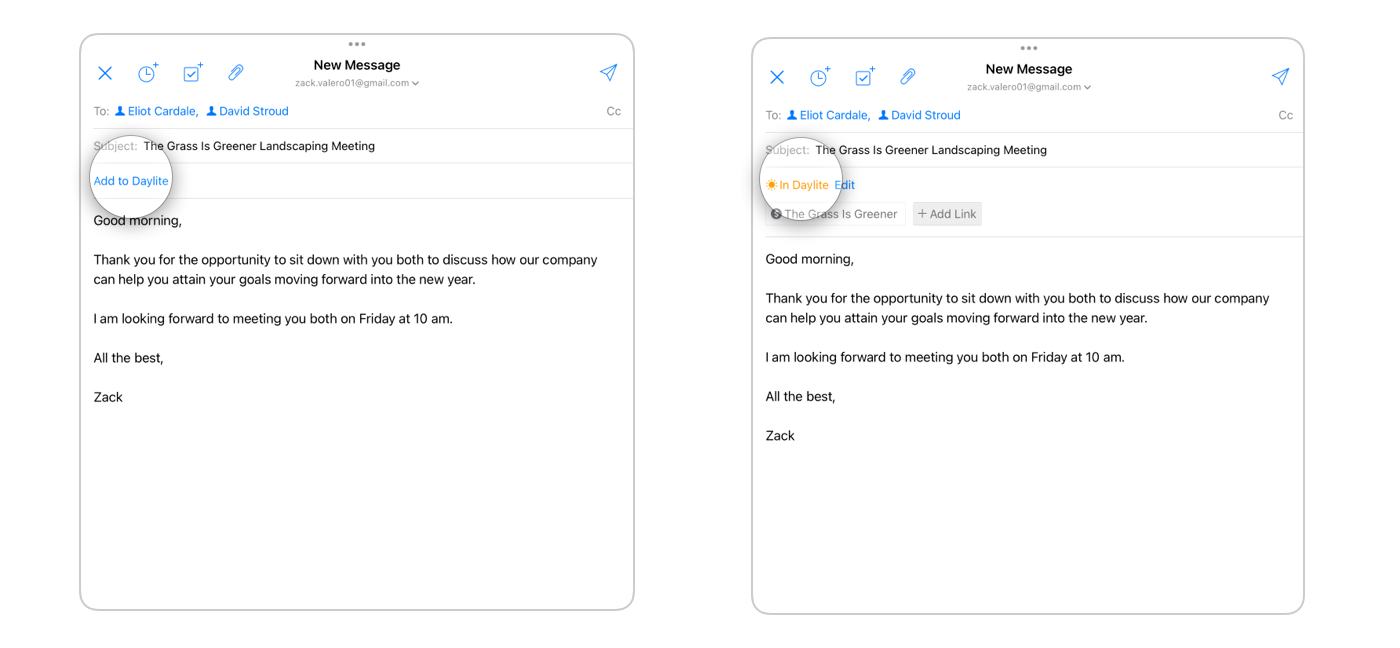
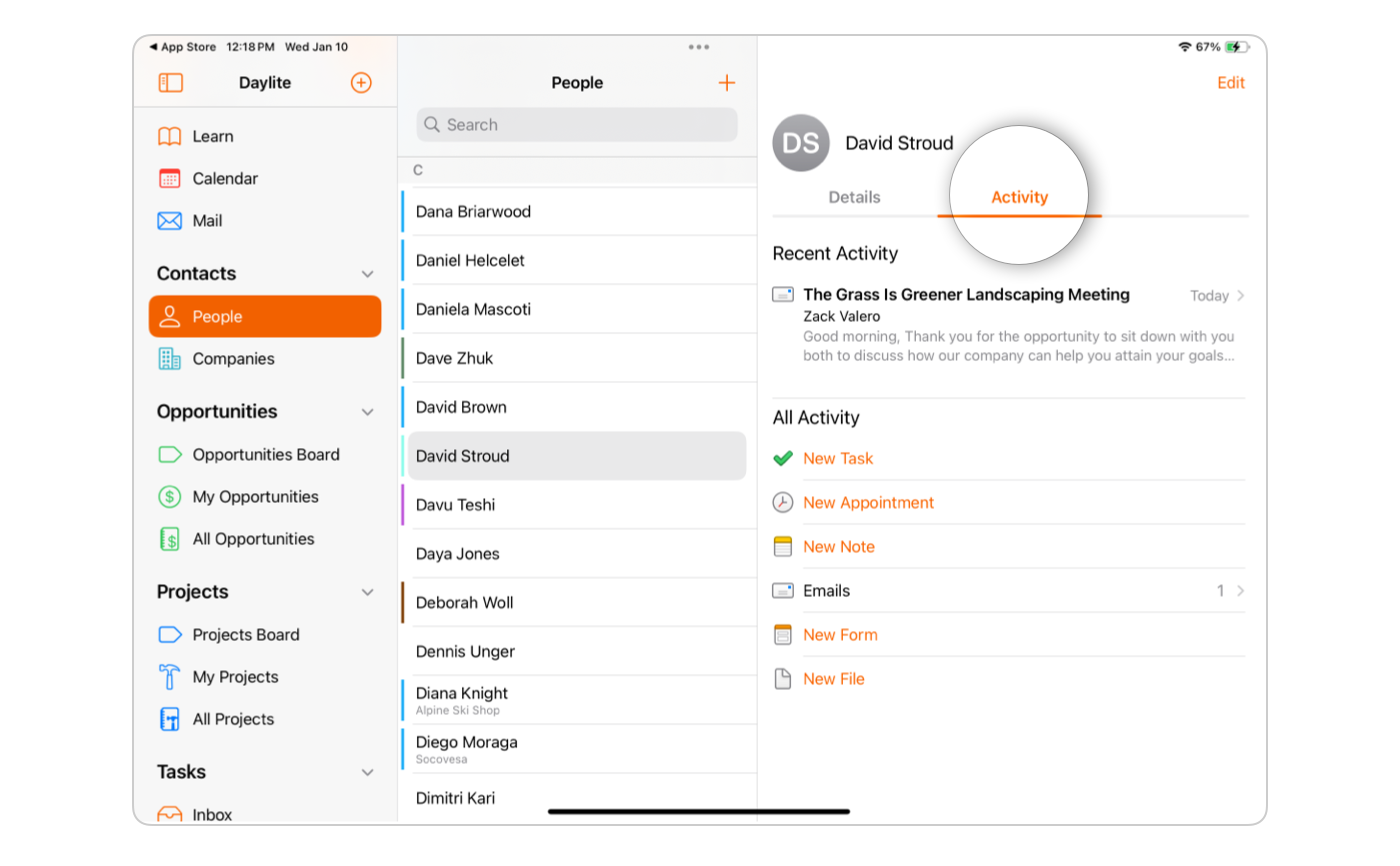
Once you have composed a message and added your recipients, the outgoing message can be added to Daylite. Any Daylite Contacts on the message are linked automatically, and the sent email appears in the Activity View.
{% endtab %}
{% endtabs %}
## Frequently Asked Questions
**What is the difference between forwarding and redirecting?** Forwarding sends the message as though it comes from you. Redirecting sends it on with the original sender's information intact.
**Can I add an email to Daylite before I send it?** Yes. Add it from the compose window and it is linked to your Daylite items before it leaves your outbox.
**Why aren't my drafts appearing on my other devices?** Drafts are stored only on the device where you wrote them and are not synced to your mail account.
**Can I send from a different account than my default?** Yes. Click the **From** field in the compose window and choose the account.
**Can I track whether my email was opened?** No. Mail in Daylite does not have email tracking features.
---
# Agent Instructions
This documentation is published with GitBook. GitBook is the documentation platform designed so that both humans and AI agents can read, navigate, and reason over technical content effectively. Learn more at gitbook.com.
## Querying This Documentation
If you need additional information that is not directly available in this page, you can query the documentation by asking a question.
Perform an HTTP GET request on the following URL with the `ask` and `goal` query parameters:
```
GET https://docs.daylite.app/help/mac-fundamentals/email/sending-and-replying-to-email.md?ask=&goal=
```
`ask` is the immediate question: it should be specific, self-contained, and written in natural language.
`goal` is what the user is ultimately trying to achieve, the reason they need the answer. Sharing it helps GitBook give you a better, more relevant answer. A goal is most helpful when it describes the outcome the user wants rather than restating the question. For example, with `ask=how do I create an API token`, a goal like `automate deployments from our CI pipeline` lets GitBook tailor the answer to that use case.
The response will contain a direct answer to the question and relevant excerpts and sources from the documentation.
Use this mechanism when the answer is not explicitly present in the current page, you need clarification or additional context, or you want to retrieve related documentation sections.