# Getting Started

Email is central to your business, but managing it shouldn't slow you down. Mail in Daylite connects your inbox directly to your contacts, projects, and opportunities—so you spend less time organizing and more time on meaningful work.

This guide gets you started in minutes.

## Adding Your Email Account to Daylite

Daylite works with the most common email providers as well as IMAP, so you can bring your inbox right into your workflow. Each account type has its own setup steps.

#### Quick Setup <a href="#quick-setup" id="quick-setup"></a>

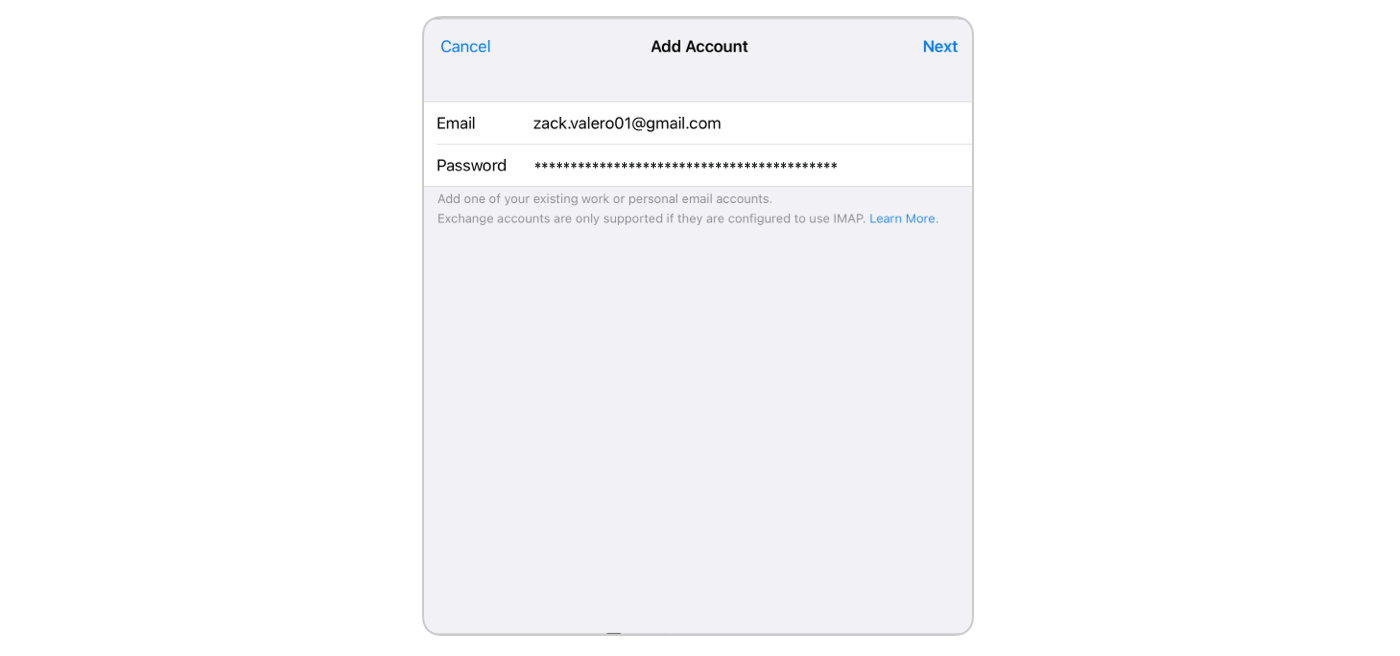
1. Select **My Mail** in the sidebar
2. Click **Add Mail Account**<br>

   <div align="left"><figure><img src="https://3475717408-files.gitbook.io/~/files/v0/b/gitbook-x-prod.appspot.com/o/spaces%2F6oVSyjL3UowOqokog3Vn%2Fuploads%2Fs97jX3jw4QHW1x2Y3D72%2FGroup18.png?alt=media&#x26;token=60870307-5372-44b4-b3e6-aeb18ee22fb4" alt=""><figcaption></figcaption></figure></div>
3. Choose your email provider

<table data-view="cards"><thead><tr><th></th><th data-hidden data-card-target data-type="content-ref"></th></tr></thead><tbody><tr><td><strong>Gmail</strong></td><td><a href="https://docs.daylite.app/help/learn/mail-management/add-mail-account/gmail">https://docs.daylite.app/help/learn/mail-management/add-mail-account/gmail</a></td></tr><tr><td><strong>Office 365</strong></td><td><a href="https://docs.daylite.app/help/learn/mail-management/add-mail-account/office-365">https://docs.daylite.app/help/learn/mail-management/add-mail-account/office-365</a></td></tr><tr><td><strong>Outlook</strong></td><td><a href="https://docs.daylite.app/help/learn/mail-management/add-mail-account/outlook">https://docs.daylite.app/help/learn/mail-management/add-mail-account/outlook</a></td></tr><tr><td><strong>iCloud</strong></td><td><a href="https://docs.daylite.app/help/learn/mail-management/add-mail-account/icloud">https://docs.daylite.app/help/learn/mail-management/add-mail-account/icloud</a></td></tr><tr><td><strong>Yahoo</strong></td><td><a href="https://docs.daylite.app/help/learn/mail-management/add-mail-account/yahoo">https://docs.daylite.app/help/learn/mail-management/add-mail-account/yahoo</a></td></tr><tr><td>​<strong>AOL</strong></td><td><a href="https://docs.daylite.app/help/learn/mail-management/add-mail-account/aol">https://docs.daylite.app/help/learn/mail-management/add-mail-account/aol</a></td></tr><tr><td><strong>IMAP</strong></td><td><a href="https://docs.daylite.app/help/learn/mail-management/add-mail-account/imap">https://docs.daylite.app/help/learn/mail-management/add-mail-account/imap</a></td></tr></tbody></table>

4. Follow the prompts to sign in

Your inbox now appears in Daylite, ready to connect with your business workflow.

{% hint style="success" %}
**Add Additional Accounts**

After adding your first account, add more by choosing **Daylite > Settings > Mail > Mail Accounts > Add Mail Account**.
{% endhint %}

## **Adding Your First Email to Daylite**

When you add an email to Daylite, you connect it to your business records—making it searchable and accessible from your contacts, projects, and opportunities.

**To add an email:**

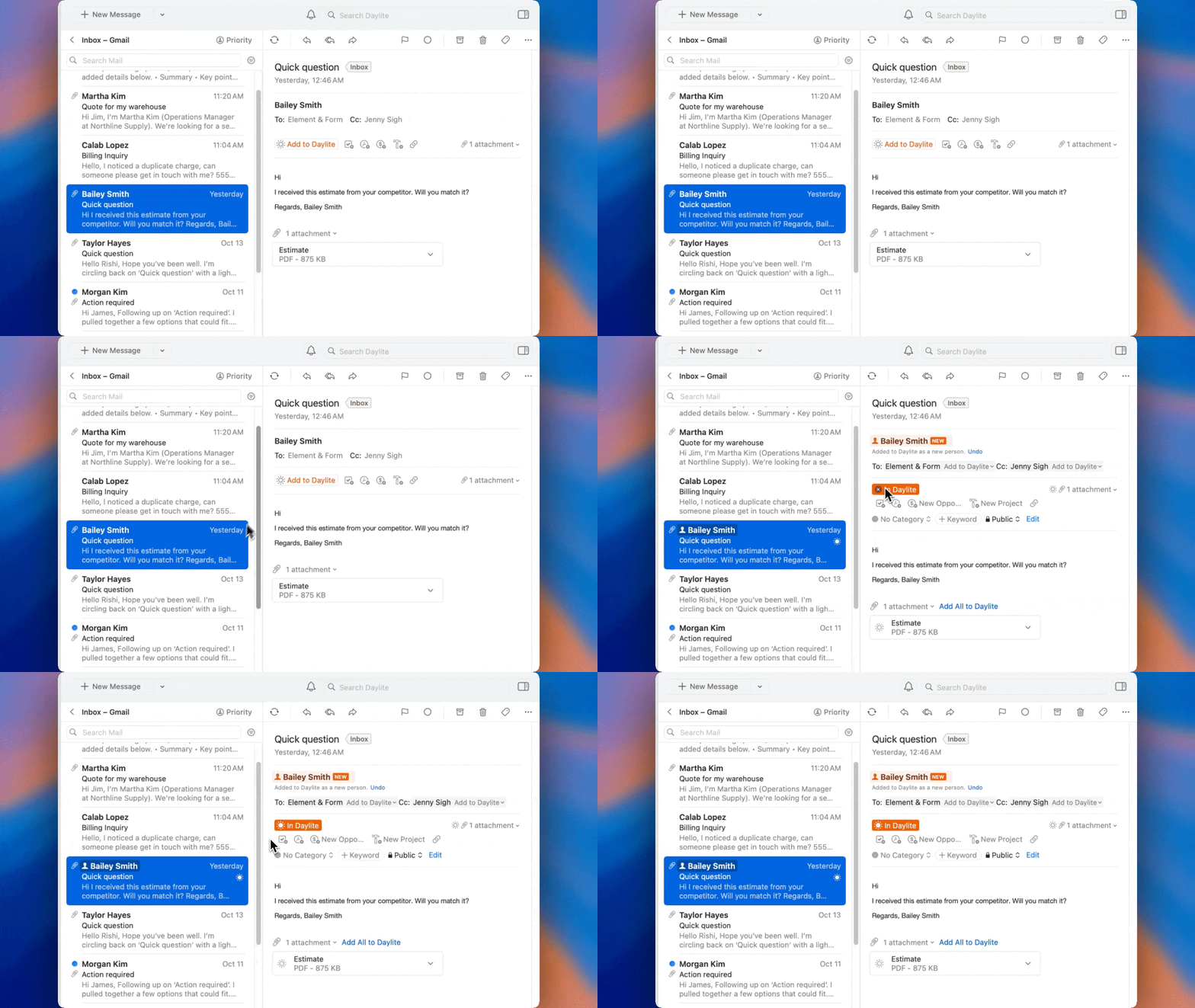
1. Open the email you want to add
2. Click the **Add to Daylite** button in the Action bar
3. The email is now stored in Daylite and ready to link

<figure><img src="https://3475717408-files.gitbook.io/~/files/v0/b/gitbook-x-prod.appspot.com/o/spaces%2F6oVSyjL3UowOqokog3Vn%2Fuploads%2FoOmziYeGew43BOn5m0nu%2FAdd%20Emails.gif?alt=media&#x26;token=2ec17c5f-13b9-460d-bb72-c29985838f16" alt=""><figcaption></figcaption></figure>

**What happens:**

* The email is saved in your **Stored Emails**
* A sun icon appears in the Message List showing it's in Daylite
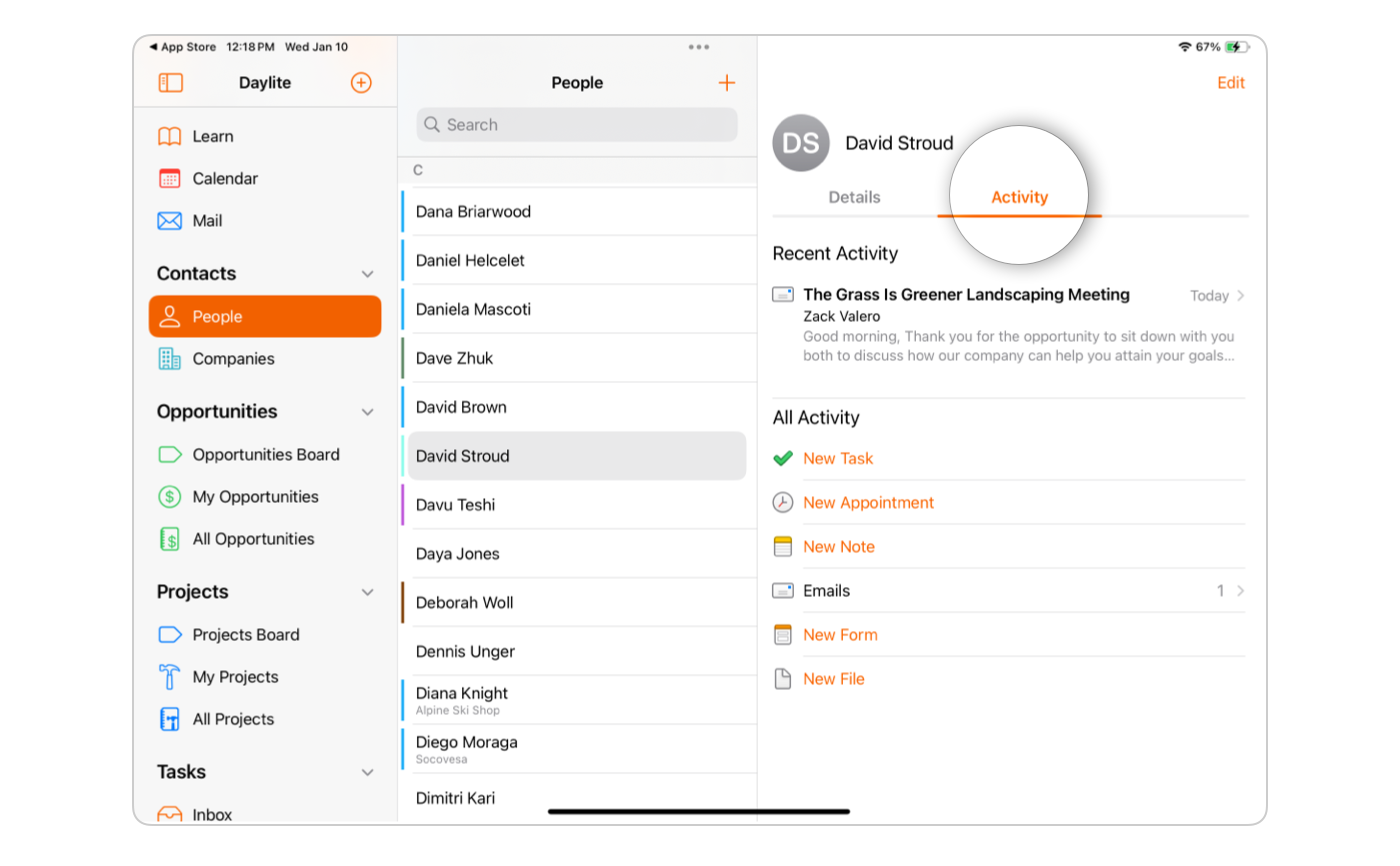
* You can now link it to contacts, projects, and opportunities

{% hint style="info" %}
**Note:** If the email is from a contact already in Daylite, their name is highlighted and the email automatically links to their record when added.
{% endhint %}

{% hint style="success" %}
**Email Privacy in Mail in Daylite:**

* **Your inbox remains private.** When you add an email account to Mail in Daylite, your emails stay private to you. Other Daylite users cannot see your inbox or read your messages.
* **You control what gets added to Daylite.** Mail in Daylite does not automatically add all your emails to Daylite. You must click the **Add to Daylite** button to store an email in your Daylite database. Until you take this action, the email remains private in your inbox.
* **Auto-linking works only on emails you add.** When you add an email to Daylite, auto-linking connects it to relevant contacts, projects, or opportunities in your database. This happens only after you choose to add the email—never automatically on incoming messages.
* **Control email visibility.** After adding an email to Daylite, you can set permissions to control which team members can view it. By default, emails you add are visible to your team, but you can restrict access to specific users or keep them private.\
  \
  Mail in Daylite gives you complete control over your email privacy and what you share with your team.
  {% endhint %}

## **Sending Your First Email**

#### Compose a New Message <a href="#compose-a-new-message" id="compose-a-new-message"></a>

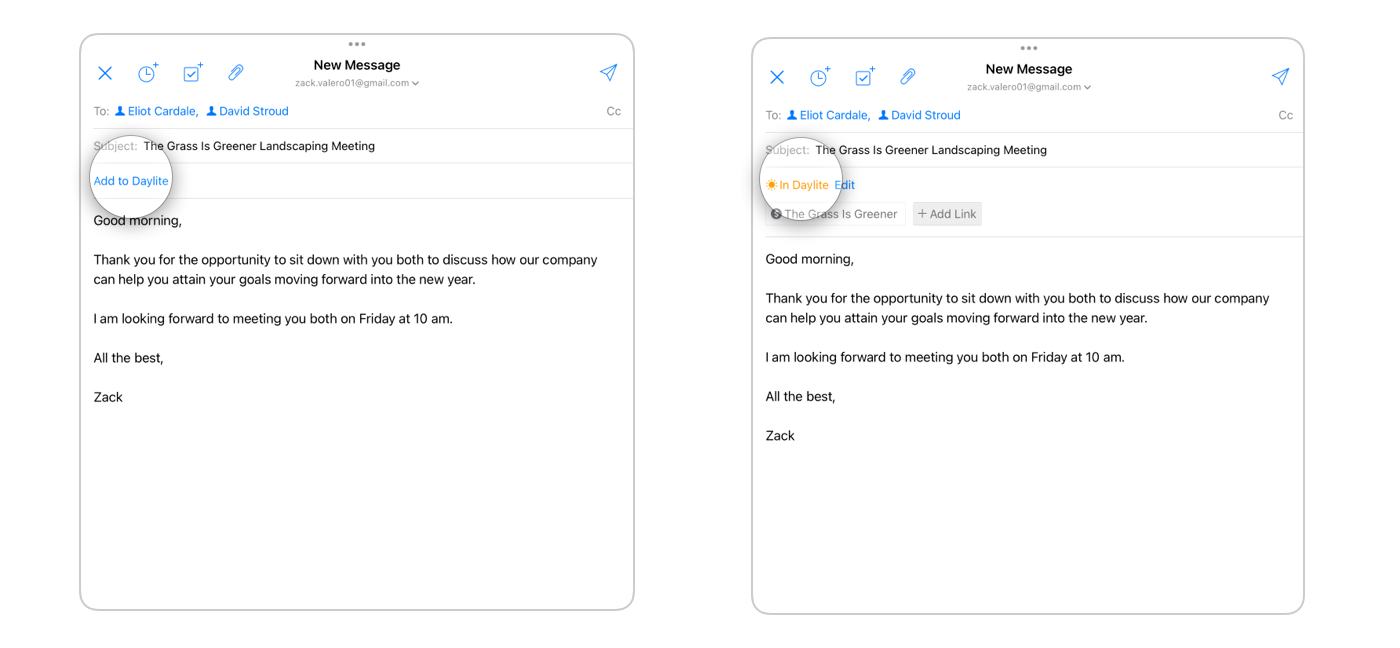
1. Click **New Message** in the toolbar

   <figure><img src="https://3475717408-files.gitbook.io/~/files/v0/b/gitbook-x-prod.appspot.com/o/spaces%2F6oVSyjL3UowOqokog3Vn%2Fuploads%2FnZ1m82W6cJapuJqZ8E1Y%2FNew%20Message.png?alt=media&#x26;token=3ad4b4b3-226c-4aaf-a4c5-742aee998f12" alt=""><figcaption></figcaption></figure>
2. Enter recipients, subject, and message
3. Type your message
4. Click **Send**

   <figure><img src="https://3475717408-files.gitbook.io/~/files/v0/b/gitbook-x-prod.appspot.com/o/spaces%2F6oVSyjL3UowOqokog3Vn%2Fuploads%2FCJFmXwT9UbH4iroAmqiW%2FSend.png?alt=media&#x26;token=ded92ff6-7e0e-4d83-835d-534dfe506808" alt=""><figcaption></figcaption></figure>

{% hint style="info" %}
Click **Cc** or **Bcc** in the compose window to add additional recipients.
{% endhint %}

#### Reply and Forward <a href="#reply-and-forward" id="reply-and-forward"></a>

Select a message and click:

* **Reply** - Respond to the sender
* **Reply All** - Include all recipients
* **Forward** - Send the message to someone else

Select text and use the formatting toolbar to apply bold, italic, or underline, create lists, add links, or change text alignment.

To manage your signature, please see our [signature settings documentation](https://docs.daylite.app/help/mac-fundamentals/email/mail-in-daylite-settings#signature).

### **What's Next**

Now that you know the basics, explore more of Mail in Daylite


---

# Agent Instructions: Querying This Documentation

If you need additional information that is not directly available in this page, you can query the documentation dynamically by asking a question.

Perform an HTTP GET request on the current page URL with the `ask` query parameter:

```
GET https://docs.daylite.app/help/mac-fundamentals/email/quick-guide-to-mail-in-daylite.md?ask=<question>
```

The question should be specific, self-contained, and written in natural language.
The response will contain a direct answer to the question and relevant excerpts and sources from the documentation.

Use this mechanism when the answer is not explicitly present in the current page, you need clarification or additional context, or you want to retrieve related documentation sections.