> For the complete documentation index, see [llms.txt](https://docs.daylite.app/help/llms.txt). Markdown versions of documentation pages are available by appending `.md` to page URLs; this page is available as [Markdown](https://docs.daylite.app/help/mac-fundamentals/email/mail-in-daylite-settings-1.md).
# Mail in Daylite Settings
You can adjust how Mail works in Daylite by changing its settings. From here, you can choose how emails are linked, add new accounts, and control how Daylite handles incoming and outgoing messages. These options help you customize how Mail integrates with your daily workflow, keeping your communication organized and connected to your business records.
To set up these options, go to **Daylite > Settings > Mail**
## Mail Accounts
Here you can add, remove, and manage the email accounts connected to Daylite, as well as customize settings for each account to fit your workflow.
**Add Mail Account -** Click to add new mail account. Visit Getting Started for more information on how to add your email account.
{% hint style="info" %}
Depending on your Mail server’s configuration, some settings may not appear or will be dimmed .
{% endhint %}
1. **Description -** The name of the email account which will appear in the Accounts section of Settings and My Mail. Set a description for your account that helps you to distinguish it from your other email accounts such as Work, Personal, Gmail etc.
2. **Name -** Others will see you by this name when you send them email messages from this account.
3. **Email -** Messages you send from this account will show as from this email address as well as from the From field sender list
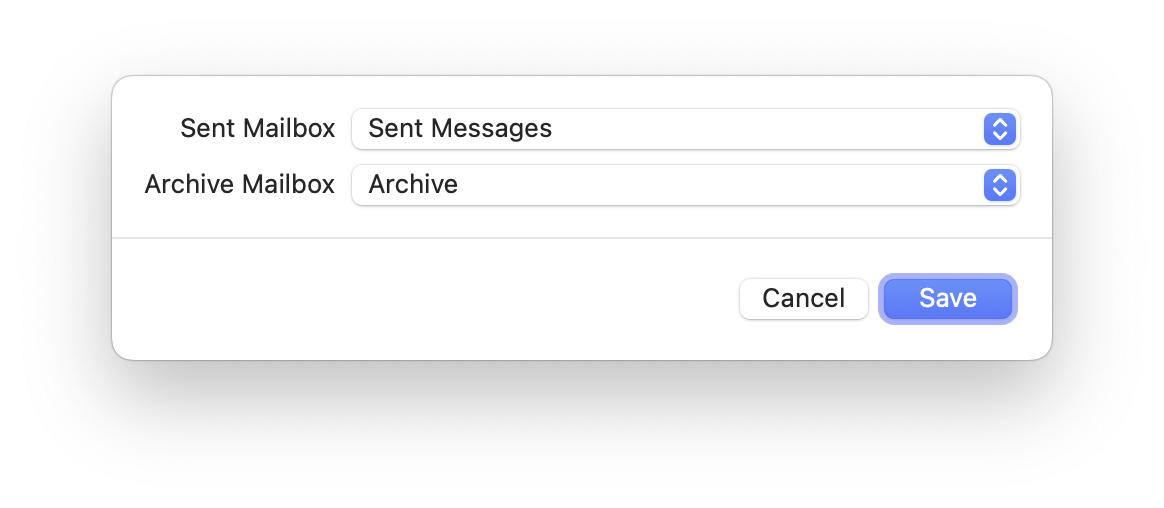
4. **Mailbox Settings -** Customize which mail folder to send and archive emails
5. **Server Settings** - View and edit IMAP and SMTP sever settings
6. **Remove Account** - Remove the email account from My Mail. This will not remove emails from this account which you have already stored in Daylite.
## Linking
Here you can customize how emails are **added** and **linked** in Daylite. *Adding* stores a copy of the email in Daylite, while *linking* connects that stored email to Daylite items, such as contacts, projects, or opportunities.
You can choose whether messages are added to Daylite automatically or manually, and which types of related Daylite items should be linked automatically as well.
**Auto-Add Messages -** When turned on, messages are automatically added to Daylite when you view or send a message **and there is also a Daylite contact in the From, To, or Cc fields.**
**When a message is added to Daylite (Contacts, Project, Opportunity)** - After a message is added to Daylite, you can choose to automatically link the email to alll the contacts in the **From, To, or Cc fields,** and choose to link the email to a single open Project, and Opportunity if contacts in the From**,** To, or Cc fields are already linked to the Project or Opportunity.
## Email Storage
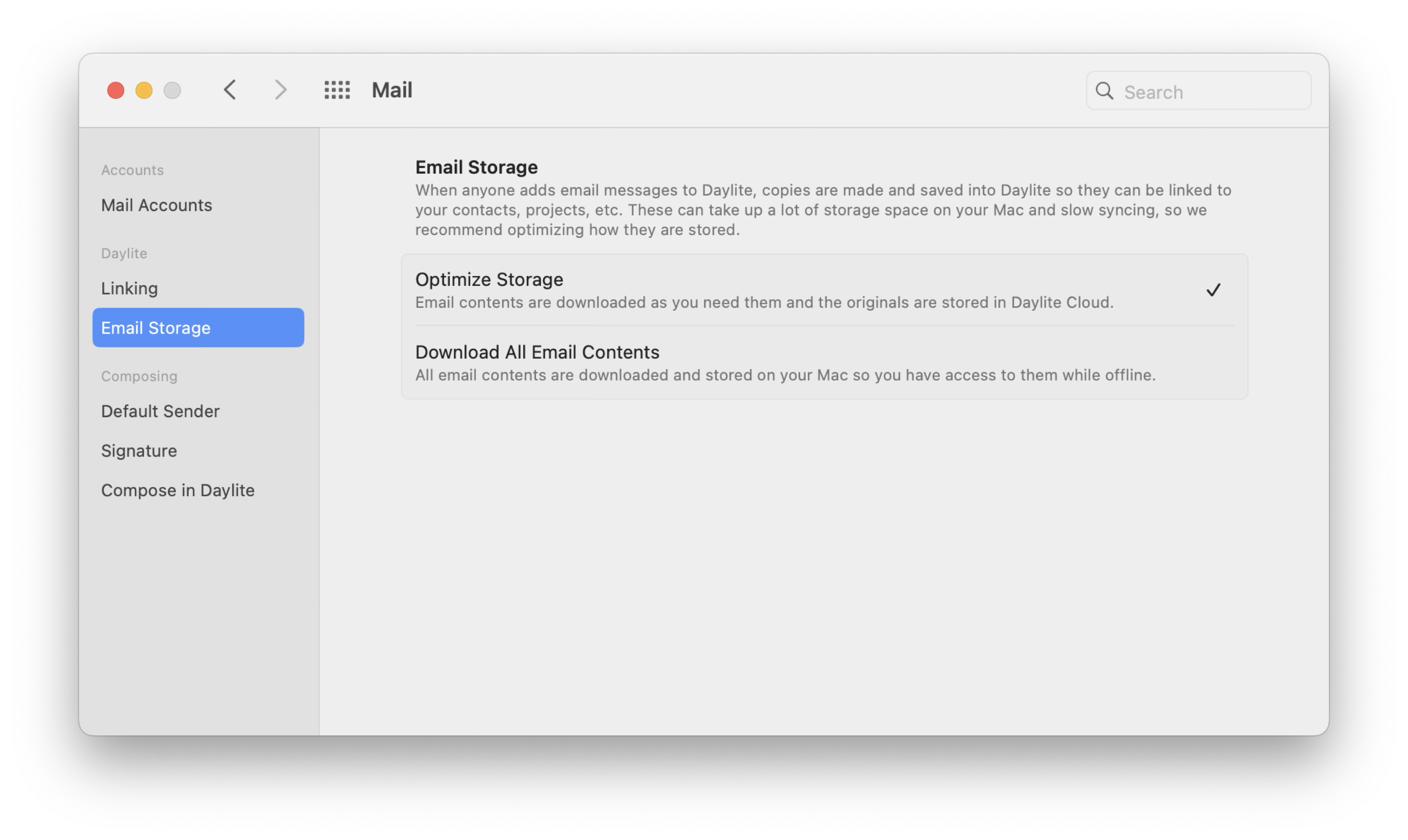
Here you can customize how emails added to Daylite are stored on your Mac. You can choose to download all stored emails, or download them only when viewed on demand. Even if an email hasn’t been downloaded, you’ll still see it listed in Daylite.
These settings only control how stored emails are downloaded to your Mac—they don’t affect how My Mail downloads emails from your mail server.
**Optimize Storage (Recommended)** - Daylite downloads an email’s contents and attachments only when you view them in **Stored Emails** or a Daylite item’s **Activity View**. An internet connection is required to view emails that haven’t been downloaded.
**Download All Email Contents** - Daylite downloads all stored emails and their attachments so they’re always available even offline. If you’ve added many emails to Daylite, this option may affect performance.
## Default Sender
Here you can customize which email account to send emails by default. A checkmark will appear next to the default sender. To change the deafult sender, click the desired account.
Additionally, when composing an email you can change which account to send by clicking the **From** field.
## Signature
Here you can create one signature for each email account you’ve added to Daylite, or use the same signature for all accounts. Select an account to add or edit its signature, then type your text and insert an image if needed.
{% hint style="success" %}
If your signature includes advanced formatting, you can copy and paste it from another email app, such as Apple Mail.
{% endhint %}
## Sounds
Mail in Daylite can play a sound when you send or receive a message, giving you an audible cue as mail moves in and out of your inbox.
To manage sounds, go to **Daylite** > **Settings** > **Mail**. Turn the send and receive sounds on or off to suit your workflow.
## Compose in Daylite
Here you can choose whether emails composed through Daylite open in Daylite or your default email app. This applies to actions such as composing from a contact’s email field or creating emails through letter merges.
This setting only affects compose actions performed in Daylite. Other actions, such as clicking a mailto**:** link, will open in your default mail app.
***
### Fonts
Here you can customize the default font for viewing and composing emails in Mail in Daylite.
**Message Font** - Click **Select...** to choose your preferred font, style, and size. The selected font applies to both viewing and writing emails in Mail in Daylite.
---
# Agent Instructions
This documentation is published with GitBook. GitBook is the documentation platform designed so that both humans and AI agents can read, navigate, and reason over technical content effectively. Learn more at gitbook.com.
## Querying This Documentation
If you need additional information that is not directly available in this page, you can query the documentation by asking a question.
Perform an HTTP GET request on the following URL with the `ask` and `goal` query parameters:
```
GET https://docs.daylite.app/help/mac-fundamentals/email/mail-in-daylite-settings-1.md?ask=&goal=
```
`ask` is the immediate question: it should be specific, self-contained, and written in natural language.
`goal` is what the user is ultimately trying to achieve, the reason they need the answer. Sharing it helps GitBook give you a better, more relevant answer. A goal is most helpful when it describes the outcome the user wants rather than restating the question. For example, with `ask=how do I create an API token`, a goal like `automate deployments from our CI pipeline` lets GitBook tailor the answer to that use case.
The response will contain a direct answer to the question and relevant excerpts and sources from the documentation.
Use this mechanism when the answer is not explicitly present in the current page, you need clarification or additional context, or you want to retrieve related documentation sections.
.png?alt=media&token=7729e0c2-e497-4b70-a679-60aff9c00f3c)