> For the complete documentation index, see [llms.txt](https://docs.daylite.app/help/llms.txt). Markdown versions of documentation pages are available by appending `.md` to page URLs; this page is available as [Markdown](https://docs.daylite.app/help/mac-fundamentals/email/adding-emails-to-daylite.md).
# How to Add an Email to Daylite
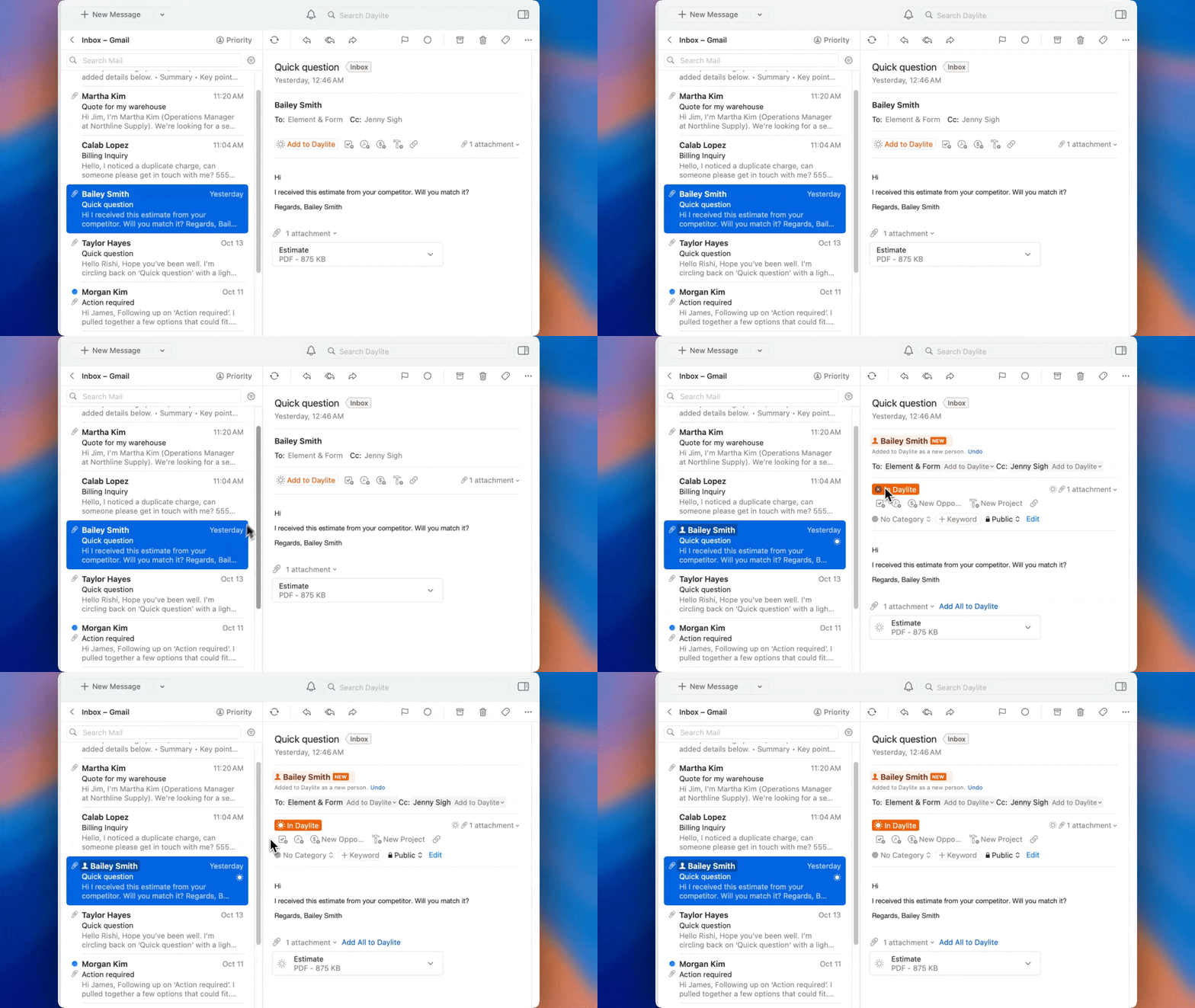
To add an email to Daylite, open the message and select **Add to Daylite**. Daylite stores the email in your database, links it to any contacts on the message that already exist in Daylite, and adds it to the Activity View of every item it is linked to.
**Key facts:**
* **Add to Daylite** adds only the single message you are viewing. Use the linked messages count to add a whole thread.
* Adding an email stores it in Daylite; linking connects the stored email to Daylite items.
* Removing an email from Daylite does not delete it from your email account.
* Removing an email moves it to the Daylite Trash rather than deleting it from the database.
* You can print any message directly, without adding it to Daylite first.
## How to Add an Email to Daylite
{% hint style="info" icon="lightbulb" %}
**Note:** If the email is from a contact already in Daylite, their name is highlighted and the email automatically links to their record when added.
{% endhint %}
{% tabs %}
{% tab title="Mac" %}
1. Open the email in **My Mail**.
2. Click **Add to Daylite** in the Action bar.
3. Select the Daylite items to link the email to, or create new ones.
The email is now stored in Daylite. A sun icon appears beside it in the Message List, and it appears in **Stored Emails**.
{% endtab %}
{% tab title="iPhone & iPad" %}
1. Select **Mail** from the Sidebar and open the email.
2. Tap **Add to Daylite** below the email title.


The button changes to **In Daylite**, and the email is added. If the email involves a Daylite contact in the **To**, **Cc**, or **Bcc** fields, it is linked to that contact automatically, along with the contact's active Opportunity or Project.

When a silhouette appears beside a Person's name, that email address is already saved in Daylite and the message will be added to that Person's history. The field turns blue once it has been added.
{% endtab %}
{% endtabs %}
{% hint style="info" icon="lightbulb-cfl-on" %}
**Important:** The **Add to Daylite** button only adds the single message you are currently viewing. This lets you choose exactly which emails to keep in your Daylite items.
{% endhint %}
## How to Add an Entire Email Thread
1. Open any message in the thread.
2. Click the linked messages count at the top of the message section.
3. Select **Add all to Daylite**.
## How to Link an Email to a Person, Company, Opportunity, or Project
Linking connects a stored email to the Daylite items it relates to, which is what puts it in those items' Activity Views.
### How Automatic Linking Works
When you add an email to Daylite, Daylite recognizes contacts on the message that are already in your database and links the email to them. If any of those contacts are linked to a single open Project or Opportunity, the email links to that item as well.
When a contact has several open Projects or Opportunities, Daylite shows them as suggested links and you choose which ones to apply.
You can change which item types are linked automatically in **Daylite > Settings > Mail**. See [Mail in Daylite Settings](https://docs.daylite.app/help/fundamentals/email/mail-in-daylite-settings).
### How to Link an Item Manually
{% tabs %}
{% tab title="Mac" %}
1. Select the **Link** icon in the Action bar.
2. Enter the name of the item.
3. Double-click the item in the list.
SCREENSHOT GAP (HIGH) - Gaps tab, row 10: the Link icon flow on Mac - icon selected, search field, item list. No source screenshot covers manual linking on Mac.
{% endtab %}
{% tab title="iPhone & iPad" %}
1. Tap **Edit** beside the highlighted **In Daylite**.
2. Select **Linked items**.
3. Choose the items to connect to the email.
You can link Contacts, Users, Opportunities, Projects, and Attachments.


{% endtab %}
{% endtabs %}
## How to Create a New Record from an Email
### Creating a Person
1. Open the email.
2. Click **Add to Daylite**.
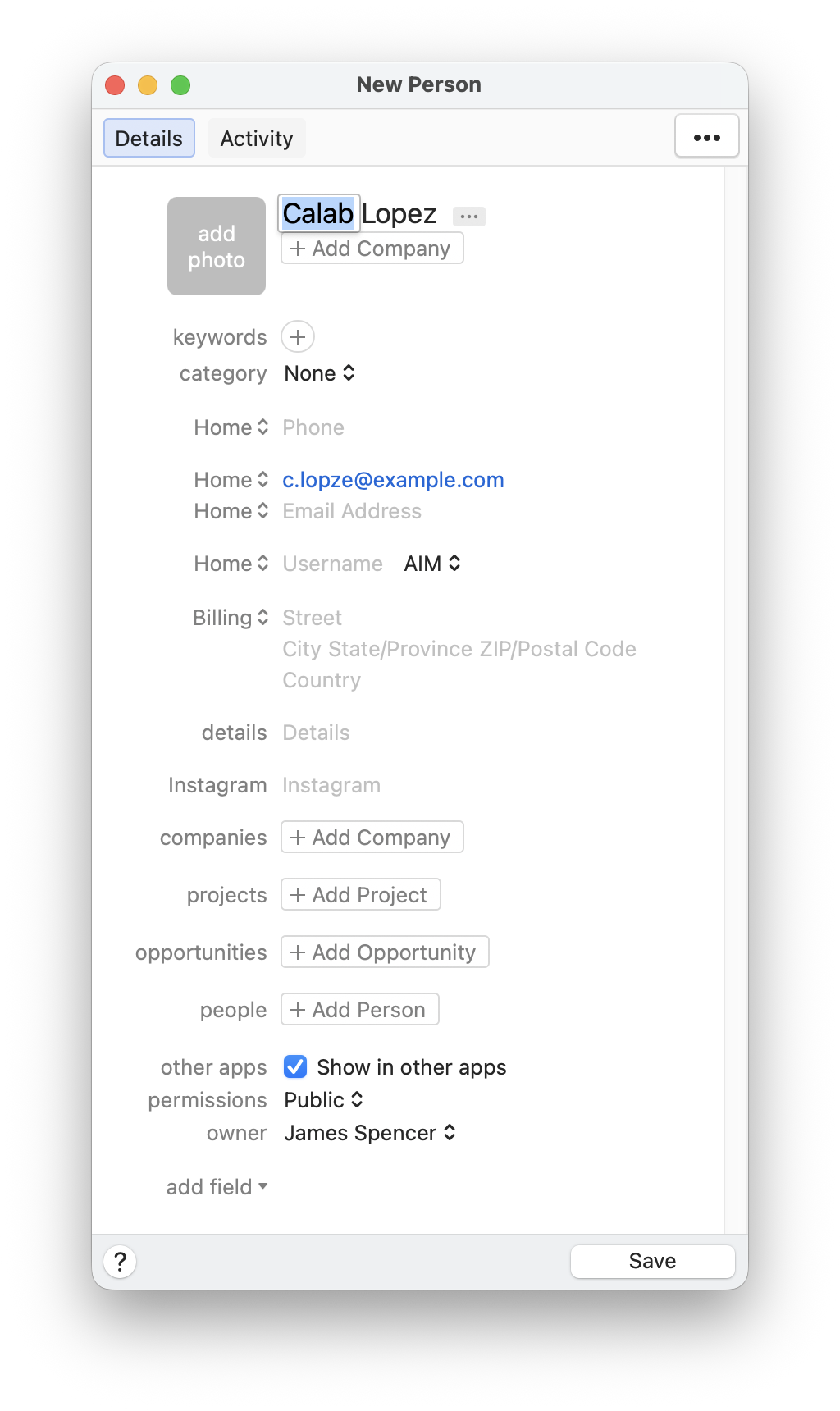
3. Select **Create New Person**.
Daylite fills in the **Name** and **Email address** automatically. You can then add details such as phone numbers, Category, and Keywords.
{% hint style="success" %}
**Tip:** Check the contact fields before saving. Depending on the email provider, the sender's details may be incomplete or in the wrong order — first and last names can be swapped, and when no name appears in the email header you see only the email address.
{% endhint %}
### Creating a Company
1. Click the **Link** icon.
2. Type the name of the Company you want to create.
3. Select **+ New Company** from the suggested items.
{% hint style="success" %}
**Tip:** Adding a company's general address — a newsletter or accounts address, for example — to the Company record's email field files future messages from that address against the Company rather than a Person. This keeps generic correspondence out of your People records.
{% endhint %}
### Creating a Task, Appointment, Project, or Opportunity
{% tabs %}
{% tab title="Mac" %}
In the Action bar, click **New Task**, **New Appointment**, **New Project**, or **New Opportunity**. Daylite creates the item, suggests the email subject as its name, and links the related items to it.
For the full Task procedure and everything you can set on a Task, see [Creating a New Task](https://docs.daylite.app/help/fundamentals/tasks/creating-a-new-task).

{% endtab %}
{% tab title="iPhone & iPad" %}
Tap **New Task** or **New Appointment** on the email. The item is linked to the email and to the Person who sent it.

A Task created this way is reviewable from the contact's Activity View or from **My Tasks**. An Appointment created this way appears in your Daylite Calendar, with the email and the contact linked to it.

{% endtab %}
{% endtabs %}
## How to Edit an Email's Properties after Adding It
{% tabs %}
{% tab title="Mac" %}
1. Open the email in Daylite.
2. Click **Edit**.
3. Change the **Keywords**, **Category**, **Links**, and other properties.
4. Click **Save**.
{% endtab %}
{% tab title="iPhone & iPad" %}
1. Tap **Edit** beside the highlighted **In Daylite**.
2. Set the **Category**, **Keywords**, **Permissions**, and **Linked items**.
A Category holds one value at a time; Keywords can hold several and are used to build filtered searches. Permissions control who is allowed to view the record.

{% endtab %}
{% endtabs %}
## Working with Email Attachments
When you add an email with attachments to Daylite, the attachments stay with the email and are available from the Activity View of each linked item. Storage limits apply to file attachments.
### How to Add Attachments to Daylite
{% tabs %}
{% tab title="Mac" %}
1. Open the email. The attachment count appears when the message has attachments.
2. Click **Add All to Daylite** next to the attachment count.
.png)
{% endtab %}
{% tab title="iPhone & iPad" %}
Attachments are one of the item types you can link when adding an email. Tap **Edit** beside **In Daylite** and include **Attachments** in the linked items.
{% endtab %}
{% endtabs %}
### How to Access Attachments from an Email
1. Open the email in Daylite. The attachment is listed with its filename and size.
2. Click the dropdown arrow next to the attachment.
3. Select an option such as **Quick Look**, **Save Attachment**, or **Remove from Daylite**.
.png)
### How to Access Attachments from the Activity View
Open a Contact, Project, or Opportunity. Email attachments appear alongside the emails they came with. Click the attachment filename to view or download it.


## How to Remove an Email from Daylite
How you remove an email depends on where you want it removed from. An email added to Daylite exists in two places — your email account and Daylite — and each option affects them differently.
| Option | Removes from Daylite | Removes from your email account | Use when |
| ------------------------- | -------------------- | ------------------------------- | -------------------------------------------------- |
| Unlink | No | No | The email is linked to the wrong item |
| Remove from Daylite | Yes | No | The email does not belong in your business records |
| Delete from email account | No | Yes | You are clearing out your mailbox |
### Unlinking an Email from a Daylite Item
Unlink an email when the email still matters but is linked to the wrong item. The email stays in Daylite and in your email account, and only the link to the selected item is removed.
{% tabs %}
{% tab title="Mac" %}
1. Select a Daylite item linked to the email.
2. Double-click the email.
3. Select **Unlink**.
{% endtab %}
{% tab title="iPhone & iPad" %}
Open the contact's record and unlink the email from the linked items list. The mobile source states an email can be unlinked at any time but gives no steps.
{% endtab %}
{% endtabs %}
### Removing an Email from Daylite
Removing an email takes it out of Daylite items' Activity Views and out of **Stored Emails**, and moves it to the Daylite Trash. Your mailbox is not affected.
**To remove a single email from My Mail:**
1. Select **My Mail**.
2. Choose the email.
3. Hold the pointer over **Add to Daylite** and click the **x** icon.
**To remove an entire thread:**
1. Select **My Mail**.
2. Choose any email in the thread.
3. Select the message count.
4. Click **Remove All from Daylite**.
**To remove an email from a Daylite item:**
1. Select a Daylite item linked to the email.
2. Click the email.
3. Choose **Edit > Delete**.
4. Click **Move to Trash**.
{% hint style="warning" %}
Removing an email after it has been added does not delete it from the Daylite database. To delete it permanently, see [What's in the Trash?](https://docs.daylite.app/help/mac-fundamentals/trash/whats-in-the-trash)
{% endhint %}
### Deleting an Email from Your Email Account
Deleting removes the message from your connected email account. If the email was already added to Daylite, the Daylite copy is kept.
1. Select **My Mail**.
2. Choose the email.
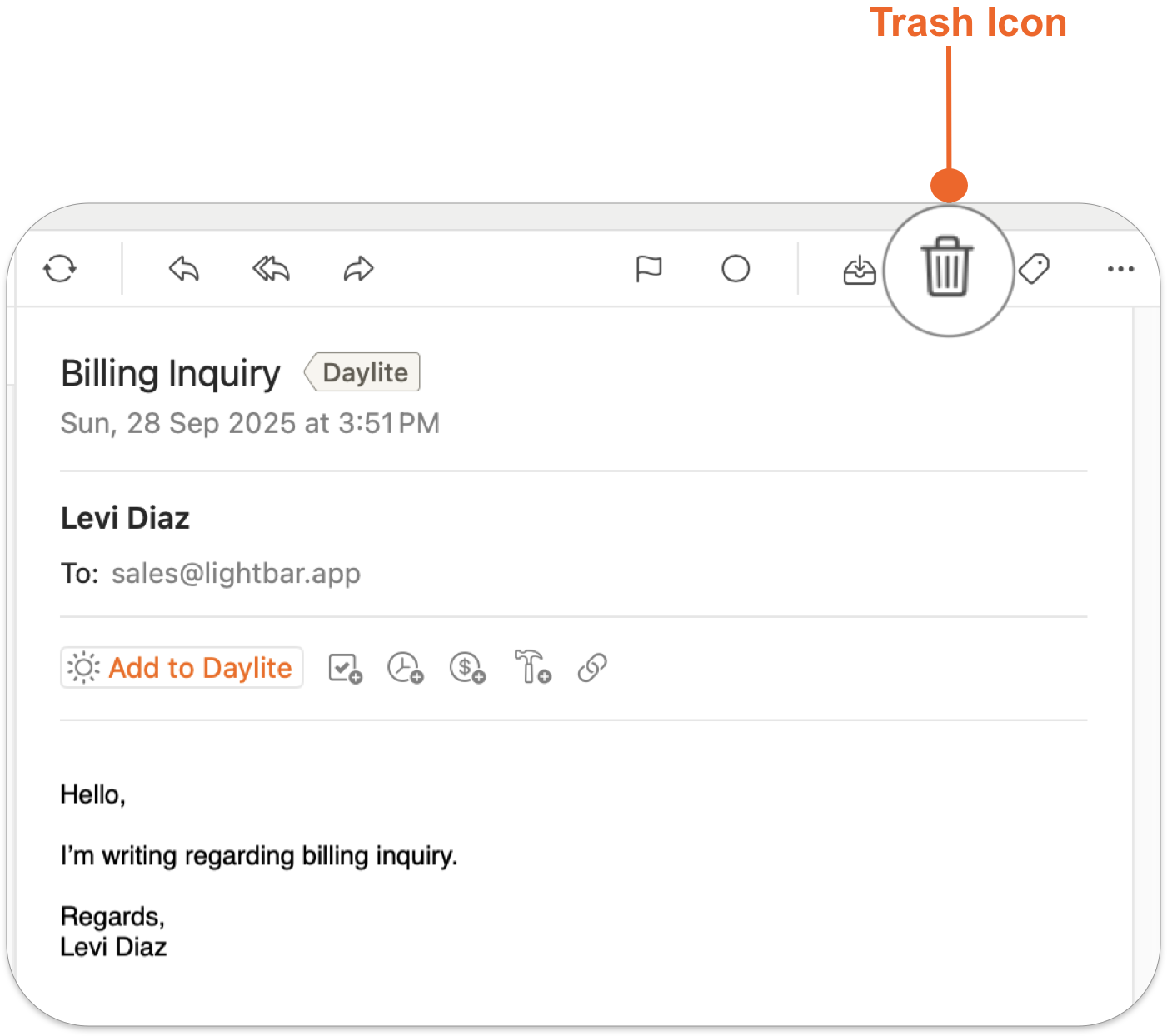
3. Click the **Trash** icon.
The email moves to the trash folder on your mail server.
## How to Print an Email
1. Select and open the email you want to print.
2. Choose **File > Print**.
3. Set your print options, then click **Print**.
To save a copy as a PDF, choose **File > Print**, click the **PDF** dropdown menu in the print dialog, and select **Save as PDF**.
{% hint style="info" icon="lightbulb" %}
You no longer need to add an email to Daylite or open it from **Stored Emails** to print. Print directly from any message.
{% endhint %}
## Working with Stored Emails
{% hint style="info" icon="lightbulb" %}
**Note:** While you can still use email folders if you prefer, most Daylite users find the Activity View removes the need for manual folder management. If you do use folders, [macOS keyboard shortcuts](https://support.apple.com/en-ca/guide/mac-help/mchlp2271) move emails quickly.
{% endhint %}
From any stored email you can act without leaving Daylite:
* **Reply** — respond to the sender in Mail in Daylite
* **Reply All** — include all recipients in your response
* **Show in My Mail** — open the email in Mail in Daylite
* **More menu (•••)** — further options
{% hint style="success" %}
**Tip:** To open a stored email in Apple Mail instead, hold the **Option** key while clicking **Show in My Mail**, or select **Show in Apple Mail** from the More menu.
{% endhint %}
## Frequently Asked Questions
**Does Add to Daylite add the whole conversation?** No. It adds only the message you are viewing. To add the conversation, click the linked messages count and select **Add all to Daylite**.
**If I remove an email from Daylite, is it deleted from my inbox?** No. Removing an email from Daylite leaves your mailbox untouched and moves the Daylite copy to the Daylite Trash.
**Can I add an email to Daylite from iPhone or iPad?** Yes. Open the email, tap **Add to Daylite** below the email title, and set the links you want.
**What happens to attachments when I add an email?** Attachments stay with the email and are available from the Activity View of every linked item. Storage limits apply.
**How do I file emails from a general company address?** Add that address to the Company record's email field. Messages from it are then filed against the Company rather than a Person.
---
# Agent Instructions
This documentation is published with GitBook. GitBook is the documentation platform designed so that both humans and AI agents can read, navigate, and reason over technical content effectively. Learn more at gitbook.com.
## Querying This Documentation
If you need additional information that is not directly available in this page, you can query the documentation by asking a question.
Perform an HTTP GET request on the following URL with the `ask` and `goal` query parameters:
```
GET https://docs.daylite.app/help/mac-fundamentals/email/adding-emails-to-daylite.md?ask=&goal=
```
`ask` is the immediate question: it should be specific, self-contained, and written in natural language.
`goal` is what the user is ultimately trying to achieve, the reason they need the answer. Sharing it helps GitBook give you a better, more relevant answer. A goal is most helpful when it describes the outcome the user wants rather than restating the question. For example, with `ask=how do I create an API token`, a goal like `automate deployments from our CI pipeline` lets GitBook tailor the answer to that use case.
The response will contain a direct answer to the question and relevant excerpts and sources from the documentation.
Use this mechanism when the answer is not explicitly present in the current page, you need clarification or additional context, or you want to retrieve related documentation sections.

.png)
.png)