> For the complete documentation index, see [llms.txt](https://docs.daylite.app/help/llms.txt). Markdown versions of documentation pages are available by appending `.md` to page URLs; this page is available as [Markdown](https://docs.daylite.app/help/mac-fundamentals/contact-management/importing-contact-information.md).
# Importing Contacts into Daylite
Bring your contacts into Daylite from Apple Contacts, Google Contacts, a vCard, or a spreadsheet and see how Daylite handles duplicates as it imports.
You can import contacts into Daylite from Apple Contacts, Google Contacts, a vCard file, or a spreadsheet. On Mac, every import starts from the **File > Import** menu; on iPhone and iPad you import from Apple Contacts using the **+** button in the People or Companies list.
**Key facts:**
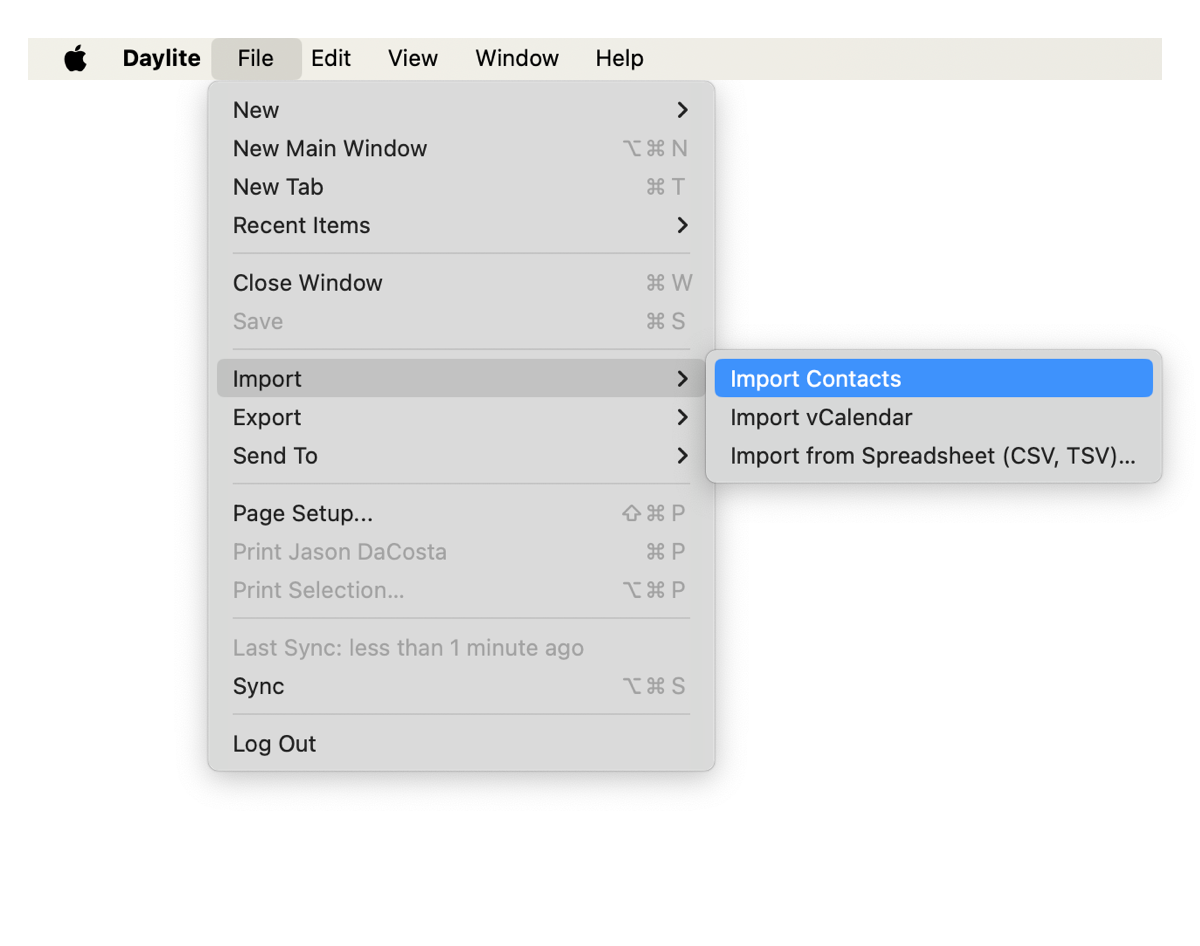
* Import from Apple Contacts on Mac with **File > Import > Import Contacts**.
* Import from Apple Contacts on iPhone and iPad with the **+** button, then **Import from Contacts App**.
* Google Contacts are imported by exporting a vCard from Google, then importing that file into Daylite.
* Spreadsheet import is handled by the CSV/TSV importer, which is available on Mac only.
* Daylite matches duplicates on First Name, Last Name, and Email address during a contacts import.
* You can assign a Category to a batch of contacts as you import them.
{% hint style="info" icon="lightbulb" %}
Imports can include Calendars, Tasks, or Notes. The most common import is People and Company data.
{% endhint %}
## What You Can Import into Daylite
Imported contacts arrive as the same two record types Daylite uses everywhere else — [People](https://docs.daylite.app/help/fundamentals/contacts/people-in-daylite) for individuals and [Companies](https://docs.daylite.app/help/fundamentals/contacts/companies-in-daylite) for organizations. If you have not met those two record types yet, start with [Contacts Overview](https://docs.daylite.app/help/fundamentals/contacts/contacts-overview).
On Mac you can import from Apple Contacts, from Google Contacts, from a vCard file (.vcf), or from a spreadsheet saved as CSV or TSV. All four start from the **File > Import** menu.
On iPhone and iPad you can import from Apple Contacts, using the **+** button in the People or Companies list.
## How to Import from Apple Contacts
{% tabs %}
{% tab title="Mac" %}
Apple's Contacts application is built into macOS, so People and Companies can be imported from it directly.
1. In Daylite, select **File > Import > Import Contacts**.
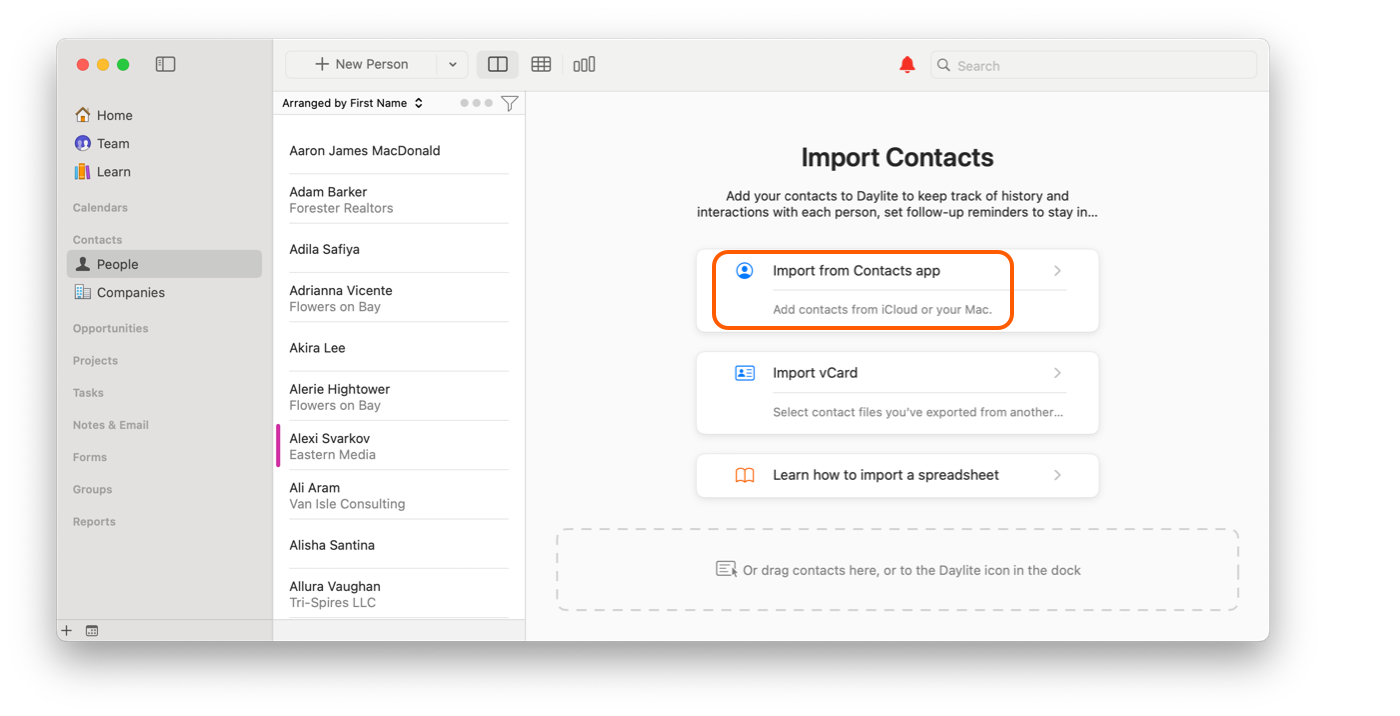
2. Choose **Import from Contacts app**. This lets you choose contacts from the Apple Contacts app, including your iCloud account.
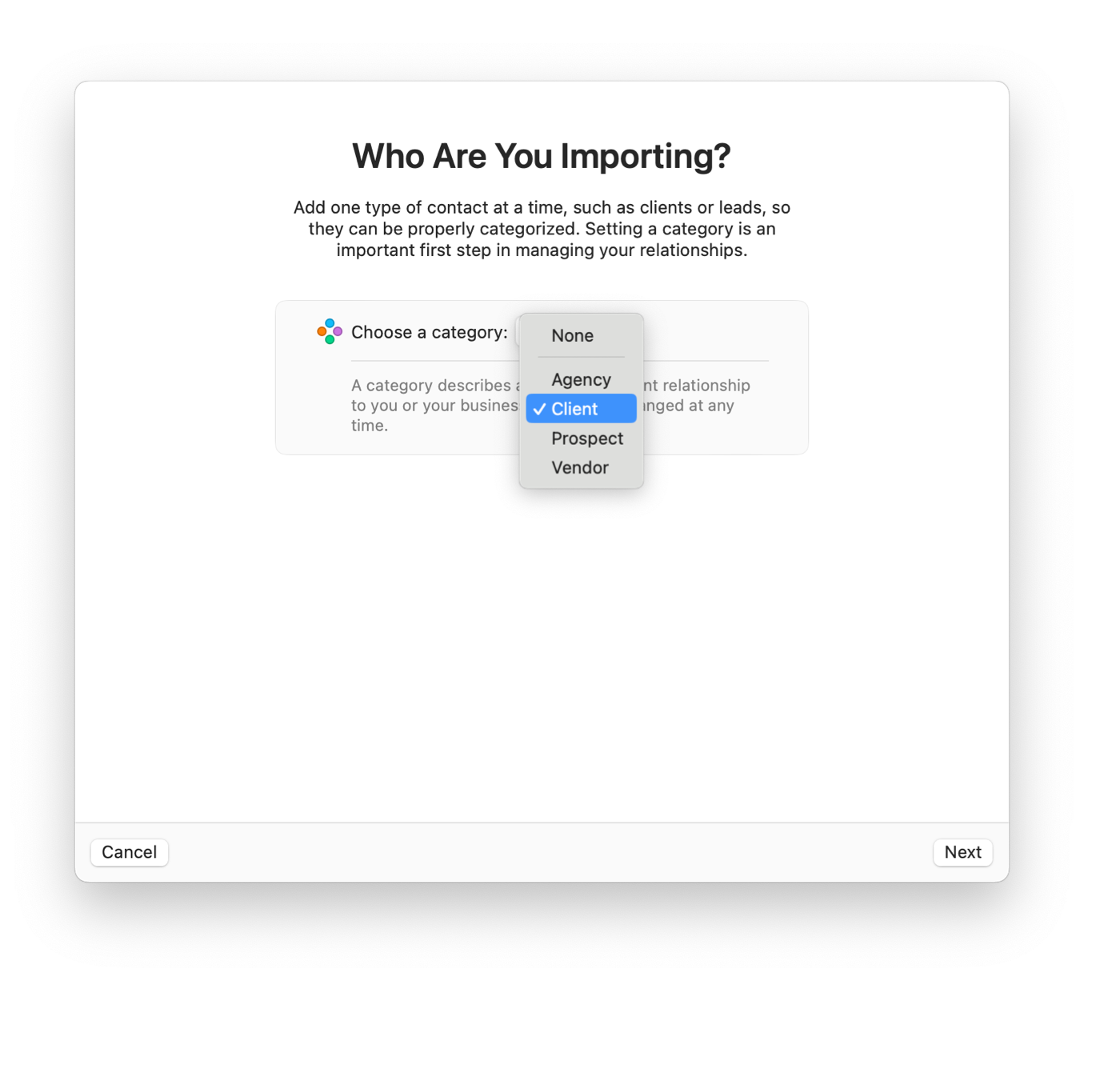
3. Choose a Category to assign to this batch of contacts.
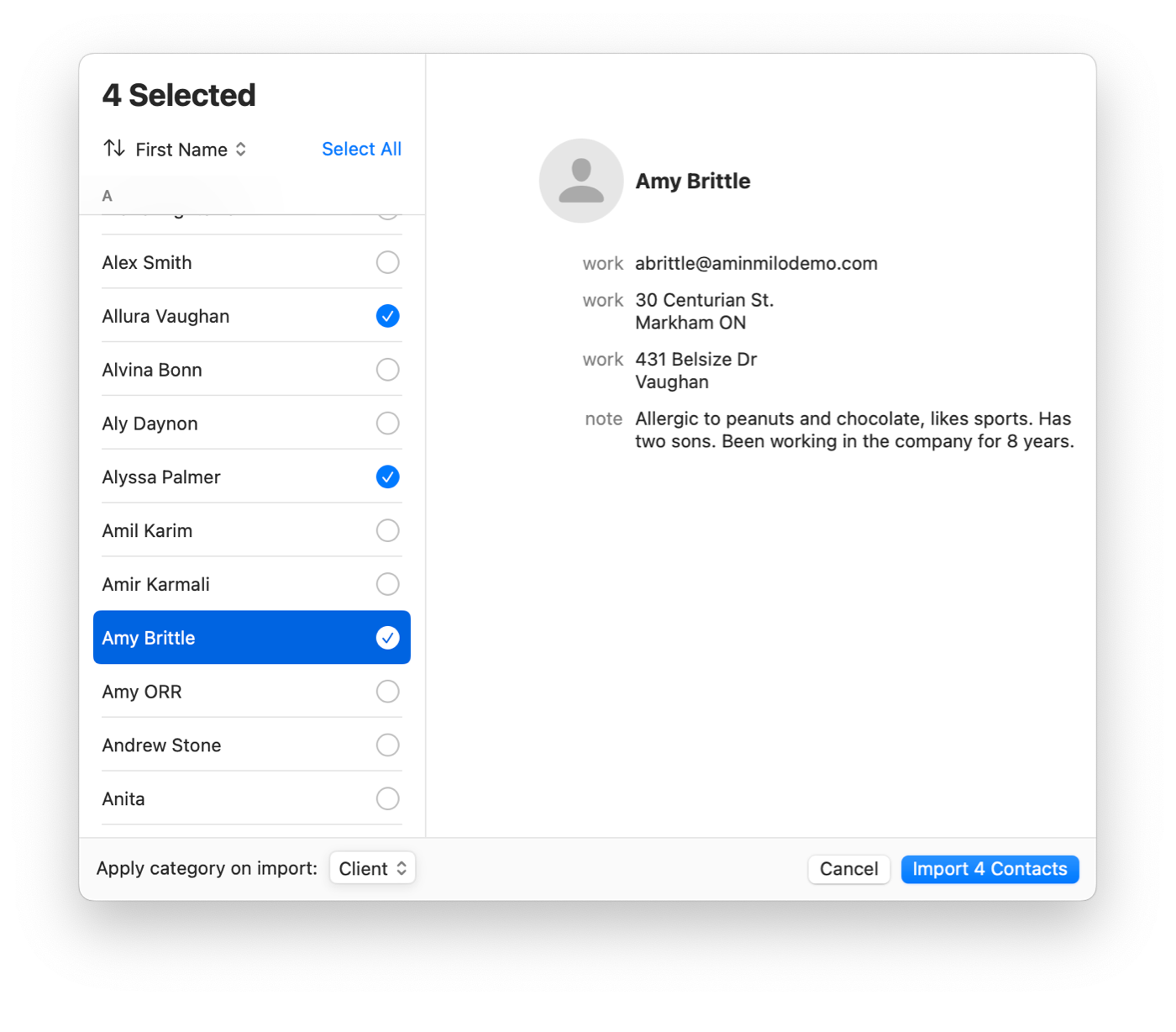
4. Select the contacts you want to import.
5. Click **Import Contacts**.
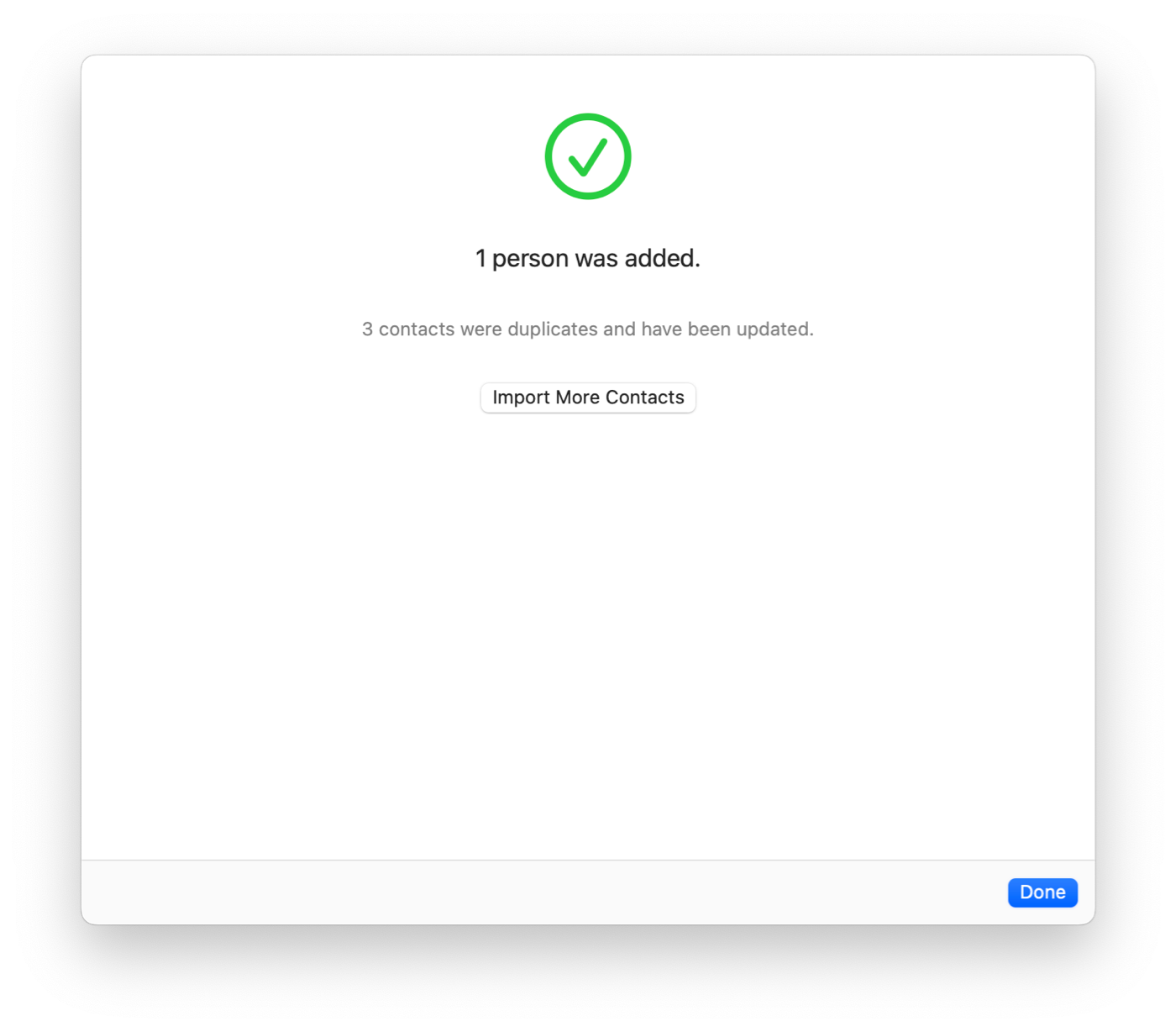
Only new contacts are added during the import. Daylite updates any duplicate contact records rather than creating a second copy.
{% hint style="info" icon="lightbulb" %}
**Did you know?**
You can also import contacts by dragging and dropping them onto the import window, or directly onto the Daylite icon in your Dock.
{% endhint %}
{% endtab %}
{% tab title="iPhone & iPad" %}
You can import existing People or Company records from the Contacts app into Daylite.
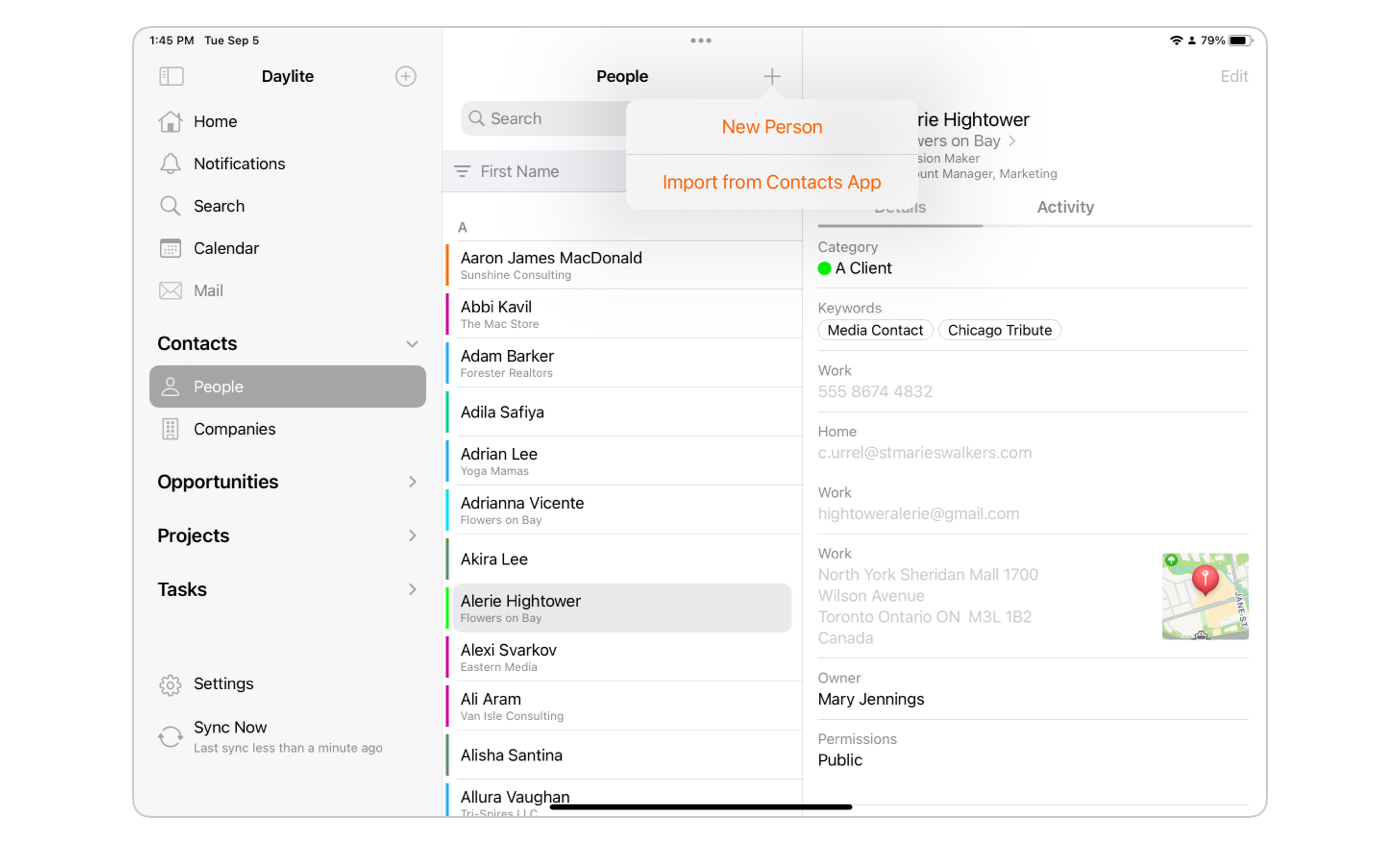
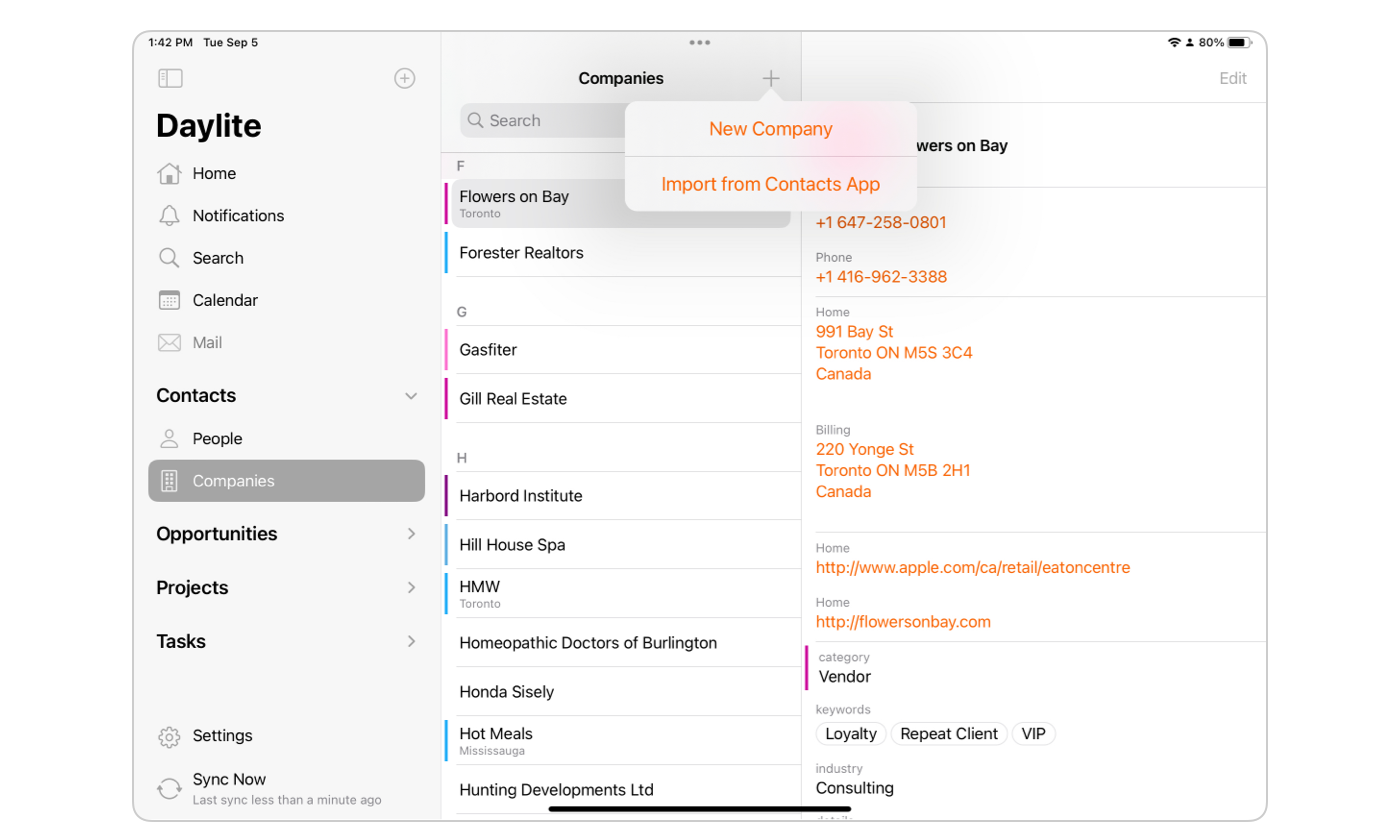
1. Tap **Contacts > People** in the Sidebar to import a Person, or **Contacts > Companies** to import a Company.
2. Tap the **+** button.
3. Tap **Import from Contacts App**.
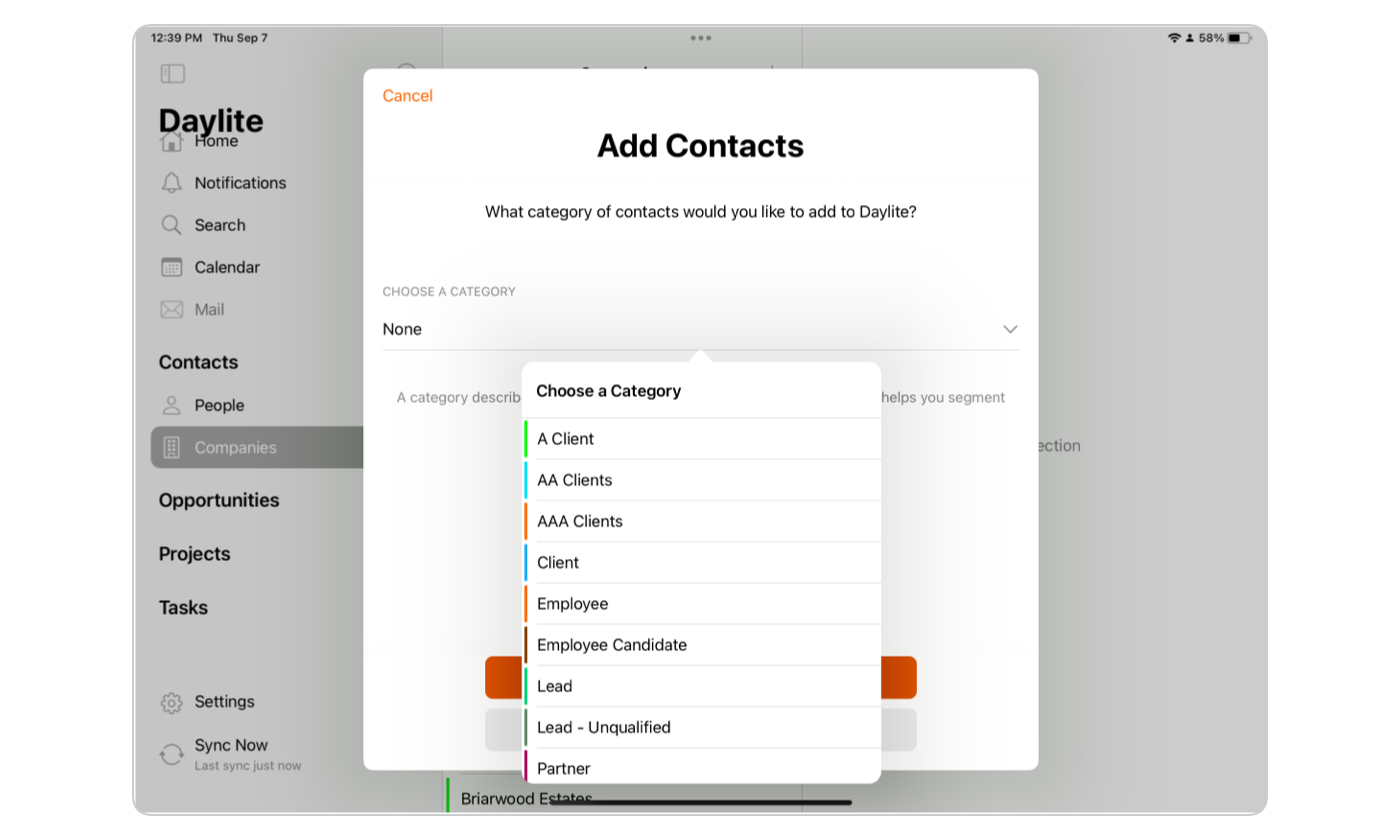
4. Select a Category from the **Choose a Category** menu.
5. Tap **Select Contacts**.
6. Choose the contacts you want to import. You can select more than one at a time.
Contacts imported this way are added to Daylite as new records.
{% hint style="info" icon="lightbulb" %}
**Tip:**
Remove any duplicated data from your Contacts app before importing it to Daylite, to avoid errors.
{% endhint %}
{% endtab %}
{% endtabs %}
## How to Import Google Contacts
Google Contacts are imported by exporting them from Google as a vCard, then importing that file into Daylite on your Mac.
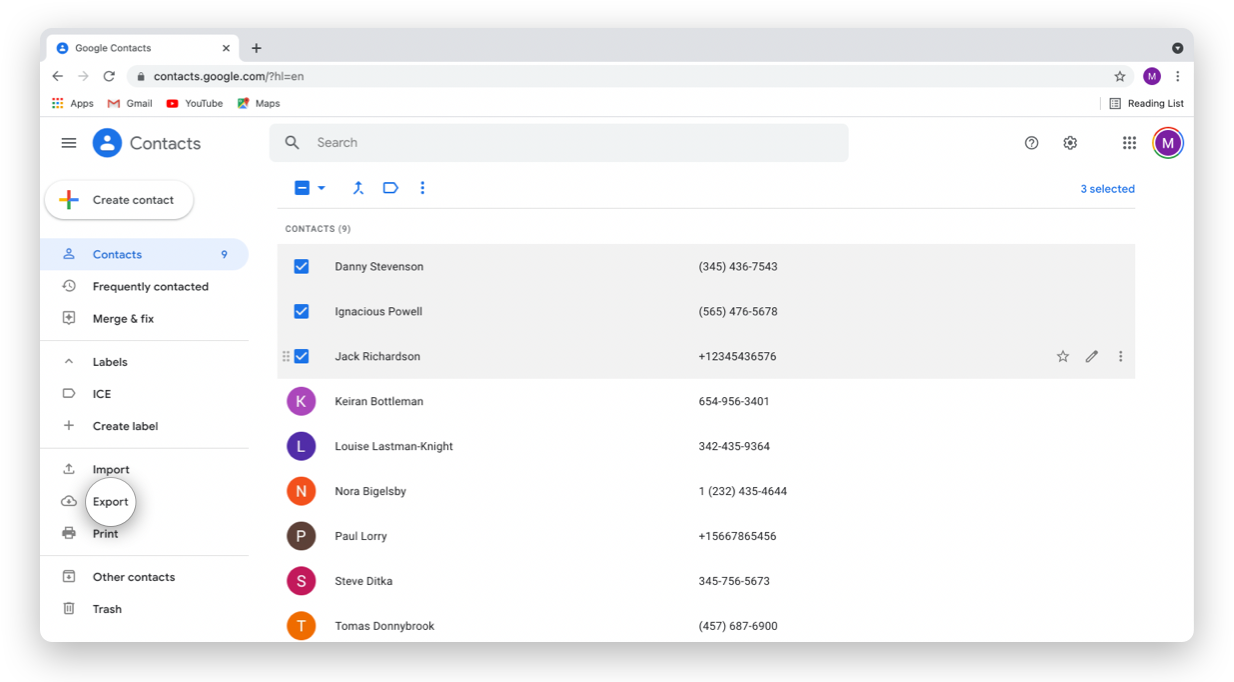
1. Log into [Google Contacts](https://contacts.google.com/).
2. Select the contacts you want to export.
3. Click **Export** in the left-hand column.
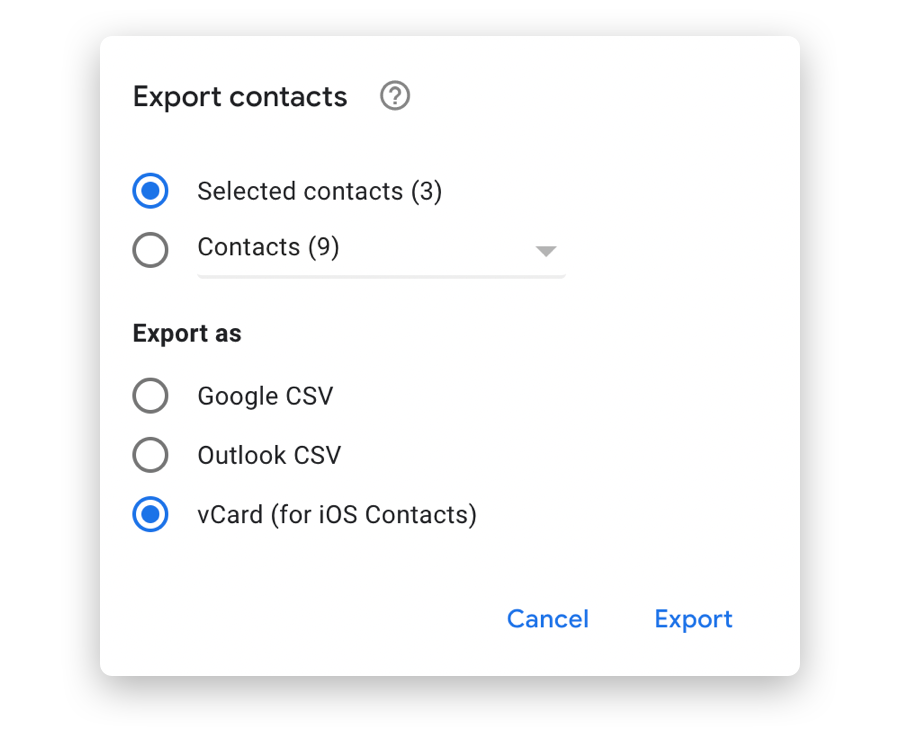
4. Choose **vCard (for iOS Contacts)**.
5. Click **Export**, and save the file to your Desktop or Downloads folder.
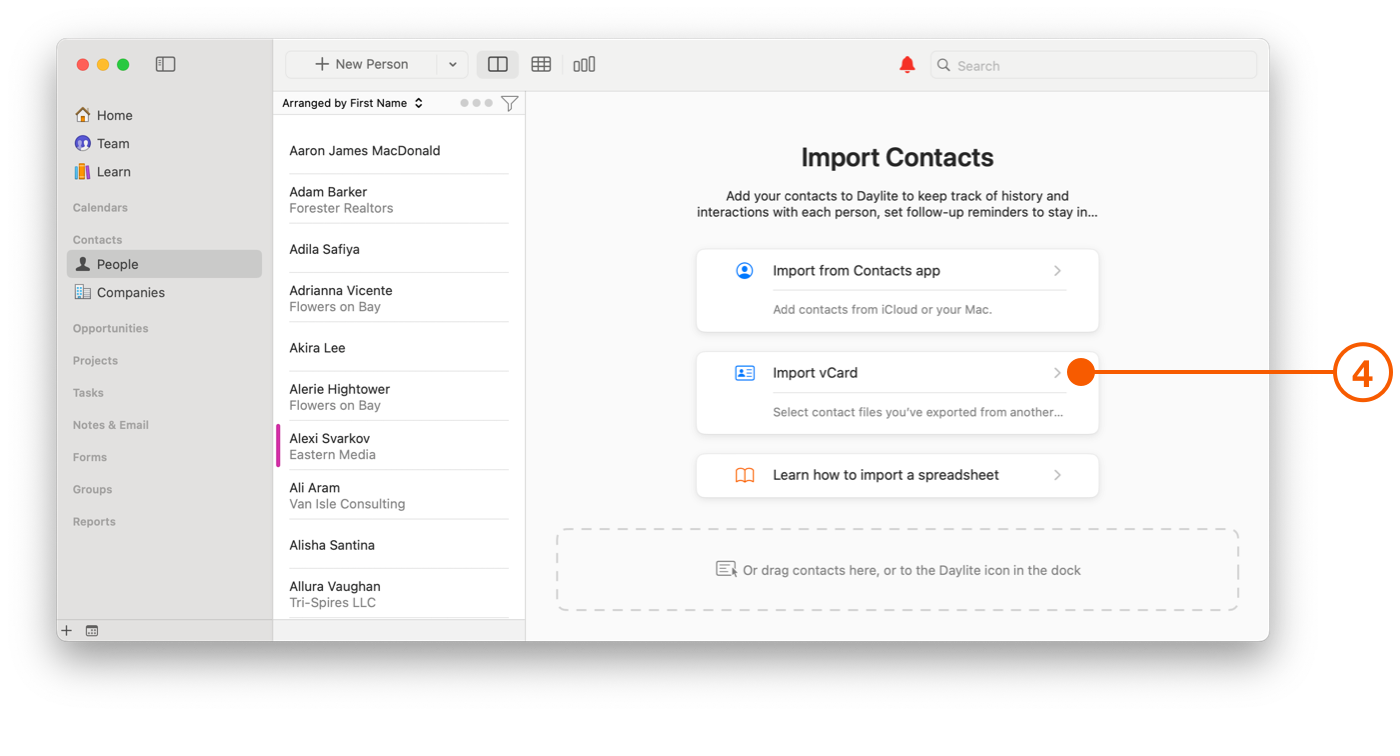
6. In Daylite, select **File > Import > Import Contacts**.
7. Select **Import vCard**.
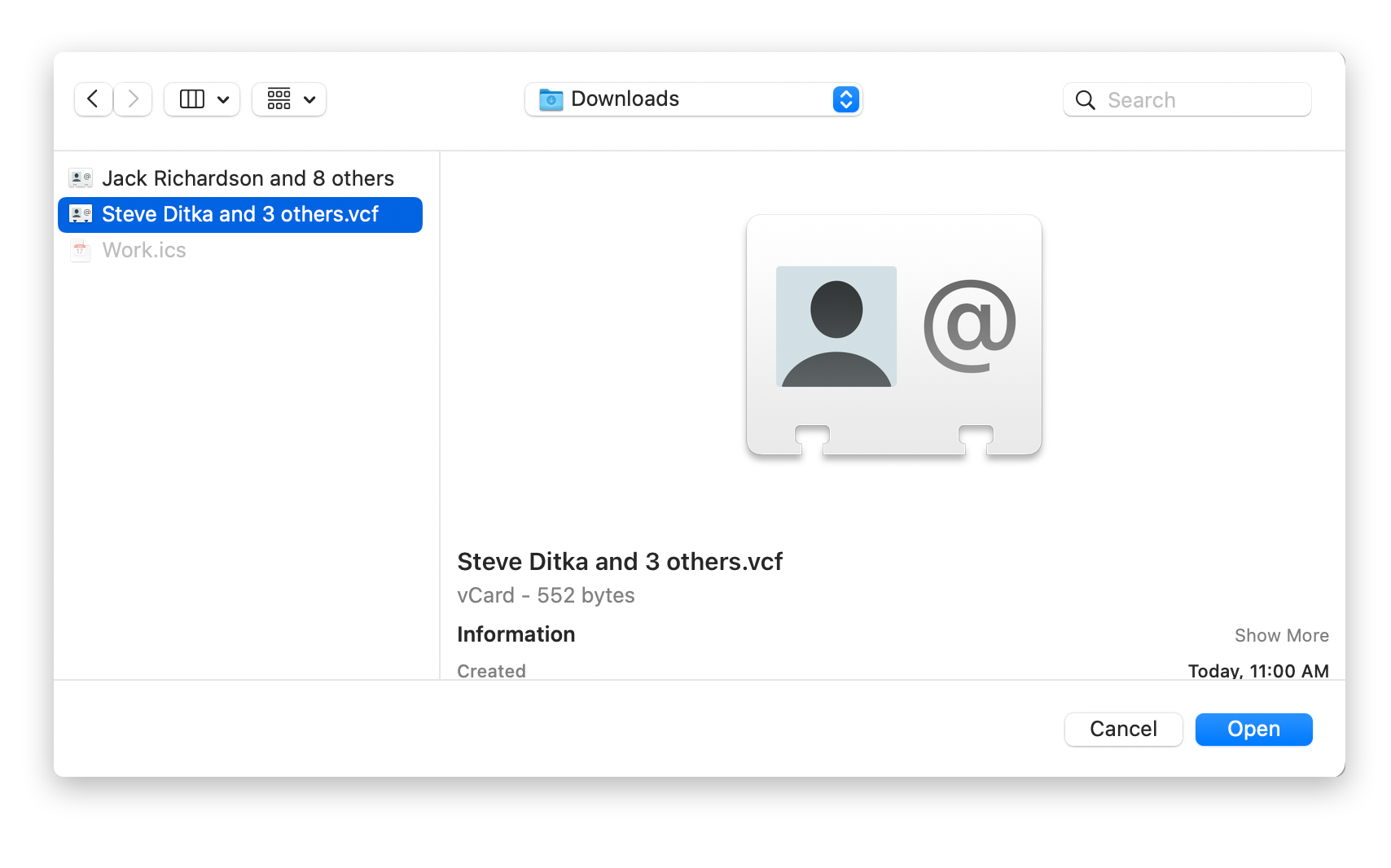
8. Navigate to the saved .vcf file, select it, and click **Open**.
## How to Import a vCard File
A vCard is a standard contact file format, saved with a .vcf extension, that most contact applications can export. Any vCard file, not only one exported from Google, can be imported the same way.
1. In Daylite, select **File > Import > Import Contacts**.
2. Select **Import vCard**.
3. Navigate to the .vcf file, select it, and click **Open**.
{% hint style="success" icon="sparkle" %}
**Tip:**
If your current contact app has no vCard export option, check whether it can export a .csv or other delimited text file instead, or contact the app's developer for help.
{% endhint %}
## How to Import Contacts from a Spreadsheet
If your contact manager or CRM cannot export a vCard, or you keep contacts in a spreadsheet, import them with the CSV/TSV importer. Microsoft Outlook, for example, exports in CSV format.
A CSV file is a text file whose fields are separated by commas. A TSV file separates its fields by tabs instead. TSV is the more reliable of the two, because a comma inside a field such as an address can shift data into the wrong column in a CSV. If your spreadsheet application offers the choice, save as tab-delimited text.
Start from **File > Import > Import from Spreadsheet**. Each column in your file is a Source, and you map it to a Destination field in Daylite. The importer also supports marking fields as Unique, so it updates existing records instead of creating duplicates, and saving an import Profile to reuse a mapping.
For the full procedure — field mapping, Unique fields, Import Profiles, field wrappers, and the preview — see [CSV/TSV Data Importer](https://docs.daylite.app/help/mac-fundamentals/tools-and-utilities/csv-tsv-data-importer).
{% hint style="success" icon="sparkle" %}
**Before you import a spreadsheet**
A spreadsheet import can make large changes to your database and there is no undo. Run a small test import first to confirm your mapping.
{% endhint %}
## How to Assign a Category during Import
You can assign a Category to contacts as you import them, which saves classifying them afterwards. For example, assign Client to the first batch and Prospect to the next. The Category is applied automatically once the contacts are imported.
On Mac, the Category selector appears in the import window. On iPhone and iPad, select from the **Choose a Category** menu before tapping **Select Contacts**.
## How Daylite Handles Duplicates during Import
Daylite recognises and handles duplicates during an import, so new information is added to an existing record rather than creating a second copy. This makes the importer useful for updating People and Company records as well as creating them.
Daylite compares three fields: **First Name**, **Last Name**, and **Email address**. If all three match exactly, Daylite treats the record as the same person and does not add a duplicate. If any of the three differ, Daylite creates a new record.
{% hint style="warning" %}
If an imported Person is matched as a duplicate, any existing phone, email, and address information on that record is overwritten by the imported values.
{% endhint %}
Duplicates that do get through can be found and merged afterwards. See [Duplicate Checker](https://docs.daylite.app/help/mac-fundamentals/tools-and-utilities/duplicate-checker) for how to scan for records sharing an email, phone number, or name and combine them. Run it after any large import, before you start linking Tasks, Opportunities, or Projects to the imported contacts, so each contact's history lands on one record.
## How to Prepare Your Data before Importing
Clean data imports more predictably. Before you import:
* Remove any data that is not required, including extra rows at the top and bottom of a spreadsheet.
* Keep your data consistent throughout the file.
* Make your spreadsheet column names match the Daylite field names where you can, so mapping is easier.
* Remove duplicated entries from your source contact list first.
## Where to Find Your Newly Imported Records
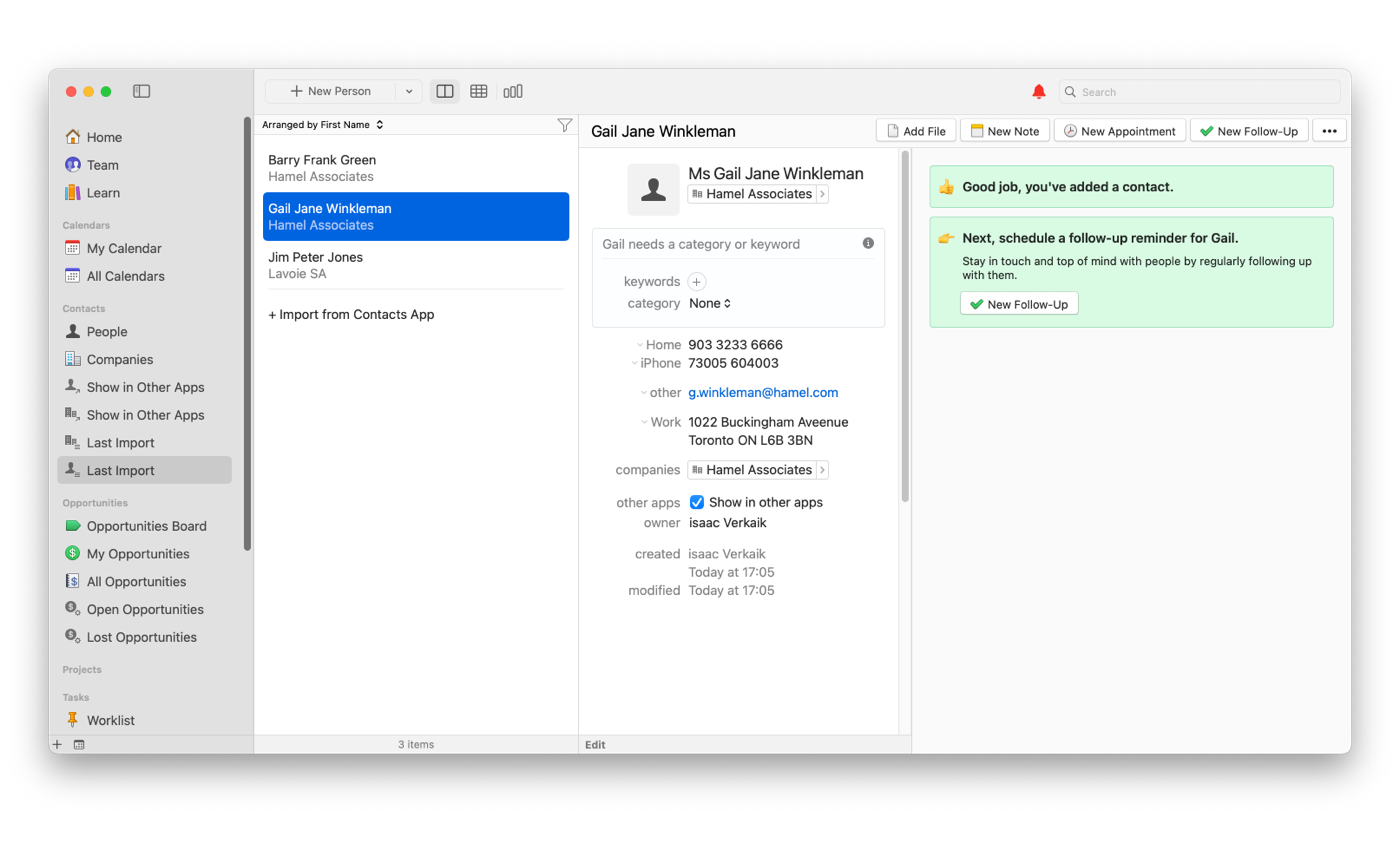
After an import finishes, the new records appear under **Last Import** in the relevant section of the Daylite Sidebar.
## Frequently Asked Questions
**How does Daylite decide whether an imported contact is a duplicate?** It compares First Name, Last Name, and Email address. If all three match an existing record exactly, Daylite updates that record instead of creating a new one. If any one of the three differs, a new record is created.
**Can I import contacts on my iPhone or iPad?** Yes, from the Apple Contacts app. Tap the **+** button in the People or Companies list and choose **Import from Contacts App**. Spreadsheet import is available on Mac only.
**Can I assign a Category while importing?** Yes. Choose a Category in the import window on Mac, or from the **Choose a Category** menu on iPhone and iPad. It is applied to every contact in that batch automatically.
**How do I import contacts from Outlook?** Export them from Outlook as a CSV file, then use **File > Import > Import from Spreadsheet** in Daylite. See [CSV/TSV Data Importer](https://docs.daylite.app/help/mac-fundamentals/tools-and-utilities/csv-tsv-data-importer) for the mapping steps.
**Does importing a contact overwrite what is already in Daylite?** Only on matched duplicates. When a Person is matched on all three fields, existing phone, email, and address information is replaced by the imported values. Unmatched contacts are added as new records.
**What should I do after a large import?** Run the duplicate checker before linking anything to the new contacts, so each contact's history ends up on one record rather than split across two. See [Duplicate Checker](https://docs.daylite.app/help/mac-fundamentals/tools-and-utilities/duplicate-checker).
---
# Agent Instructions
This documentation is published with GitBook. GitBook is the documentation platform designed so that both humans and AI agents can read, navigate, and reason over technical content effectively. Learn more at gitbook.com.
## Querying This Documentation
If you need additional information that is not directly available in this page, you can query the documentation by asking a question.
Perform an HTTP GET request on the following URL with the `ask` and `goal` query parameters:
```
GET https://docs.daylite.app/help/mac-fundamentals/contact-management/importing-contact-information.md?ask=&goal=
```
`ask` is the immediate question: it should be specific, self-contained, and written in natural language.
`goal` is what the user is ultimately trying to achieve, the reason they need the answer. Sharing it helps GitBook give you a better, more relevant answer. A goal is most helpful when it describes the outcome the user wants rather than restating the question. For example, with `ask=how do I create an API token`, a goal like `automate deployments from our CI pipeline` lets GitBook tailor the answer to that use case.
The response will contain a direct answer to the question and relevant excerpts and sources from the documentation.
Use this mechanism when the answer is not explicitly present in the current page, you need clarification or additional context, or you want to retrieve related documentation sections.