> For the complete documentation index, see [llms.txt](https://docs.daylite.app/help/llms.txt). Markdown versions of documentation pages are available by appending `.md` to page URLs; this page is available as [Markdown](https://docs.daylite.app/help/mac-fundamentals/calendars/using-the-daylite-calendar.md).
# Using the Daylite Calendar
**Daylite Calendars** are unique in that you can link People and Companies to them. Any meetings you have had with People will appear on their timeline, and you can view specific information about any Appointment — such as a phone number or address — directly from the Calendar view. You can also view any Tasks or Objectives that have been linked to the Appointment. That means you do not have to go looking in other places for information on who you are meeting with. It's all in one convenient place.
You can also overlay other calendar accounts in the Daylite Calendar view. For example, you can have your **work** and **personal** calendar accounts show at the same time. This will help keep you from double booking because you couldn't see both calendars at once.
Daylite is also unique because it shows any due dates you have added to your Tasks.
## Calendar Views
{% tabs %}
{% tab title="Mac" %}
Calendar has two different viewing options. They will show the same information, so it really just comes down to personal preference.
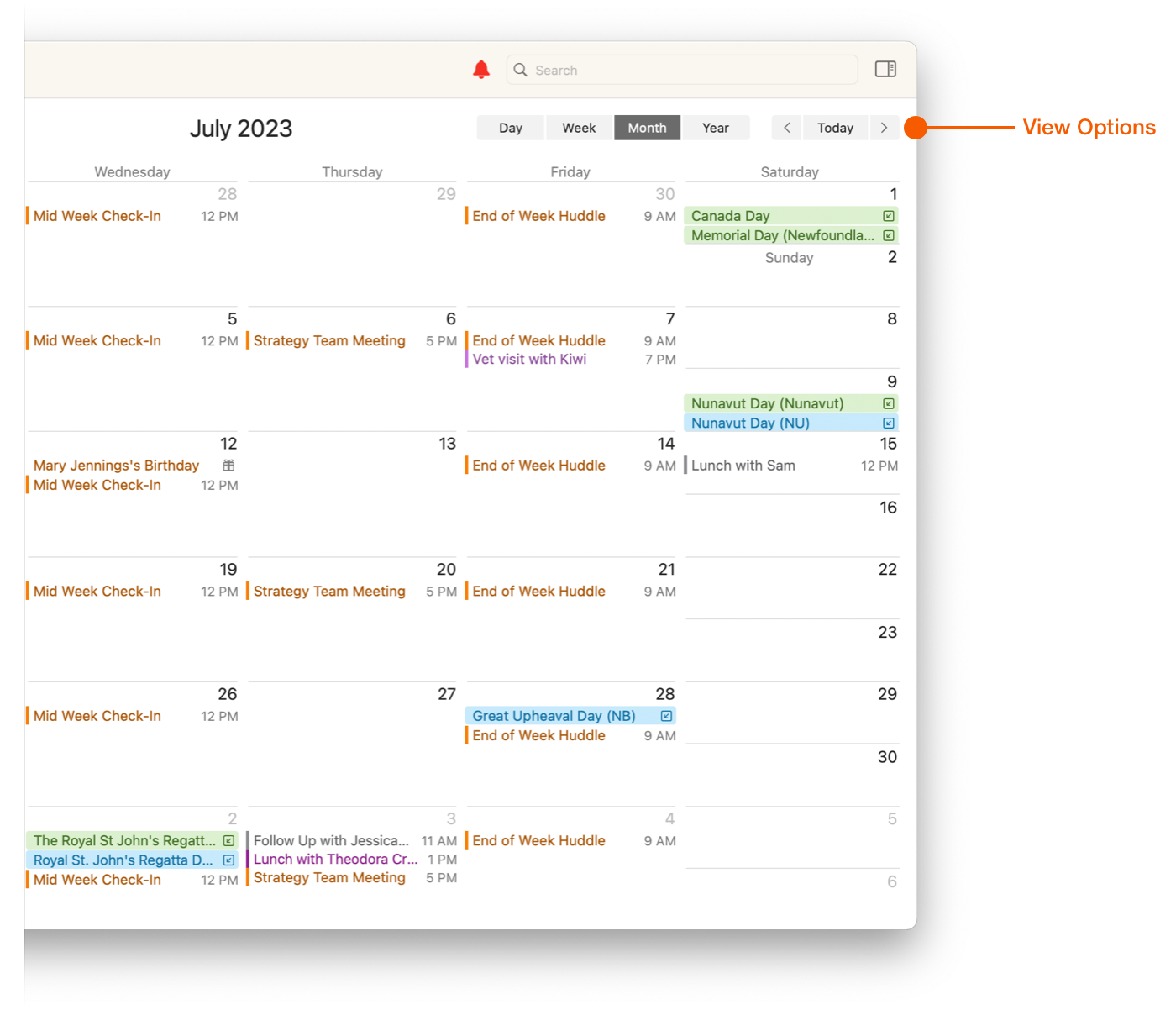
* **Calendar View** - This view lays out your Calendar in a traditional daily, weekly, monthly or yearly view.
* **Multi-Column List View** - Appointments are listed in a spreadsheet and sorted by any criteria required.
### View by Day, Month, and Year
You can view your Calendar by Day, Month and Year.
Clicking on **Today** will centre the calendar on the current day of the week. Selecting the **<** & **>** icons will advance or retract the calendar by one week.
{% hint style="info" icon="lightbulb" %}
**Did you know?**
If you hold down the **Option** key when doing this, then the Calendar will advance or retract by one Day instead of by one week. This is very helpful if you want to look a few days ahead.
{% endhint %}
### Right Sidebar Pane
The right sidebar pane lets you view linked Objects. We recommend that you keep this turned on for all Calendar views.
{% endtab %}
{% tab title="iPhone & iPad" %}
You can view your Calendar by Day, Month and Year.
Tapping on **Today** will centre the calendar on the current day of the week. Selecting the **<** or **>** icons will advance or retract the calendar by one week.
{% endtab %}
{% endtabs %}
## Calendar Types
Daylite has two types of Calendars.
**My Calendar** is a personal or business calendar that shows the calendar entries for the person who is currently using Daylite. It shows:
* Calendar items owned by the current user.
* Calendar entries the user is linked to.
* Calendar entries that have been delegated to the current user.
{% tabs %}
{% tab title="Mac" %}
This calendar contains all the Events, Tasks, and Appointments that are specific to you.
**All Calendars** are the Calendars of other users or Calendars that are based on a smart list filter.
{% endtab %}
{% tab title="iPhone & iPad" %}
This Calendar also contains all the Tasks and Objectives that are specific to you.
**All Calendars** are the Calendars of other users. For example, these other users could be members of your sales team, or a shared calendar for booking a meeting room.
It shows:
* Calendar items owned by the other user.
* Calendar entries the other user is linked to.
* Calendar entries that have been delegated to the other user.
{% endtab %}
{% endtabs %}
## Show/Hide Options
On the left hand side of your Calendar you will see a small gear-shaped :gear: button. By clicking on this small gear icon you will open a menu that offers a number of options.
### Show Tasks
This toggles Tasks on and off from the Calendar top display. Tasks are displayed according to due date, and can be easily moved to change the due date by drag and drop.
Tasks can be also colour coded with their Category when viewing them in the Calendars. For example, at the highest level, if your personal Tasks are blue, and your work Tasks are red then it helps you to differentiate between your Tasks when viewing your Calendar.
### Show Completed Tasks
When you mark a Task as completed it will stay on the Calendar view for the rest of the day with the box checked, and then it will be removed the next day. Alternatively you can set Daylite to remove the Task immediately, although you may find it helpful to be able to view what Tasks have been done by keeping them on the screen for today only.
If you would like to change this setting, navigate to **Settings > General > Remove done tasks.** Now you can decide whether to remove the Task immediately after you have completed it, or to remove it from your Calendar daily instead.
### Show Projects and Opportunities
This option will display Projects and Opportunities on the Calendar View.
Opportunities are displayed using the Forecast Close Date, and uses a **$** icon. Projects are displayed using the Project Due Date, and uses a **hammer** icon.
### Cancelled Appointments
If an Appointment has been given the Status of either **Cancelled** or **Postponed** the Calendar will display it with a strike through the text. You can choose to remove these meetings from the calendar view or keep them displayed.
## Linking Items to an Appointment
{% tabs %}
{% tab title="Mac" %}
The **...** button lets you create new information that will be linked to the currently selected Appointment. For example you might want to create a linked Note to the Appointment to record the minutes.
{% endtab %}
{% tab title="iPhone & iPad" %}
Daylite's ability to link information together and present it to you cohesively is our greatest strength.
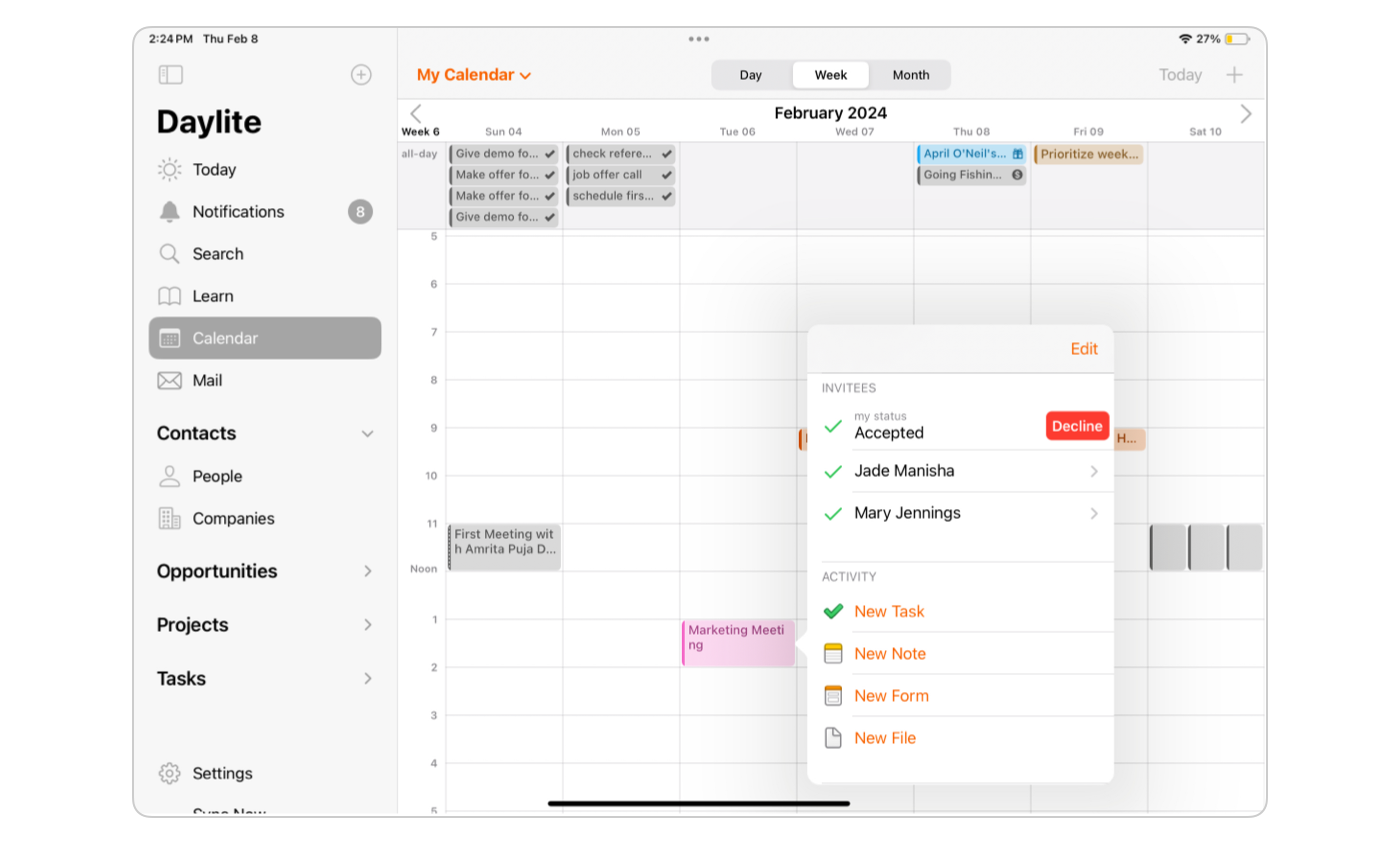
Linking an item to your Appointment, such as a **Task** or a **File,** helps keep everything organized and easy to see, because it's all located in the Calendar view.
You can choose to link items at the time you create the Appointment, or add them to the Appointment at a later date. To link an item to your Appointment, select **New Task**, **New Note**, **New Form**, or **New File**, located under the Activity section of the Appointment.
You can also choose to link a **Person**, **Company**, **Project** or **Opportunity** to the Calendar Appointment.
Tap **Edit**, scroll down to **Linked Items** and select **add link.**
{% endtab %}
{% endtabs %}
## Showing Tasks and Objectives
You can choose to display Tasks and Objectives that are linked to an Appointment in the Calendar. These are displayed according to due date.
Each Task or Objective shows a Status of **Open** when created. This Status can be changed by selecting the Task in your Calendar and tapping **Edit**.
You can choose from:
* **Open:** The Task will remain in your Calendar, displayed by due date, until you have either completed it, or changed it to a different status.
* **In Progress:** You are currently working on the Task.
* **Pending:** If you have set a series of Tasks to be completed, but you are waiting for the client to give their go ahead, these Tasks would be considered pending.
* **Deferred:** The Task may be deferred if a client decides to hold off on the deal, or if the timeline for the Task has altered, pushing the Task forward to a date set in the future. By changing the due date and marking the status as Deferred the Task will be moved in the Calendar.
* **Done:** When you complete a Task and mark it as Done, the Task is automatically removed from the Calendar view. It can still be seen and edited under **Tasks > Done** in the Sidebar.
* **Cancelled:** When a Task is marked as Cancelled it is automatically removed from the Calendar view.
## Updating an Appointment's Status
As with a Task's Status, you can also update your Appointment's Status by tapping your Appointment and selecting **Edit > status**.
You can set the Appointment's Status to **Other**, **Tentative**, **Confirmed**, **Postponed**, **Completed** or **Cancelled**.
{% hint style="info" icon="lightbulb" %}
**Did you know?**
If an Appointment has been given the Status of **Postponed** or **Cancelled** the Calendar will display it with a strike through the text. You can choose to remove these meetings from the Calendar view or keep them displayed.
{% endhint %}
## Show Birthdays and Anniversaries
Each Person's record has a date field for their birthday and/or Anniversary.
By adding a birthday or anniversary to someone's Contact card you can have it display in the Calendar with an icon. It is important to note that both Birthdays & Anniversaries show the same icon.
## Does Your Business Include Weekends?
Weekends display in compressed format by default, and occupy half the width of a week day.
If your business includes weekends they can be set to occupy the same width as a week day.
In either case you can select your preference by going to **Settings > Calendar > Collapse weekends** and checking the box on or off.
## A Few Tips and Tricks to Keep in Mind
* You can click and drag on the Calendar itself to produce a new Appointment.
* Opportunities are displayed on the Calendar using the forecasted Close Date.
* Projects are displayed on the Calendar using the Project Due Date.
* You can change the amount of detail to display in a meeting by going to **Settings > Calendar > Show appointment.** This could include a Zoom link or where the meeting is taking place.
---
# Agent Instructions
This documentation is published with GitBook. GitBook is the documentation platform designed so that both humans and AI agents can read, navigate, and reason over technical content effectively. Learn more at gitbook.com.
## Querying This Documentation
If you need additional information that is not directly available in this page, you can query the documentation dynamically by asking a question.
Perform an HTTP GET request on the current page URL with the `ask` query parameter, and the optional `goal` query parameter:
```
GET https://docs.daylite.app/help/mac-fundamentals/calendars/using-the-daylite-calendar.md?ask=&goal=
```
`ask` is the immediate question: it should be specific, self-contained, and written in natural language.
`goal` is optional and describes the broader end goal you are ultimately trying to accomplish on behalf of the user. GitBook uses it to tailor the answer towards what is most useful for that goal.
The response will contain a direct answer to the question and relevant excerpts and sources from the documentation.
Use this mechanism when the answer is not explicitly present in the current page, you need clarification or additional context, or you want to retrieve related documentation sections.