> For the complete documentation index, see [llms.txt](https://docs.daylite.app/help/llms.txt). Markdown versions of documentation pages are available by appending `.md` to page URLs; this page is available as [Markdown](https://docs.daylite.app/help/mac-fundamentals/calendars/importing-calendars-into-daylite.md).
# Importing Calendars into Daylite
Bring events from Apple Calendar, Google Calendar, and other calendar apps into Daylite by exporting them as .ics files and importing the files.
If your events are stored in another calendar app, export them as an .ics file, then import the file into Daylite. Most calendar apps, such as Apple Calendar, Google Calendar, Outlook Calendar, and Fantastical, can export your events.
**Key facts:**
* Export your events from the other app as .ics files.
* In Daylite, choose **File** > **Import** > **Import vCalendar** to import each file.
* Google Calendar exports a ZIP file with one .ics file for each calendar. Import each file separately.
* An import copies your events into Daylite once. To keep a Google calendar and Daylite in sync, use [Google Calendar Sync](https://docs.daylite.app/help/mac-fundamentals/calendars/google-calendar-sync) instead.
***
### Import from Apple Calendar
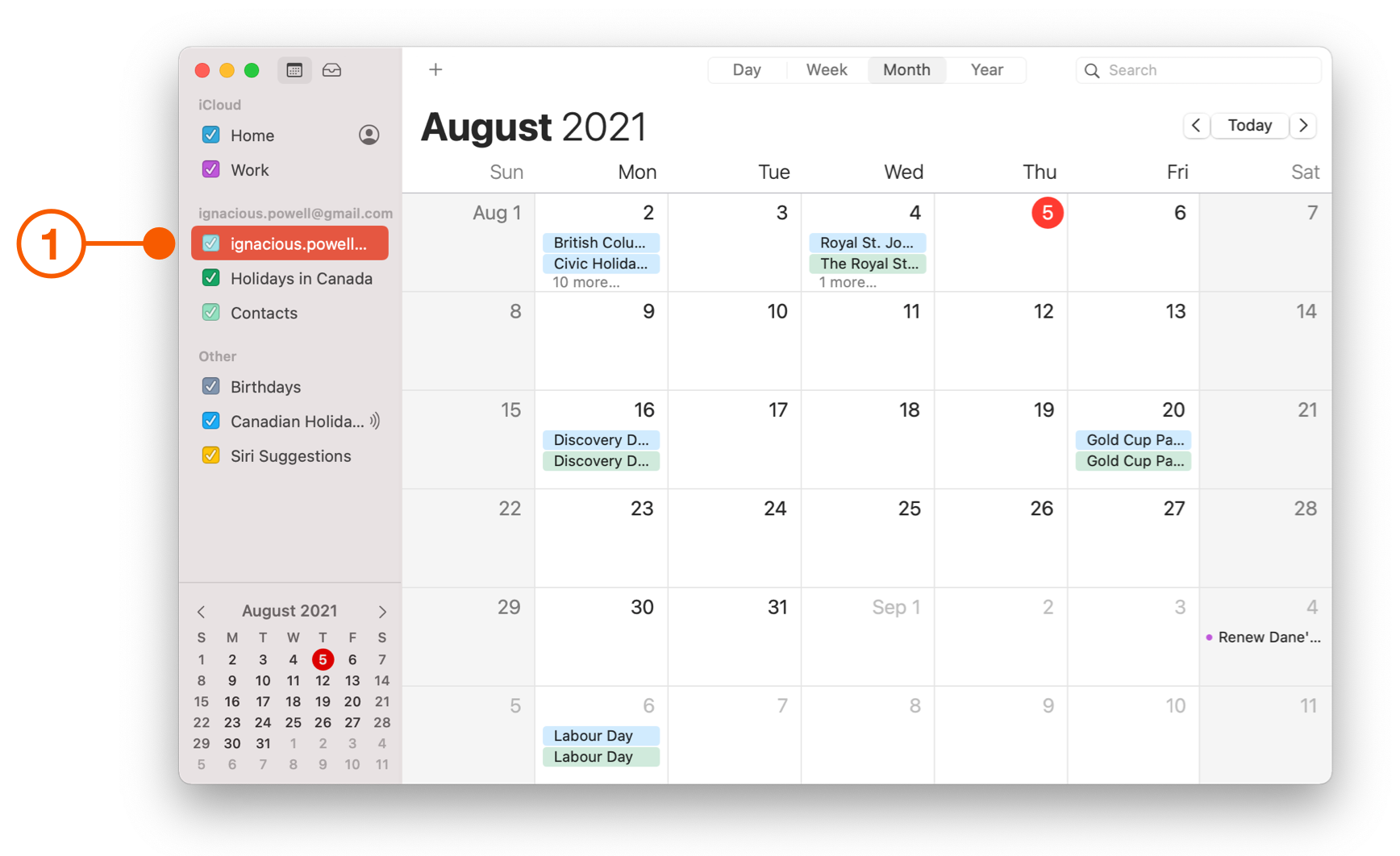
1. Open Calendar on your Mac.
2. Select the calendars you want to export.
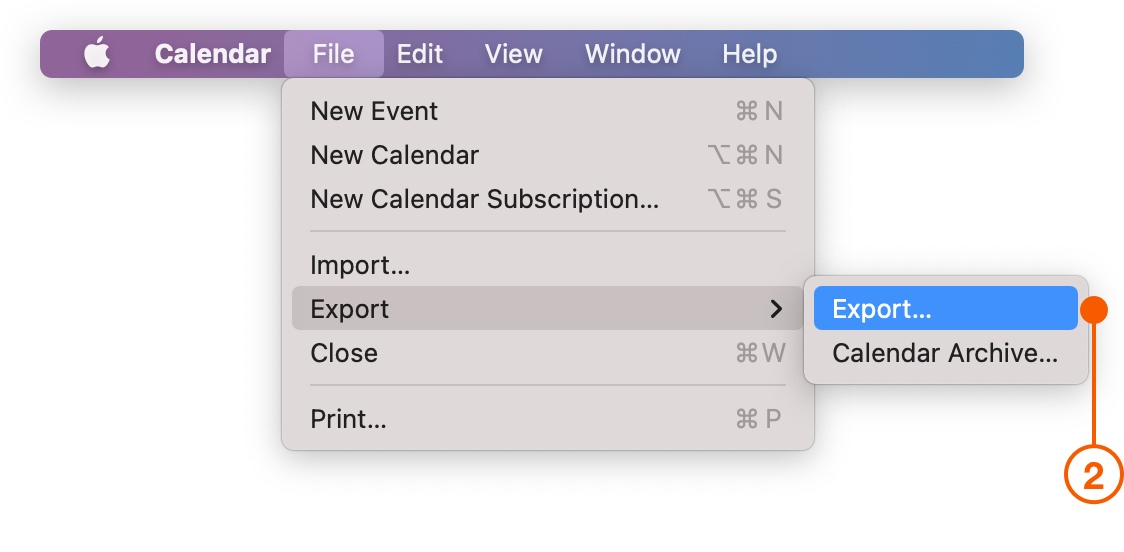
3. Choose **File** > **Export** > **Export**.
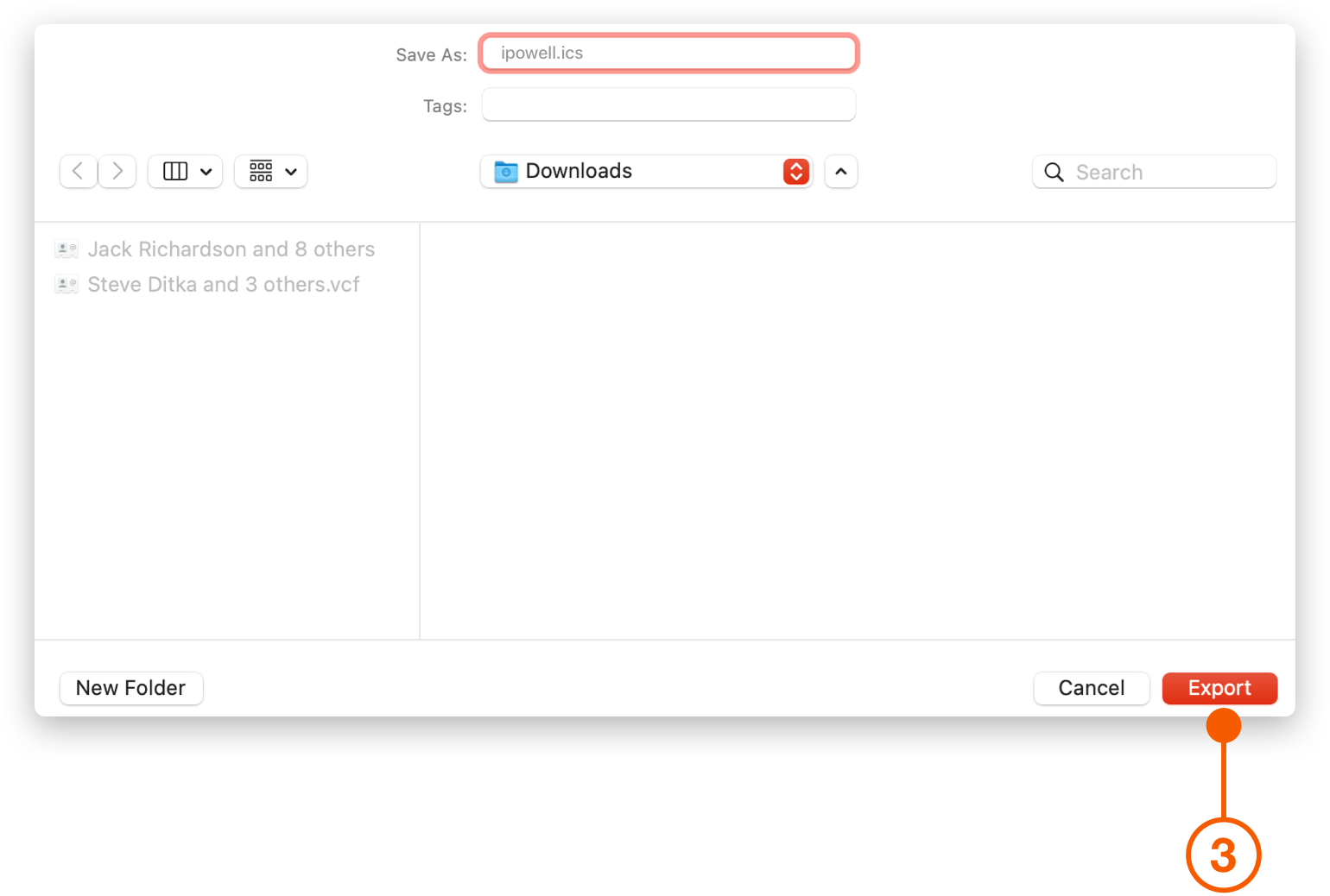
4. Click **Export**. Calendar saves the .ics file to your Downloads folder by default.
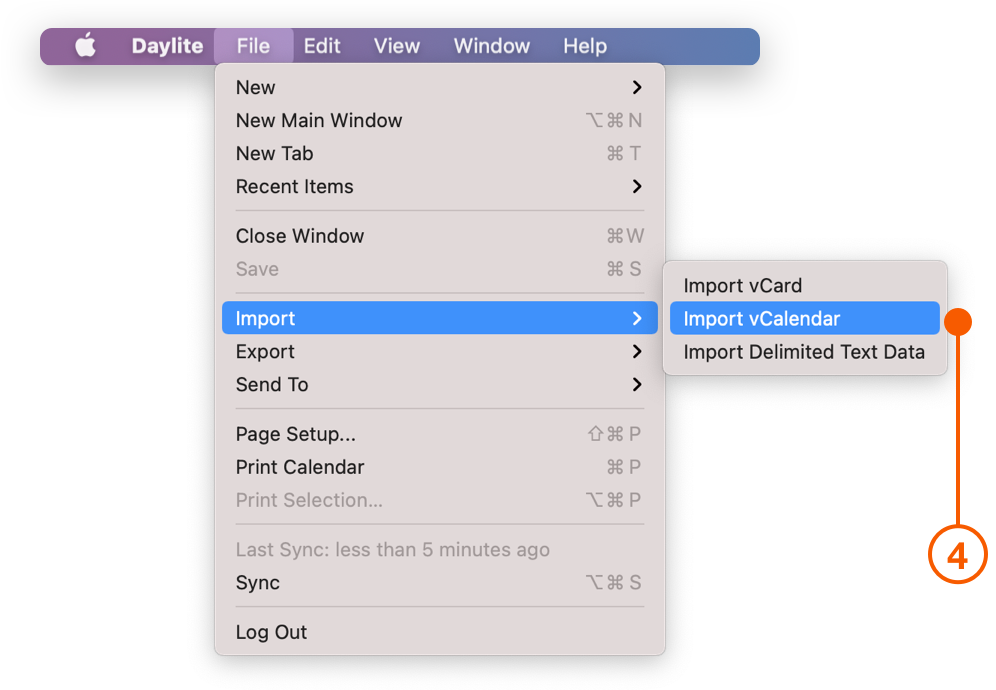
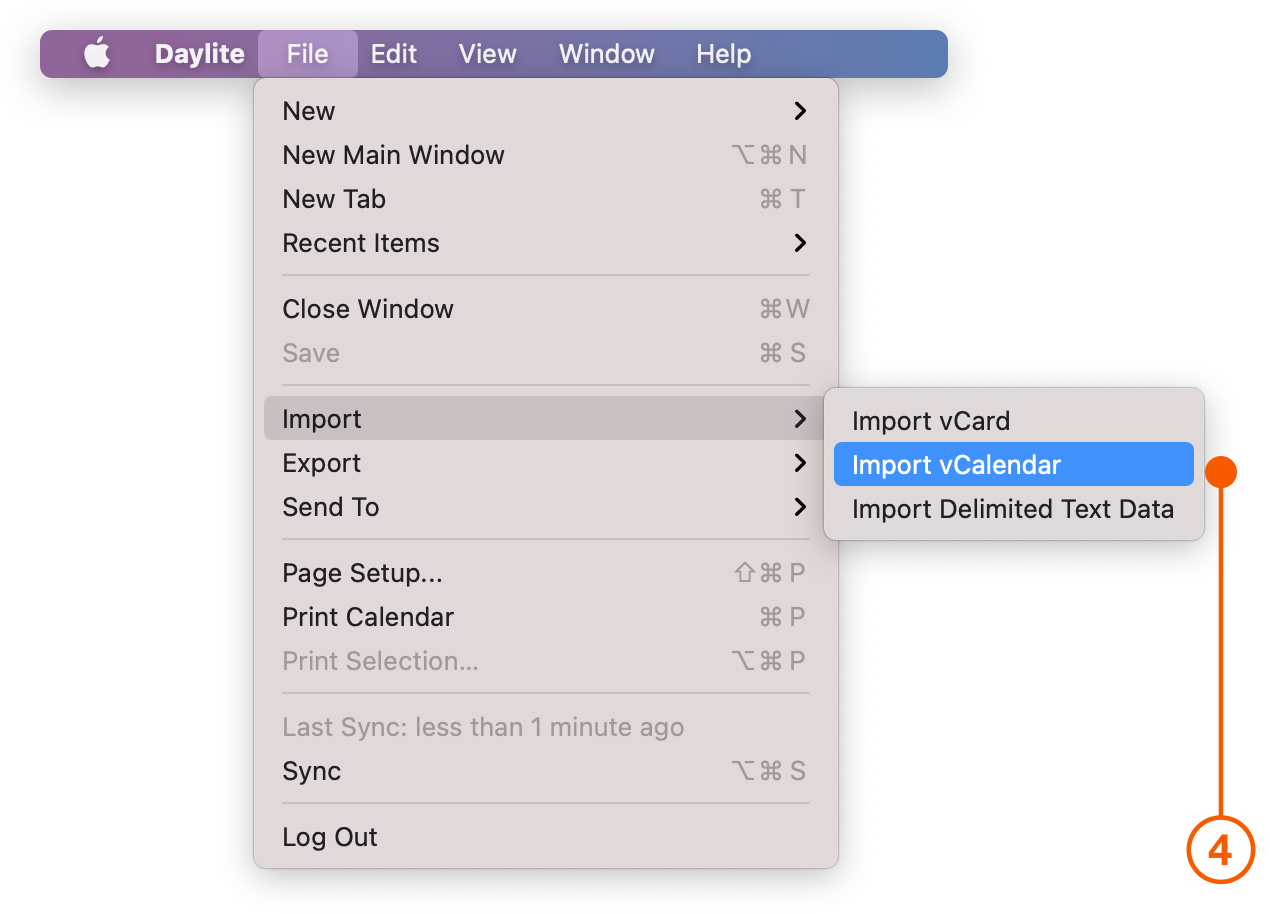
5. In Daylite, choose **File** > **Import** > **Import vCalendar**.
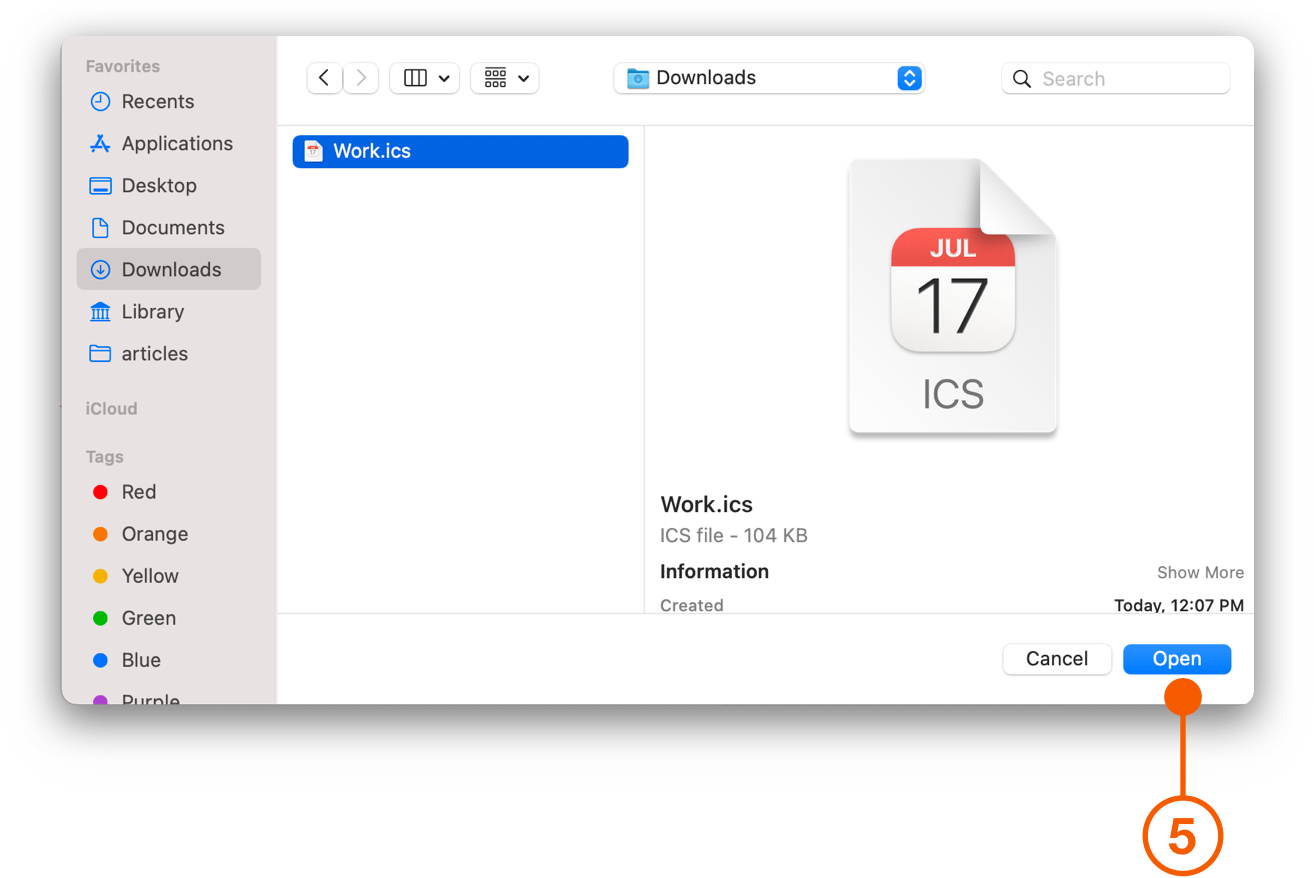
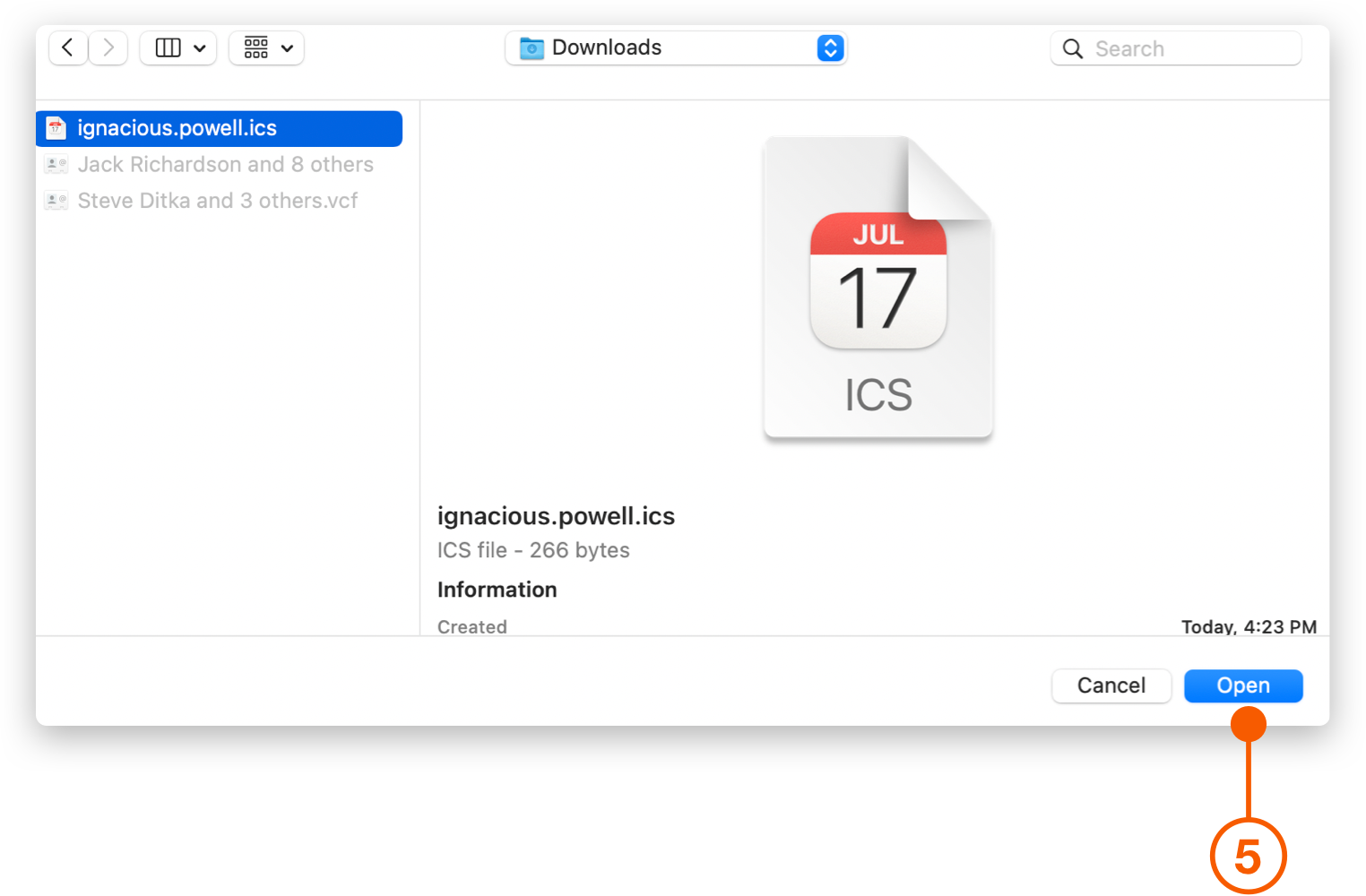
6. Select the .ics file in your Downloads folder.
7. Click **Open**.
***
### Import from Google Calendar
1. Open [Google Calendar](https://calendar.google.com/).
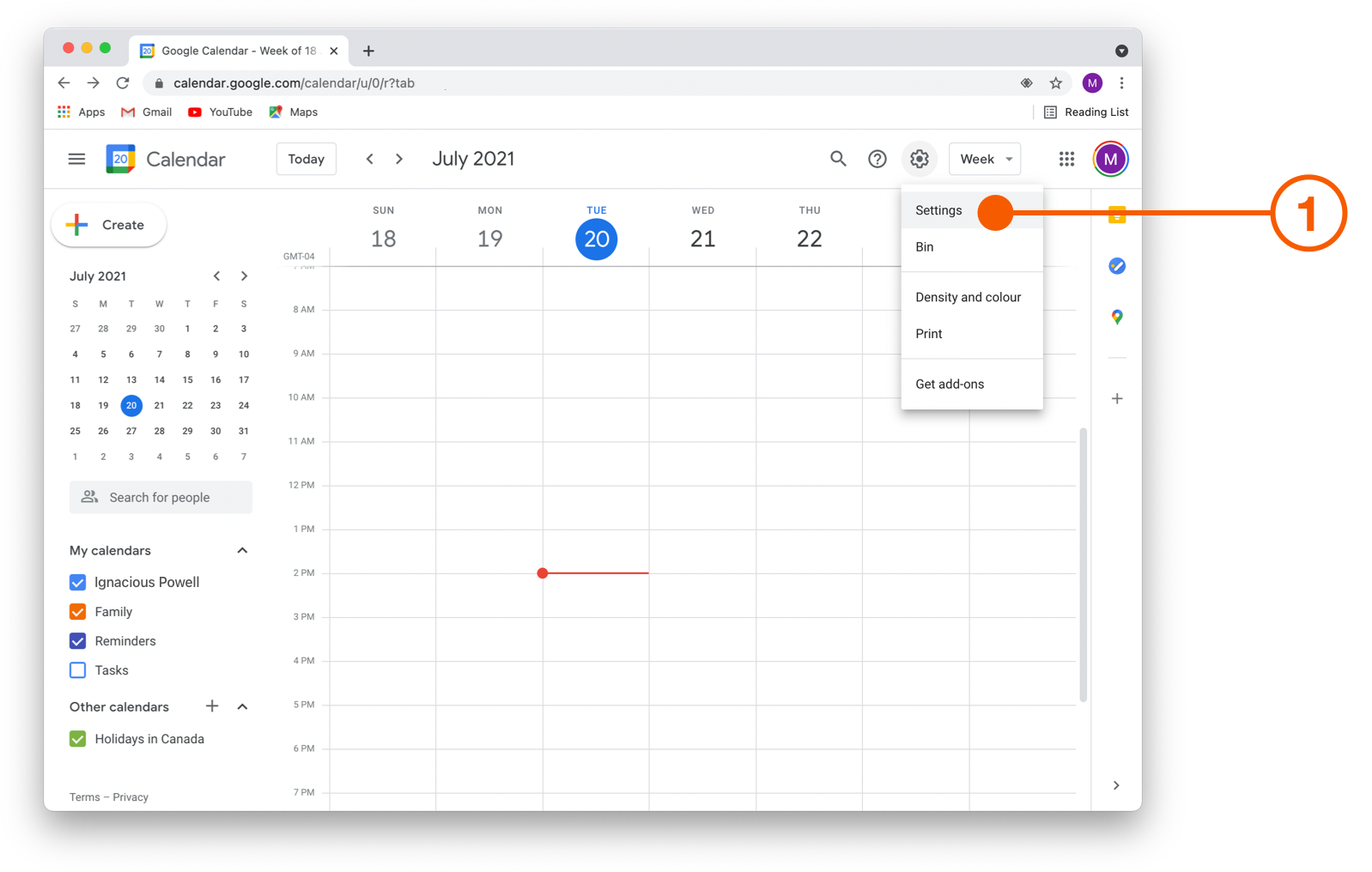
2. Click **Settings**.
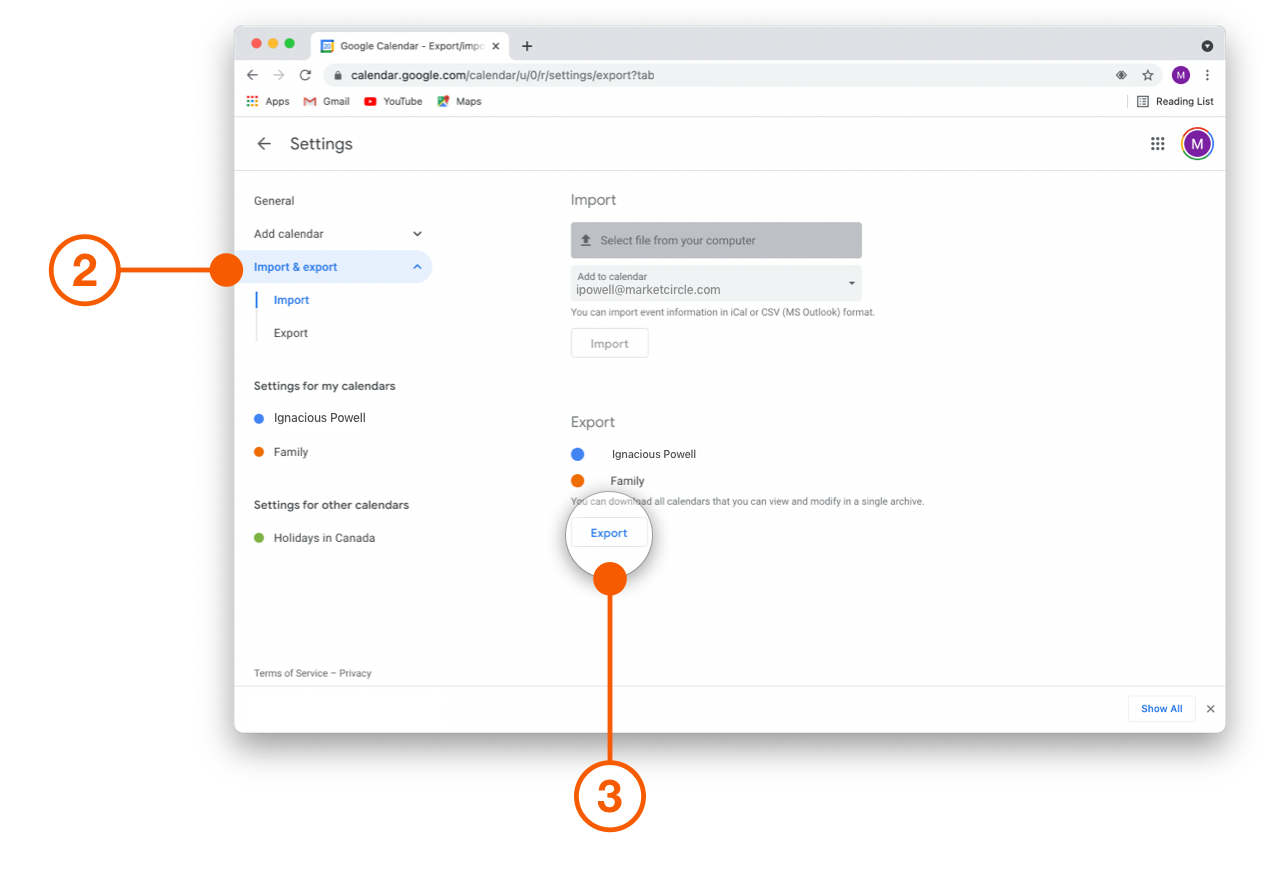
3. Click **Import & export**.
4. Select **Export** from the drop-down menu.
5. Select the calendars you want to export.
6. Click **Export**. Google Calendar downloads a ZIP file with one .ics file for each calendar.
7. Open the ZIP file to extract the .ics files.
8. In Daylite, choose **File** > **Import** > **Import vCalendar**.
9. Select one of the .ics files.
10. Click **Open**.
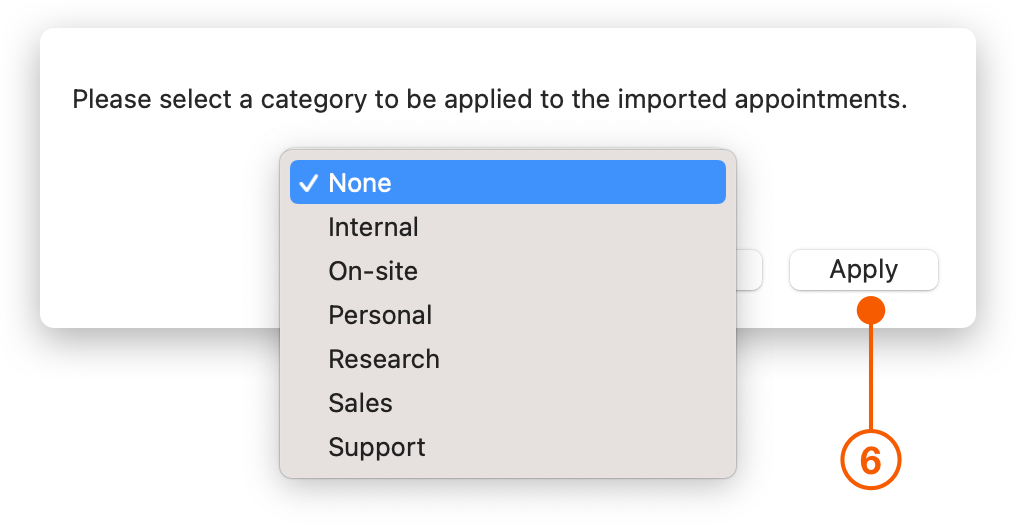
11. Select the Daylite category that matches the Google calendar.
To import more than one calendar, repeat steps 8 through 11 for each .ics file.
{% hint style="info" %}
If you'll keep using Google Calendar, set up [Google Calendar Sync](https://docs.daylite.app/help/mac-fundamentals/calendars/google-calendar-sync) instead of importing. It keeps one Google calendar and one Daylite category in two-way sync, for past and future events.
{% endhint %}
***
### Import from Other Calendar Apps
1. Open the calendar app where your events are stored.
2. Choose the app's export option.
3. If the app asks for a file format, choose .ics.
4. In Daylite, choose **File** > **Import** > **Import vCalendar**.
5. Select one of the .ics files.
6. Click **Open**.
7. Select the Daylite category that matches the calendar you imported.
To import more than one calendar, repeat steps 4 through 7 for each .ics file.
---
# Agent Instructions
This documentation is published with GitBook. GitBook is the documentation platform designed so that both humans and AI agents can read, navigate, and reason over technical content effectively. Learn more at gitbook.com.
## Querying This Documentation
If you need additional information that is not directly available in this page, you can query the documentation by asking a question.
Perform an HTTP GET request on the following URL with the `ask` and `goal` query parameters:
```
GET https://docs.daylite.app/help/mac-fundamentals/calendars/importing-calendars-into-daylite.md?ask=&goal=
```
`ask` is the immediate question: it should be specific, self-contained, and written in natural language.
`goal` is what the user is ultimately trying to achieve, the reason they need the answer. Sharing it helps GitBook give you a better, more relevant answer. A goal is most helpful when it describes the outcome the user wants rather than restating the question. For example, with `ask=how do I create an API token`, a goal like `automate deployments from our CI pipeline` lets GitBook tailor the answer to that use case.
The response will contain a direct answer to the question and relevant excerpts and sources from the documentation.
Use this mechanism when the answer is not explicitly present in the current page, you need clarification or additional context, or you want to retrieve related documentation sections.