> For the complete documentation index, see [llms.txt](https://docs.daylite.app/help/llms.txt). Markdown versions of documentation pages are available by appending `.md` to page URLs; this page is available as [Markdown](https://docs.daylite.app/help/learn/scale-your-business/two-factor.md).
# Two-Factor Authentication
Two-factor authentication (2FA) is an extra layer of security used when signing into websites or apps.
With two-factor authentication enabled, you have to sign in with your username and password and provide another form of authentication that only you know or have access to. This ensures that only you can access your account, even if someone else knows your password.
### Turning On Two-Factor Authentication
You can turn on two-factor authentication for your account using these steps:
1. Sign into [**Account Manager**](https://www.marketcircle.com/account/login).
2. Select the **My Info** tab, and then select **Enable Two-Factor Authentication** under the **Security** section.
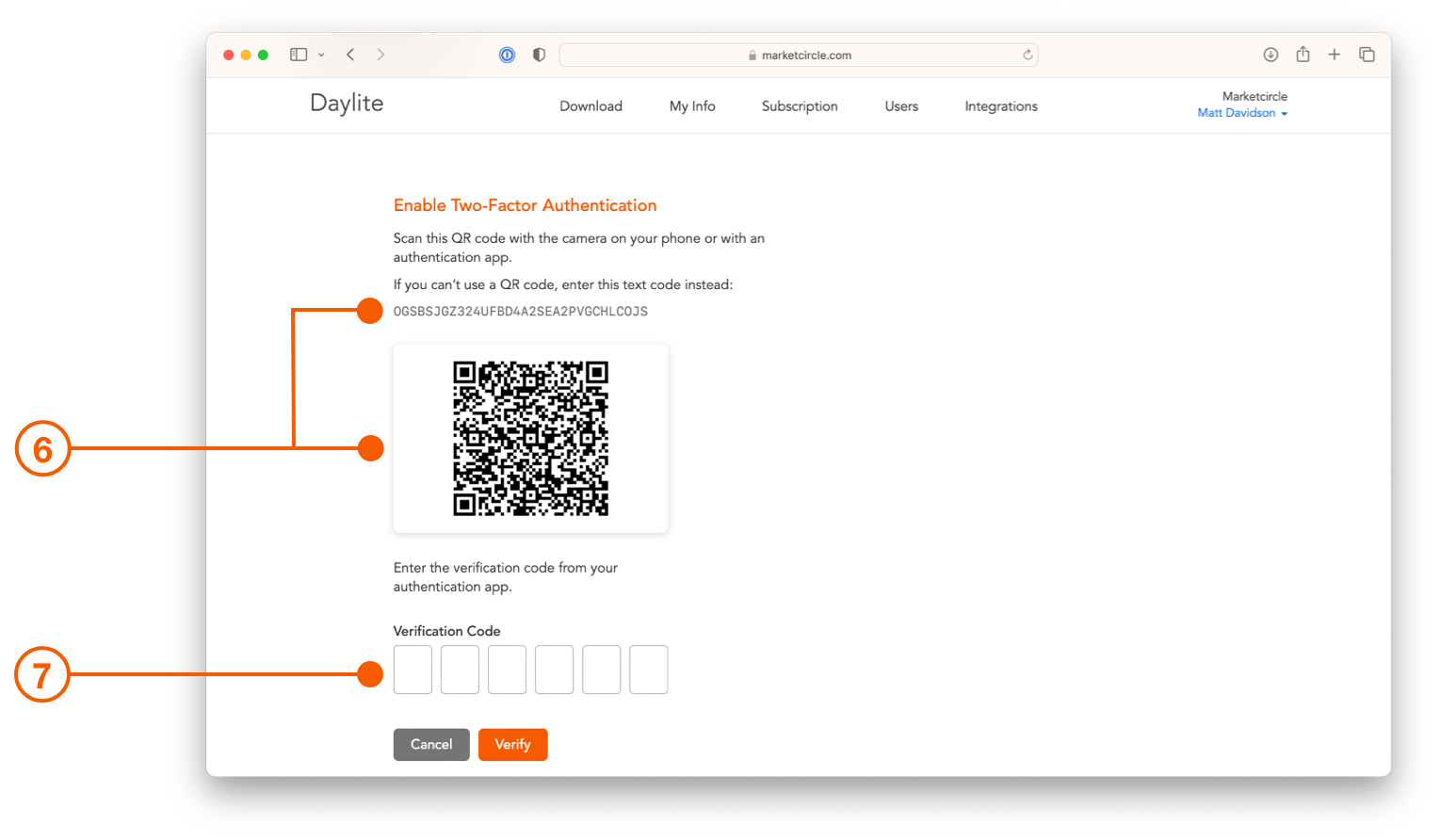
Daylite will now ask you to use an authentication app to obtain a verification code before continuing.
1. The simplest option is to use Apple's built-in **Passwords**. This way you can simply right-click on the QR code and choose **Set Up Verification Code**.
2. Select the login you wish to associate the verification code with and click **Add Verification Code**.
3. The Verification Code has now been successfully linked to your account.
4. Click on the Daylite Verification Code field and it will automatically populate. If you have turned off the password auto-fill feature in Safari you will need to enter the Verification Code manually.
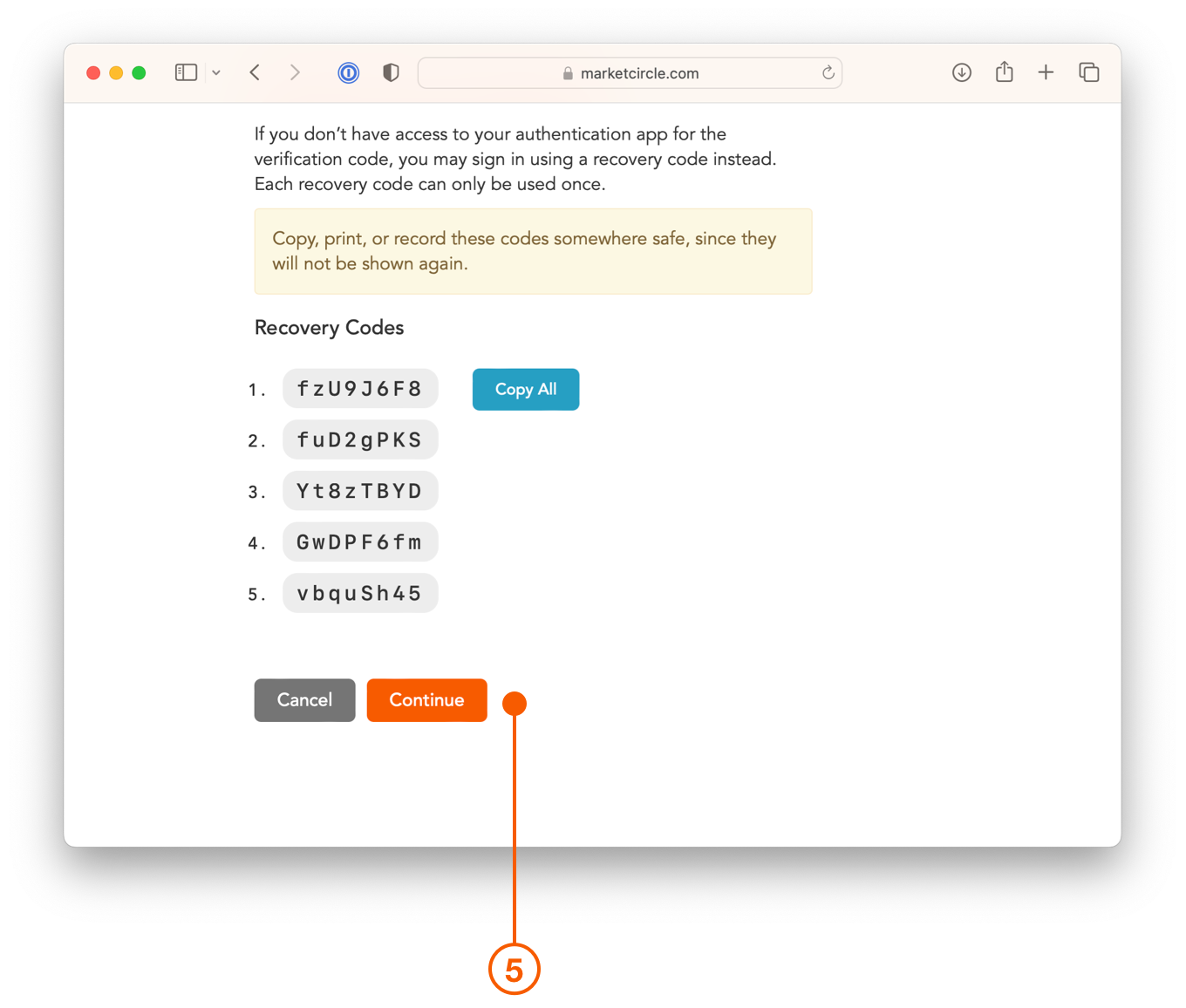
5. Daylite will now show you **Recovery Codes**, which you should copy or print, and store someplace safe in the event you lose or do not have access to your authentication app. Click **Continue** when ready.
1. If you are using a different authentication app, such as **1Password** or **Google Authenticator** you can scan the QR code, or copy and paste the text code into the app.
2. Your authentication app will now be able to provide a verification code, which you need to enter to continue.
### Logging In
Once two-factor authentication has been enabled, Daylite will require a verification code each time you log in. The process is the same on a Mac, iPhone or iPad.
1. Logging in still begins with your email and password just like before.
1. It is now followed by a **Verification Code** request. Enter the verification code from your Authentication app and click **Verify**.
2. If you do not have access to your Verification Code you can click **Sign in with recovery code** and enter one of the recovery codes you have previously written down, saved or printed.
It is important to note that once two-factor authentication is enabled, sign in will require an updated version of Daylite. Older versions of Daylite will not be able to sign into an account with two-factor authentication enabled.
However, any Mac, iPad, or iPhone that is already logged in will not need to re-authenticate.
{% hint style="success" %}
**Pro Tip:**
[Setting up iCloud Keychain](https://support.apple.com/en-us/HT204085) helps save your passwords automatically, receive password suggestions, and gives you verification code integration with Daylite.
{% endhint %}
### Generating New Recovery Codes
A recovery code can only be used once before it is invalidated, so you may decide to generate new ones to have on hand. You may also want to create new recovery codes if you have lost your old ones.
1. Sign into your account and select **My Info**, then click **Generate New Recovery Codes**.
2. Click **Continue** when asked to confirm. New recovery codes are generated and you are instructed to copy, print, or store them.
### Disabling Two-Factor Authentication
1. You can disable two-factor authentication by signing into your account and selecting **My Info**, then click **Disable**.
2. You will be asked to confirm your decision to disable two factor authentication and warned that your account is more secure with two-factor authentication enabled.
### Resetting Two-Factor Authentication
If you cannot sign in because you cannot locate your verification code, you have several options to regain access. You can check your password manager for a stored verification code, use one of the single-use recovery codes you saved when enabling 2FA, or generate new recovery codes or disable 2FA from a device that is already logged into Daylite.
For step-by-step instructions on each of these options, see [Reset Two-Factor Authentication](/help/center/log-in/reset-two-factor-authentication.md).
### Company Requirement for Two-Factor Authentication
A company may decide to require all users to use two-factor authentication to log in.
The company's account administrator can turn on the **requirement** for two-factor authentication, which means each user will need to follow the steps outlined in this article to turn on two-factor authentication for their own account.
In order to turn on the company requirement for two-factor authentication:
1. The account administrator must log in to [**Account Manager**](https://www.marketcircle.com/account/login) and select the **Users** tab.
2. Click **Require Two-Factor Authentication**.
The administrator can also see which users have enabled two-factor authentication, which is indicated with a **2FA** badge on each user's row on the **Users** tab. The same badge will also show on the row for each device that has logged in using two-factor authentication. Note that existing devices are not forced to reauthenticate when turning on two-factor authentication, so the user would need to log out and log in again on a device for it to show the badge.
### Wrap Up
Two-factor authentication lets you enjoy peace of mind, knowing your Daylite data is protected. You are the only one who can access your account, even if someone else knows your password.
---
# Agent Instructions
This documentation is published with GitBook. GitBook is the documentation platform designed so that both humans and AI agents can read, navigate, and reason over technical content effectively. Learn more at gitbook.com.
## Querying This Documentation
If you need additional information that is not directly available in this page, you can query the documentation dynamically by asking a question.
Perform an HTTP GET request on the current page URL with the `ask` query parameter, and the optional `goal` query parameter:
```
GET https://docs.daylite.app/help/learn/scale-your-business/two-factor.md?ask=&goal=
```
`ask` is the immediate question: it should be specific, self-contained, and written in natural language.
`goal` is optional and describes the broader end goal you are ultimately trying to accomplish on behalf of the user. GitBook uses it to tailor the answer towards what is most useful for that goal.
The response will contain a direct answer to the question and relevant excerpts and sources from the documentation.
Use this mechanism when the answer is not explicitly present in the current page, you need clarification or additional context, or you want to retrieve related documentation sections.