> For the complete documentation index, see [llms.txt](https://docs.daylite.app/help/llms.txt). Markdown versions of documentation pages are available by appending `.md` to page URLs; this page is available as [Markdown](https://docs.daylite.app/help/learn/close-more-deals/track-deals-by-size.md).
# Tracking Deals by Size
In an ideal world, you always want to give each of your deals the same amount of attention. Each one of your clients should feel special, no matter how large or small the deal. However, it is important to prioritize your deals so you can focus your attention on the largest ones first.
Tracking deals by their size is a powerful way to increase income and grow your business because it helps stay on top of those big deals. With Daylite, staying focused on the deals that have the biggest impact on your business is easy.
Any time a lead or client expresses interest in a product or service, you want to create an **Opportunity** and then add an **Estimate**. If you are not familiar with creating Opportunities, start by reading the Learn article [How to Capture New Business.](/help/learn/close-more-deals/capture-new-business.md).
## Capturing the Value of a Deal
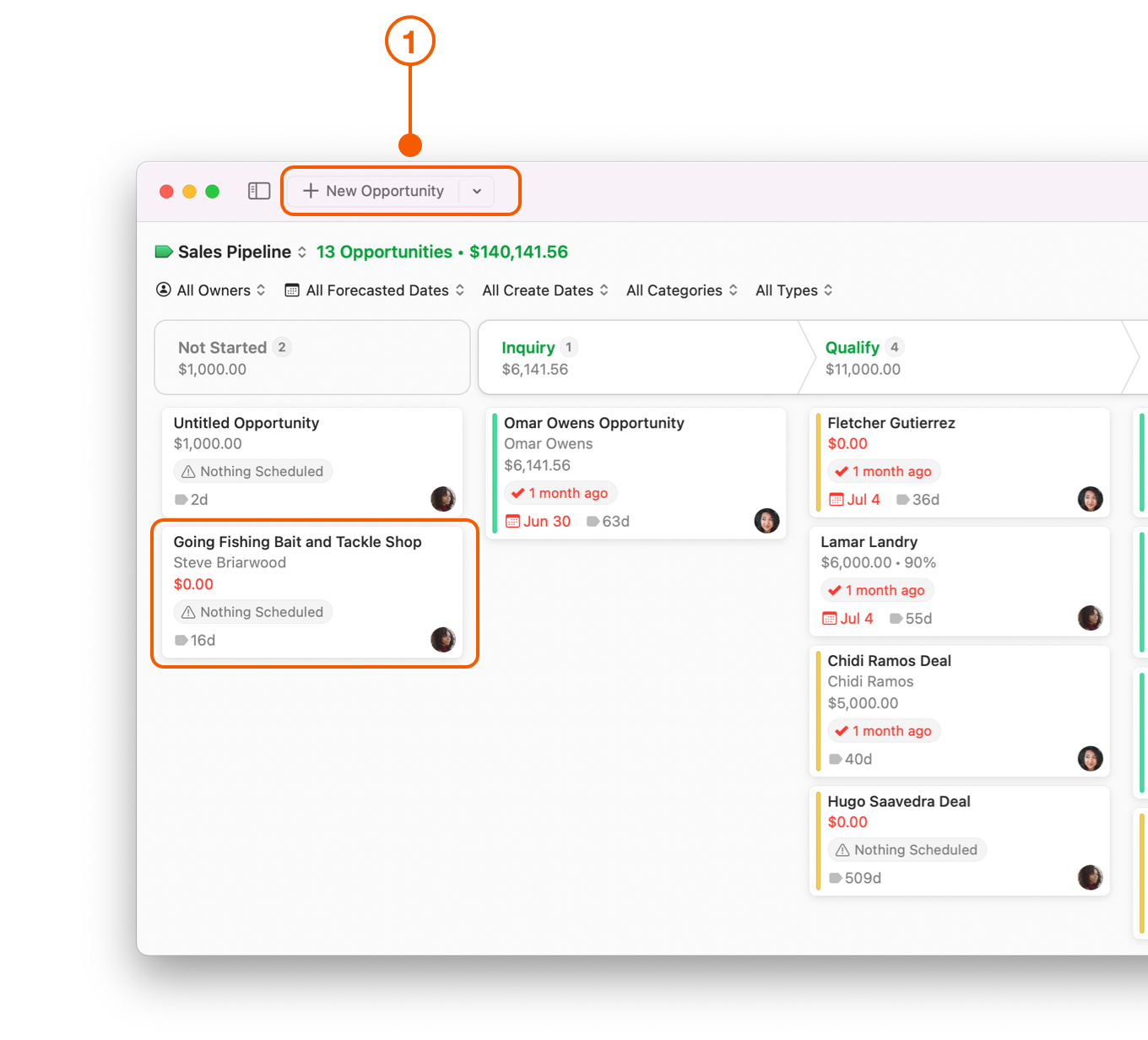
Daylite lets you enter a **Value** into an Opportunity card with a single click, which can be incredibly beneficial for those "on the fly" meetings or phone calls, where you may just want to quickly enter a value as a placeholder.
1. Select the **New Opportunity** menu, or double click an existing Opportunity card.
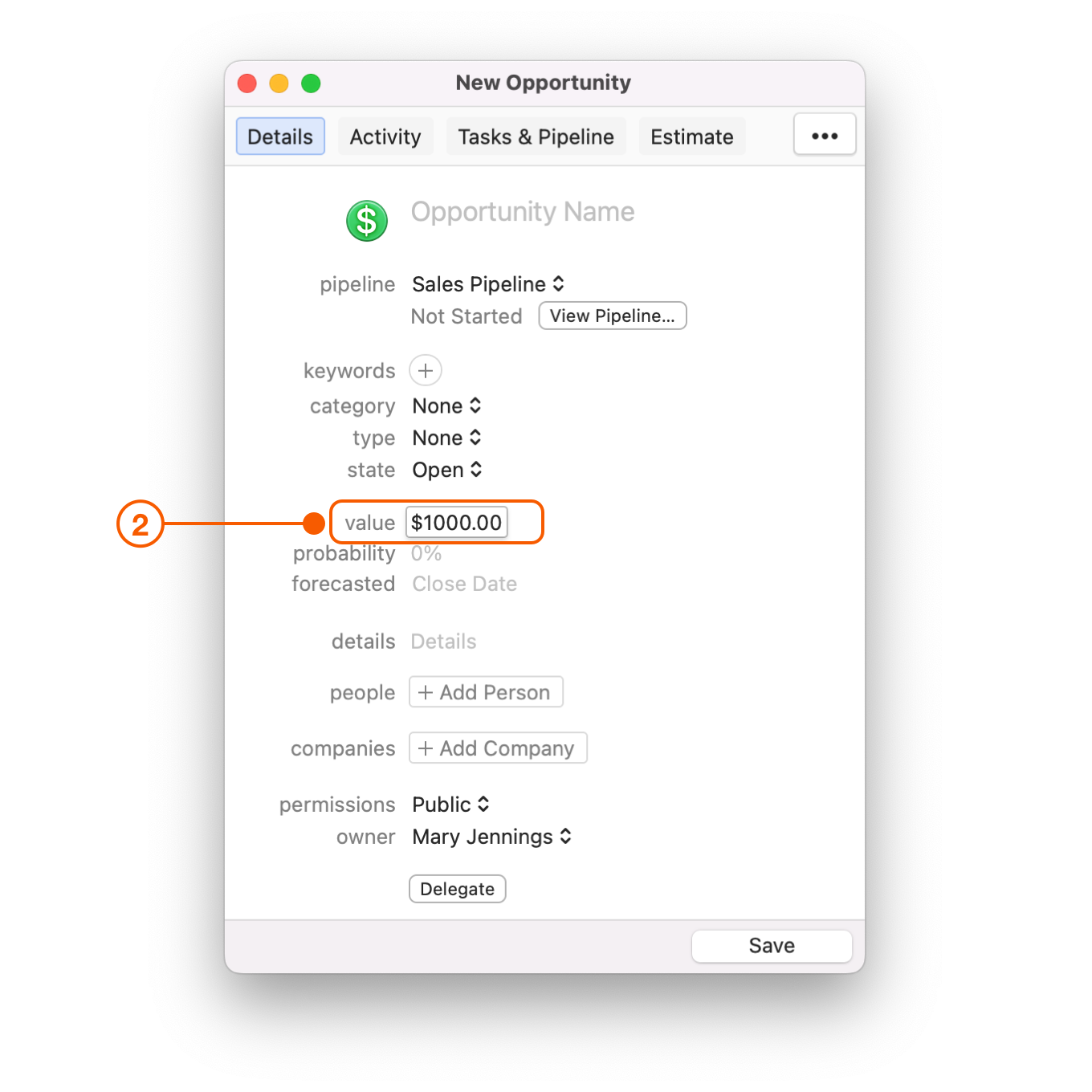
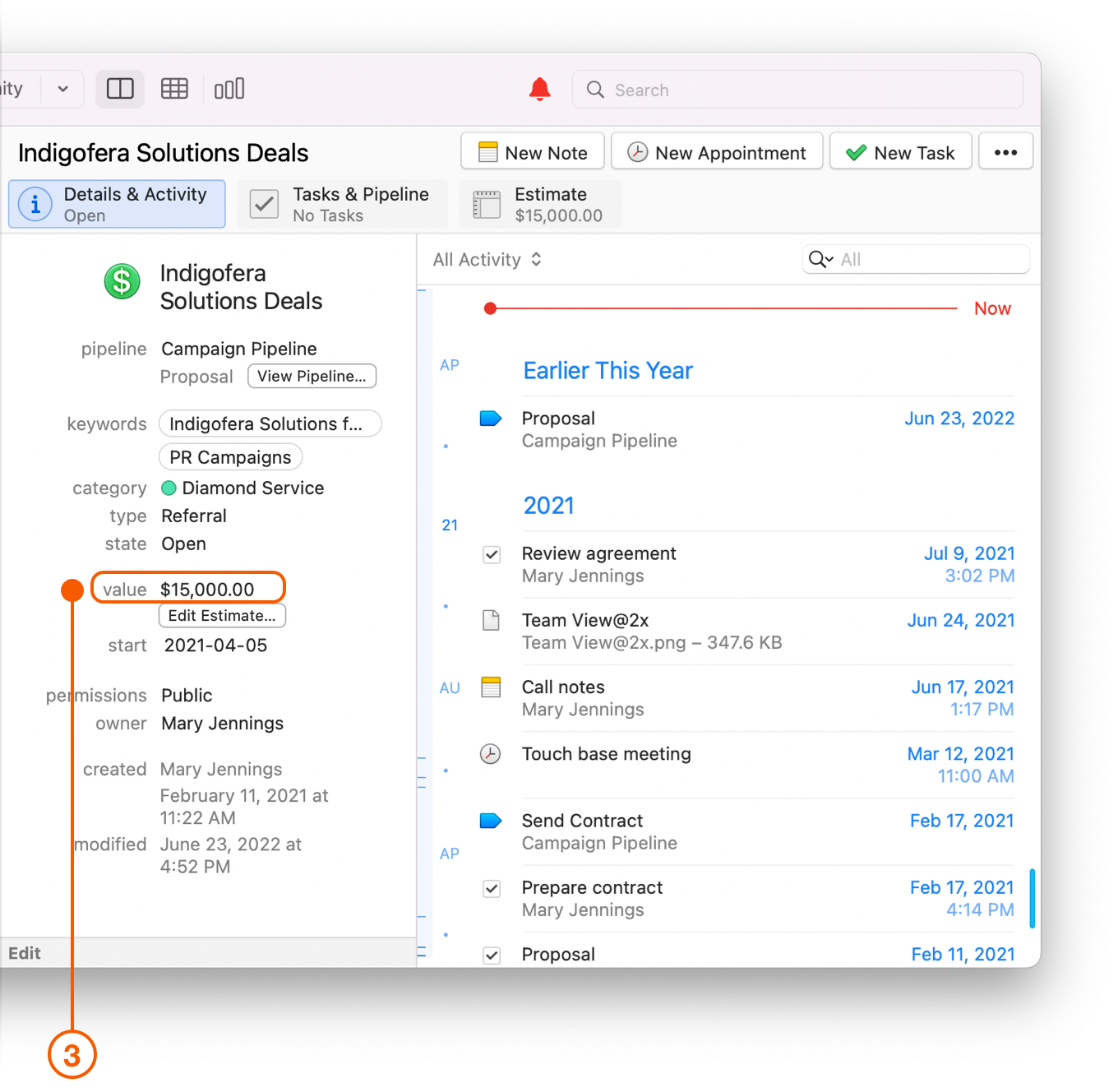
2. If you are creating a new Opportunity, select **value** to enter how much the deal is worth.
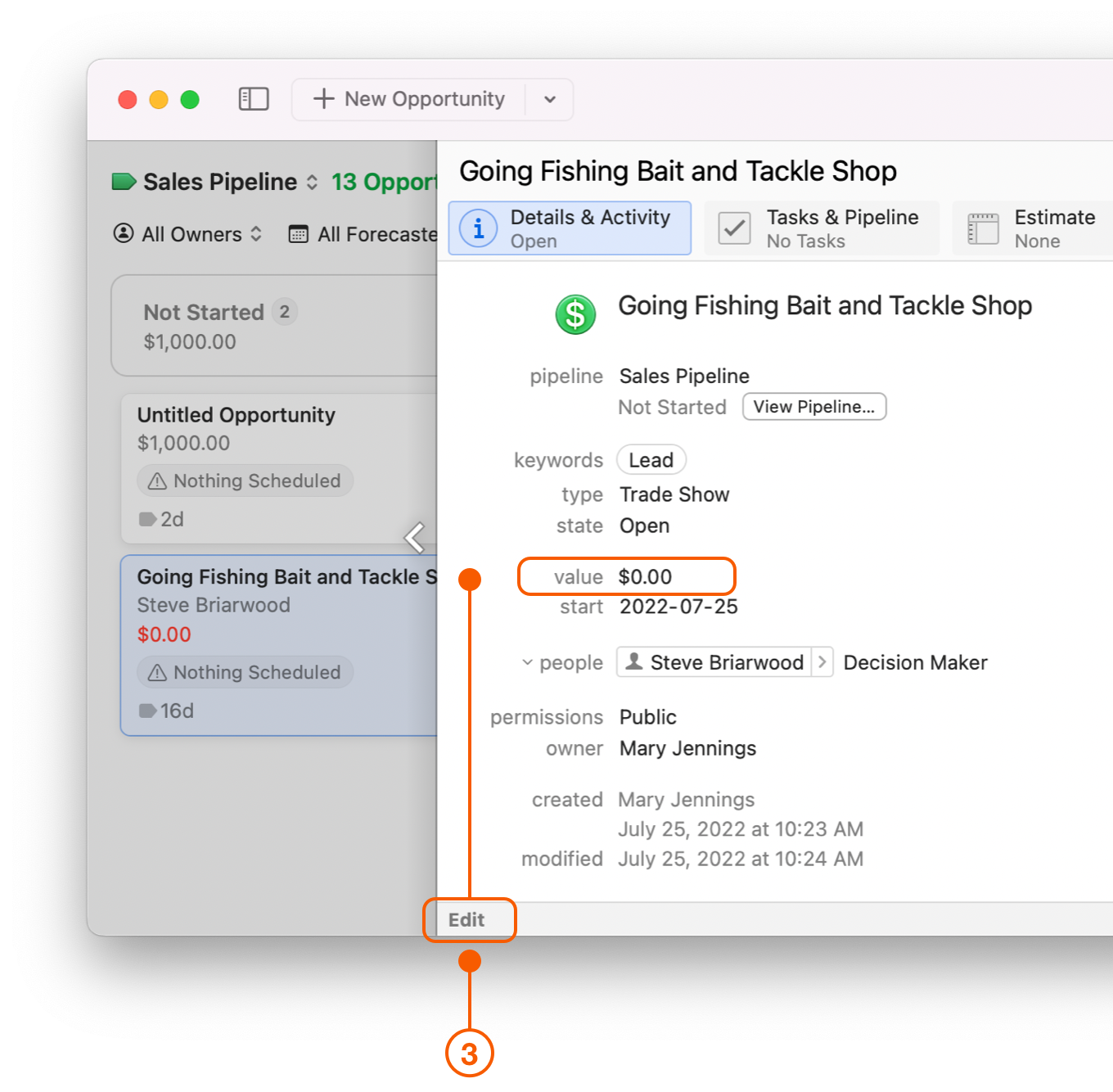
3. If you already have an existing Opportunity that you would like to enter a **value** for, double click on the Opportunity card, then select **edit** to add a value.
## Creating a Full Estimate
If you wish to add greater detail to your value, you can create an **Estimate** to capture the full value of your deal:
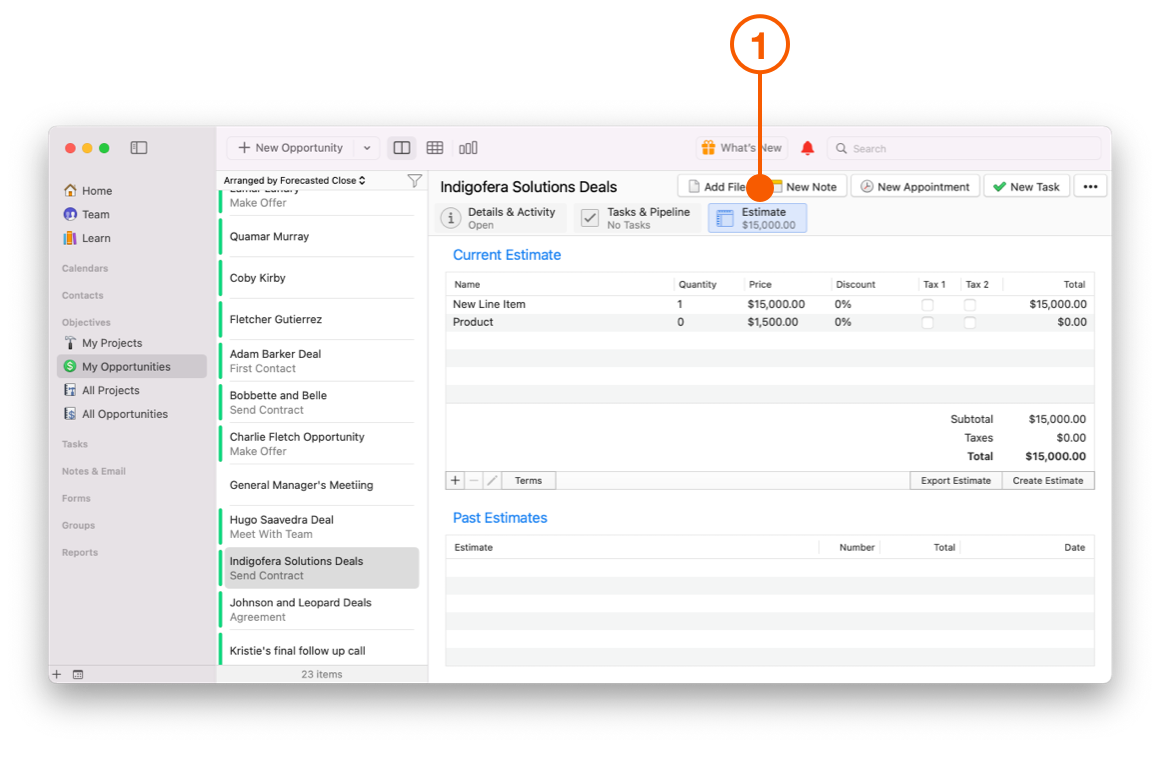
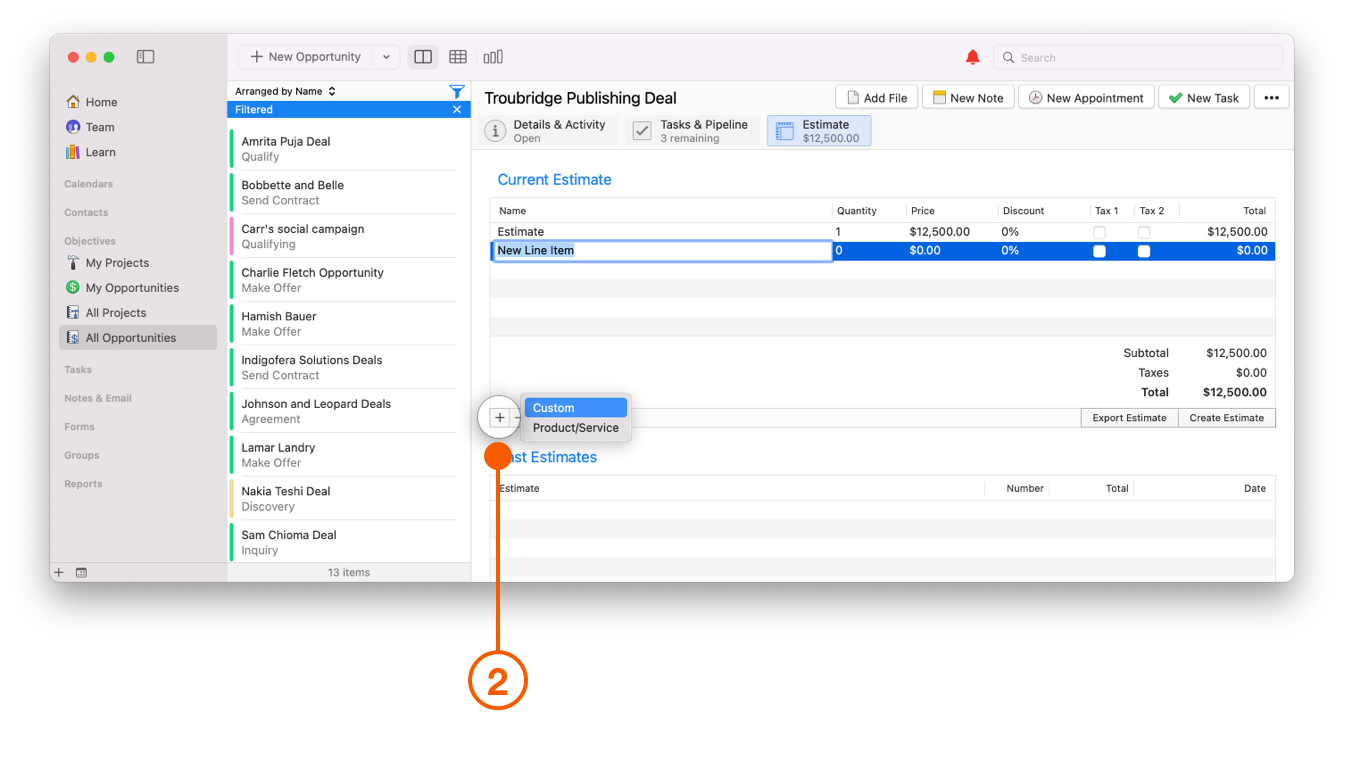
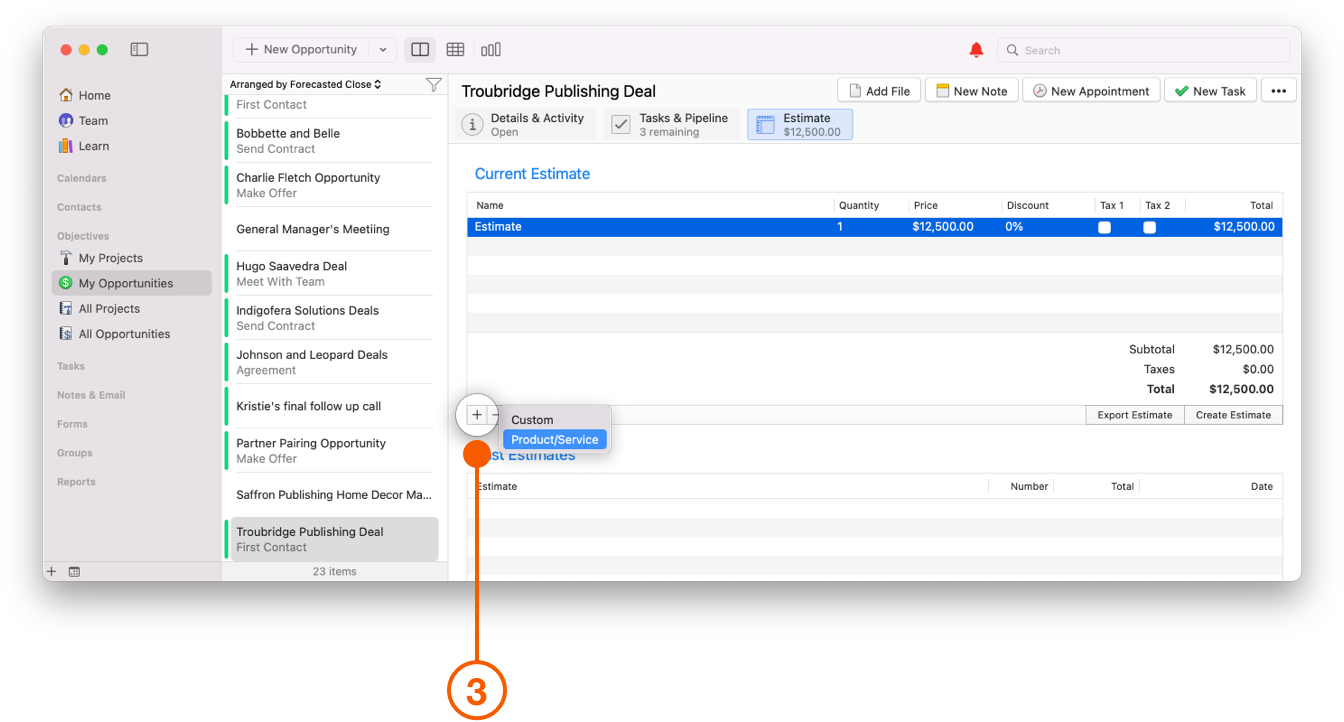
1. Select an **Opportunity** and click on the **Estimate** tab.
2. Click the **+** button to add a **New Line Item** and then set the Quantity and Price.
3. The **Estimate** for your deal will now be reflected in the Opportunity's **value**.
## Creating a Product or Service in Daylite Preferences
If you repeatedly sell the same Products or Services to your clients, you can save them in the Daylite Preferences to be used any time you create an Estimate.
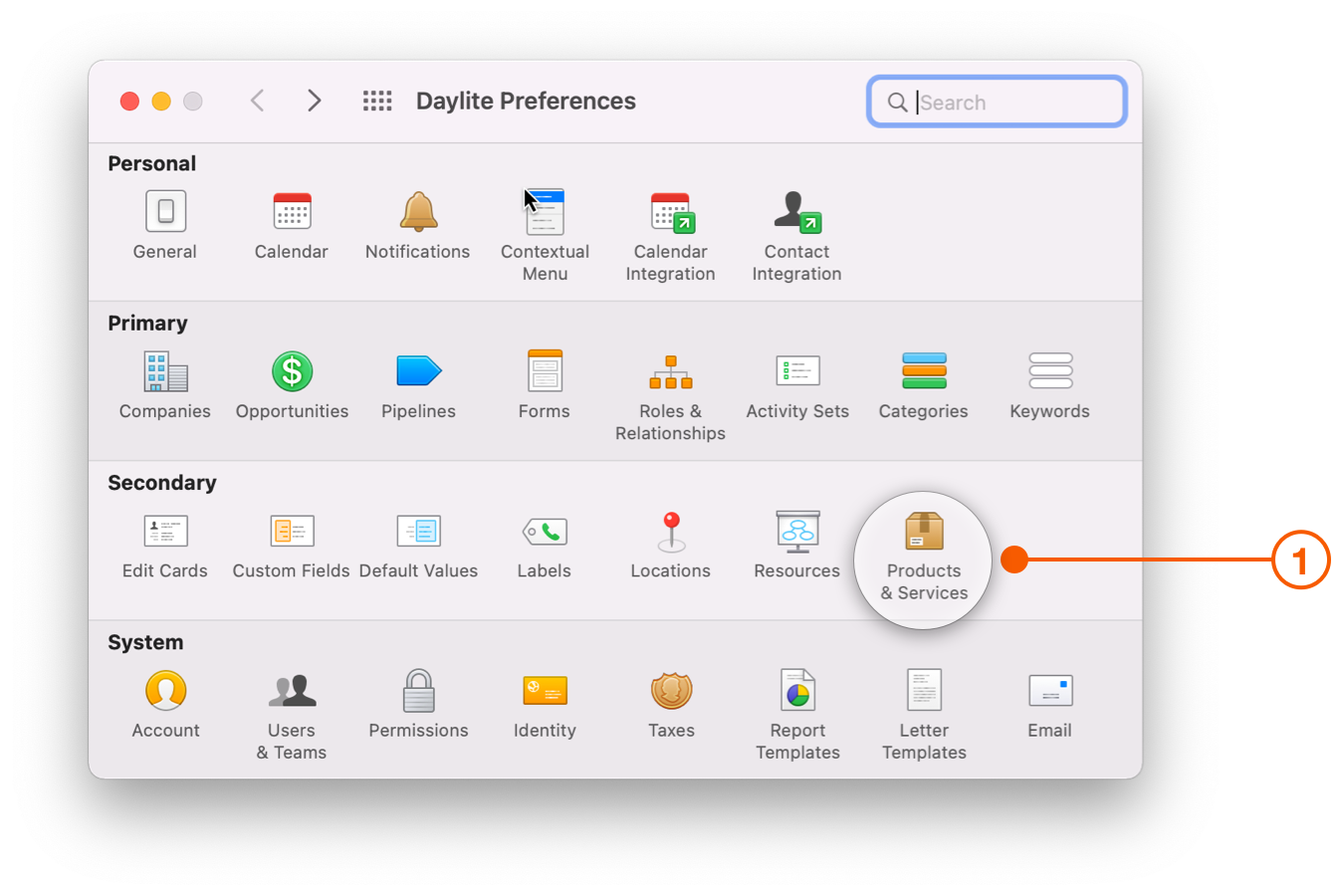
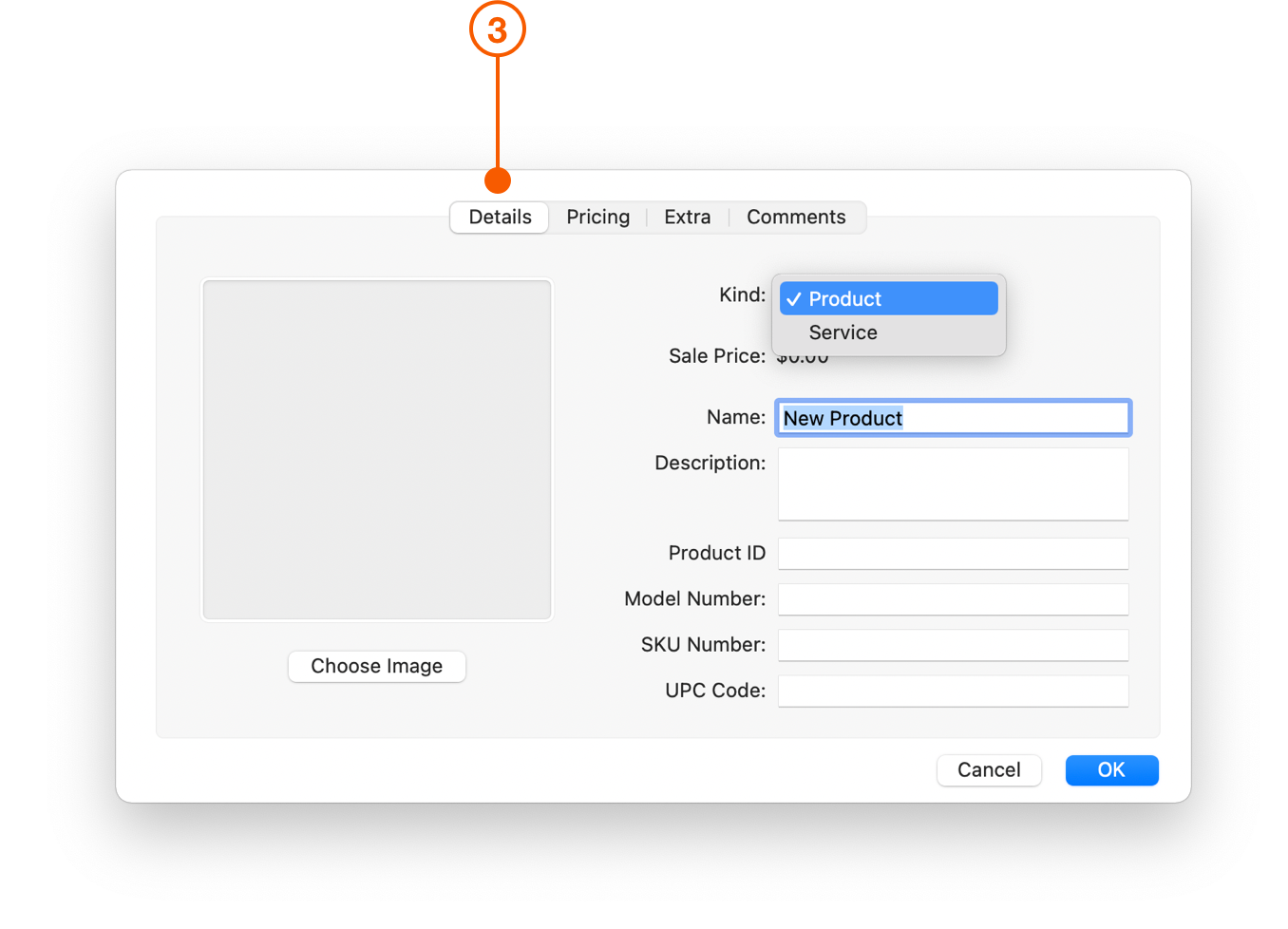
1. Navigate to **Daylite Preferences > Products & Services**.
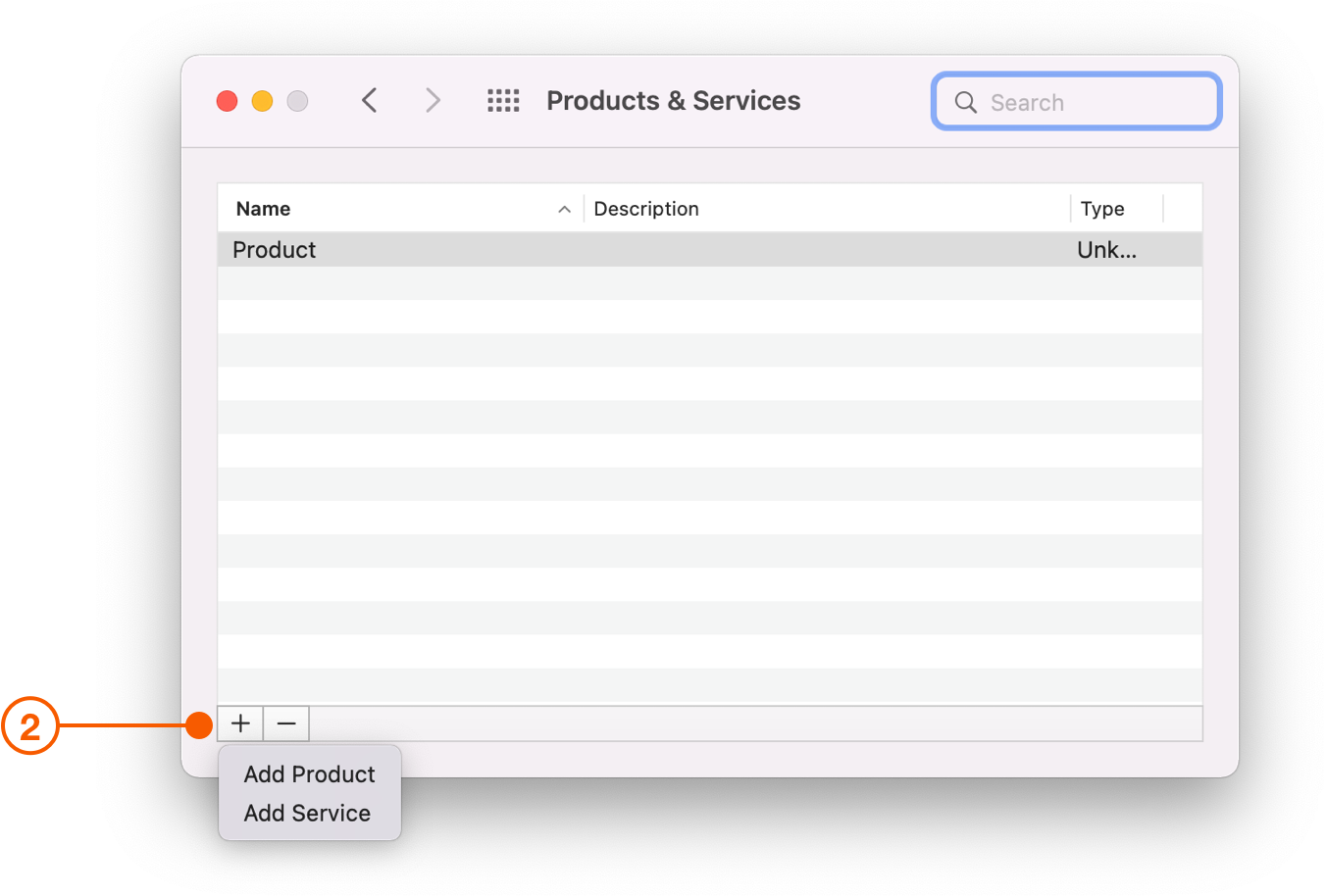
2. Click the **+** button and choose either Product or Service.
3. Now you can enter the information for **Details**, **Pricing**, **Extras** and **Comments**. These are all optional entries, so you only have to fill out what's useful to you.
4. The next time you add an Estimate to your Opportunity you can add your Product or Service from the **+** button.
## Wrap Up
When you can track your deals by size, it becomes easier to prioritize which deals you should be working on next. Whether you enter a **Value** or an **Estimate**, you can tell at a glance which deals need your attention.
Click here to learn how to [Track Your Close Rate on Deals](/help/learn/close-more-deals/track-close-rate.md), and take your business to the next level.
---
# Agent Instructions
This documentation is published with GitBook. GitBook is the documentation platform designed so that both humans and AI agents can read, navigate, and reason over technical content effectively. Learn more at gitbook.com.
## Querying This Documentation
If you need additional information that is not directly available in this page, you can query the documentation dynamically by asking a question.
Perform an HTTP GET request on the current page URL with the `ask` query parameter, and the optional `goal` query parameter:
```
GET https://docs.daylite.app/help/learn/close-more-deals/track-deals-by-size.md?ask=&goal=
```
`ask` is the immediate question: it should be specific, self-contained, and written in natural language.
`goal` is optional and describes the broader end goal you are ultimately trying to accomplish on behalf of the user. GitBook uses it to tailor the answer towards what is most useful for that goal.
The response will contain a direct answer to the question and relevant excerpts and sources from the documentation.
Use this mechanism when the answer is not explicitly present in the current page, you need clarification or additional context, or you want to retrieve related documentation sections.