> For the complete documentation index, see [llms.txt](https://docs.daylite.app/help/llms.txt). Markdown versions of documentation pages are available by appending `.md` to page URLs; this page is available as [Markdown](https://docs.daylite.app/help/learn/close-more-deals/streamline-sales.md).
# Streamlining Your Sales Process
A great sales process is simple to follow, repeatable, easy to teach to new employees, and can be refined over time.
Daylite helps you streamline your sales process, so everyone will know what needs to get done. You will know at a glance who is doing what, so that everyone can work towards closing bigger deals faster. Daylite gives you simple yet powerful sales tracking and streamlining tools, and it all starts as an Opportunity.
An **Opportunity Pipeline** allows you to define each step in your sales process and keep track of how far along each Opportunity is in the sales process.
## Define Each Step of Your Process
Pipelines are the foundation of your sales process, and provide the high-level steps you need to move each lead through. Pipelines are a visual representation of the sales process, are highly customizable, and are shareable with your whole team.
If you offer a variety of products or services, you may need a separate Pipeline for each one so you can customize accordingly.
## Create a Pipeline and Add Stages
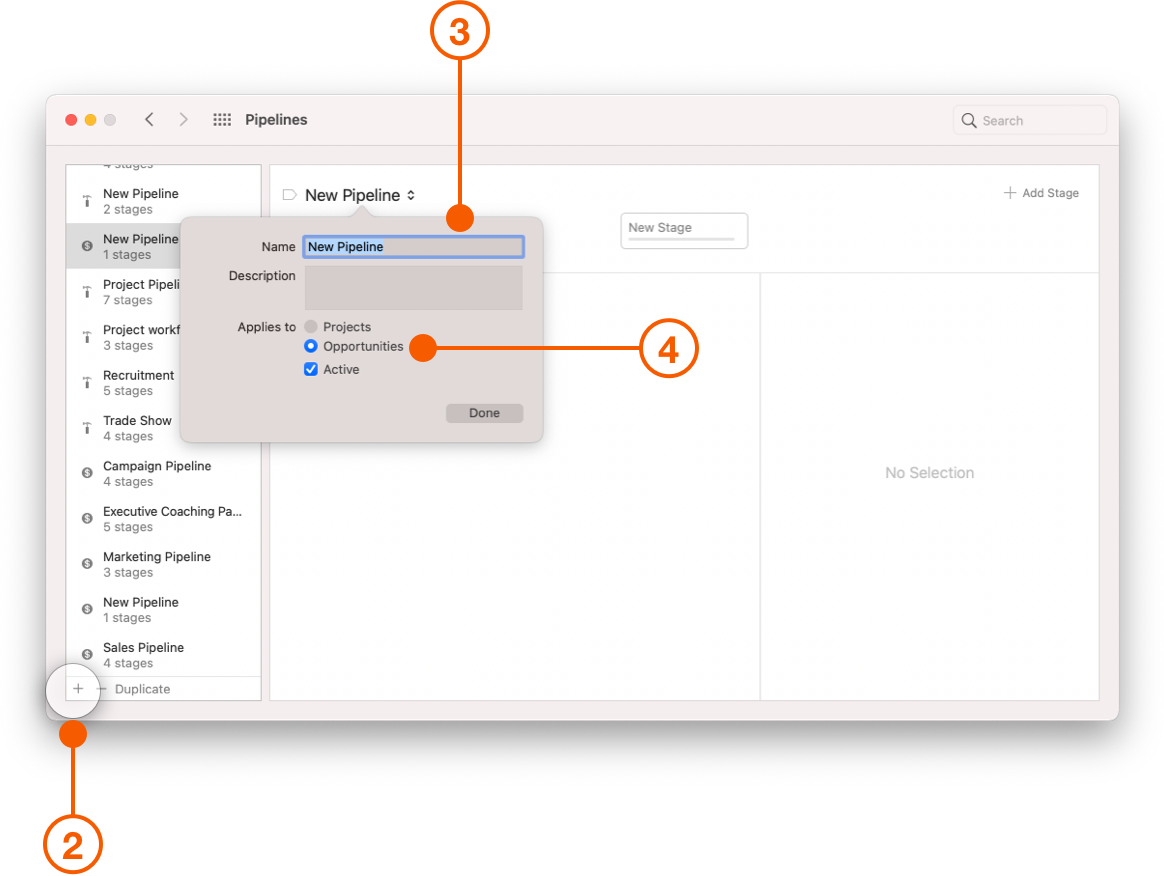
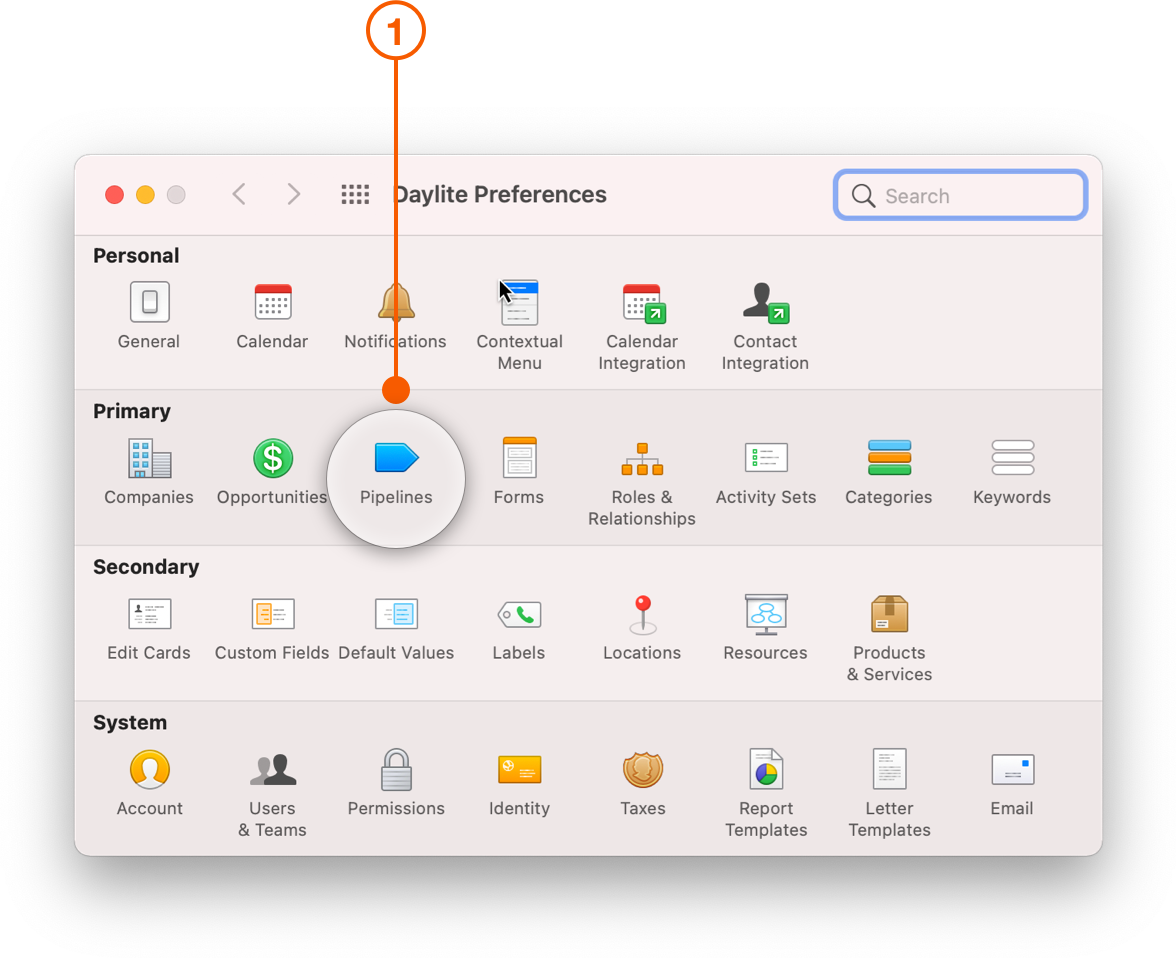
1. Choose **Daylite > Settings** then select **Pipelines**.
2. Click **+** to add a new Pipeline.
3. Name the Pipeline and add a description of when it should be used.
4. Select either **Projects** or **Opportunities**, and make sure the **Active** box is selected.
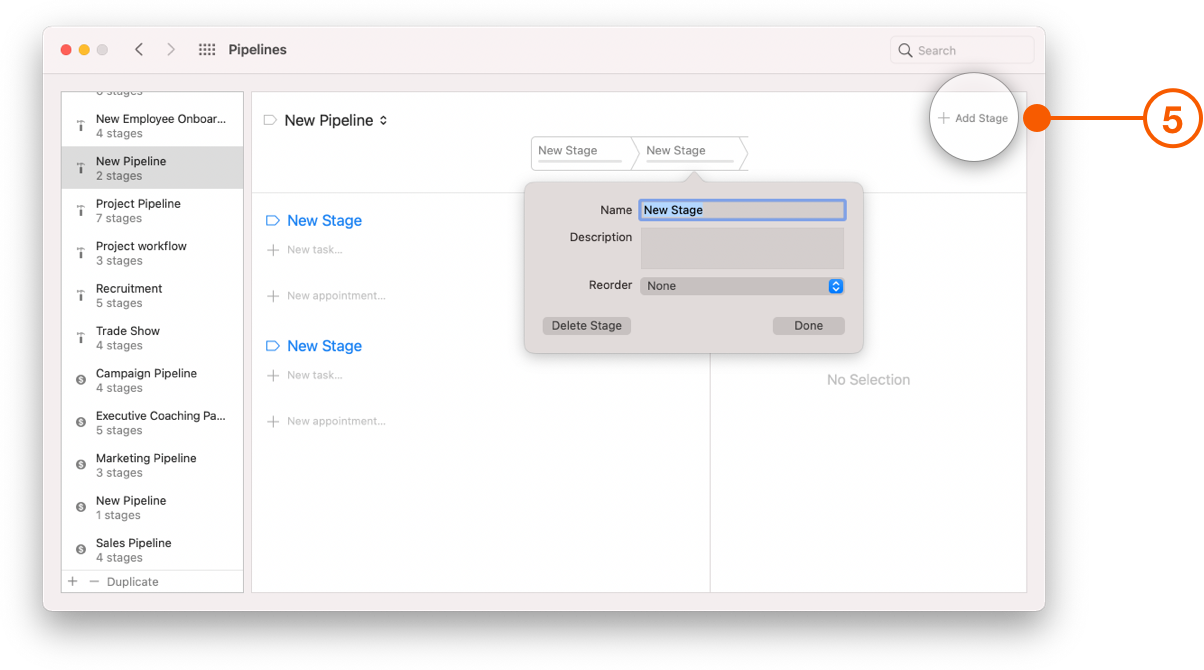
5. You can add as many Stages as you wish to your Pipeline. Click **+ Add Stage**, name the stage and click **Done**.
{% hint style="success" %}
**Pro Tip:**
If you are creating a new Pipeline that is similar to one you already have, click **Duplicate Pipeline** and update the new copy.
{% endhint %}
## Applying a Pipeline and Changing Pipeline Stages
Defining the stages of your Pipeline is a great first step, but next you want to use your Pipeline to start tracking which stage each of your Opportunities are in. This way anyone can check on a new deal and see how it is progressing. Tracking stages is also helpful for creating custom Filters and Smart Lists, allowing you to report on your Opportunities. The first step is to add a new Pipeline.
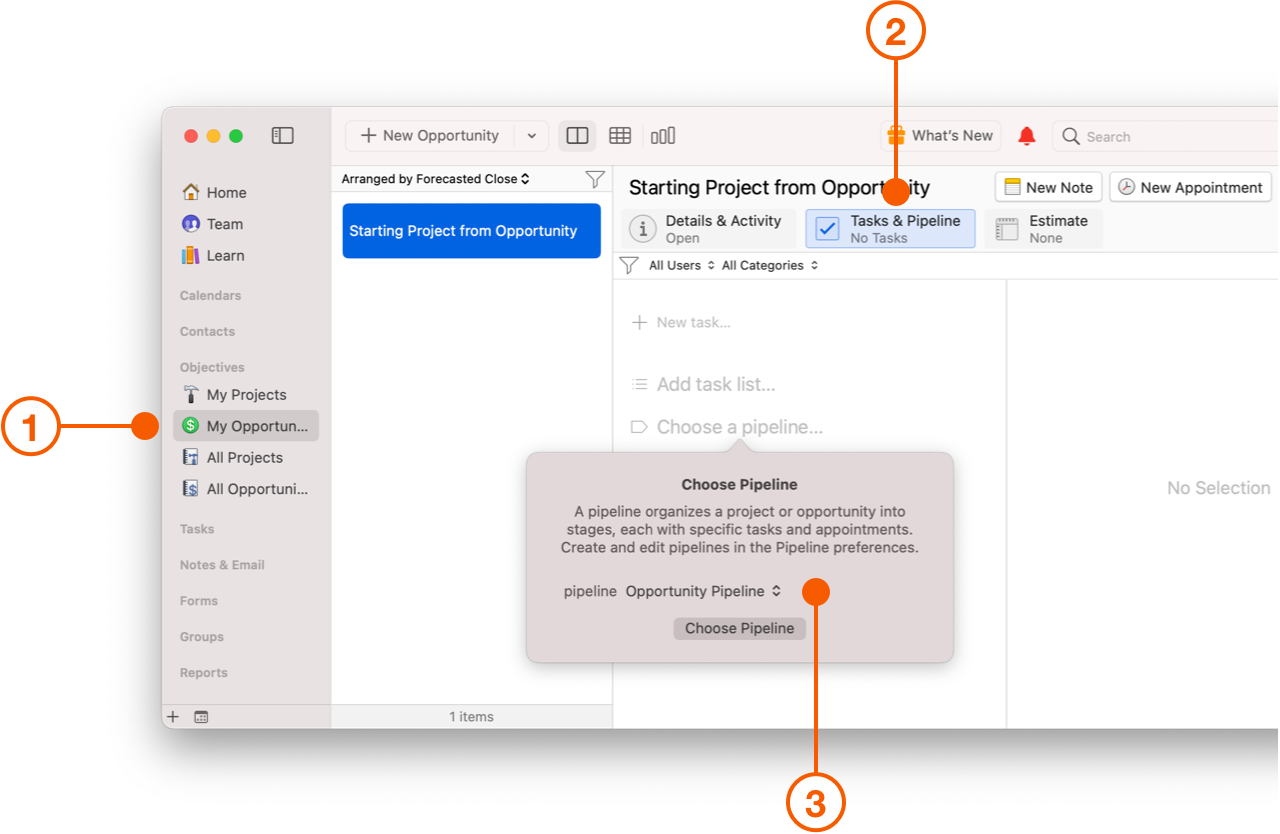
1. Locate the Opportunity in either **My Opportunities** or **All Opportunities**.
2. Click the **Tasks & Pipelines** tab.
3. Click **Choose a pipeline** and choose the Pipeline you want to use.
Once you have a Pipeline selected:
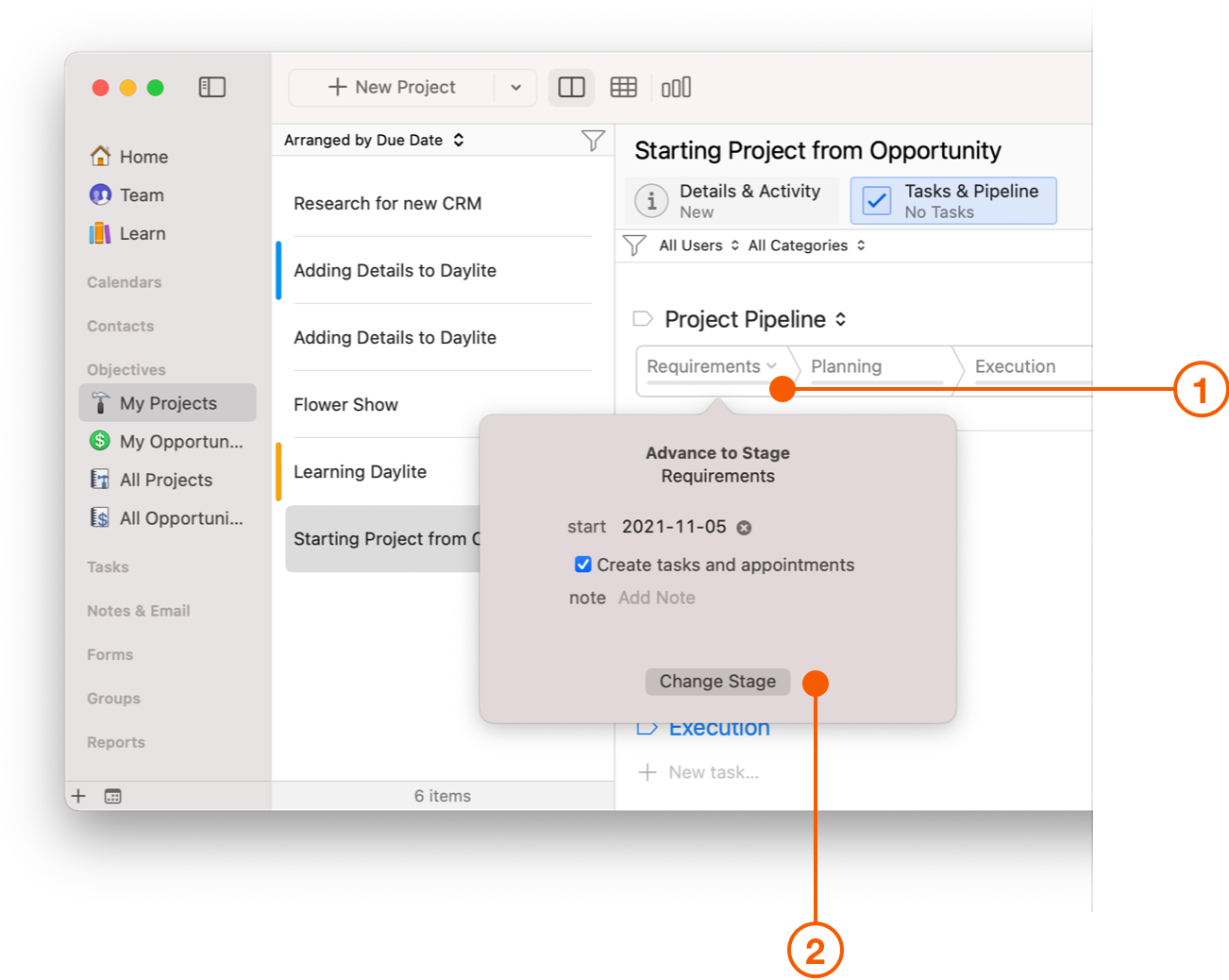
1. Click the Stage you want your Pipeline set to.
2. Click **Change Stage**.
3. The current stage will be highlighted in blue.
Now that you have the big steps or stages of a deal, it is time to get into the nitty-gritty. Every stage of a Pipeline can have a custom set of activities for it, or a checklist of Tasks and Appointments, that are automatically filled in for you. You can assign these activities to your team, set due dates, reminders, and more.
## Adding Activity Sets
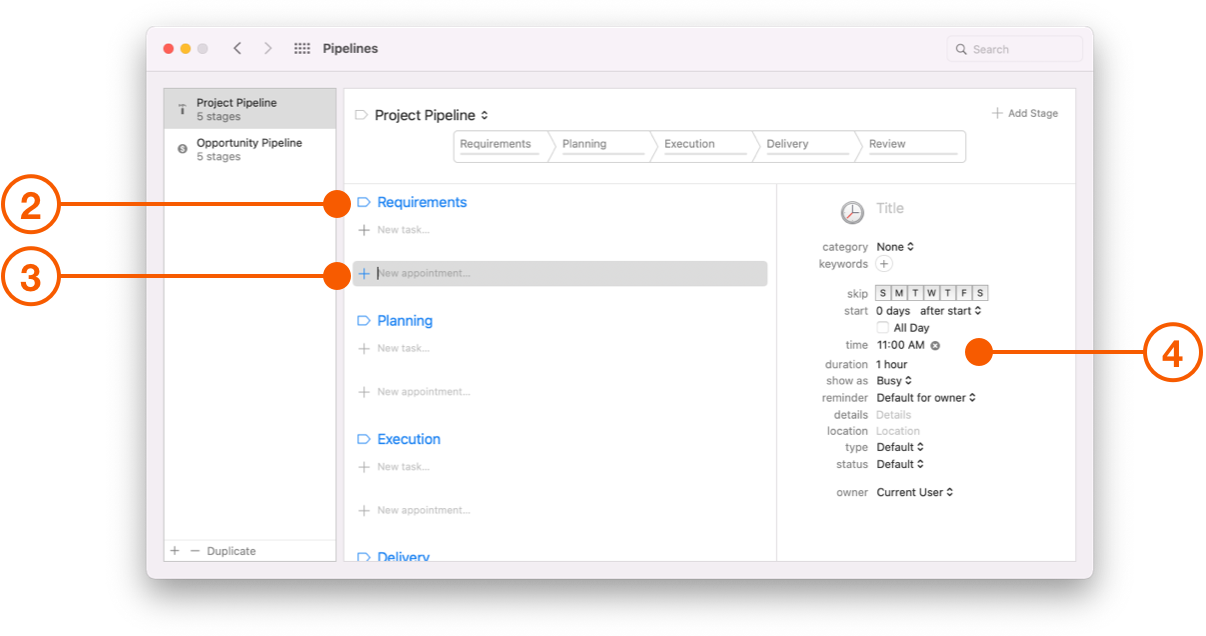
1. To add an Activity Set to a Pipeline, open it by going to **Daylite > Settings > Pipelines**.
2. Select the Pipeline you want to add an Activity Set to.
3. In the appropriate Pipeline Stage, click **+ New Task** or **+ New Appointment**.
4. Fill in the details of the Task or Appointment. You can add as many Tasks or Appointments as you wish.
{% hint style="success" %}
**Pro Tip:**
When you use **@@** in the name of a Task or Appointment within an Activity Set, it will be replaced with the name of the item which it is added to. Eg. If you name a Task "Send quote to @@" and add the Pipeline to an Opportunity named "Marisha Key", the Task will be named "Send quote to Marisha Key".
{% endhint %}
Now when you change Stages in a Pipeline, you can have your Stage populated with all the Tasks and Appointments you already created.
## Creating a Project from an Opportunity
After you’ve closed the deal, Daylite helps streamline the transition from closing the deal to completing the job by letting you create a new Project straight from an Opportunity.
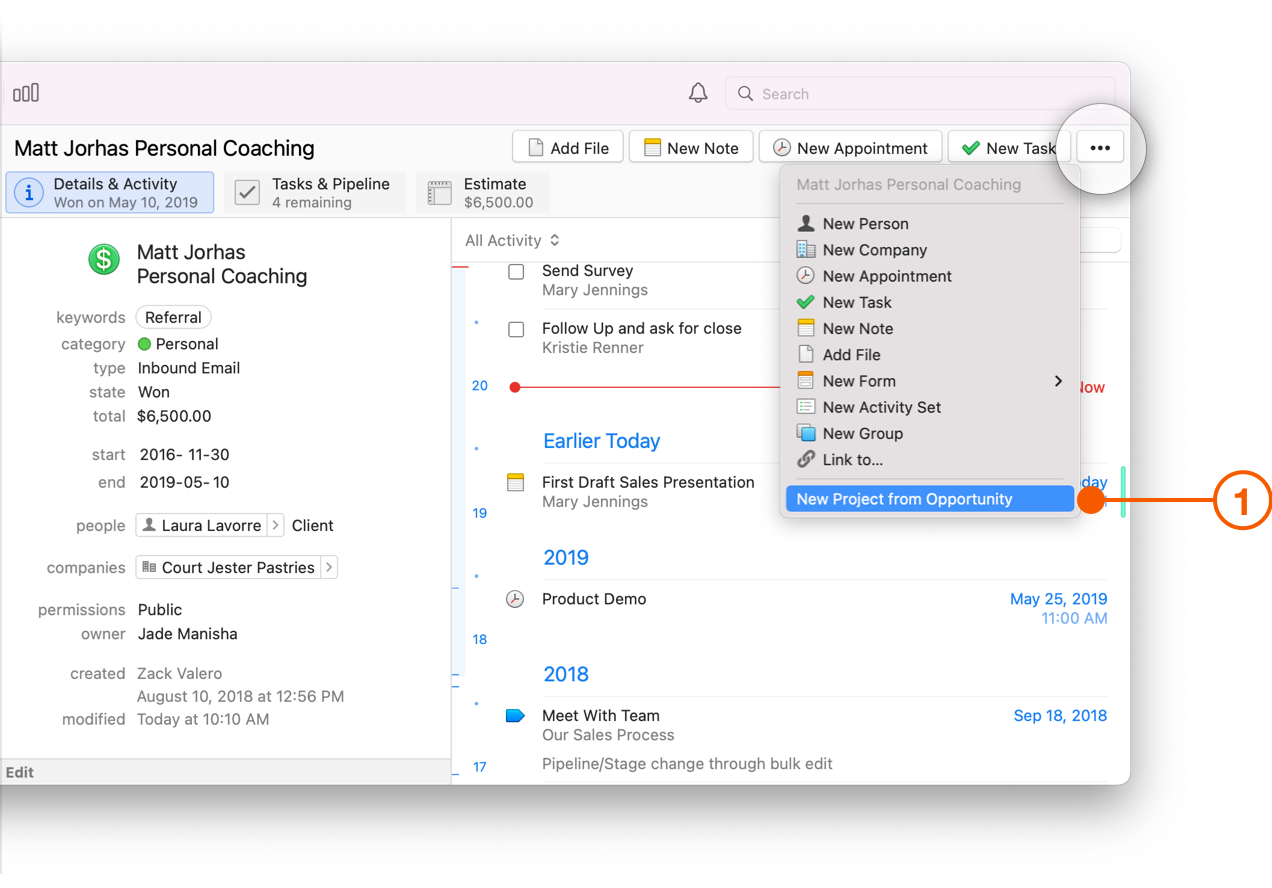
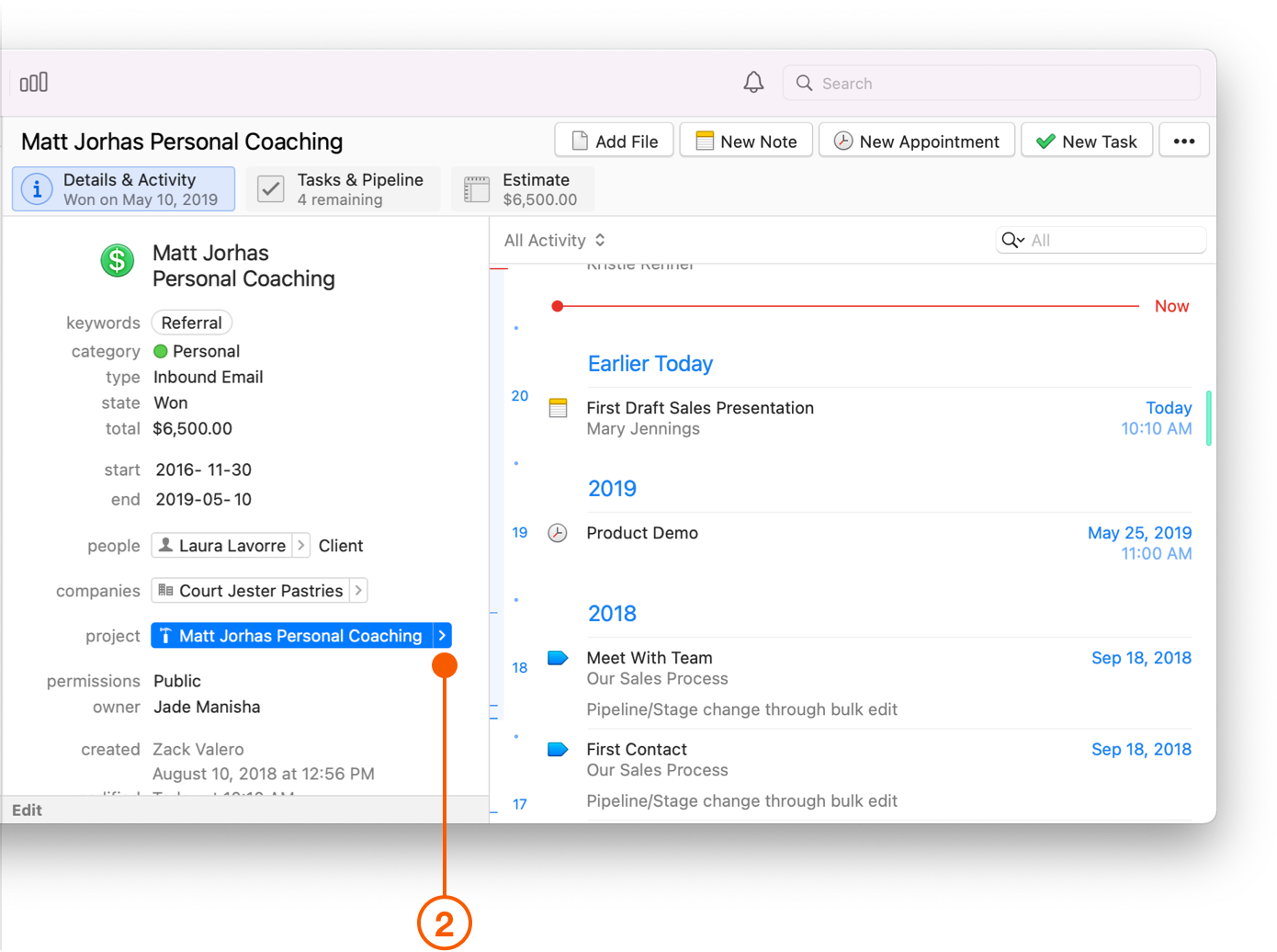
1. Once you have closed the deal, select the Opportunity in Daylite, then click the **More Options** button in the top right corner and choose **New Project from Opportunity**.
2. Daylite will create a new Project linked to the Opportunity. Click the **>** arrow to view the Project.
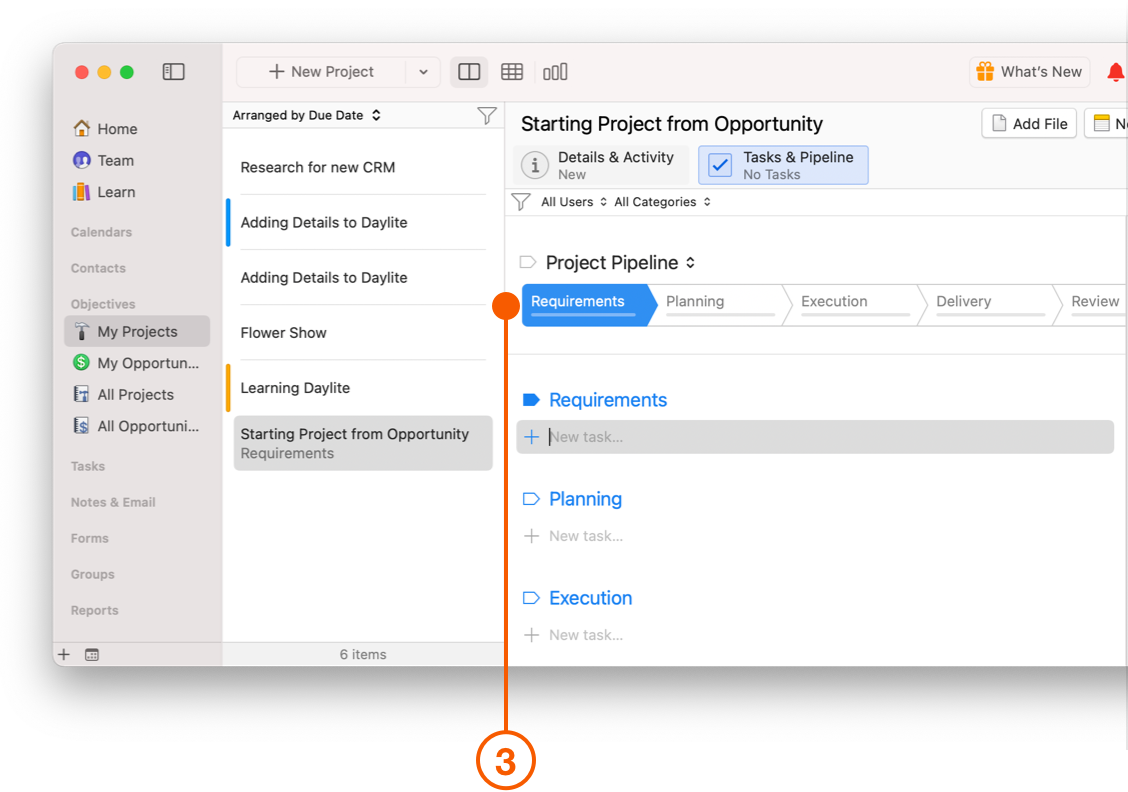
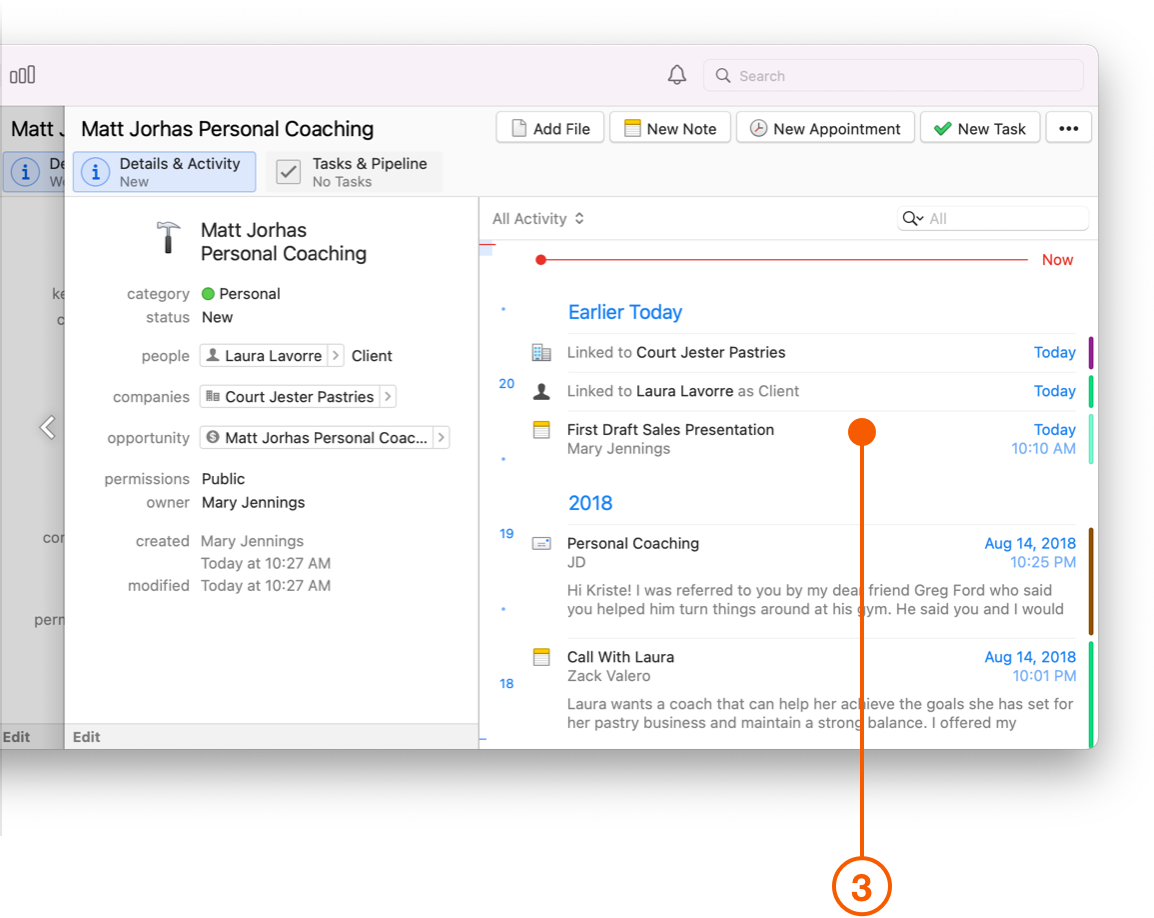
3. The new Project will show linked Contacts, Notes, Emails, and Companies in the **Project’s Activity** section. Items are directly linked from the Opportunity, so you can start working from the Project without going back and forth to the Opportunity.
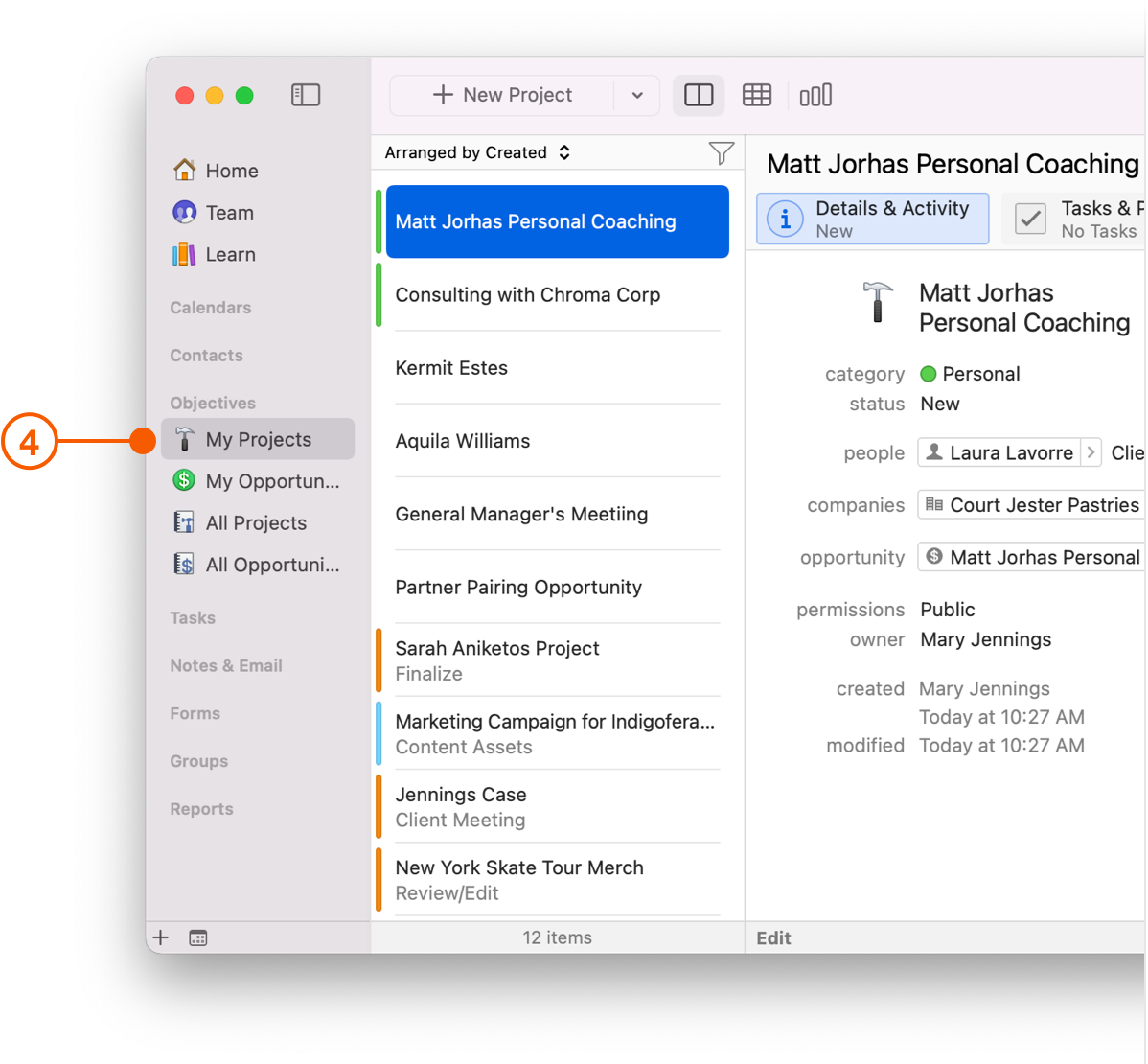
4. You can also view the newly created Project in **My Projects** with the same name as the Opportunity.
## Wrap Up
With a simple-to-follow and repeatable sales process, you will close more deals. Whether a seasoned veteran or a recent hire, your sales team will have the information, expectations, and tools at their finger tips to be successful.
To learn more about how to create new Opportunities check out [How to Capture New Business.](/help/learn/close-more-deals/capture-new-business.md)
Want help creating the perfect sales process? [Let us pair you with a Daylite Expert](https://www.marketcircle.com/experts) who can fine-tune your business processes by implementing Daylite in your workflows.
---
# Agent Instructions
This documentation is published with GitBook. GitBook is the documentation platform designed so that both humans and AI agents can read, navigate, and reason over technical content effectively. Learn more at gitbook.com.
## Querying This Documentation
If you need additional information that is not directly available in this page, you can query the documentation dynamically by asking a question.
Perform an HTTP GET request on the current page URL with the `ask` query parameter, and the optional `goal` query parameter:
```
GET https://docs.daylite.app/help/learn/close-more-deals/streamline-sales.md?ask=&goal=
```
`ask` is the immediate question: it should be specific, self-contained, and written in natural language.
`goal` is optional and describes the broader end goal you are ultimately trying to accomplish on behalf of the user. GitBook uses it to tailor the answer towards what is most useful for that goal.
The response will contain a direct answer to the question and relevant excerpts and sources from the documentation.
Use this mechanism when the answer is not explicitly present in the current page, you need clarification or additional context, or you want to retrieve related documentation sections.