# Using Opportunities Board

The **Opportunities Board** lets you visually track how many Opportunities are in your Sales Pipeline, see where each of your Opportunities are in the process, and helps you easily prioritize your most urgent or valuable Opportunities first.

## Opportunities Board Overview

The **Opportunities Board** is available in Daylite on Mac, iPad, and iPhone. It offers an overview of how your open Opportunities are moving through each Pipeline, and helps you identify which ones you should focus on.

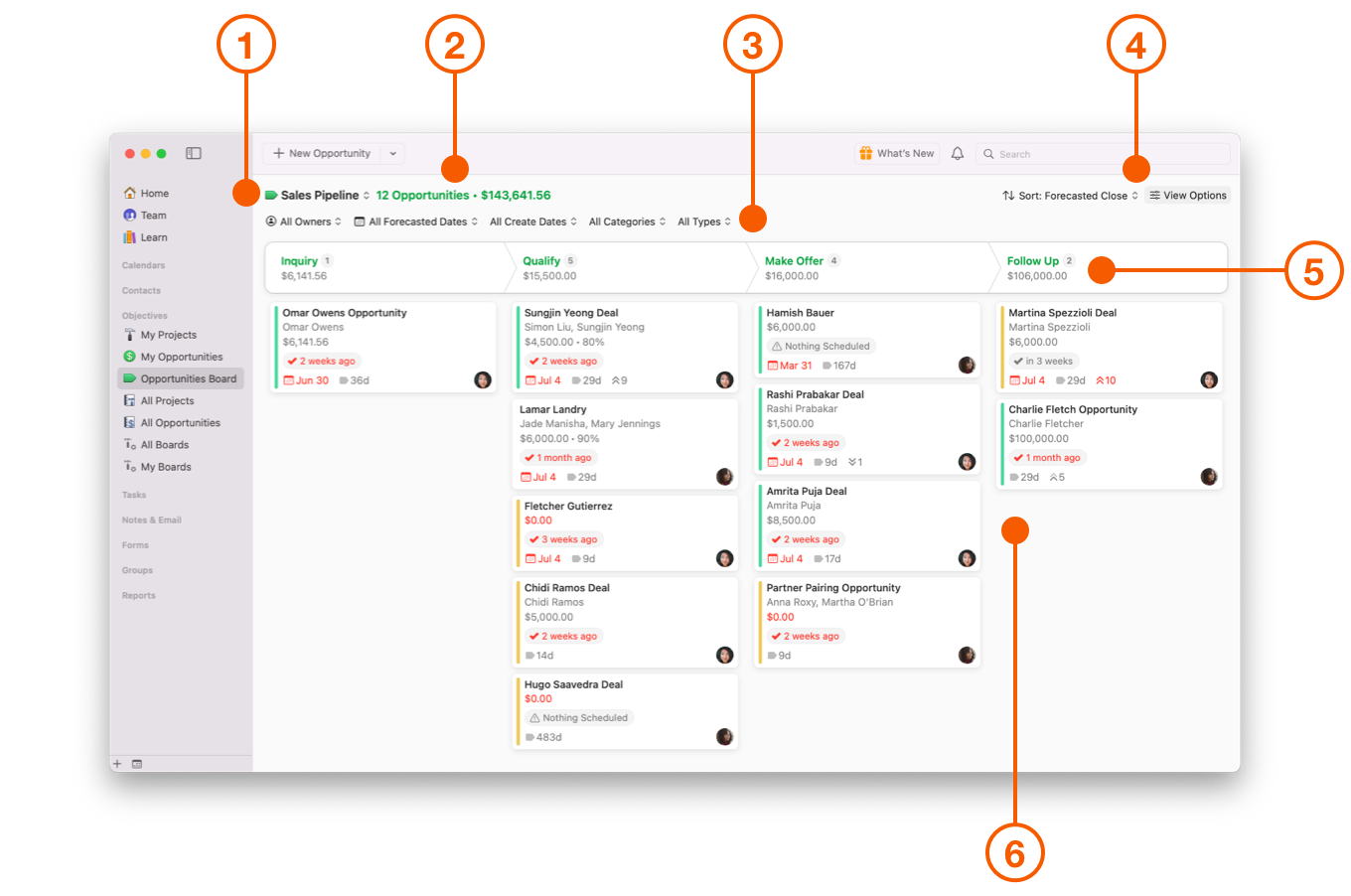
The **Opportunities Board** in Daylite on Mac is located in the Sidebar under Objectives.

It is comprised of:

1. The **Pipeline** Filter.
2. The **Opportunities and Total Value** Count.
3. **Filters**.
4. **Sort** and **View Options**.
5. **Stages**.
6. **Opportunities**.

<figure><img src="https://93104246-files.gitbook.io/~/files/v0/b/gitbook-x-prod.appspot.com/o/spaces%2FLlEWglZXDeBB1GqbJlKq%2Fuploads%2Fgit-blob-7d7997e1287f9a98d6e42f861798acbc0b541ac8%2F1.01.01.png?alt=media" alt="Opportunities Board Overview on Mac"><figcaption></figcaption></figure>

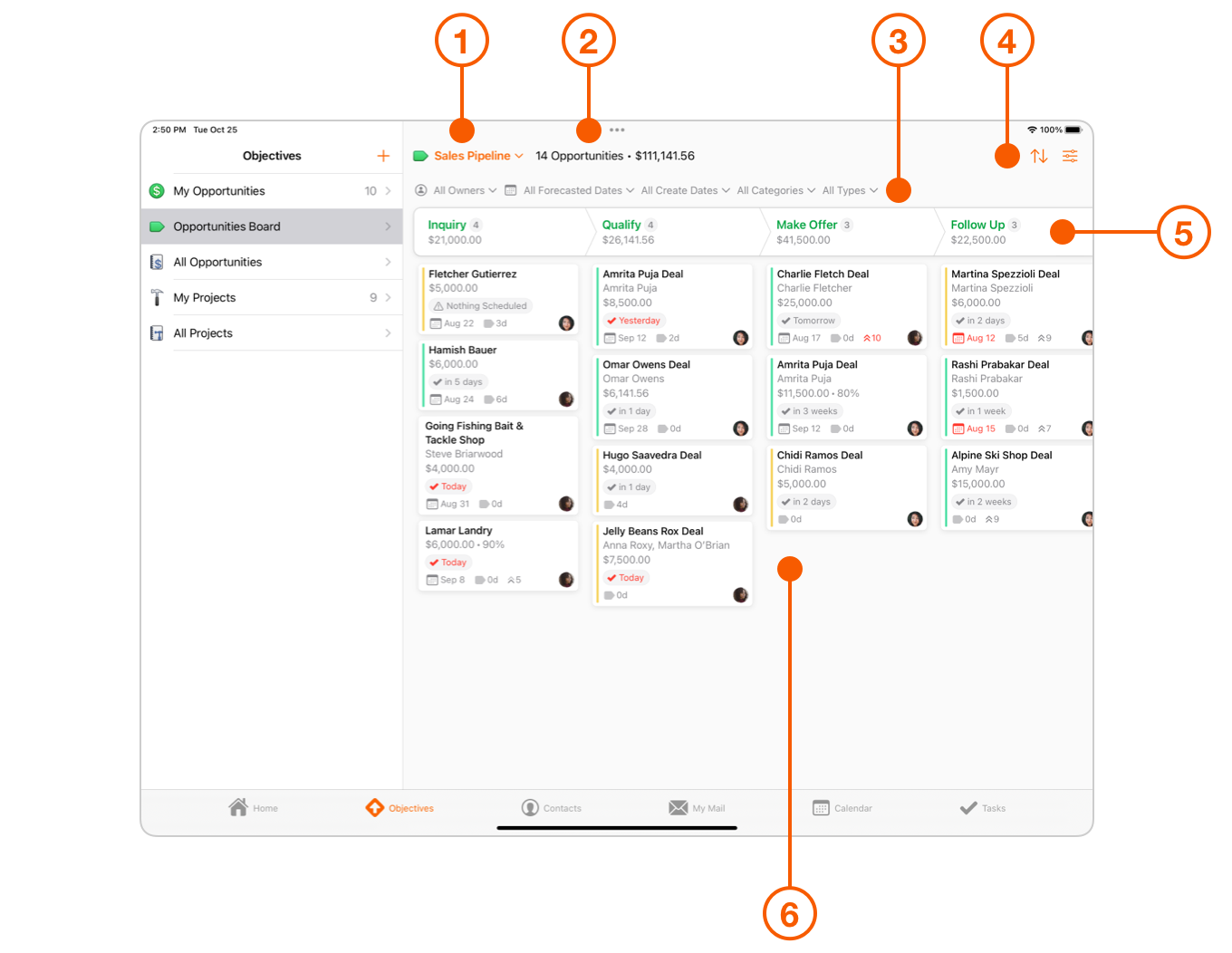
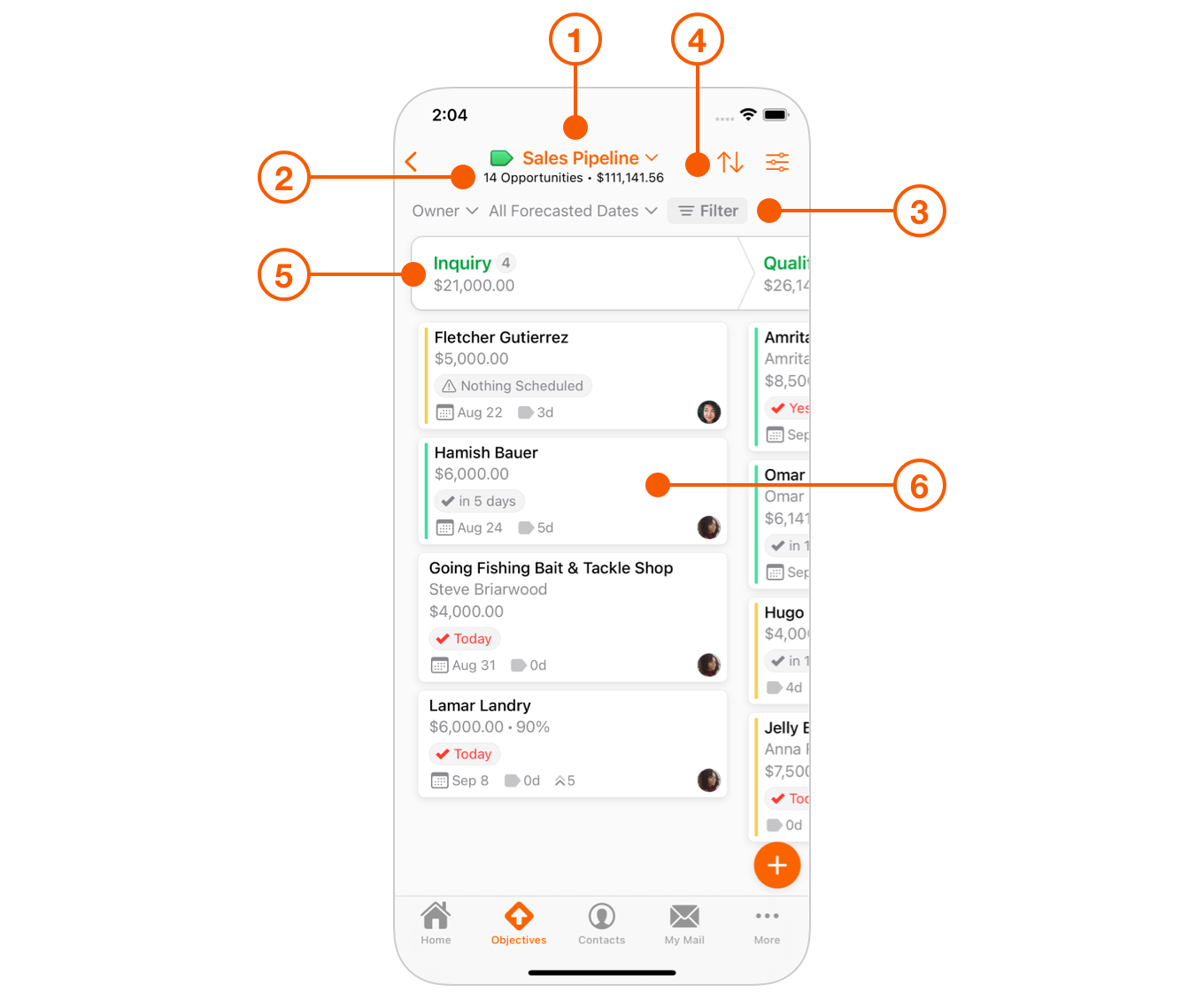
The **Opportunities Board** for iPad and iPhone is located under the Objectives tab, with the same components as above.

<figure><img src="https://93104246-files.gitbook.io/~/files/v0/b/gitbook-x-prod.appspot.com/o/spaces%2FLlEWglZXDeBB1GqbJlKq%2Fuploads%2Fgit-blob-75cb49cf03015303b2dcda42613e54fea7997b9a%2F1.01.01-iPad.png?alt=media" alt="Opportunities Board Overview on iPad"><figcaption></figcaption></figure>

<figure><img src="https://93104246-files.gitbook.io/~/files/v0/b/gitbook-x-prod.appspot.com/o/spaces%2FLlEWglZXDeBB1GqbJlKq%2Fuploads%2Fgit-blob-f95dceba62241009459ba889eb3d8a15c86bd3fc%2F1.01.01-iPhone.png?alt=media" alt="Opportunities Board Overview on iPhone"><figcaption></figcaption></figure>

## How the Opportunities Board Can Help

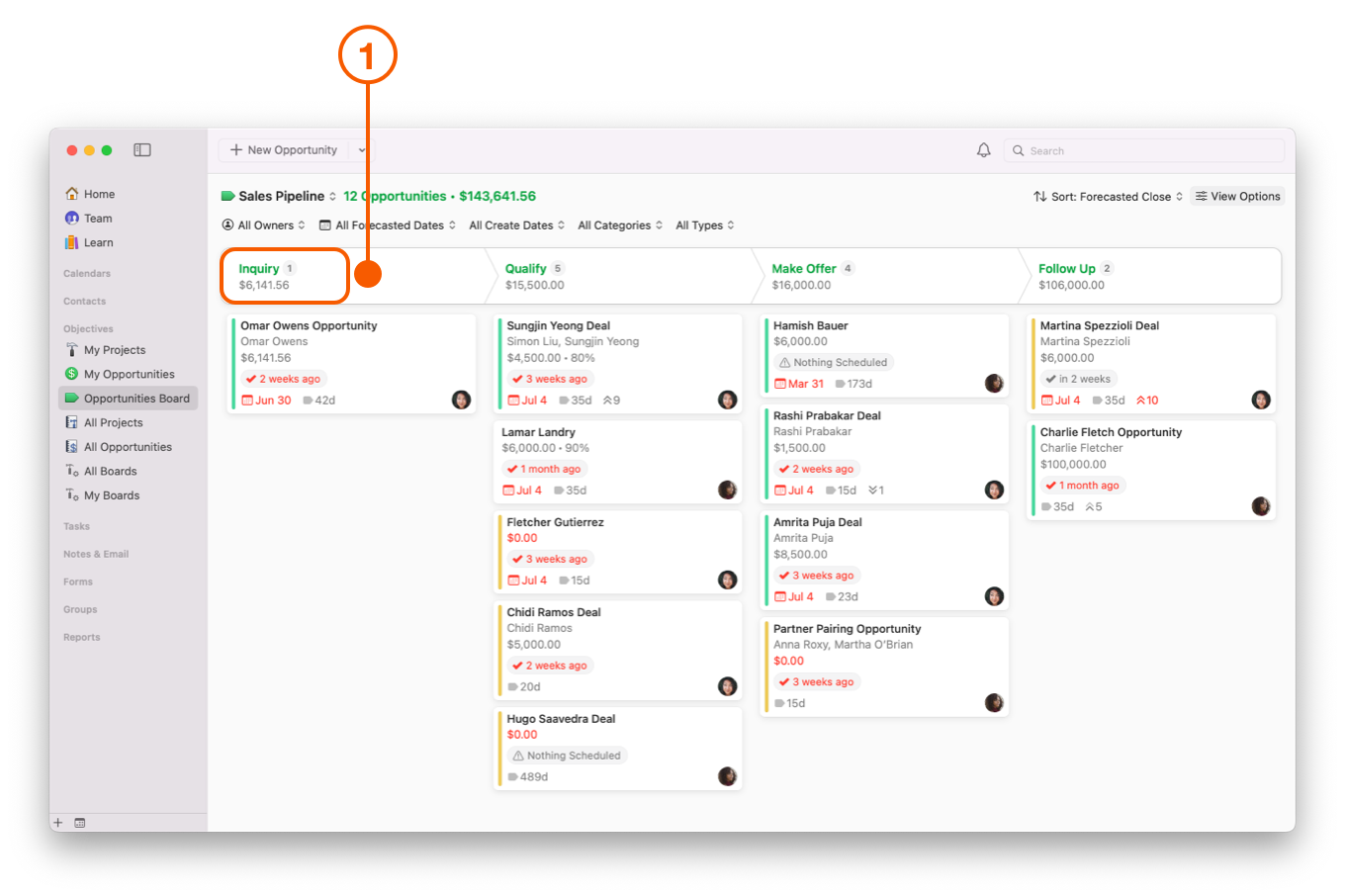
The **Opportunities Board** lets you see at a glance where there may be gaps in your current Pipeline process. This view can help identify areas of concern, such as deals that are stuck at a particular stage, so you can focus on moving them along.

1. In the example below, there is only one Opportunity under **Inquiry**, meaning this may be an area you want to focus on to increase the number of Opportunities in this Pipeline.

   <figure><img src="https://93104246-files.gitbook.io/~/files/v0/b/gitbook-x-prod.appspot.com/o/spaces%2FLlEWglZXDeBB1GqbJlKq%2Fuploads%2Fgit-blob-c03566f36bea9c09b31fdd7e23a46441c933c853%2F1.01.png?alt=media" alt="Opportunities Board showing Inquiry Stage"><figcaption></figcaption></figure>
2. This Pipeline is better weighted, with more Opportunities in the **Inquiry** stage, and fewer in Opportunities in the other Stages.

<figure><img src="https://93104246-files.gitbook.io/~/files/v0/b/gitbook-x-prod.appspot.com/o/spaces%2FLlEWglZXDeBB1GqbJlKq%2Fuploads%2FqcxufmnLNxtAYKSbYwvF%2Fusing-opportunities-board%5Cstages2.png?alt=media&#x26;token=f1a2ff66-98da-4abc-a6ee-f10638ada976" alt=""><figcaption></figcaption></figure>

## How Pipelines Work

### Viewing a Pipeline

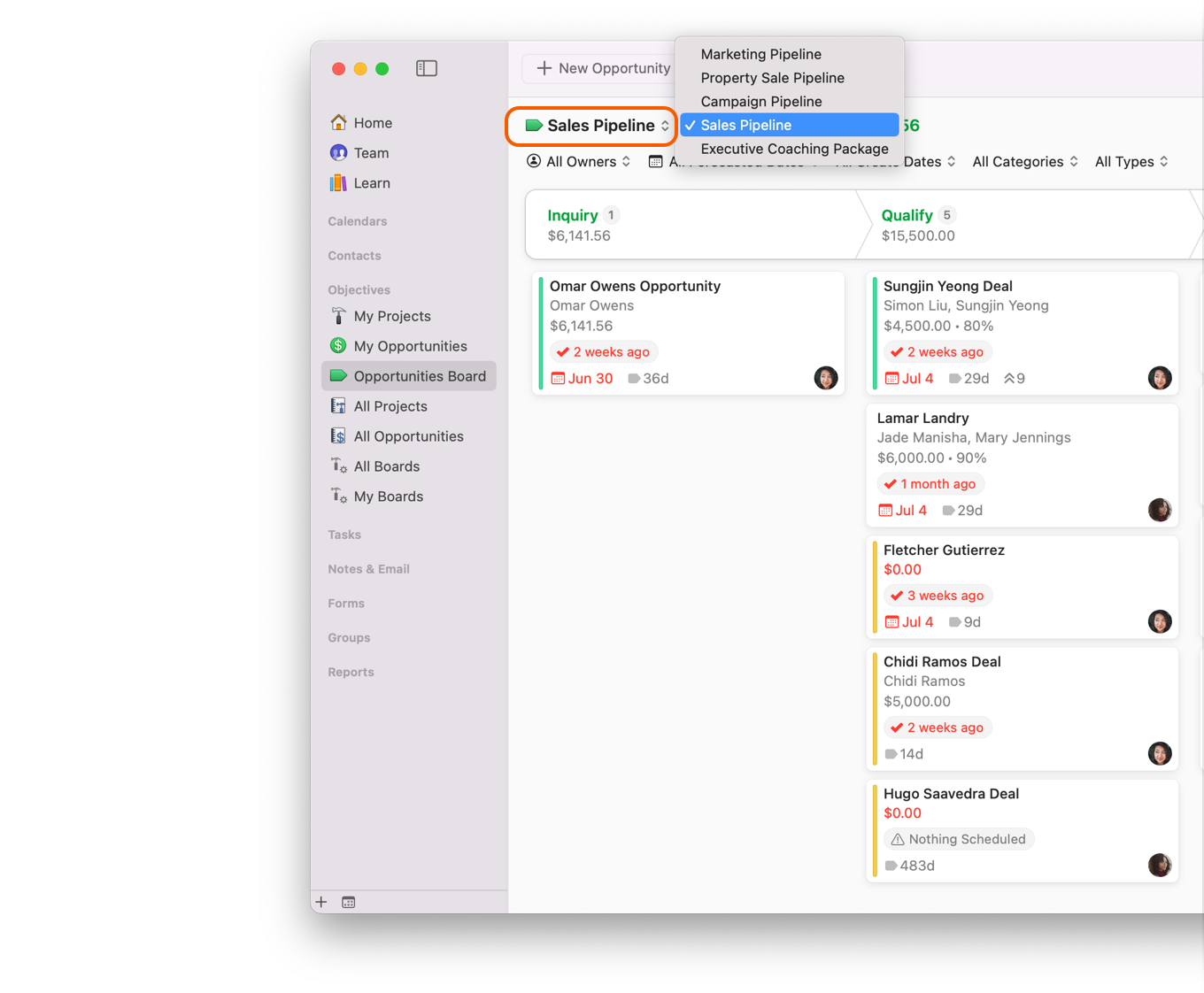
The **Opportunities Board** can show only one Pipeline at a time, since the Stages for each Pipeline are different.

Select the Pipeline you would like to view by clicking the **Pipeline** filter.

<figure><img src="https://93104246-files.gitbook.io/~/files/v0/b/gitbook-x-prod.appspot.com/o/spaces%2FLlEWglZXDeBB1GqbJlKq%2Fuploads%2Fgit-blob-5f2ead71182e78cfa825b1c45b98bcb976ce2805%2F09.png?alt=media" alt="Opportunities Board showing Pipeline filter"><figcaption></figcaption></figure>

### Setting Up Pipelines in Daylite Preferences

The **Opportunities Board** is tied directly to the Pipelines you create in Daylite Preferences.

{% hint style="info" %}
Pipelines can only be created and edited from Daylite for Mac.
{% endhint %}

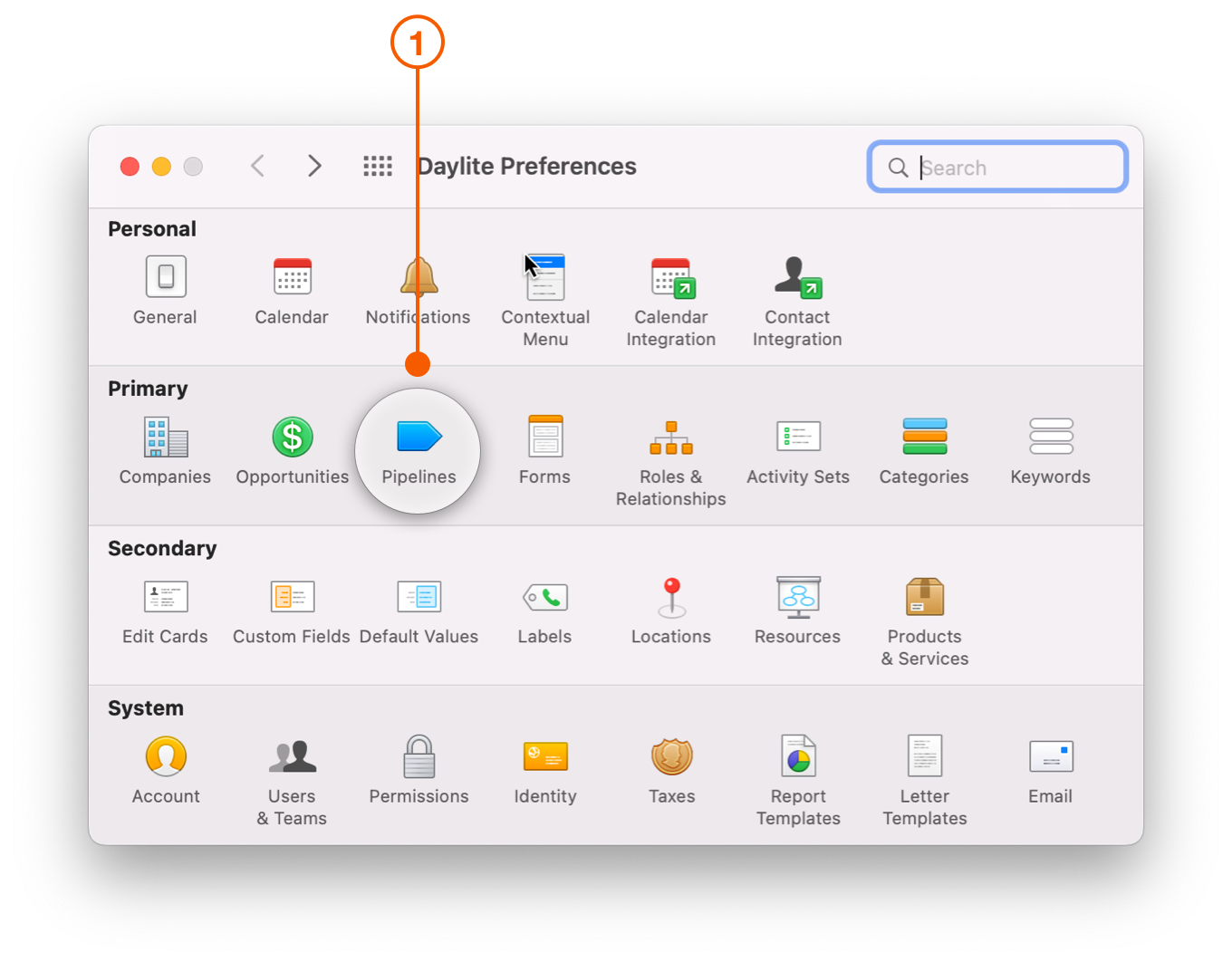
1. In Daylite for Mac, navigate to **Preferences - Pipelines**.

   <figure><img src="https://93104246-files.gitbook.io/~/files/v0/b/gitbook-x-prod.appspot.com/o/spaces%2FLlEWglZXDeBB1GqbJlKq%2Fuploads%2Fgit-blob-4181892da44904f31fcde6cdb6794719b4b8b8bb%2F01.png?alt=media" alt="Preferences window selecting Pipelines"><figcaption></figcaption></figure>
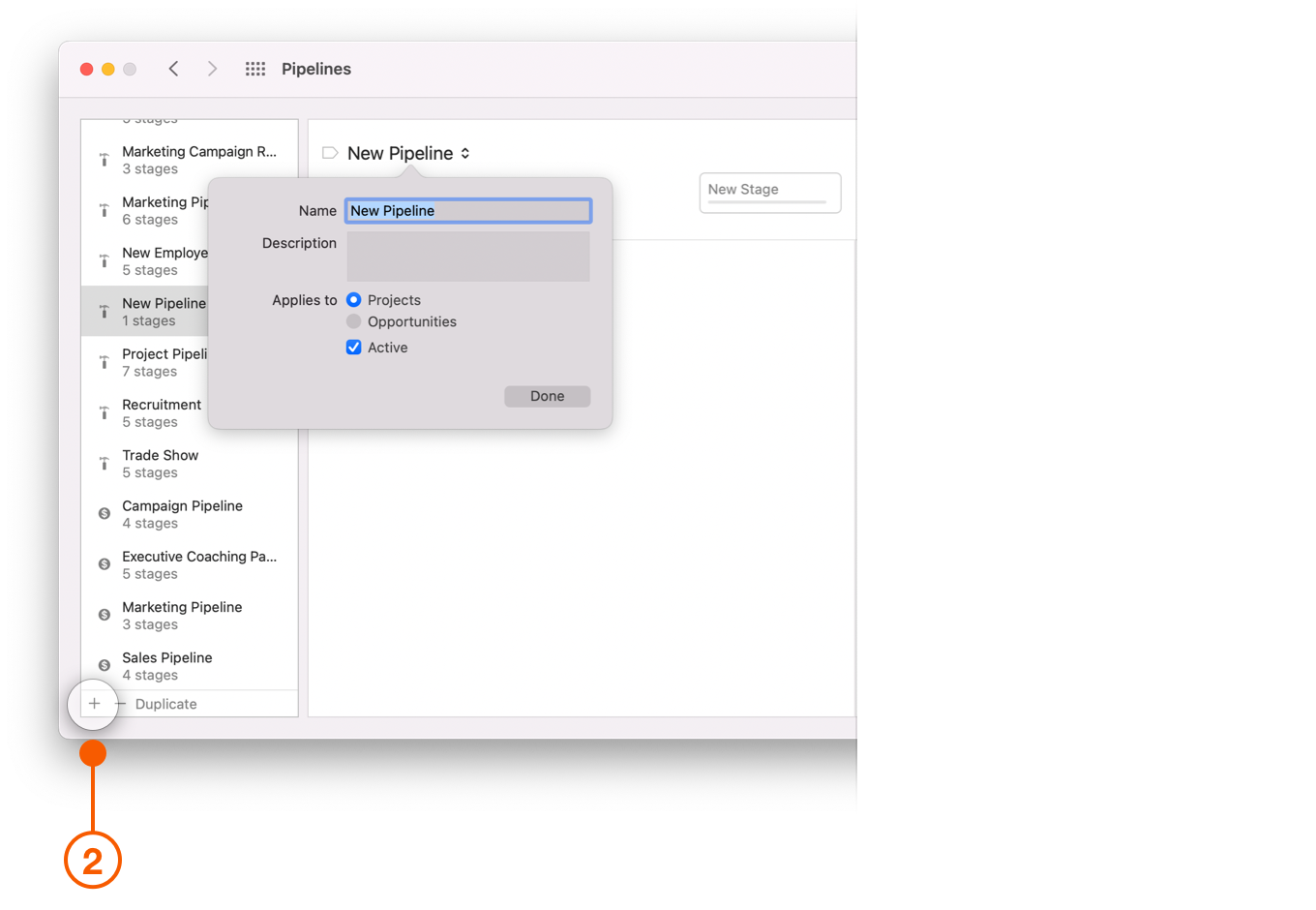
2. Click the **+** button to enter Pipeline information.

   <figure><img src="https://93104246-files.gitbook.io/~/files/v0/b/gitbook-x-prod.appspot.com/o/spaces%2FLlEWglZXDeBB1GqbJlKq%2Fuploads%2Fgit-blob-027a4d0b3e7df3efcea104644d29d1619f0f9f9a%2F02.png?alt=media" alt="Pipelines Preferences window selecting new pipeline"><figcaption></figcaption></figure>
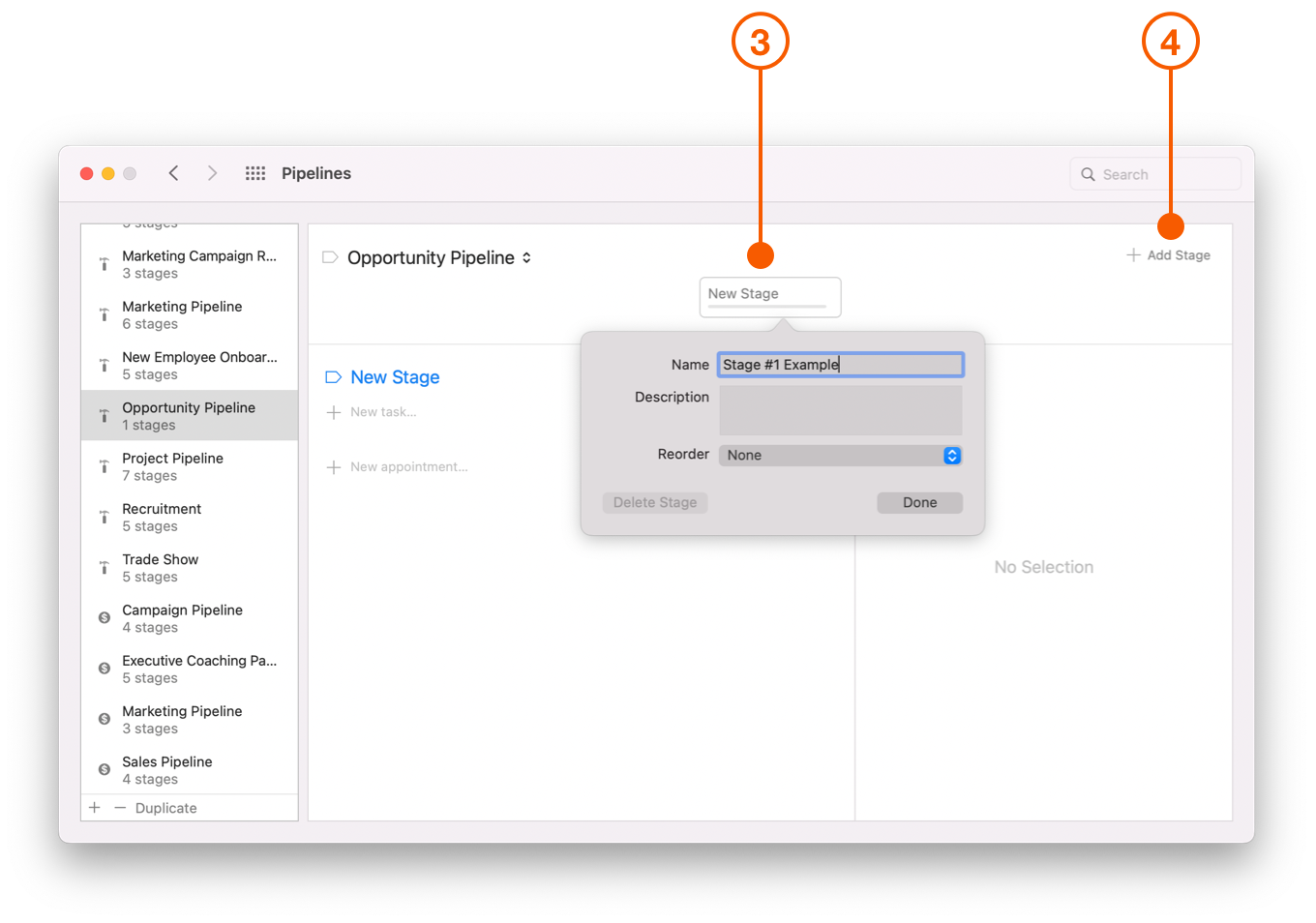
3. Click on **New Stage** to create a Pipeline Stage.
4. Click on **+ Add Stage** to create additional Stages.

   <figure><img src="https://93104246-files.gitbook.io/~/files/v0/b/gitbook-x-prod.appspot.com/o/spaces%2FLlEWglZXDeBB1GqbJlKq%2Fuploads%2Fgit-blob-9f6aace171d9eb28d238c7f84baefc889a4e1dbf%2F03.png?alt=media" alt="Pipelines Preferences window selecting Stages"><figcaption></figcaption></figure>
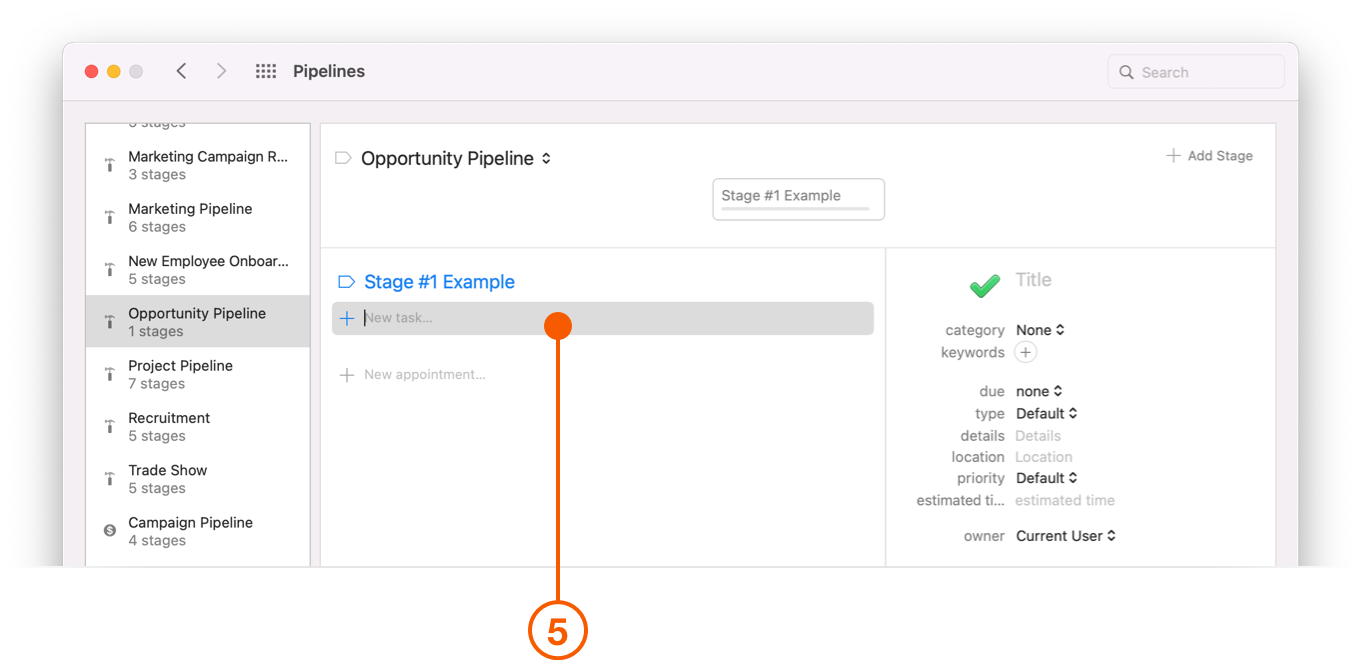
5. Select **New task** to create a Task that needs to be completed for each Stage.

   <figure><img src="https://93104246-files.gitbook.io/~/files/v0/b/gitbook-x-prod.appspot.com/o/spaces%2FLlEWglZXDeBB1GqbJlKq%2Fuploads%2Fgit-blob-87911b60c96b3e6c5334323fc57533d4505d53ce%2F04.png?alt=media" alt="Pipelines Preferences window selecting New Task"><figcaption></figcaption></figure>
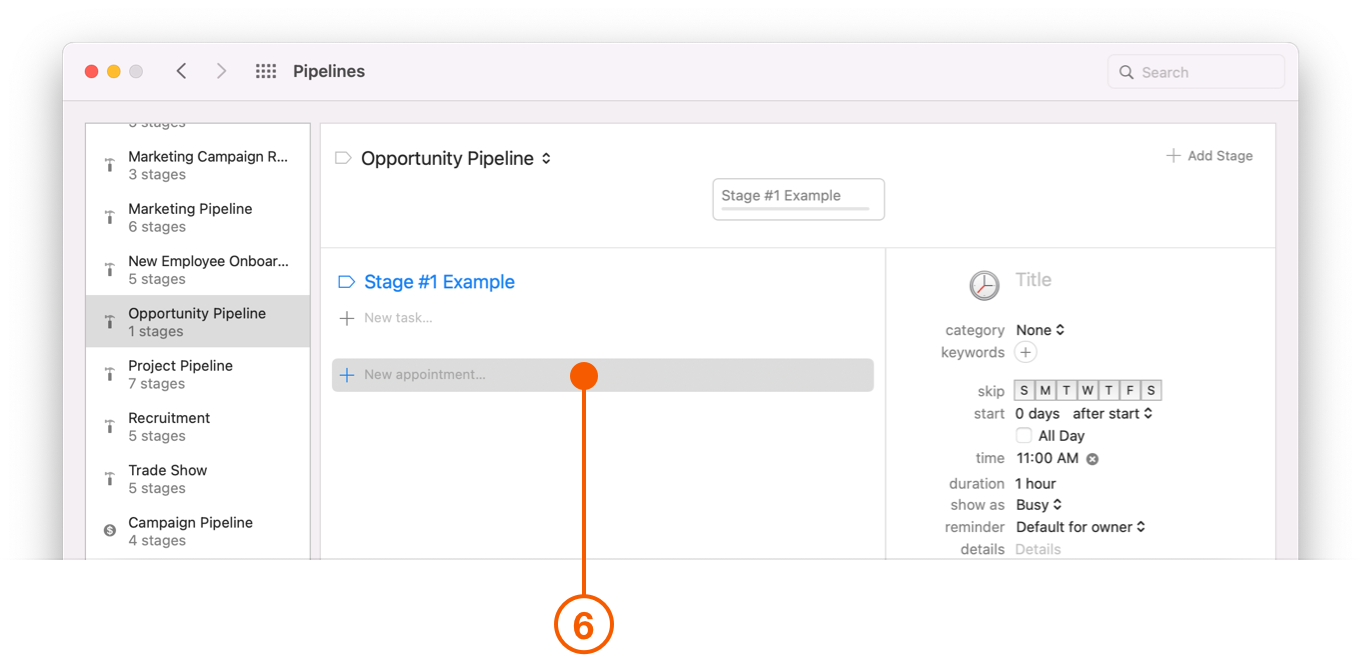
6. Select **New appointment** to create an Appointment that needs to be completed for each Stage.

   <figure><img src="https://93104246-files.gitbook.io/~/files/v0/b/gitbook-x-prod.appspot.com/o/spaces%2FLlEWglZXDeBB1GqbJlKq%2Fuploads%2Fgit-blob-e0a58e69e92ba07cfd0042b61df9984395332089%2F05.png?alt=media" alt="Pipelines Preferences window selecting New Appointment"><figcaption></figcaption></figure>
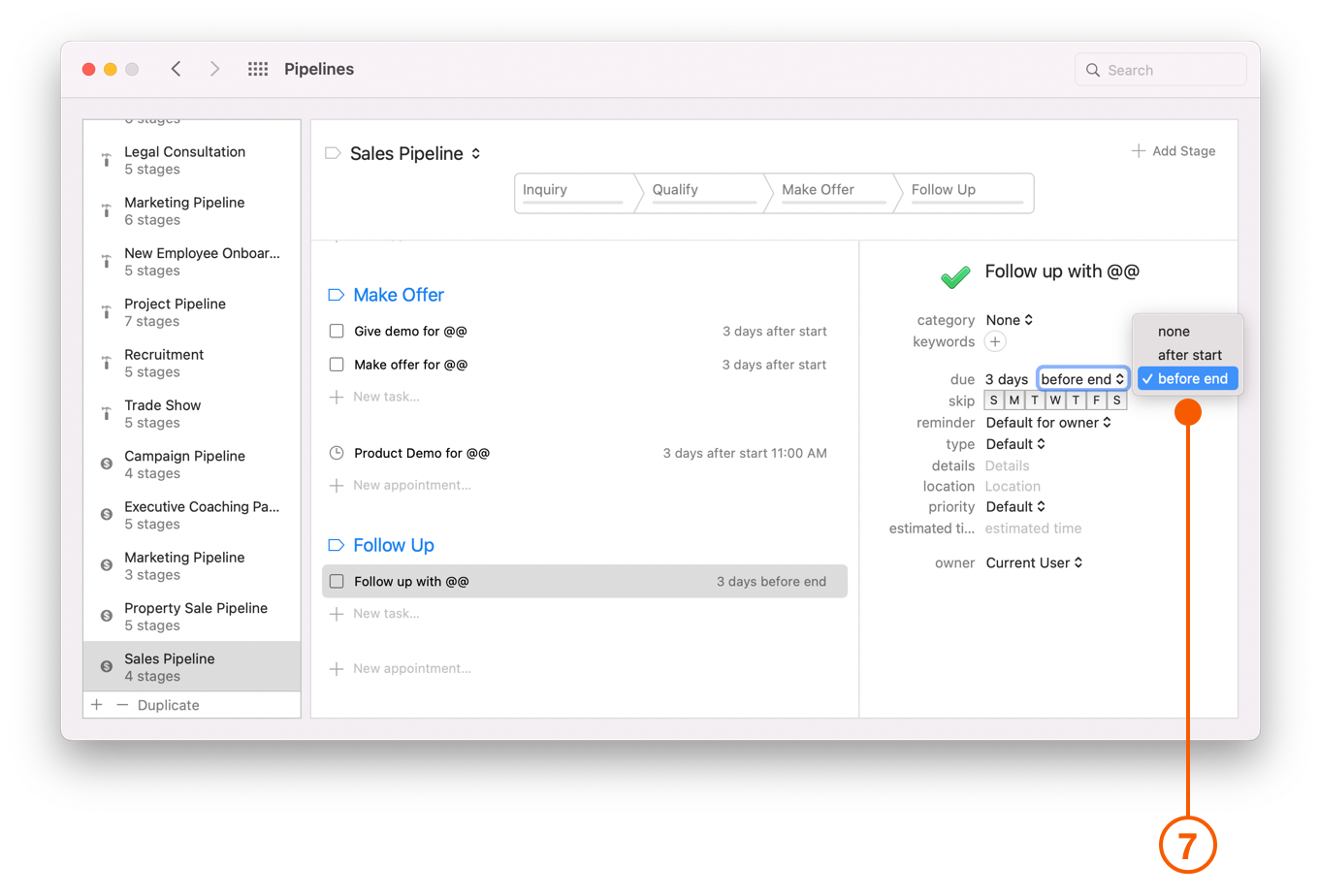
7. Select **due** and set the date to either after the stage starts, or before it ends.

   <figure><img src="https://93104246-files.gitbook.io/~/files/v0/b/gitbook-x-prod.appspot.com/o/spaces%2FLlEWglZXDeBB1GqbJlKq%2Fuploads%2Fgit-blob-83811ee2c296b67882ff96e5ef0315d2b66cc474%2F06.png?alt=media" alt="Pipelines Preferences window setting due date"><figcaption></figcaption></figure>
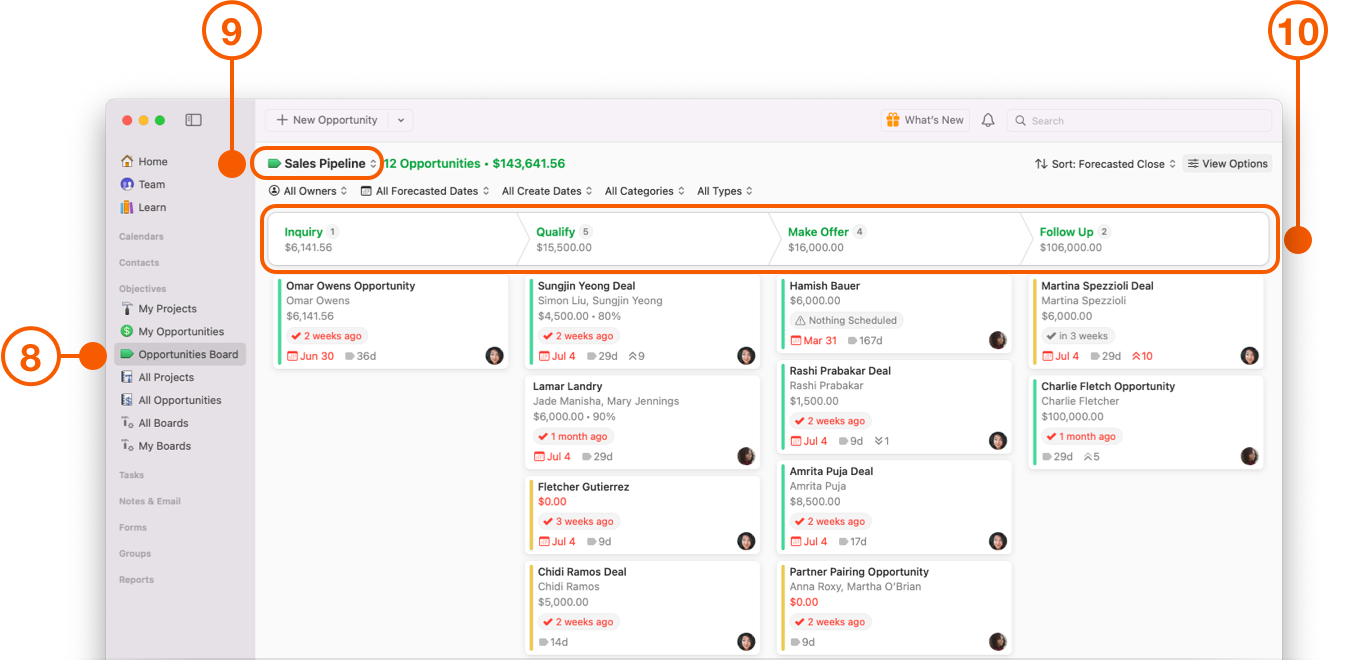
8. Close the Preferences window and select the **Opportunity Board**.
9. Choose your **Pipeline**.
10. The **Stages** in the Pipeline are now an exact match for the Stages in the Preferences menu.

    <figure><img src="https://93104246-files.gitbook.io/~/files/v0/b/gitbook-x-prod.appspot.com/o/spaces%2FLlEWglZXDeBB1GqbJlKq%2Fuploads%2Fgit-blob-6fae0b9b5a90043bb0c969b9c2e6742b3a79e450%2F08.png?alt=media" alt="Sales Pipeline showing Stages"><figcaption></figcaption></figure>

## Starting a New Opportunity in the Opportunities Board

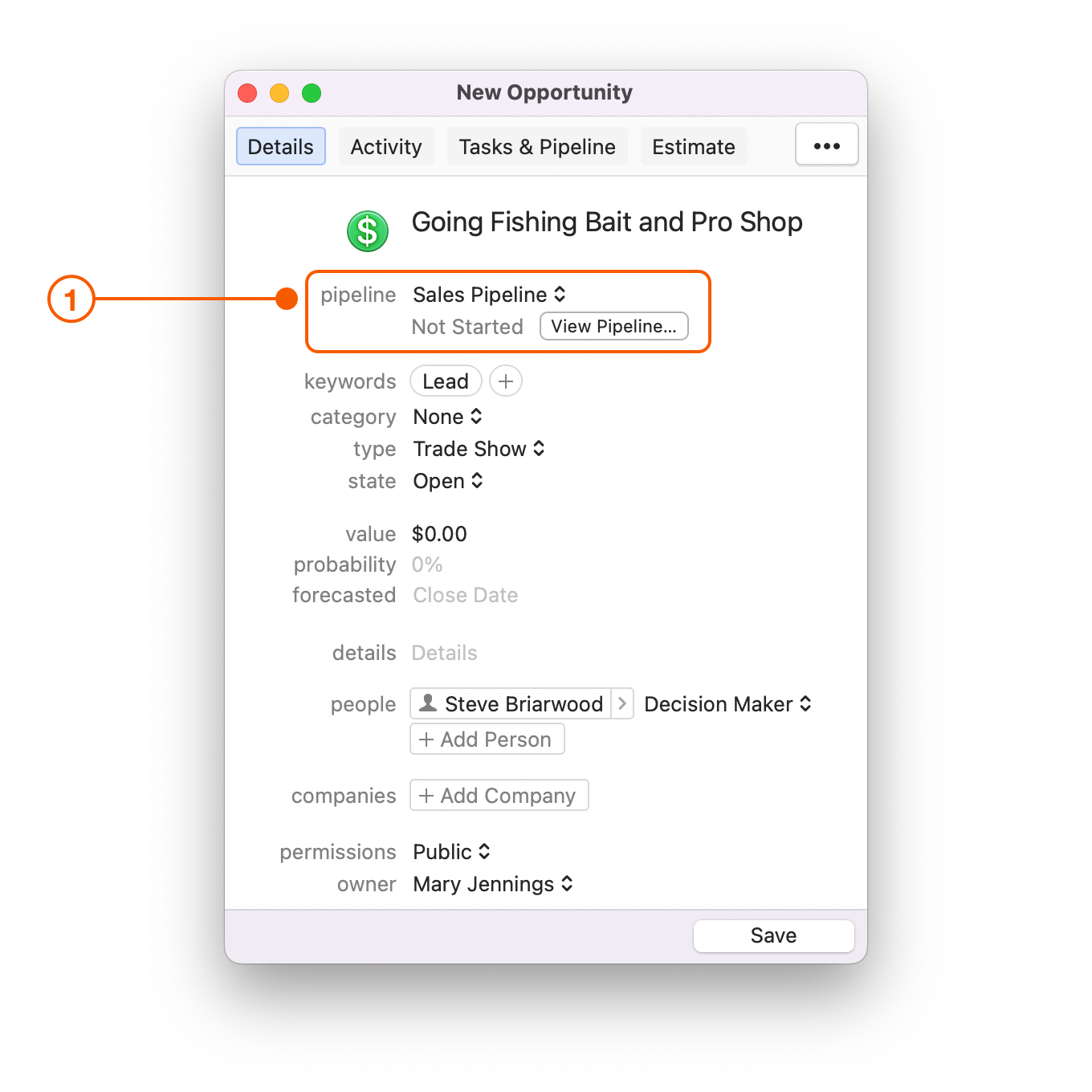
An Opportunity must have a Pipeline assigned for it to be included in the **Opportunities Board** view.

1. Click **New Opportunity** in the Opportunities Board and select which Pipeline you wish to assign the New Opportunity to.

   <figure><img src="https://93104246-files.gitbook.io/~/files/v0/b/gitbook-x-prod.appspot.com/o/spaces%2FLlEWglZXDeBB1GqbJlKq%2Fuploads%2Fgit-blob-c4a118ad67aa0921c4d77010ca4d5dd637ca08e8%2F15.3.png?alt=media" alt="Opportunites Board selecting New Opportunity"><figcaption></figcaption></figure>
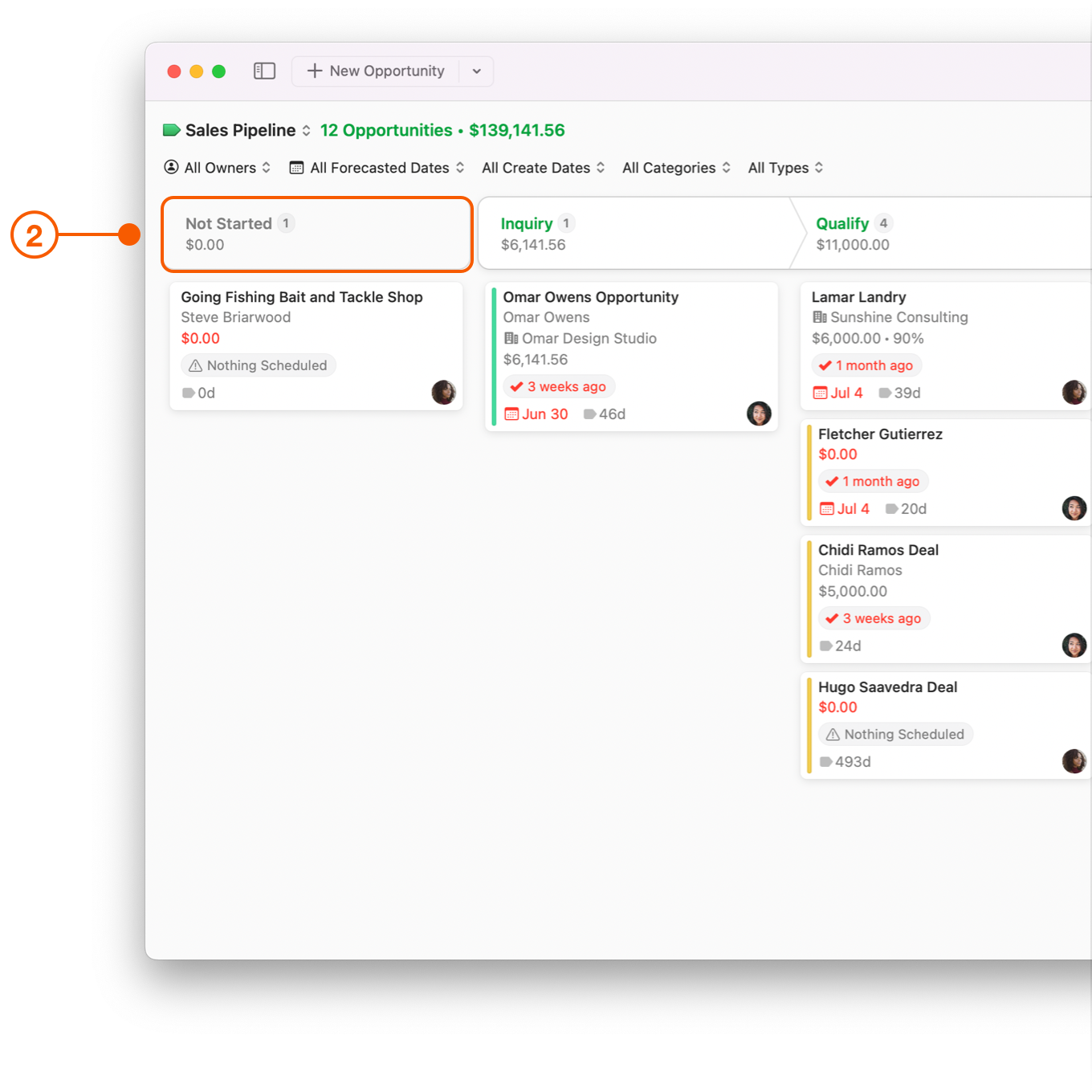
2. The Opportunities Board shows a column called **Not Started** for any new opportunities. Opportunities stay here until moved to a stage in the pipeline.

   <figure><img src="https://93104246-files.gitbook.io/~/files/v0/b/gitbook-x-prod.appspot.com/o/spaces%2FLlEWglZXDeBB1GqbJlKq%2Fuploads%2Fgit-blob-ea3a0f5a3630f42c3518492eedf3d43e4faab929%2F15.4.png?alt=media" alt="Opportunites Board showing Not Started Stage"><figcaption></figcaption></figure>

## Viewing Opportunity and Total Value

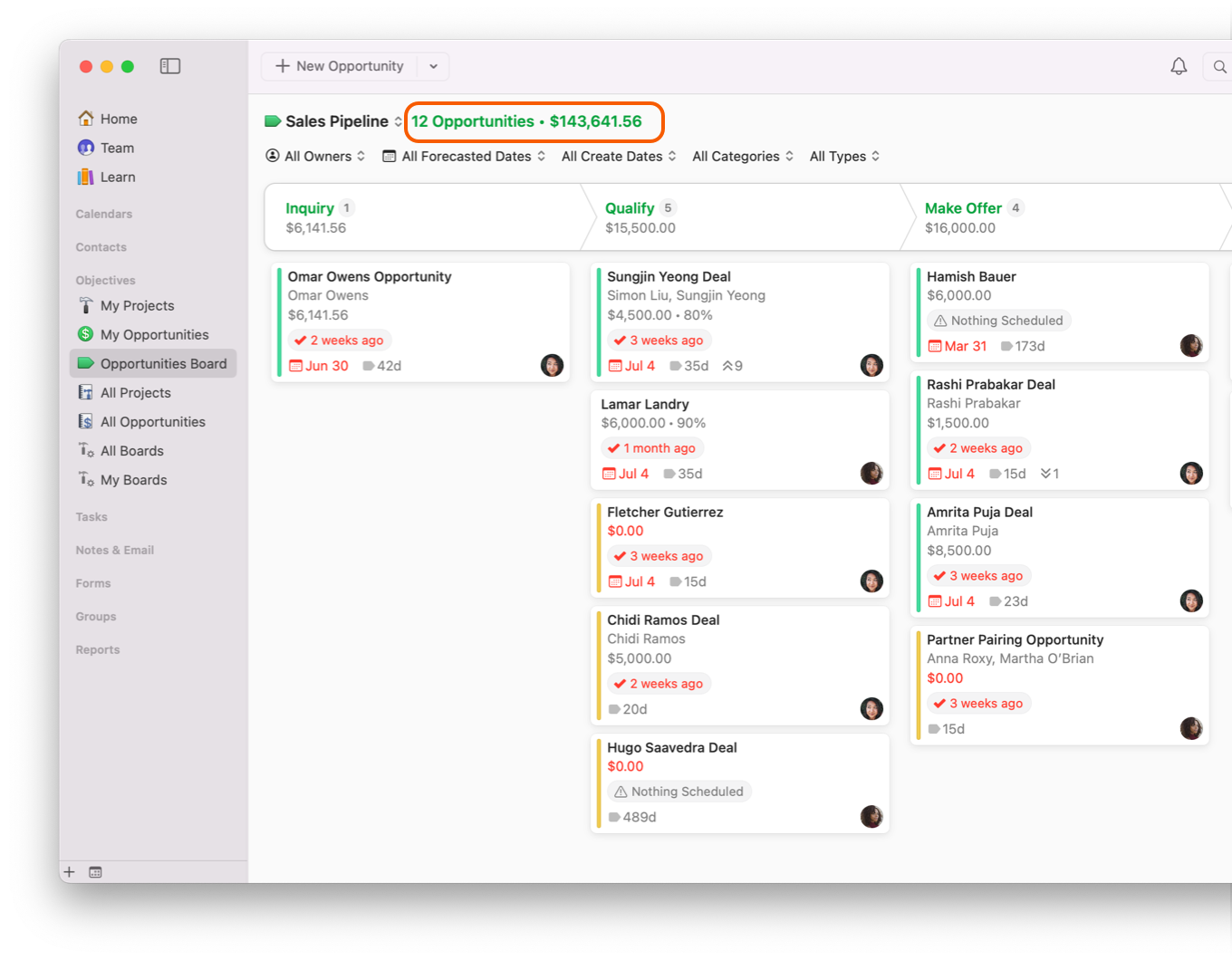
You can see the total number of Opportunities you have in the selected Pipeline, as well as their combined total value here.

<figure><img src="https://93104246-files.gitbook.io/~/files/v0/b/gitbook-x-prod.appspot.com/o/spaces%2FLlEWglZXDeBB1GqbJlKq%2Fuploads%2Fgit-blob-344f17c77a21992df66c7868064d2823444d48b4%2F10.png?alt=media" alt="Opportunity total and combined dollar value"><figcaption></figcaption></figure>

## Moving Opportunities to the Next Stage

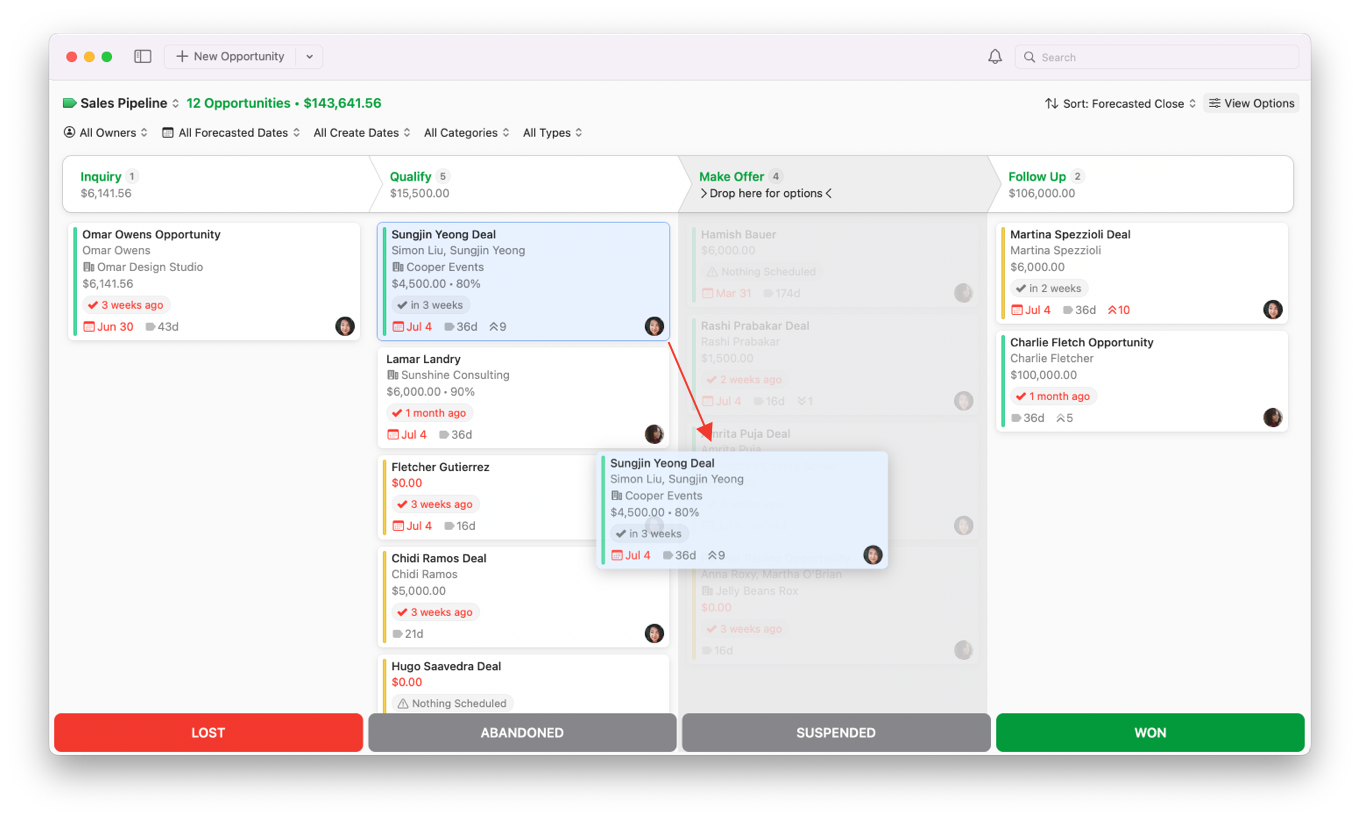
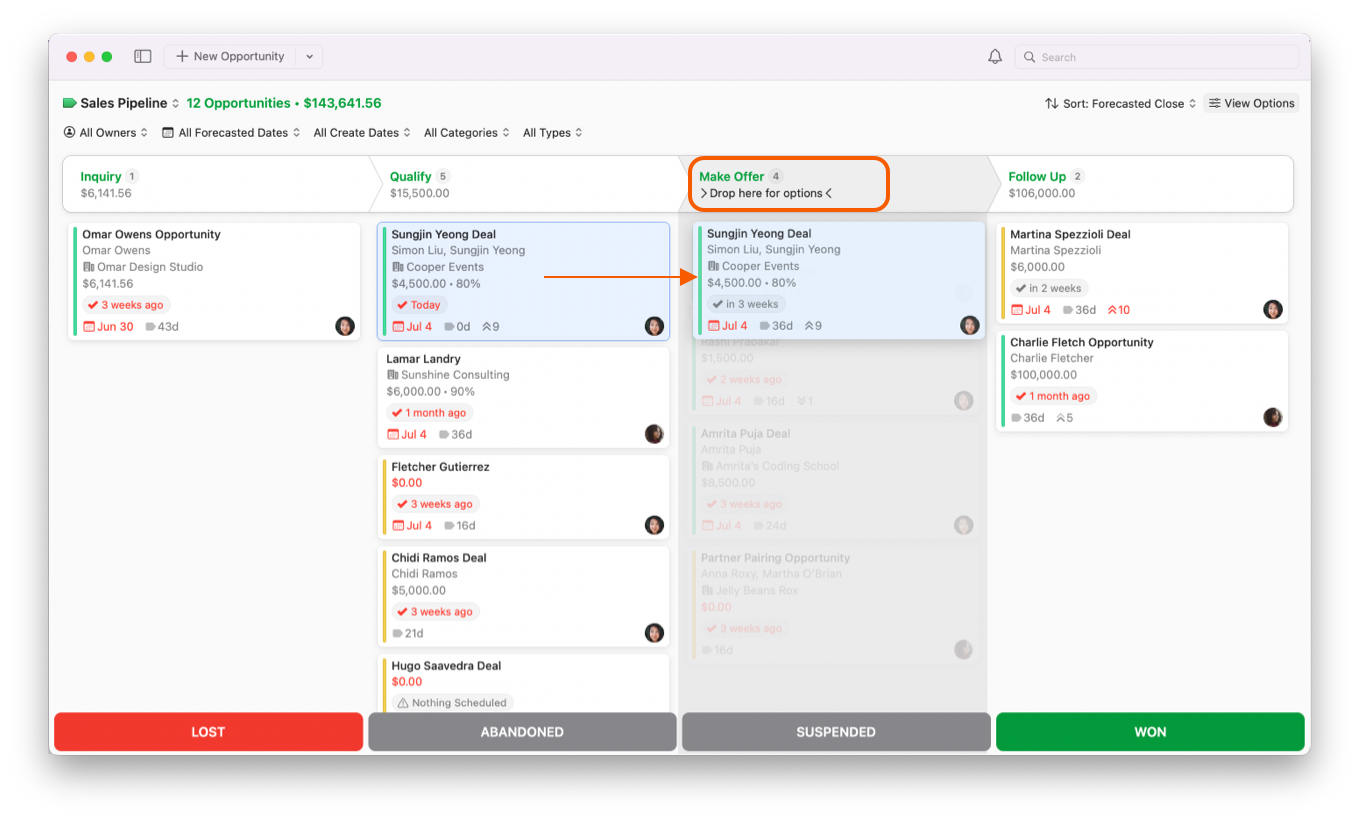
1. Move your Opportunities to the next Stage in your Pipeline by dragging them from one Stage to the next.

   <figure><img src="https://93104246-files.gitbook.io/~/files/v0/b/gitbook-x-prod.appspot.com/o/spaces%2FLlEWglZXDeBB1GqbJlKq%2Fuploads%2Fgit-blob-0c5de7b5a1302223123abd95e1cc0aa2a2aa4ff7%2F15.png?alt=media" alt="Opportunites Board moving opportunity from one stage to another"><figcaption></figcaption></figure>
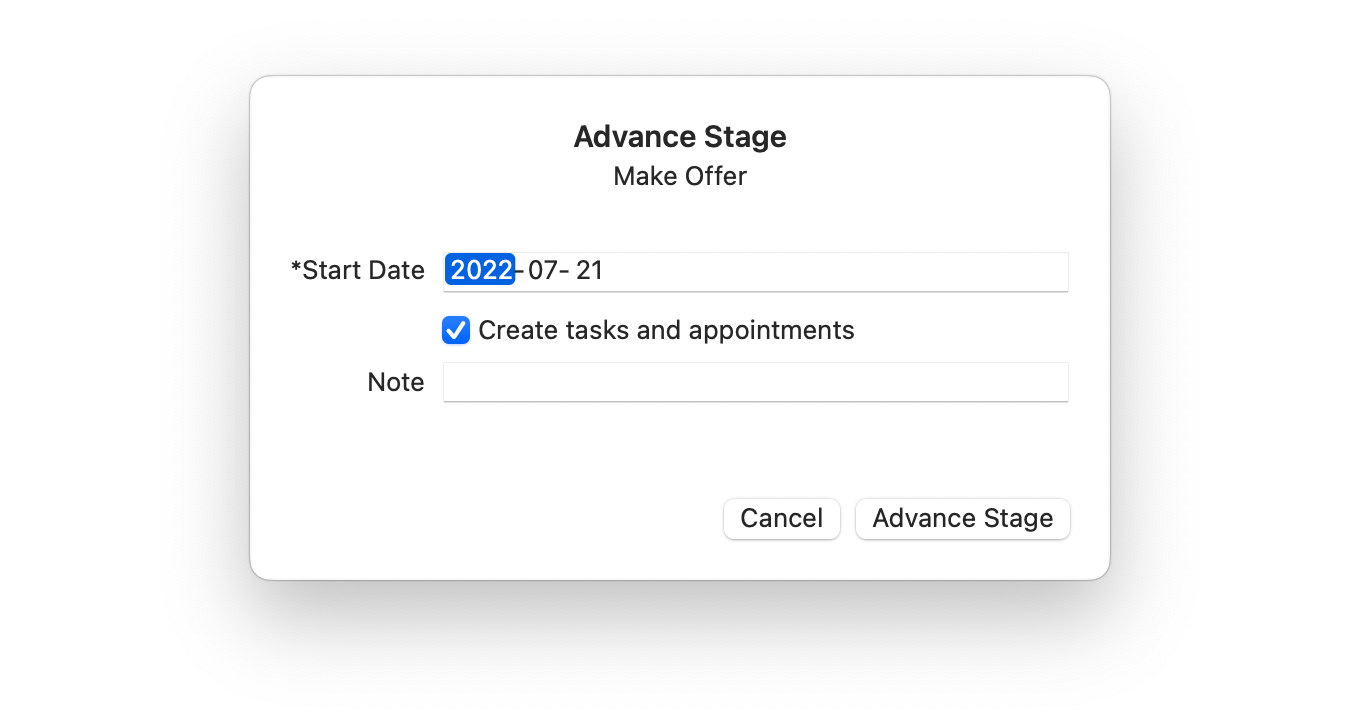
2. Dropping the Opportunity onto a Stage's title prompts an Advance Stage window that lets you verify or change the Start Date, create Tasks and Appointments, and leave Notes.

   <figure><img src="https://93104246-files.gitbook.io/~/files/v0/b/gitbook-x-prod.appspot.com/o/spaces%2FLlEWglZXDeBB1GqbJlKq%2Fuploads%2Fgit-blob-a358cd0398a95a36cc415d55dcbd85cf6a973592%2F15.1.png?alt=media" alt="Opportunites Board showing drop here for options"><figcaption></figcaption></figure>

   <figure><img src="https://93104246-files.gitbook.io/~/files/v0/b/gitbook-x-prod.appspot.com/o/spaces%2FLlEWglZXDeBB1GqbJlKq%2Fuploads%2Fgit-blob-e45bf00a5ccae61ed56f918d3a2804d9eb2034bc%2F15.2.png?alt=media" alt="Opportunites Board showing advance stage window"><figcaption></figcaption></figure>

## Updating an Opportunity's State

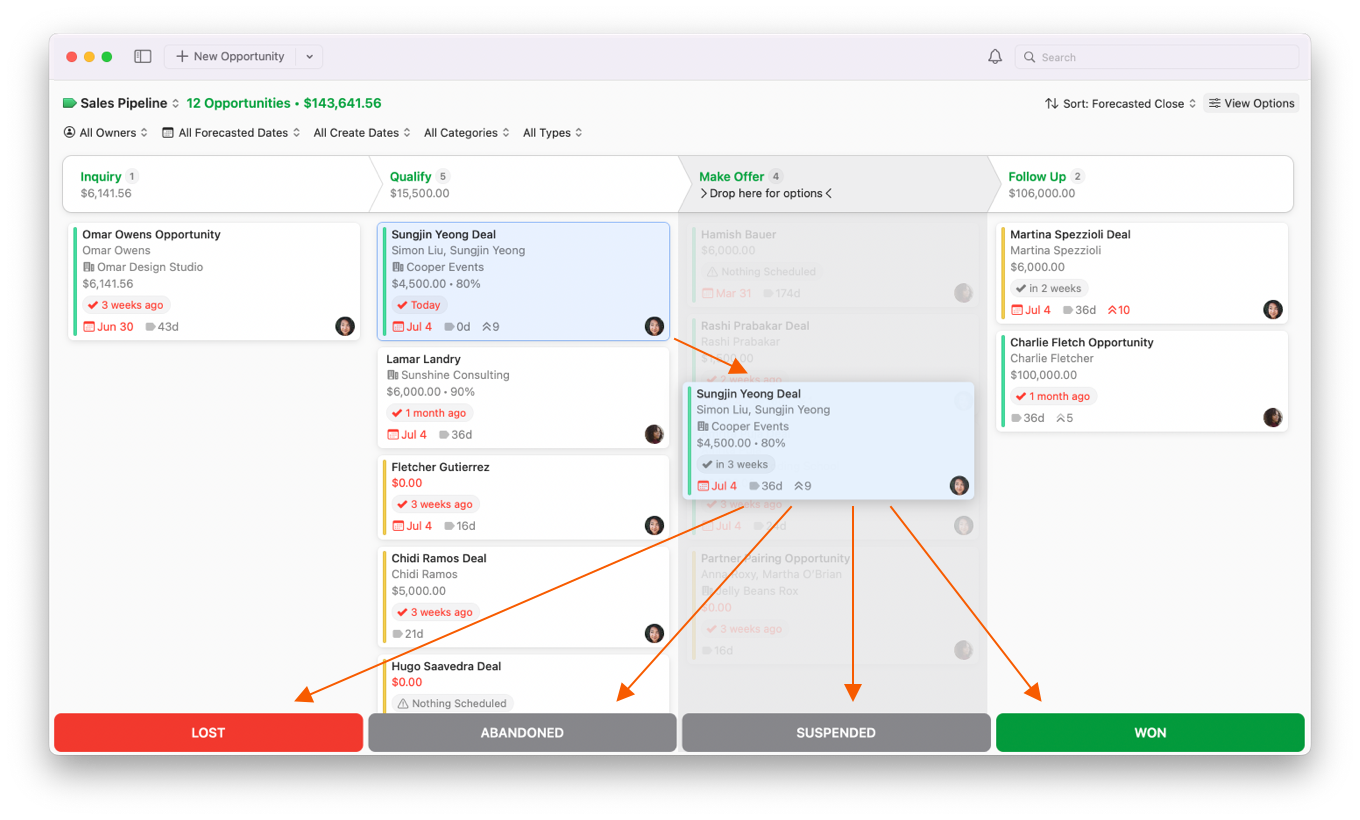
The Opportunities Board only shows Opportunities that are in an **Open** state. Opportunities in any other State will not be shown here, but are viewable in the Sidebar under **All Opportunities**. That is also why Opportunities disappear from the **Opportunities Board** when you change the State to **Lost** or **Abandoned** for example.

1. As you begin to move your Opportunity from one Stage to another, there are four different **States** that appear at the bottom of the Opportunities Board. These States are:

   * **Lost**
   * **Abandoned**
   * **Suspended**
   * **Won**

   <figure><img src="https://93104246-files.gitbook.io/~/files/v0/b/gitbook-x-prod.appspot.com/o/spaces%2FLlEWglZXDeBB1GqbJlKq%2Fuploads%2Fgit-blob-6ab56da8c12748d5354944eadfca34d1adc35e3a%2F16.png?alt=media" alt="Opportunites Board moving opportunity to different states"><figcaption></figcaption></figure>
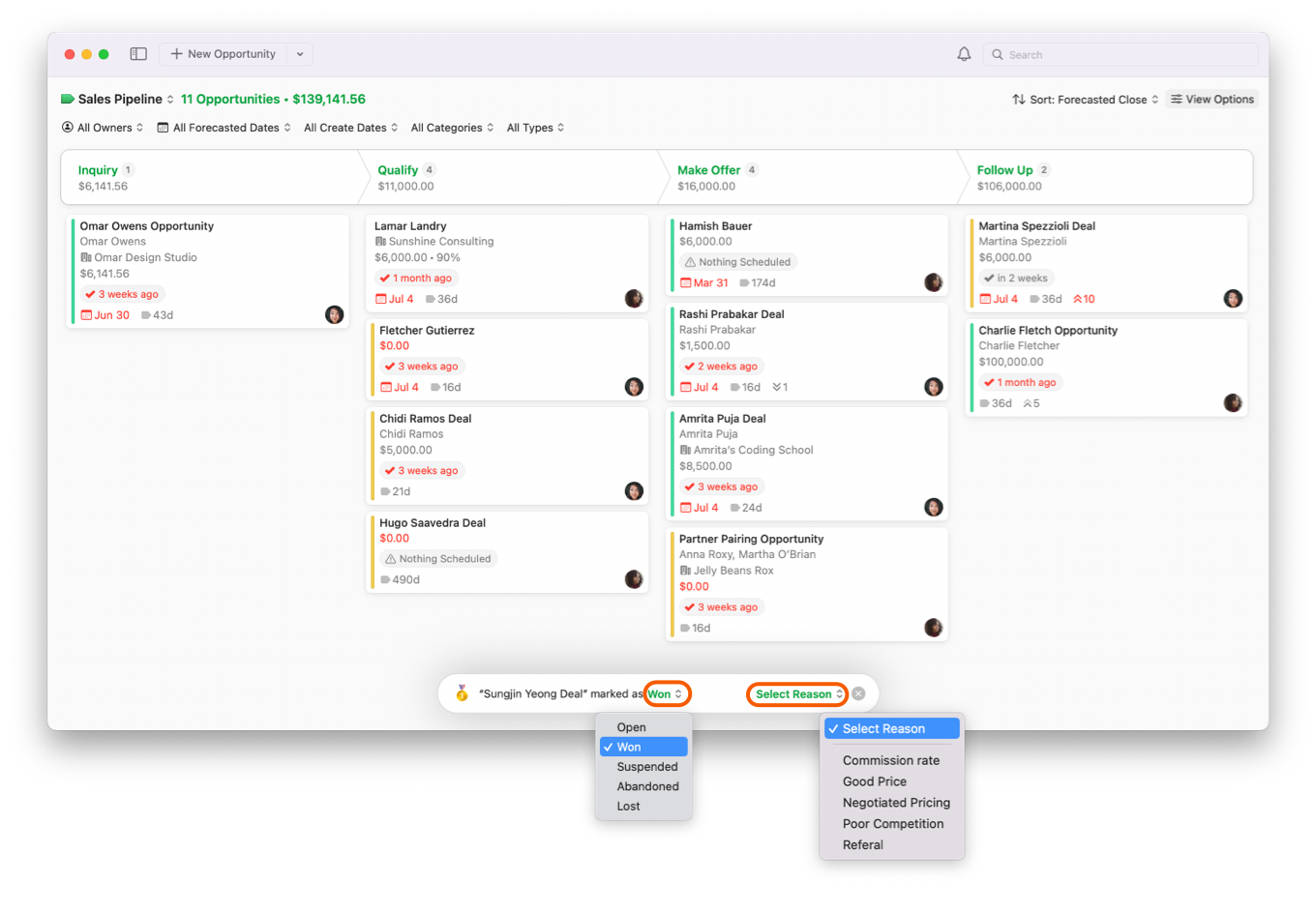
2. Dropping an Opportunity onto any of these States prompts a window at the bottom of the Board to appear, which lets you verify or change the State as well as select a reason.

   <figure><img src="https://93104246-files.gitbook.io/~/files/v0/b/gitbook-x-prod.appspot.com/o/spaces%2FLlEWglZXDeBB1GqbJlKq%2Fuploads%2Fgit-blob-25a304315c4b82044f70eb2c3ec25cfa00ddff0e%2F17.png?alt=media" alt="Opportunites Board showing State reasons"><figcaption></figcaption></figure>
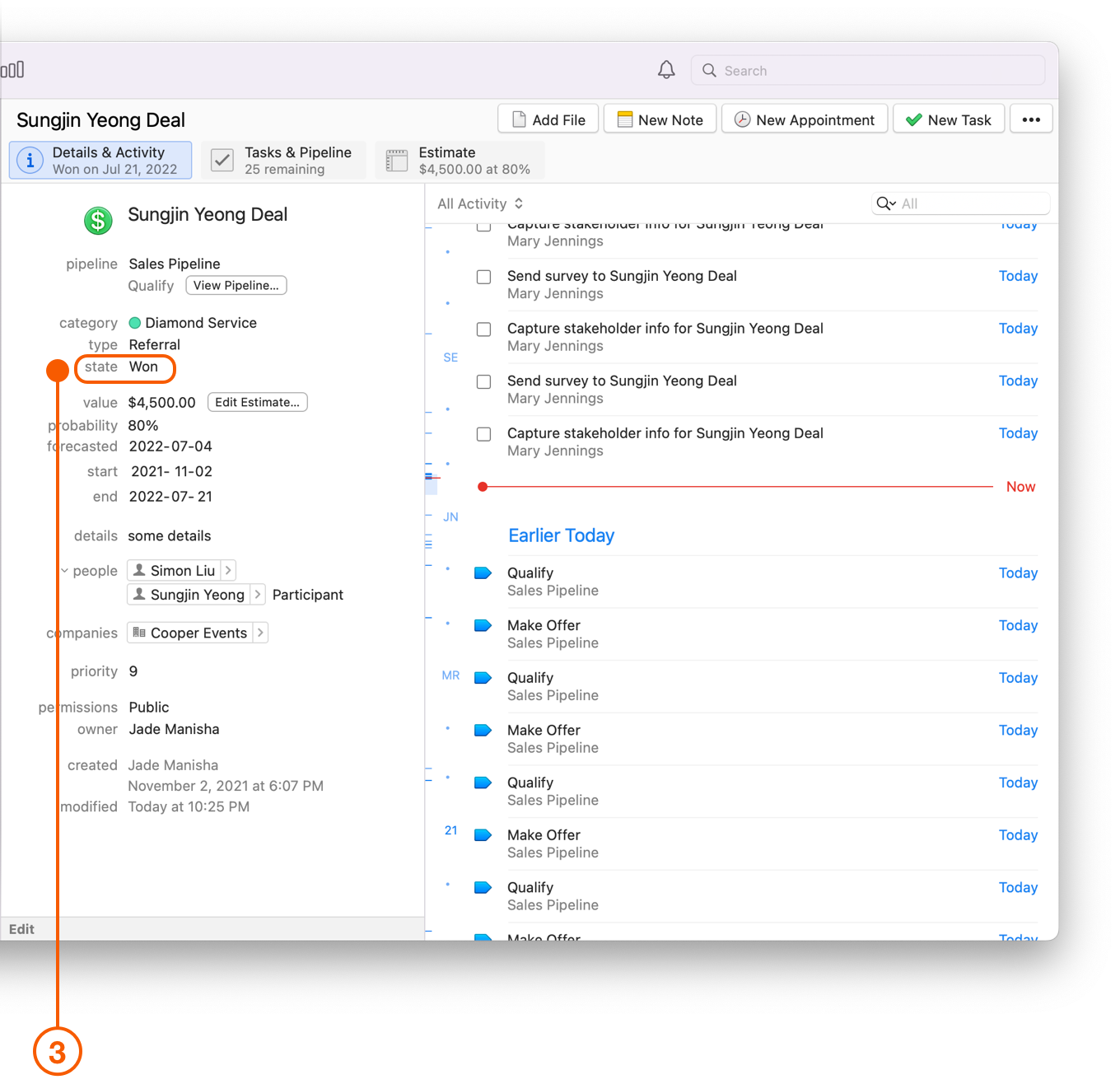
3. The State is automatically updated in the Details and Activity View.

   <figure><img src="https://93104246-files.gitbook.io/~/files/v0/b/gitbook-x-prod.appspot.com/o/spaces%2FLlEWglZXDeBB1GqbJlKq%2Fuploads%2Fgit-blob-bf6cf2da01720d4aaf8618b91ddc2a0266cf8516%2F1.01.02.png?alt=media" alt="Opportunity window showing Details and Activity view"><figcaption></figcaption></figure>

## Filters

### Filtering Opportunities by Owner

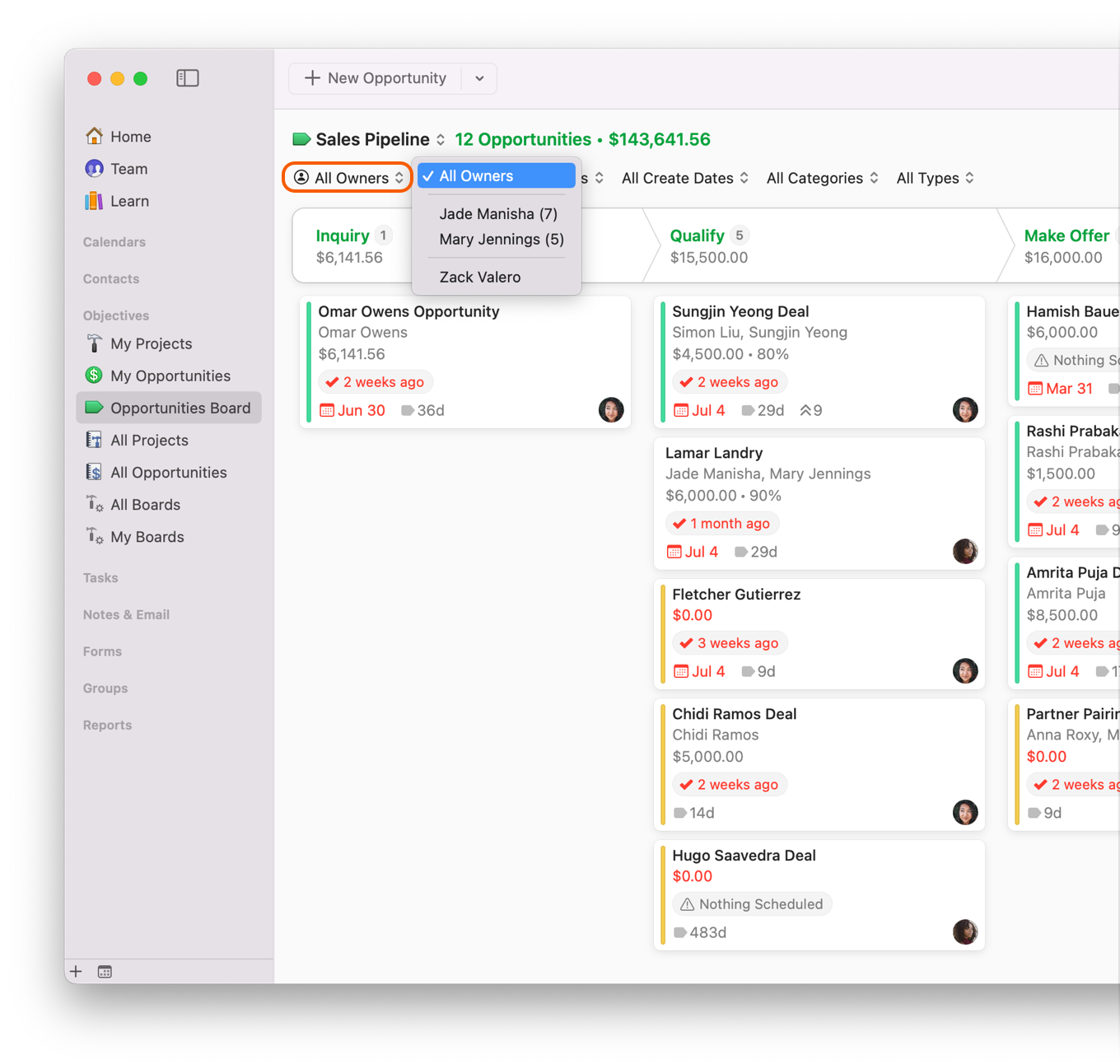
This option filters Opportunities by sales person, or account holder. You can filter by individual Owner, or view All Owners at one time.

<figure><img src="https://93104246-files.gitbook.io/~/files/v0/b/gitbook-x-prod.appspot.com/o/spaces%2FLlEWglZXDeBB1GqbJlKq%2Fuploads%2Fgit-blob-e3fbd9e038160d5f3308a9383f4a5a1e08b2f53f%2F11.png?alt=media" alt="Opportunites Board showing filter by owner"><figcaption></figcaption></figure>

### Filtering Opportunities by Forecasted Close Dates

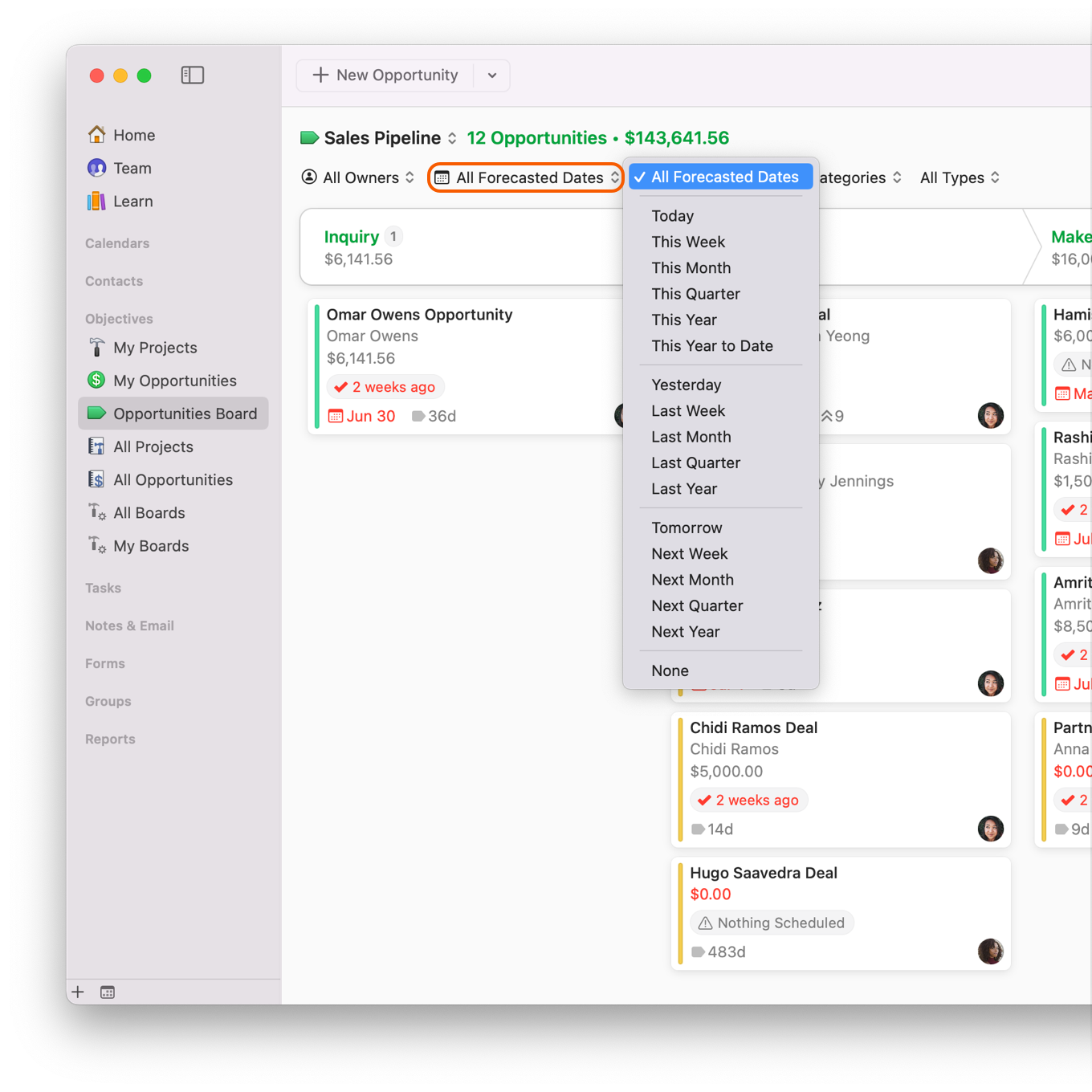
This option filters Opportunities by the date the deal should close by. You can look at forecasted close dates up to a year, both past and future.

<figure><img src="https://93104246-files.gitbook.io/~/files/v0/b/gitbook-x-prod.appspot.com/o/spaces%2FLlEWglZXDeBB1GqbJlKq%2Fuploads%2Fgit-blob-7726b0c6a1a9c7c09c63f3e8ada6069da5581adb%2F11.2.png?alt=media" alt="Opportunites Board showing filter by forecasted date"><figcaption></figcaption></figure>

### Filtering Opportunities by Create Date

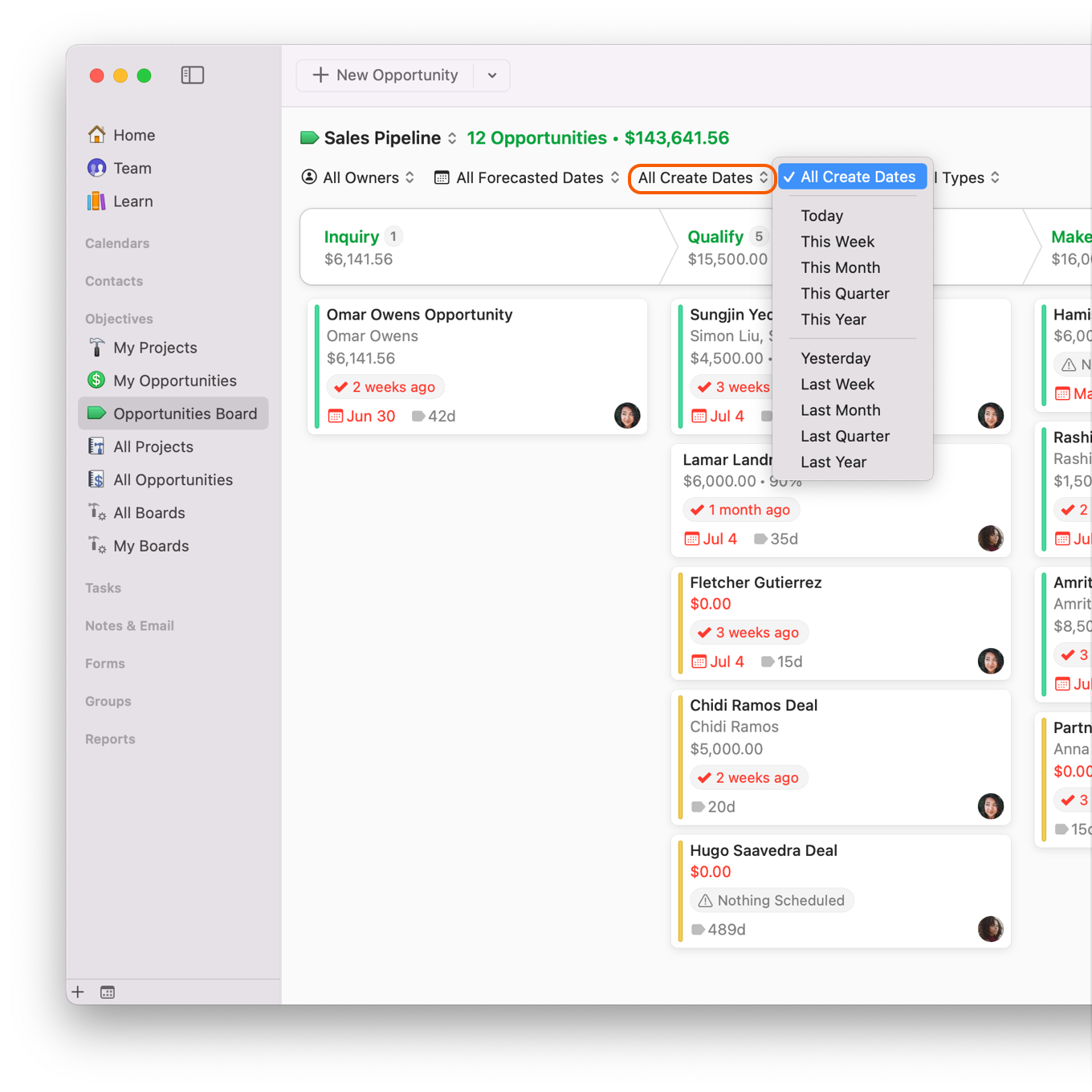
This option filters Opportunities by the date the Opportunity was created, up to a year, both past and future.

<figure><img src="https://93104246-files.gitbook.io/~/files/v0/b/gitbook-x-prod.appspot.com/o/spaces%2FLlEWglZXDeBB1GqbJlKq%2Fuploads%2Fgit-blob-55ab66e8a3471e8b3250f7ccd1f94b5112190d8b%2F11.3.png?alt=media" alt="Opportunites Board showing filter by create date"><figcaption></figcaption></figure>

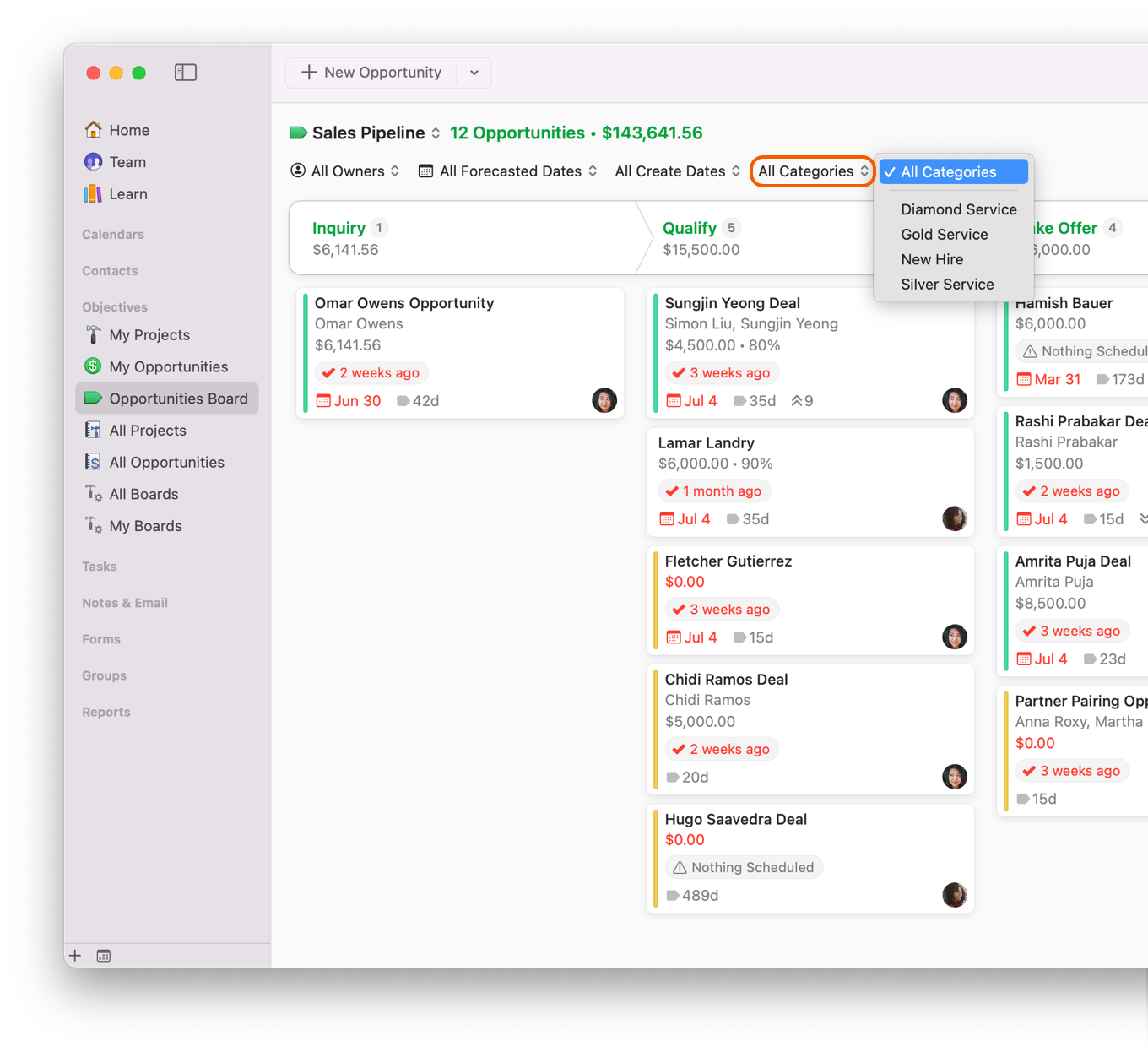
### Filtering Opportunities by Category

This option filters Opportunities by Categories, which can be designated in Daylite Preferences. New Hire, Silver, Gold and Diamond Services have been created in this example.

<figure><img src="https://93104246-files.gitbook.io/~/files/v0/b/gitbook-x-prod.appspot.com/o/spaces%2FLlEWglZXDeBB1GqbJlKq%2Fuploads%2Fgit-blob-4df15e4bd45dfdc9e0fc2bb72ff94857d2fa52b6%2F12.png?alt=media" alt="Opportunites Board showing filter by categories"><figcaption></figcaption></figure>

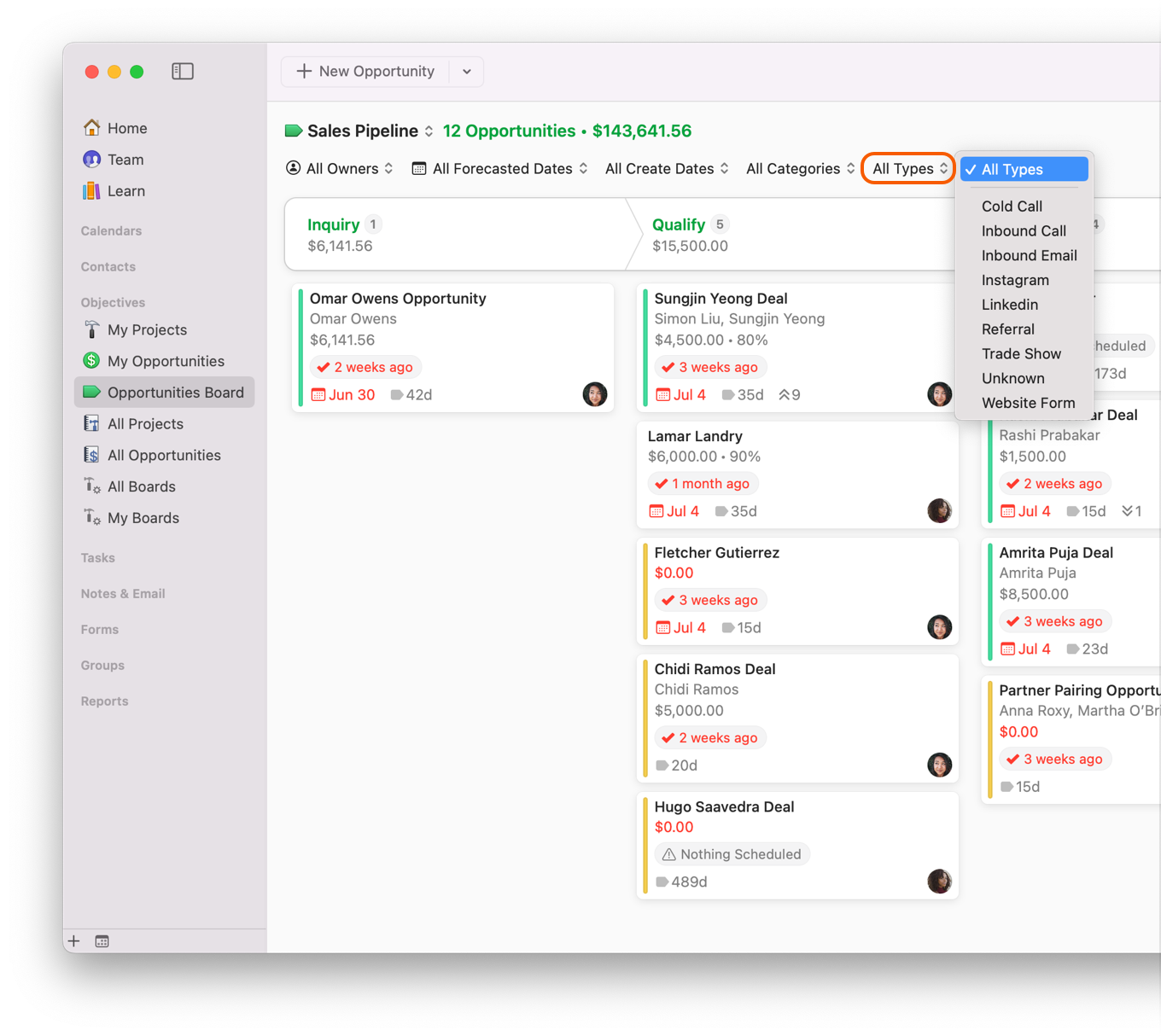
### Filtering Opportunities by Type

This option filters Opportunities by how they were acquired. You can choose to filter by Cold Calls, Trade Shows, Referrals and many more. These options can be set in Preferences.

<figure><img src="https://93104246-files.gitbook.io/~/files/v0/b/gitbook-x-prod.appspot.com/o/spaces%2FLlEWglZXDeBB1GqbJlKq%2Fuploads%2Fgit-blob-3a2b1777795d197a64f3fe415204595bbc1fb743%2F13.png?alt=media" alt="Opportunites Board showing filter by Type"><figcaption></figcaption></figure>

## Sorting Your Opportunities

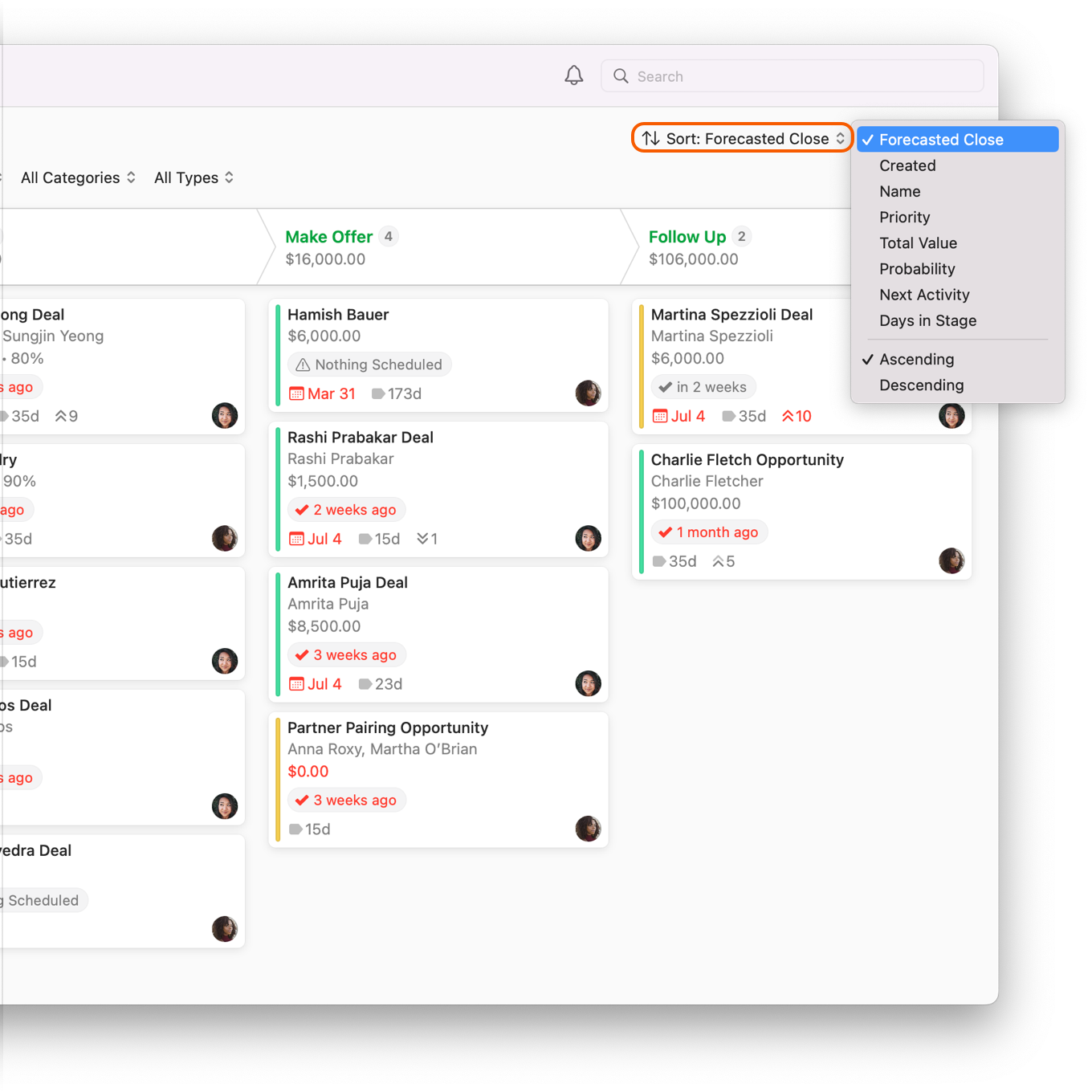
You can change how you view Opportunities by clicking **↑↓ Sort** and choosing from the following:

* **Forecasted Close** organizes each Opportunity in their Pipelines, so you can see when a sale is scheduled to wrap up.
* **Created** organizes each Opportunity by the date you created it.
* **Name** organizes your Opportunities alphabetically.
* **Priority** organizes your Opportunities by priority.
* **Total Value** organizes your Opportunities by their total value.
* **Probability** organizes your Opportunities by the likelihood they will close. This percentage can be assigned to the Opportunity under Details and Activity.
* **Next Activity** organizes your Opportunities by next scheduled Task or Appointment.
* **Days in Stage** organizes your Opportunities by the number of days they have remained in one Stage.

<figure><img src="https://93104246-files.gitbook.io/~/files/v0/b/gitbook-x-prod.appspot.com/o/spaces%2FLlEWglZXDeBB1GqbJlKq%2Fuploads%2Fgit-blob-66c9f7fc9e6c897ea55d63437c5e5912438a707c%2F14.png?alt=media" alt="Opportunites Board showing Arranged By filter"><figcaption></figcaption></figure>

## Viewing an Opportunity Card

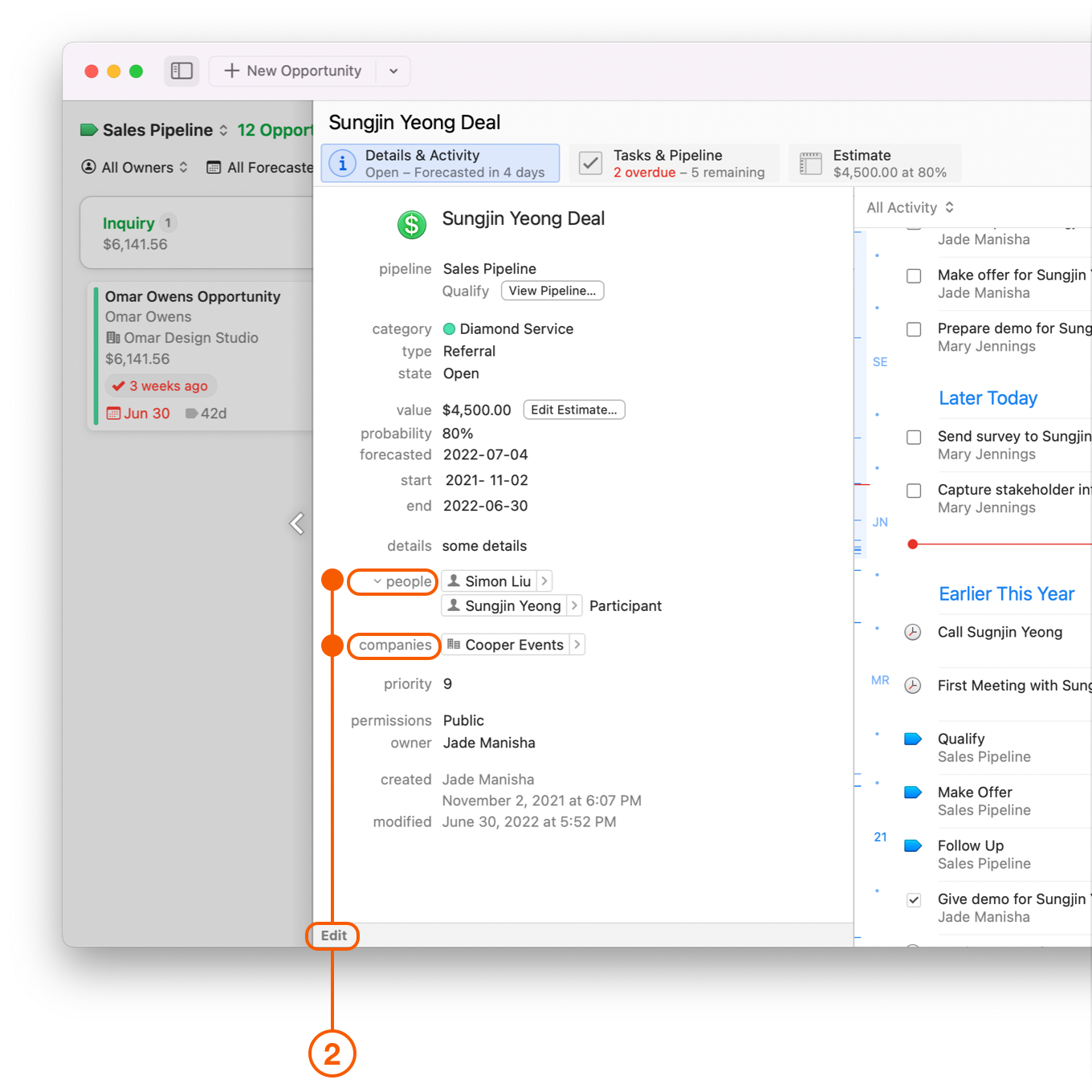
### View an Opportunity Card's Linked People and Companies

1. You can view an Opportunity's **Linked People** and **Companies** here.

   <figure><img src="https://93104246-files.gitbook.io/~/files/v0/b/gitbook-x-prod.appspot.com/o/spaces%2FLlEWglZXDeBB1GqbJlKq%2Fuploads%2Fgit-blob-e003ad6e5d5287aab7272892eb0bf38ab2a301c0%2F14.13.png?alt=media" alt="Opportunites Board showing Linked People filter"><figcaption></figcaption></figure>
2. Double click the Opportunity Card, then select **edit** to change this value.

   <figure><img src="https://93104246-files.gitbook.io/~/files/v0/b/gitbook-x-prod.appspot.com/o/spaces%2FLlEWglZXDeBB1GqbJlKq%2Fuploads%2Fgit-blob-d61e0ad0fb62b36608ff390ea528e1d469c73feb%2F14.14.png?alt=media" alt="Opportunites Window showing Details and Activity pane"><figcaption></figcaption></figure>

### View an Opportunity Card's Value and Probability of Closing

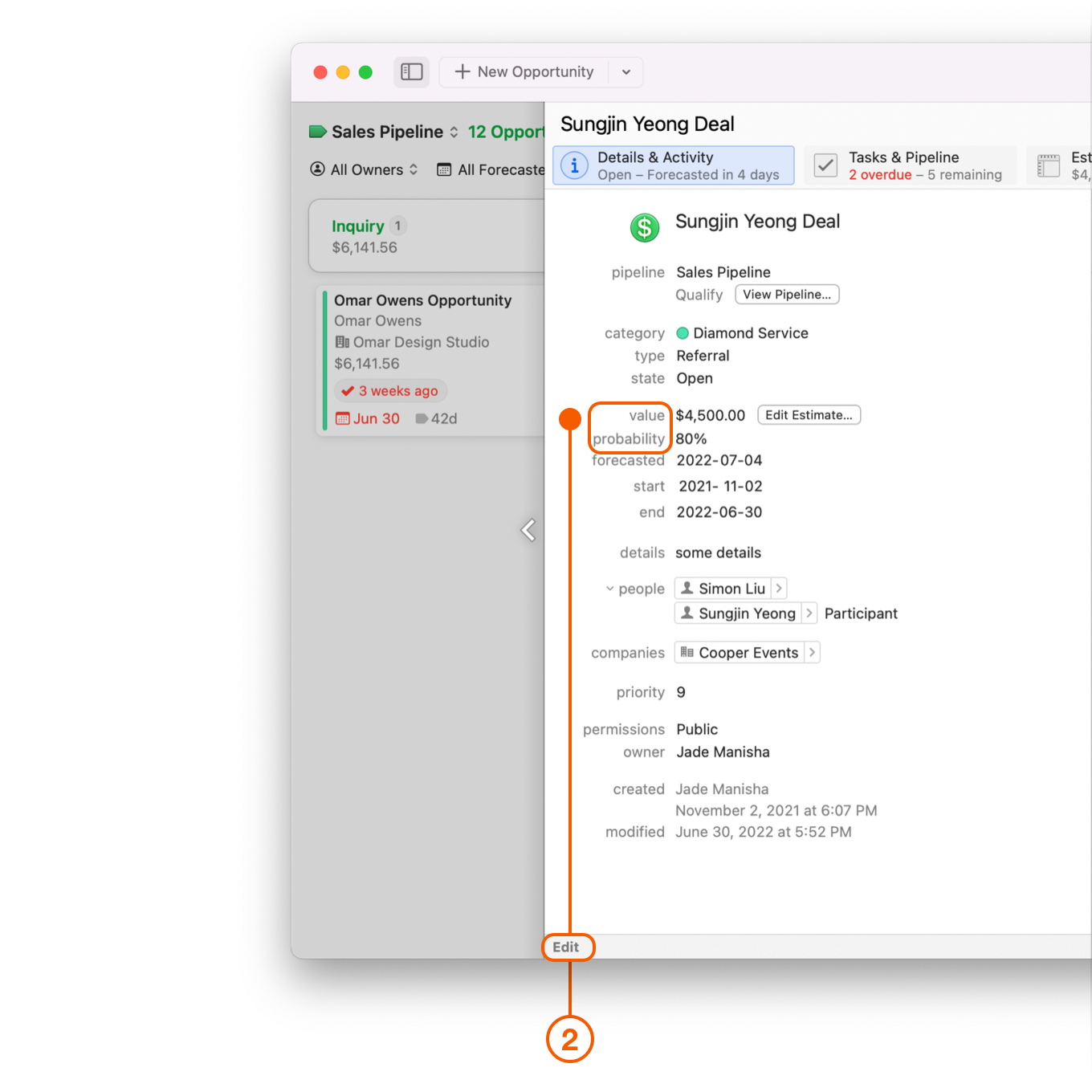
1. You can view an Opportunity's **Value** and **Probability of Closing** here.

   <figure><img src="https://93104246-files.gitbook.io/~/files/v0/b/gitbook-x-prod.appspot.com/o/spaces%2FLlEWglZXDeBB1GqbJlKq%2Fuploads%2Fgit-blob-f635afc8caf468d19dfd09bbf0b9bc5b503cebc1%2F14.1.png?alt=media" alt="Opportunites Board showing Value and Probability"><figcaption></figcaption></figure>
2. Double click the Opportunity Card, then select **edit** to change these values.

   <figure><img src="https://93104246-files.gitbook.io/~/files/v0/b/gitbook-x-prod.appspot.com/o/spaces%2FLlEWglZXDeBB1GqbJlKq%2Fuploads%2Fgit-blob-16bf7d34a6cf142743a3e6f0164232ee0f972836%2F14.2.png?alt=media" alt="Opportunity Window showing Details and Activity pane"><figcaption></figcaption></figure>

{% hint style="info" %}
The value of an Opportunity can only be edited from Daylite for Mac.
{% endhint %}

### View an Opportunity Card's Upcoming Tasks and Appointments

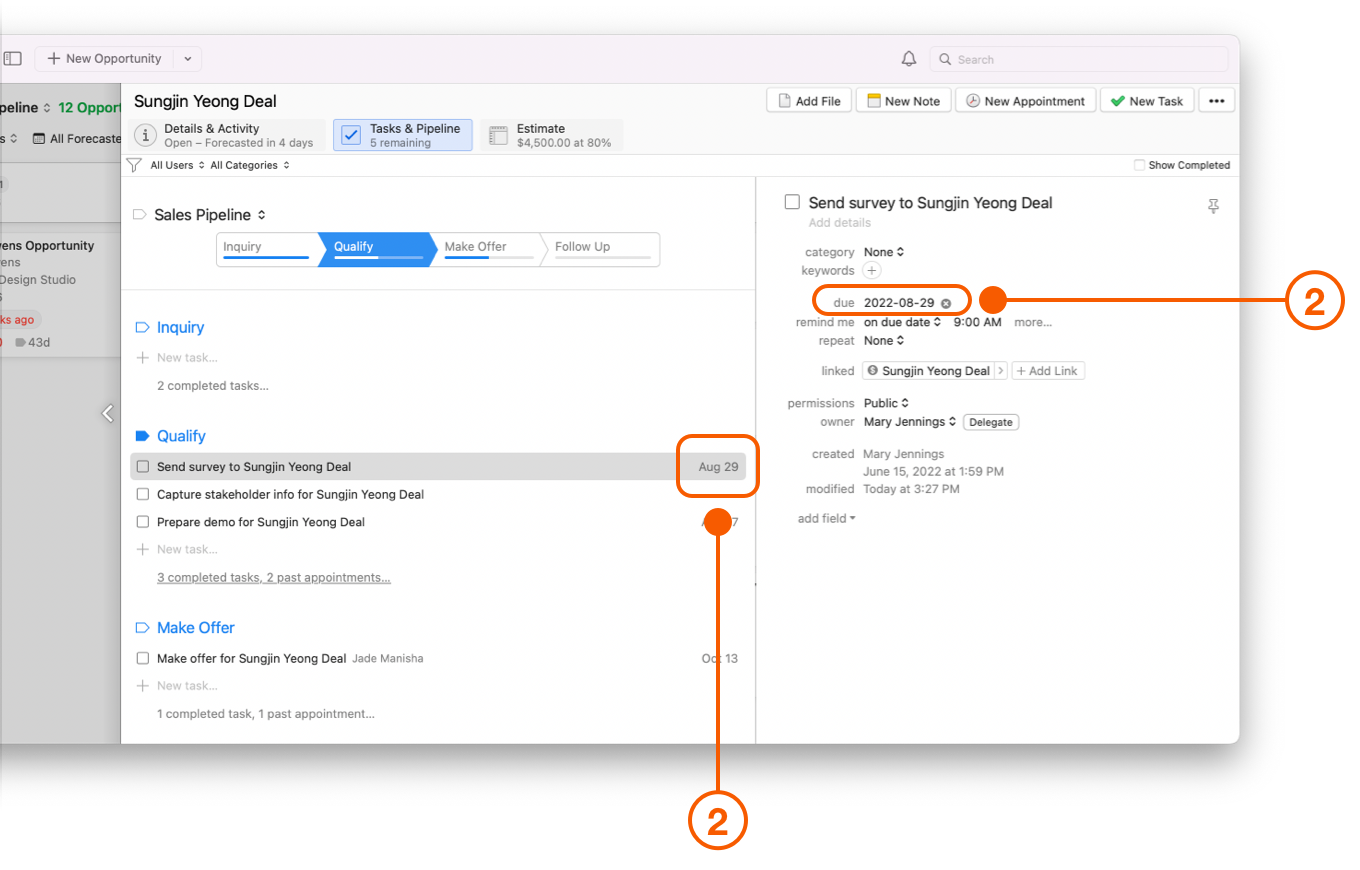
1. If an Opportunity has an upcoming Task or Appointment a notification will appear here.

   <figure><img src="https://93104246-files.gitbook.io/~/files/v0/b/gitbook-x-prod.appspot.com/o/spaces%2FLlEWglZXDeBB1GqbJlKq%2Fuploads%2Fgit-blob-7f85c366cc329dbe9b81c14a5742ec3d446c7ba7%2F14.6.png?alt=media" alt="Opportunities Board showing due date"><figcaption></figcaption></figure>
2. Double click the Opportunity Card, and select **Tasks and Pipelines** to view or change the due dates.

   <figure><img src="https://93104246-files.gitbook.io/~/files/v0/b/gitbook-x-prod.appspot.com/o/spaces%2FLlEWglZXDeBB1GqbJlKq%2Fuploads%2Fgit-blob-ee26b1903c4d58fa07242174f4a800e6e86e5fac%2F14.7.png?alt=media" alt="Opportunity window showing Details and Activity pane"><figcaption></figcaption></figure>

### View an Opportunity Card's Forecasted Close Date

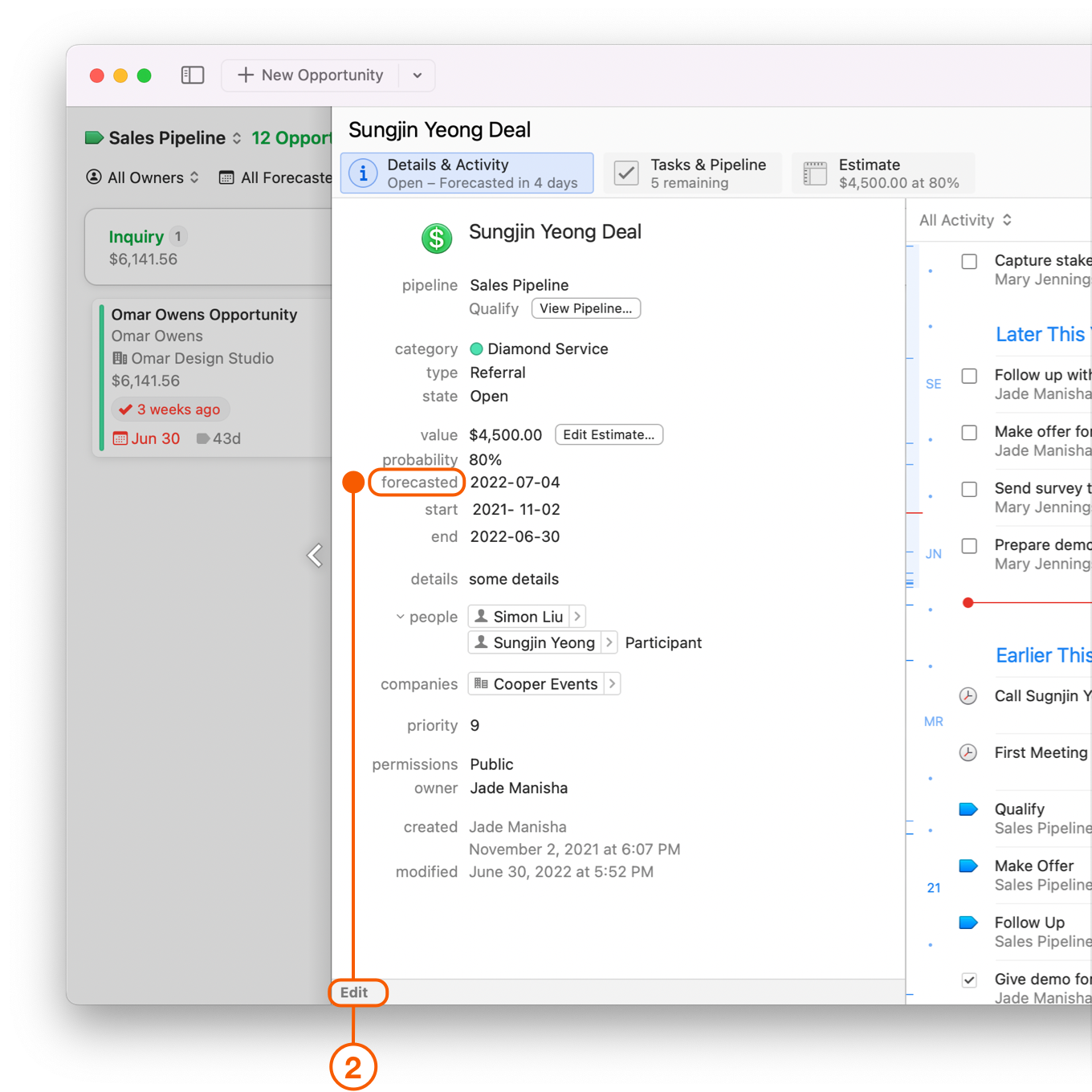
1. If an Opportunity has a **forecasted close date** it will appear here.

   <figure><img src="https://93104246-files.gitbook.io/~/files/v0/b/gitbook-x-prod.appspot.com/o/spaces%2FLlEWglZXDeBB1GqbJlKq%2Fuploads%2Fgit-blob-38ebfdbe3ac0d65dfadd6e1faf93bf411b796406%2F14.8.png?alt=media" alt="Opportunities Board showing forecasted close date"><figcaption></figcaption></figure>
2. Double click the Opportunity Card, select **Details and Activity** to view the forecasted close date, or select **edit** to change this value.

   <figure><img src="https://93104246-files.gitbook.io/~/files/v0/b/gitbook-x-prod.appspot.com/o/spaces%2FLlEWglZXDeBB1GqbJlKq%2Fuploads%2Fgit-blob-3b994ca9291e5c29bb69526bc752a6996ee1811b%2F14.9.png?alt=media" alt="Opportunity window showing Details and Activty pane"><figcaption></figcaption></figure>

### View the Number of Days an Opportunity Stays Within a Stage

The Opportunities Board tells you how many days an Opportunity has been at the current Stage. This feature helps identify which Opportunities may be getting bottlenecked, and how best to move them along to the next Stage. Moving the Opportunity to the next Stage resets this number.

<figure><img src="https://93104246-files.gitbook.io/~/files/v0/b/gitbook-x-prod.appspot.com/o/spaces%2FLlEWglZXDeBB1GqbJlKq%2Fuploads%2Fgit-blob-e24c58463988359940dfa1426658e58207eb9694%2F14.10.png?alt=media" alt="Opportunities Board showing days at current stage"><figcaption></figcaption></figure>

### Setting an Opportunity's Priority

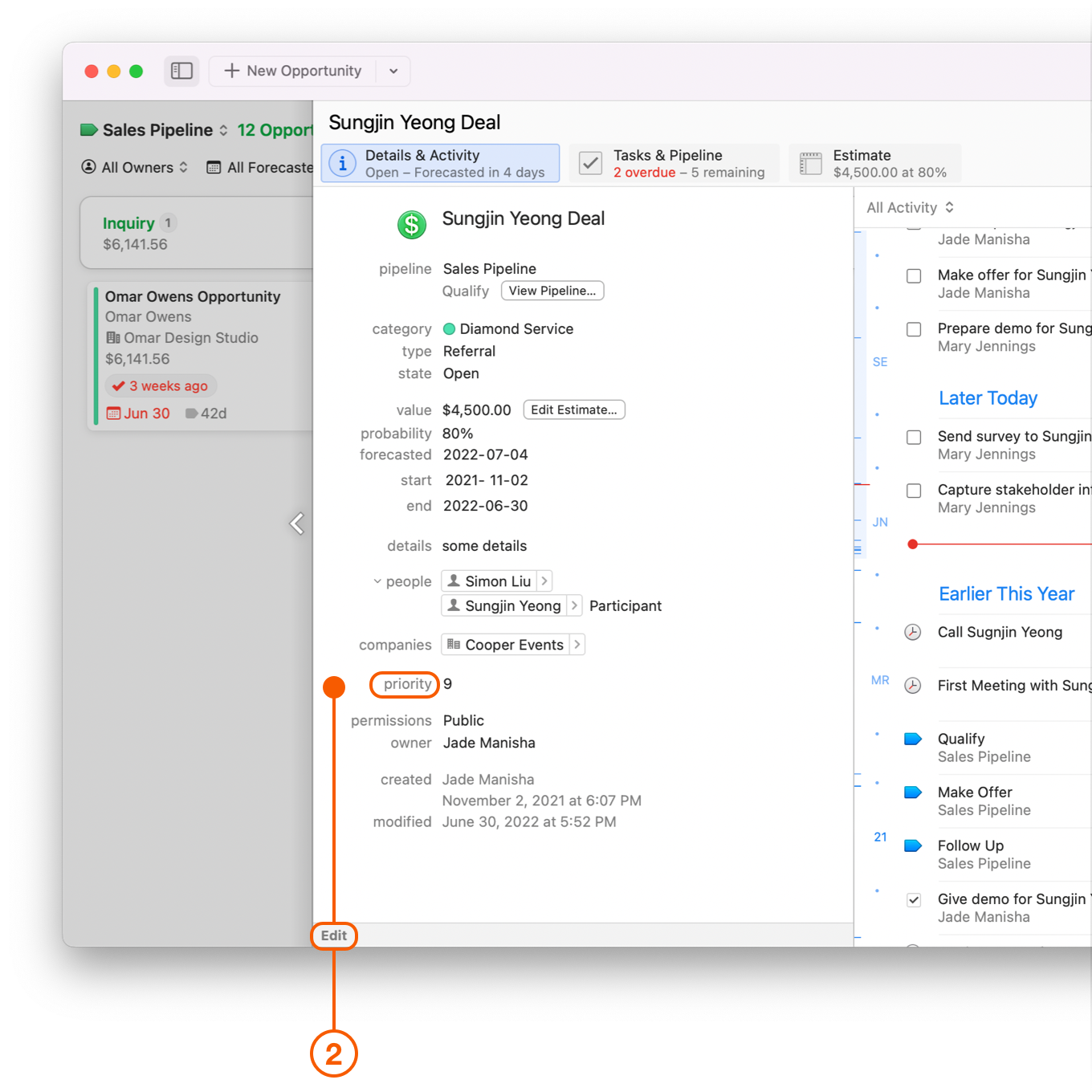
1. On a scale of 1-10, how important is this Opportunity? You can quickly view the Opportunity's **Priority** here.

   <figure><img src="https://93104246-files.gitbook.io/~/files/v0/b/gitbook-x-prod.appspot.com/o/spaces%2FLlEWglZXDeBB1GqbJlKq%2Fuploads%2Fgit-blob-a2c84d8a2c3ebe45fa13a85c2d002a051345567a%2F14.15.png?alt=media" alt="Opportunities Board showing priority"><figcaption></figcaption></figure>
2. Double click the Opportunity Card, select **Details and Activity** to view the priority, or select **edit** to change this value.

   <figure><img src="https://93104246-files.gitbook.io/~/files/v0/b/gitbook-x-prod.appspot.com/o/spaces%2FLlEWglZXDeBB1GqbJlKq%2Fuploads%2Fgit-blob-2332c06ea143debe55676f58b01b2e0a54d91c8f%2F14.16.png?alt=media" alt="Opportunities Board showing priority"><figcaption></figcaption></figure>

### Who Owns This Opportunity

1. You can quickly see who owns or is assigned to an Opportunity by looking at the bottom right side of the Opportunity Card. If applicable, a small photo of the owner will show.

   <figure><img src="https://93104246-files.gitbook.io/~/files/v0/b/gitbook-x-prod.appspot.com/o/spaces%2FLlEWglZXDeBB1GqbJlKq%2Fuploads%2Fgit-blob-e2e5353c87f6f4511c42700df4f6e8922e8d9ffa%2F14.17.png?alt=media" alt="Opportunities Board showing account holder"><figcaption></figcaption></figure>

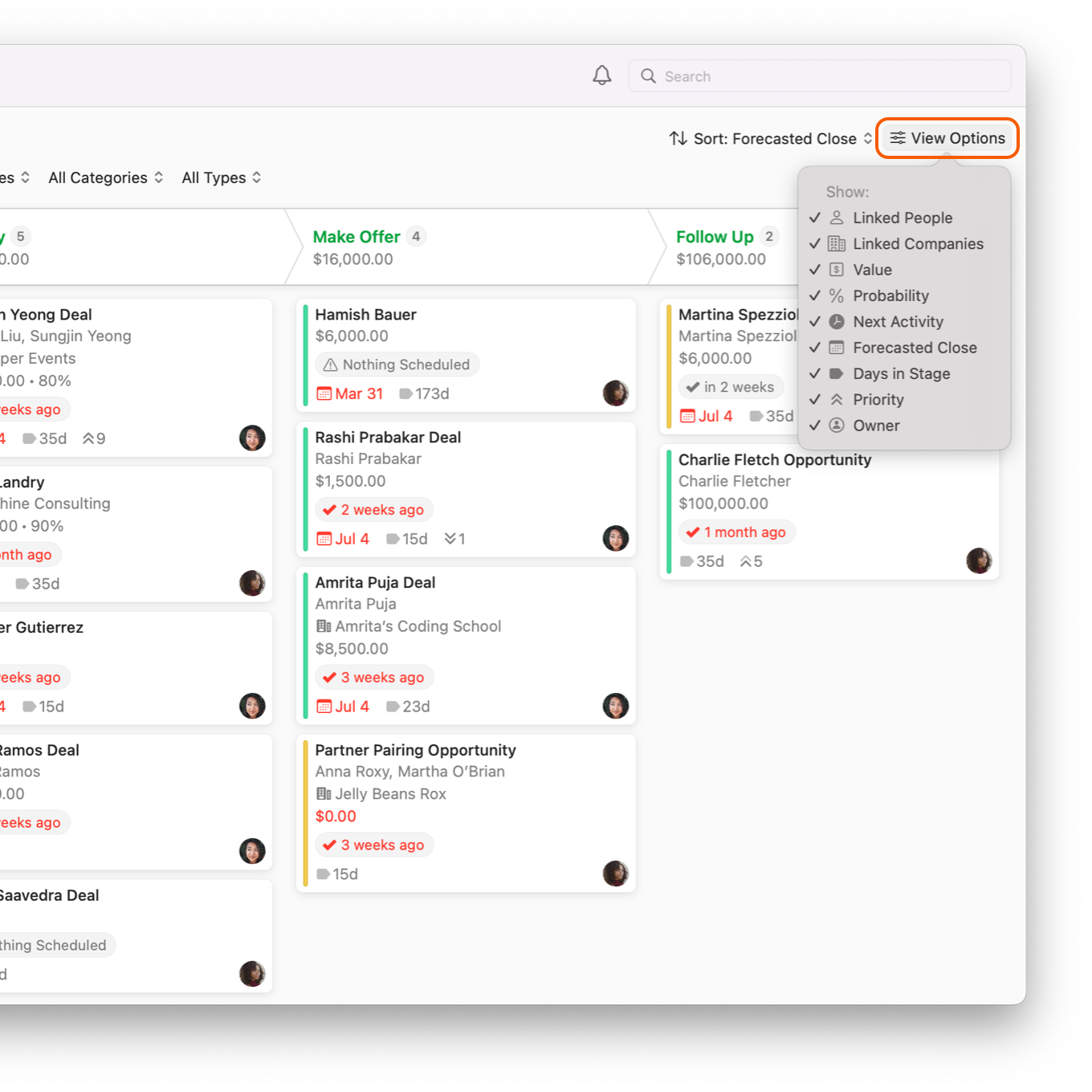
## View Options

**View Options** allows you to hide or show certain information from an Opportunity's card, to help you focus on what is most important to you.

<figure><img src="https://93104246-files.gitbook.io/~/files/v0/b/gitbook-x-prod.appspot.com/o/spaces%2FLlEWglZXDeBB1GqbJlKq%2Fuploads%2Fgit-blob-d85fb8aece75e600e32e187038fd972cb84f3dc5%2F14.12.png?alt=media" alt="Opportunites Board showing View Options"><figcaption></figcaption></figure>

## Wrap Up

The **Opportunities Board** offers an exciting new way to view every opportunity at each stage in your pipeline.

You can view your entire Sales Pipeline at a glance, to help identify areas of concern, focus on your top priorities, and close more deals.