> For the complete documentation index, see [llms.txt](https://docs.daylite.app/help/llms.txt). Markdown versions of documentation pages are available by appending `.md` to page URLs; this page is available as [Markdown](https://docs.daylite.app/help/learn/close-more-deals/capture-new-business.md).
# Capturing New Business
For some businesses, capturing new leads means writing names on a whiteboard, while others use spreadsheets or even scraps of paper. If you truly want to grow your business, you need to have a better system to remember all those details for you.
Daylite gives you an entire tool box to do exactly that. Tracking your leads, organizing all the moving pieces, and streamlining your sales process begins by capturing new business as Opportunities in Daylite.
Whether you use your Mac, email, iPhone or iPad to capture new business, Daylite is right there to help keep you organized. Enter an Opportunity's information on one device, and instantly access it from another. It really is that easy.
## Capturing New Business on your Mac
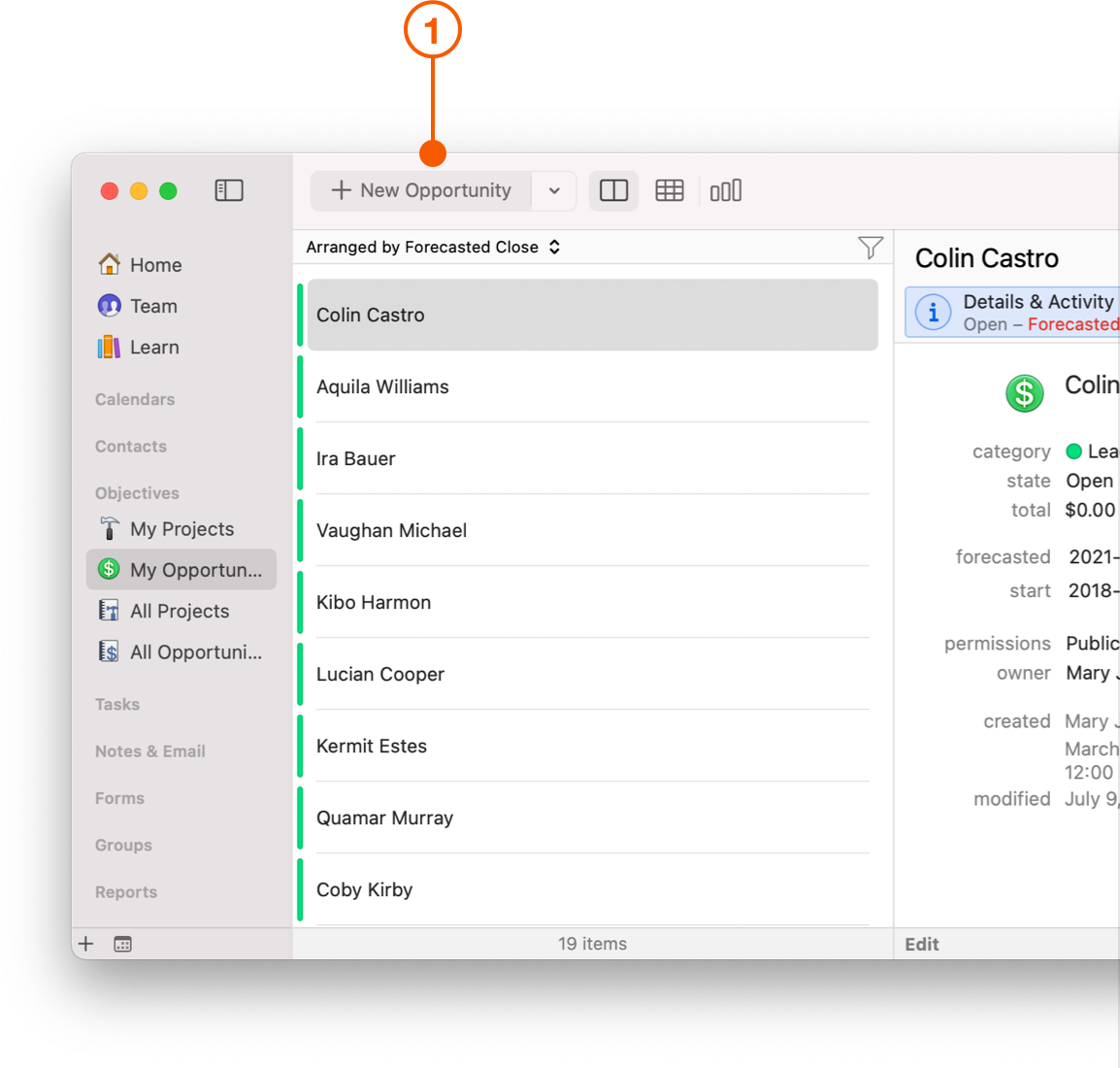
The easiest way to start tracking new business is to create a new Opportunity with the New Item button.
1. To create a new Opportunity, click **All Opportunities** or **My Opportunities** in the Daylite Sidebar, then select **+ New Opportunity**.
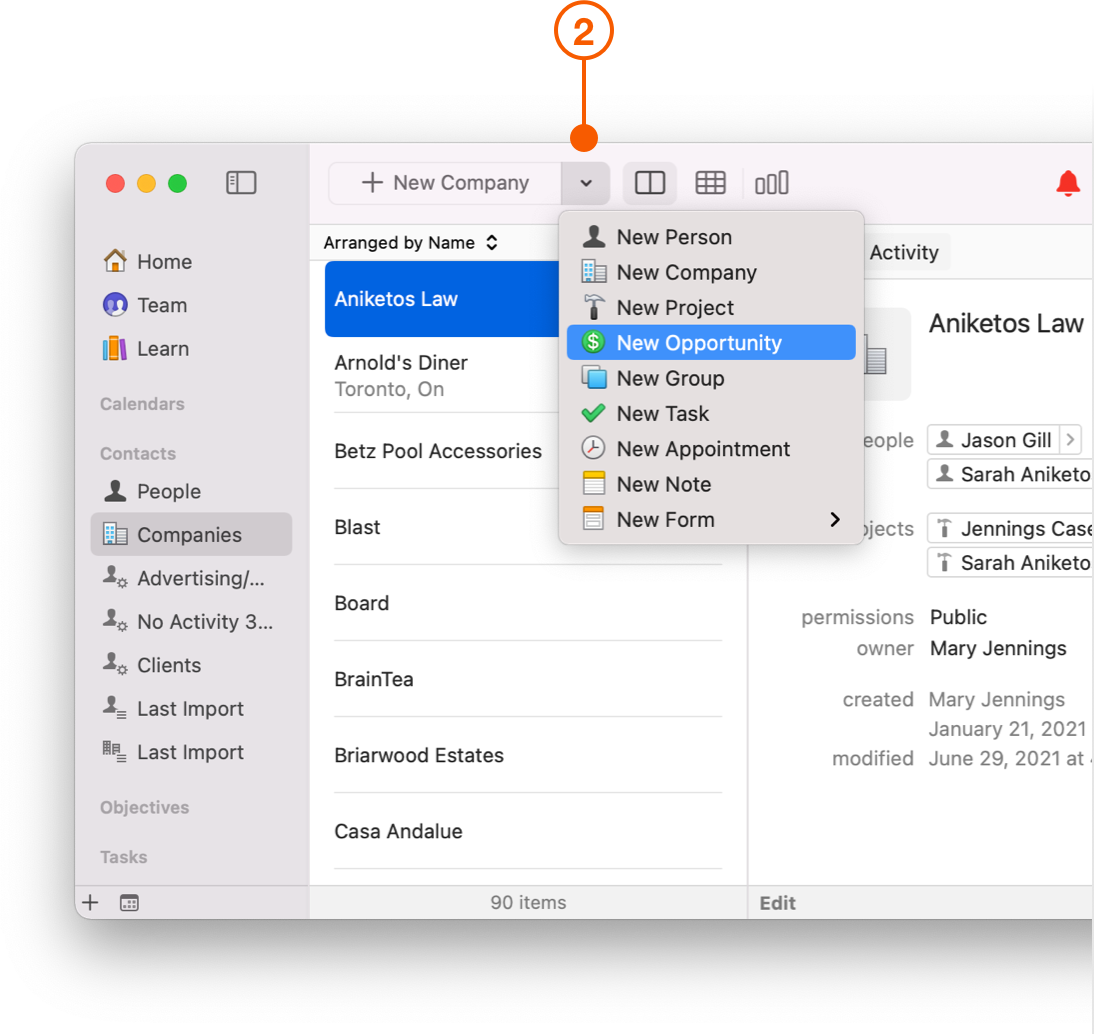
2. Alternatively, if you're not viewing an Opportunity, you can click the downward facing arrow next to the New Item button and choose **New Opportunity**. For example, you might have People selected in the Sidebar and want to create a new Opportunity without leaving your spot.
## Capturing New Business from an Email
Whether responding to a marketing email, online form, or after handing out your business card, email is one of the most common ways new business starts.
Daylite includes the Daylite Mail Assistant, an extension for Apple Mail. It allows you to capture things like new Opportunities straight from your inbox, while also linking them to the email.
## Capturing New Business from an iPhone or iPad
You're not always in front of your Mac and that's where Daylite for the iPhone and iPad comes in. The Opportunities you create while on the go will sync with your other Daylite devices, so you always have the most up to date information.
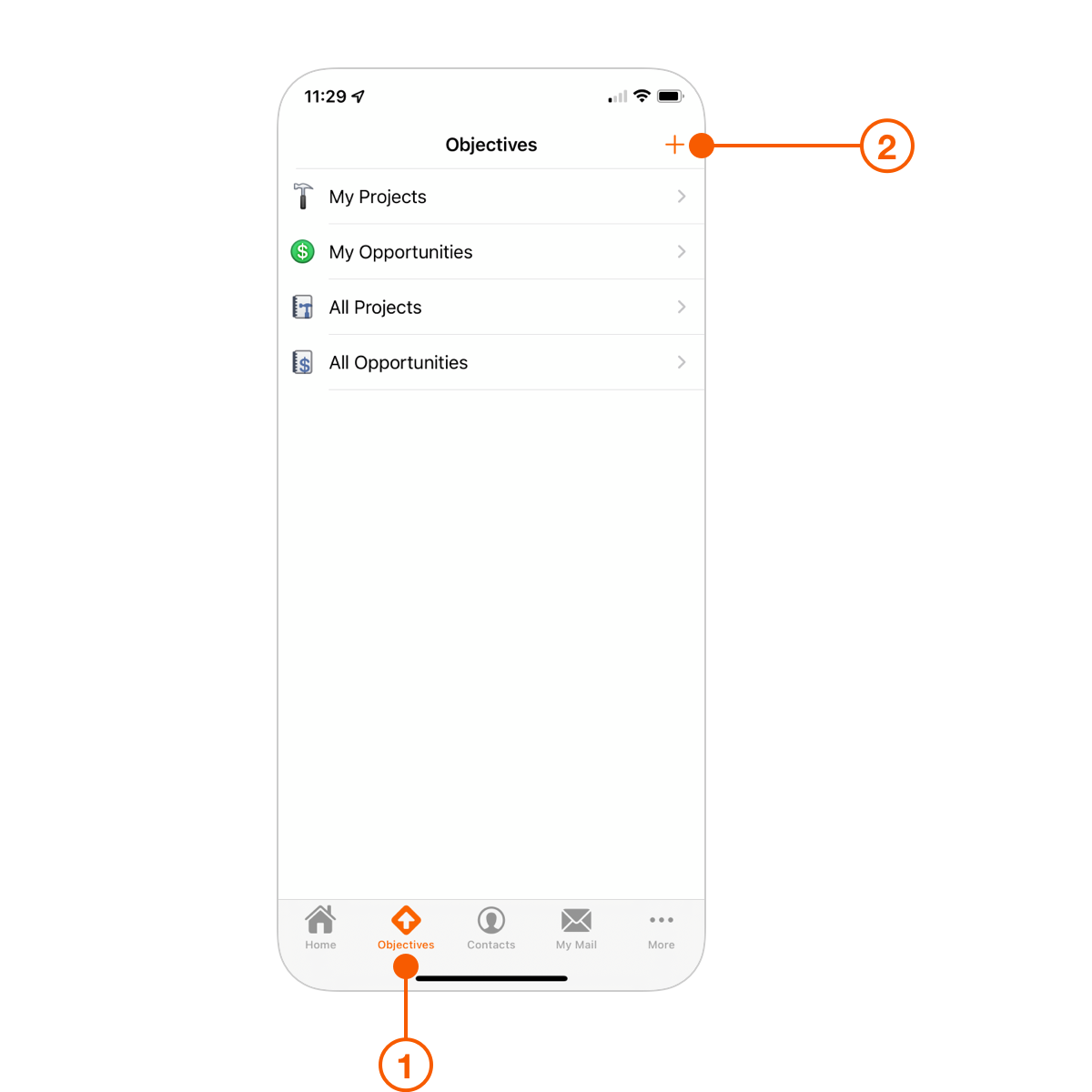
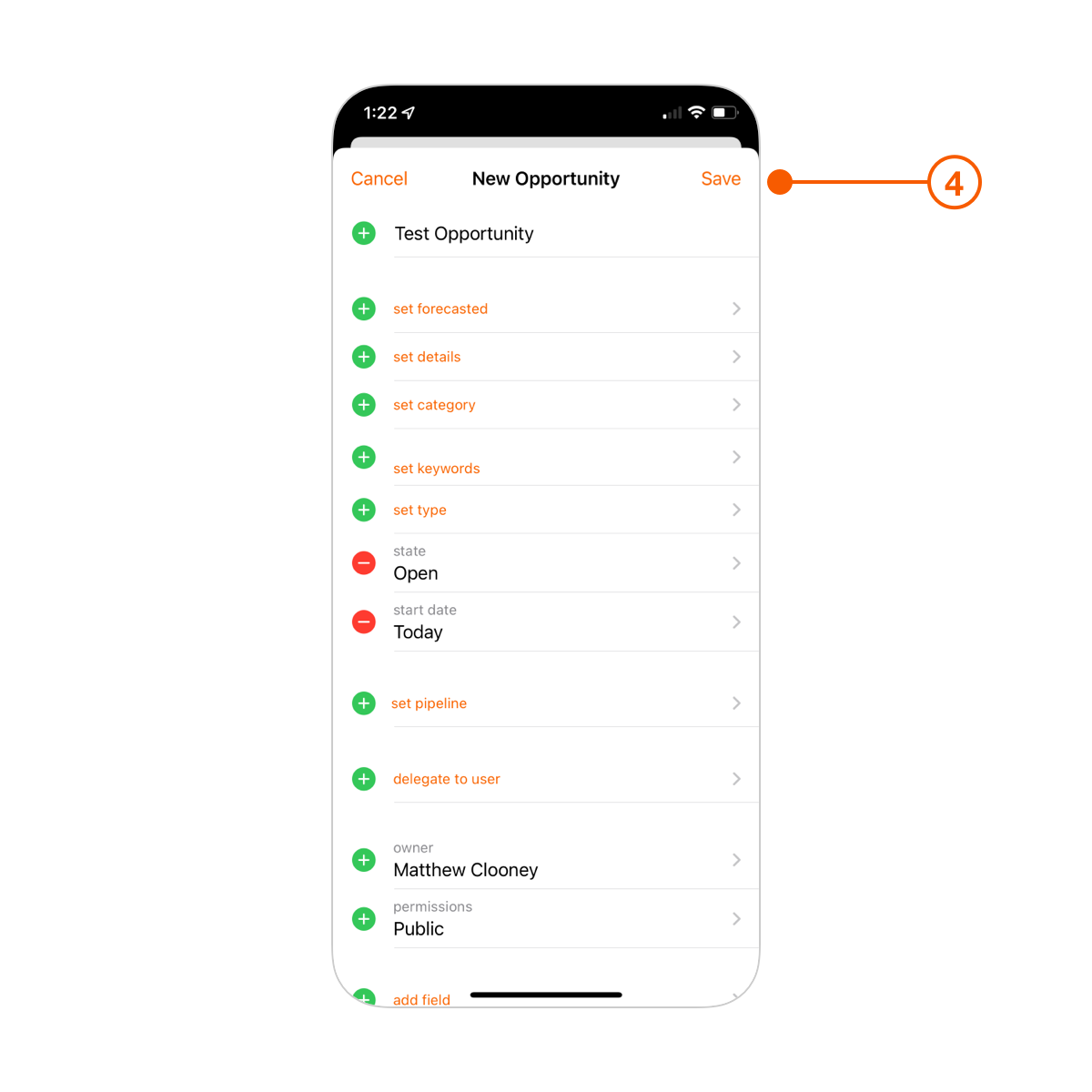
1. Tap the **Objectives** tab.
2. Tap the **+** button.
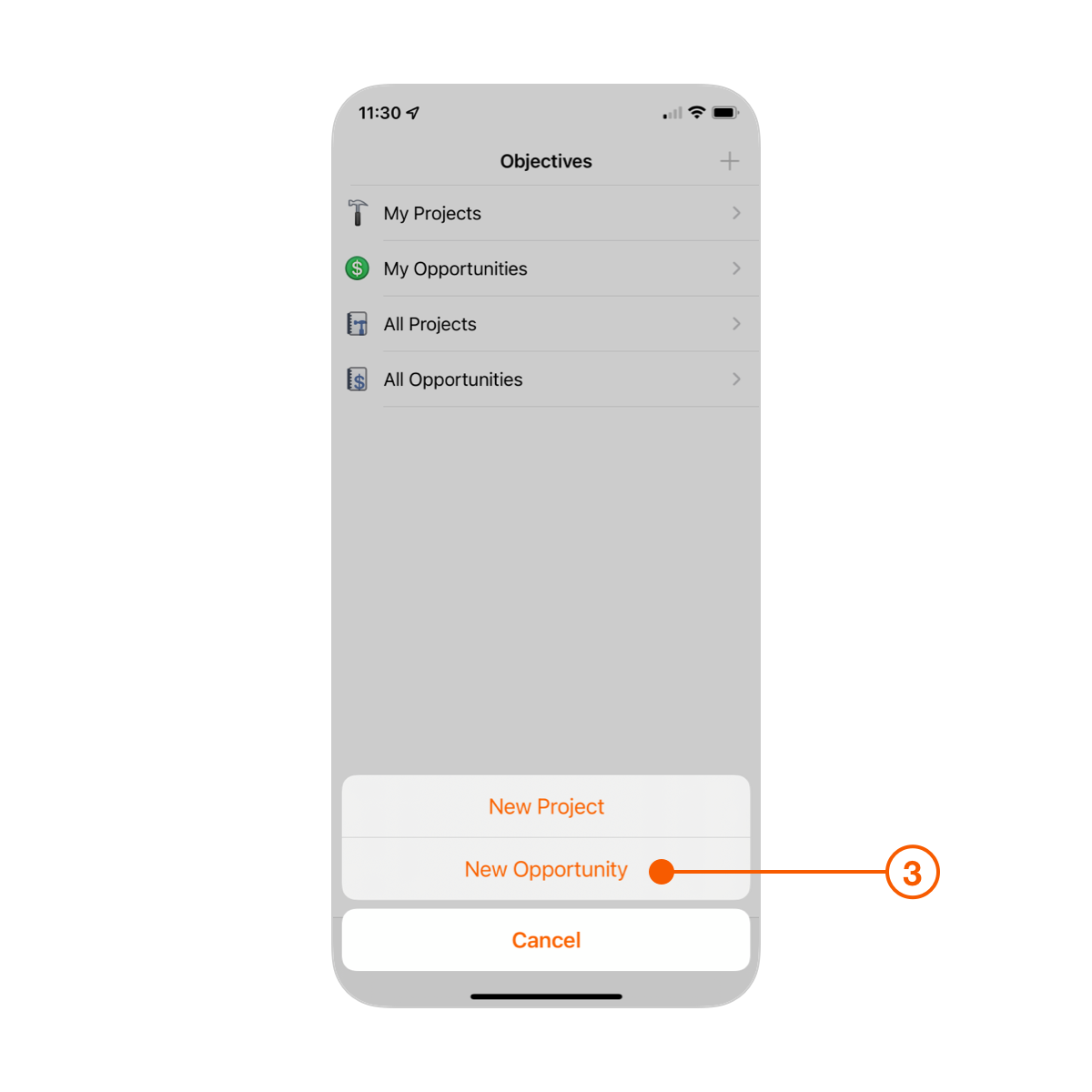
3. Select **New Opportunity**.
4. Fill in all the information you have for the Opportunity, then tap **Save**.
Daylite gives you a lot of Opportunity fields to fill out. Don't worry though, you don't have to use them all. Gather the information you need today and as you learn more, or update your sales process, you may decide to fill in additional fields at a later date.
## Fill out the Basics
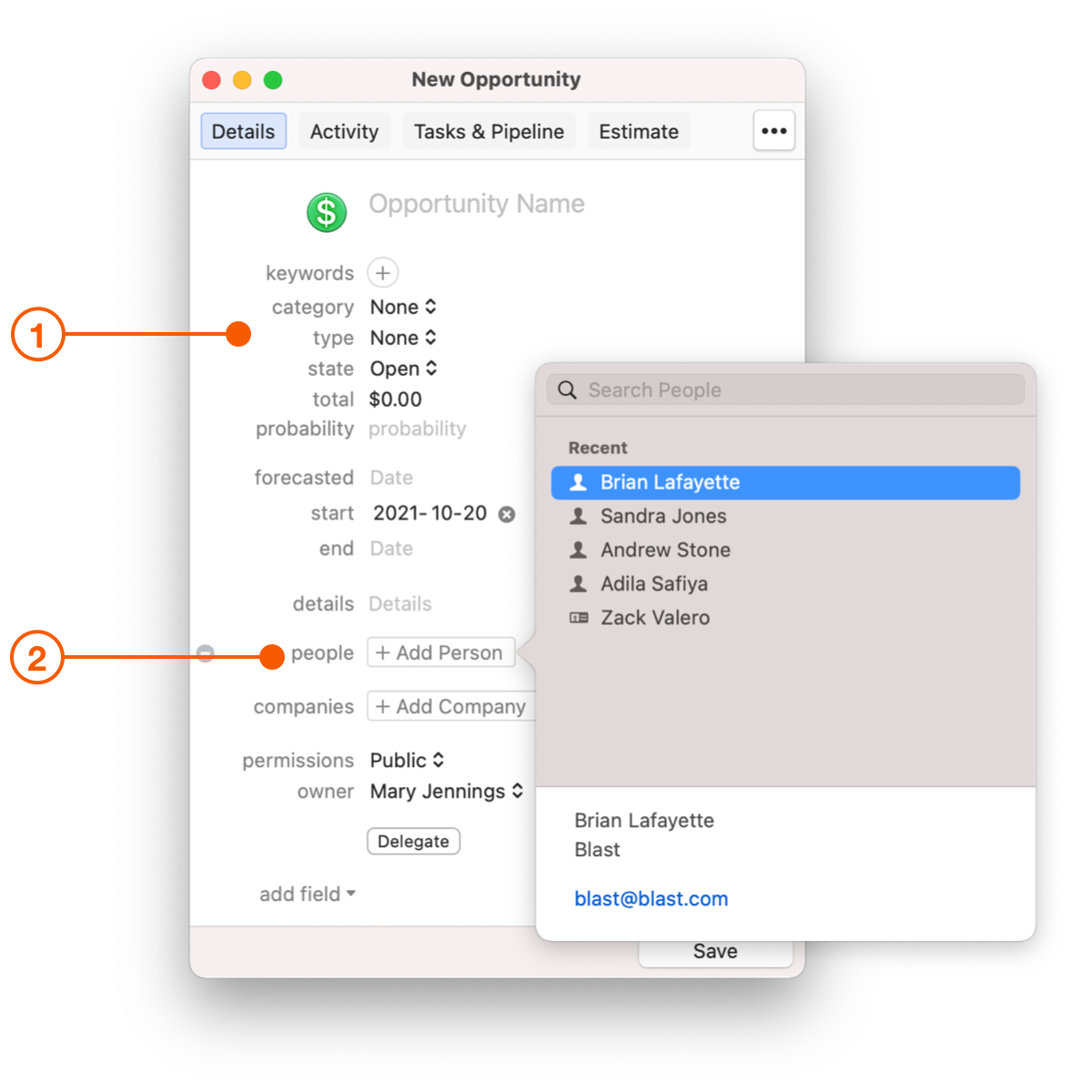
1. Every Opportunity should have the **Name, Start Date,** and **Details** filled in. You may also want to add a **Forecast Date** as a guide for when you expect a deal to close, as well as create an Estimate to track an Opportunity's total value.
2. Be sure to link any People or Companies that are relevant to the Opportunity.
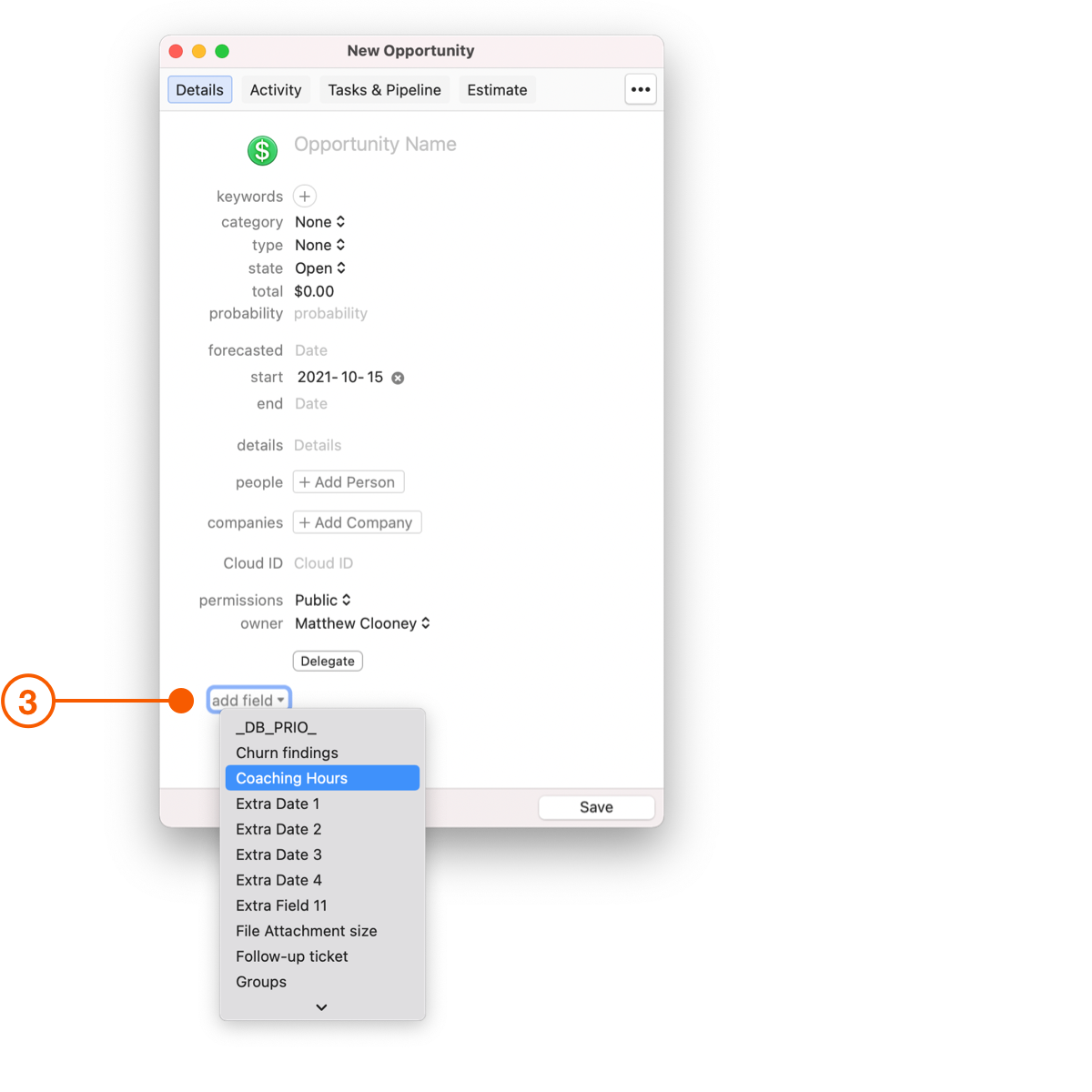
3. If you need to capture more information, click **add field** at the bottom of the Opportunity card and add the field you need. For even more fields, check out [Custom Fields](#custom-fields) and [Forms.](#forms)
{% hint style="success" %}
**Pro Tip:**
Adding the same field over and over again?
Add it as default!
Choose **Daylite** > **Preferences** and select **Defaults.** Now add the fields in the Opportunities tab.
{% endhint %}
## Custom Fields
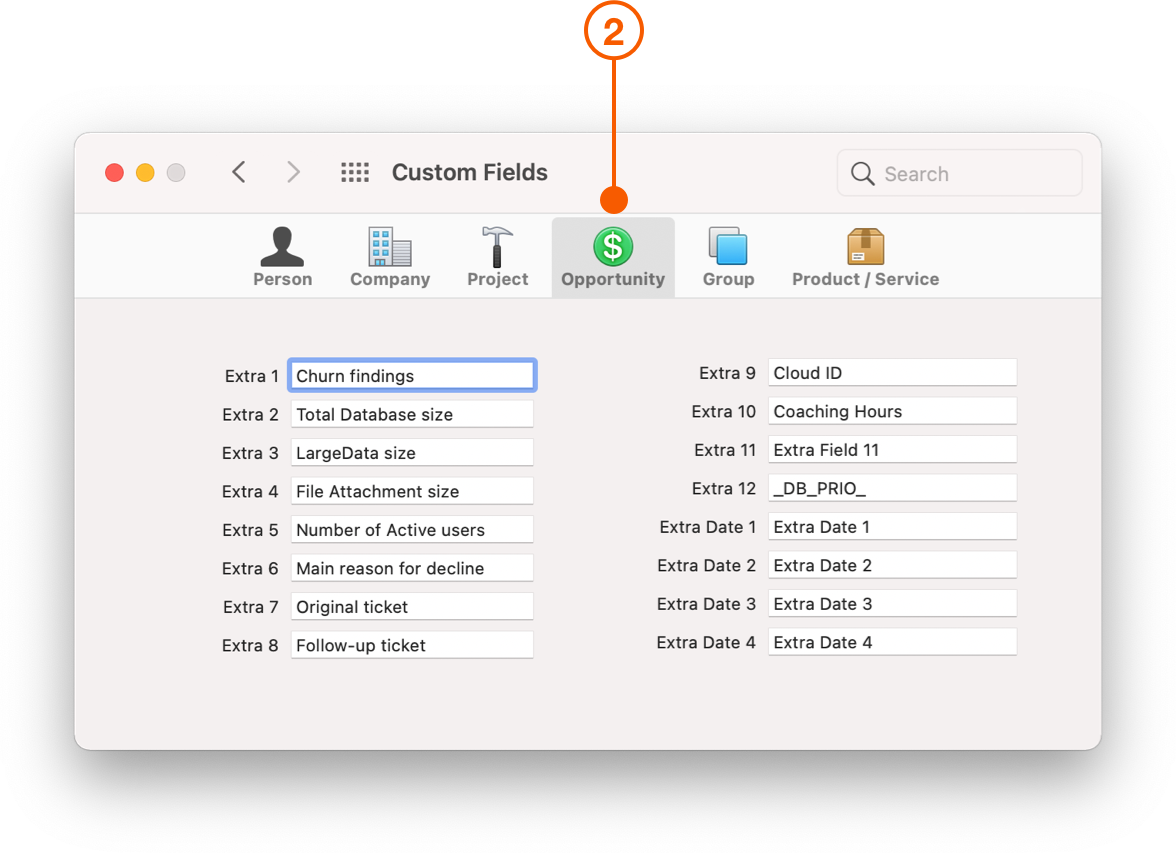
Custom fields give you more flexibility. With 12 extra fields and 4 extra dates for Opportunities, you can choose what information you capture.
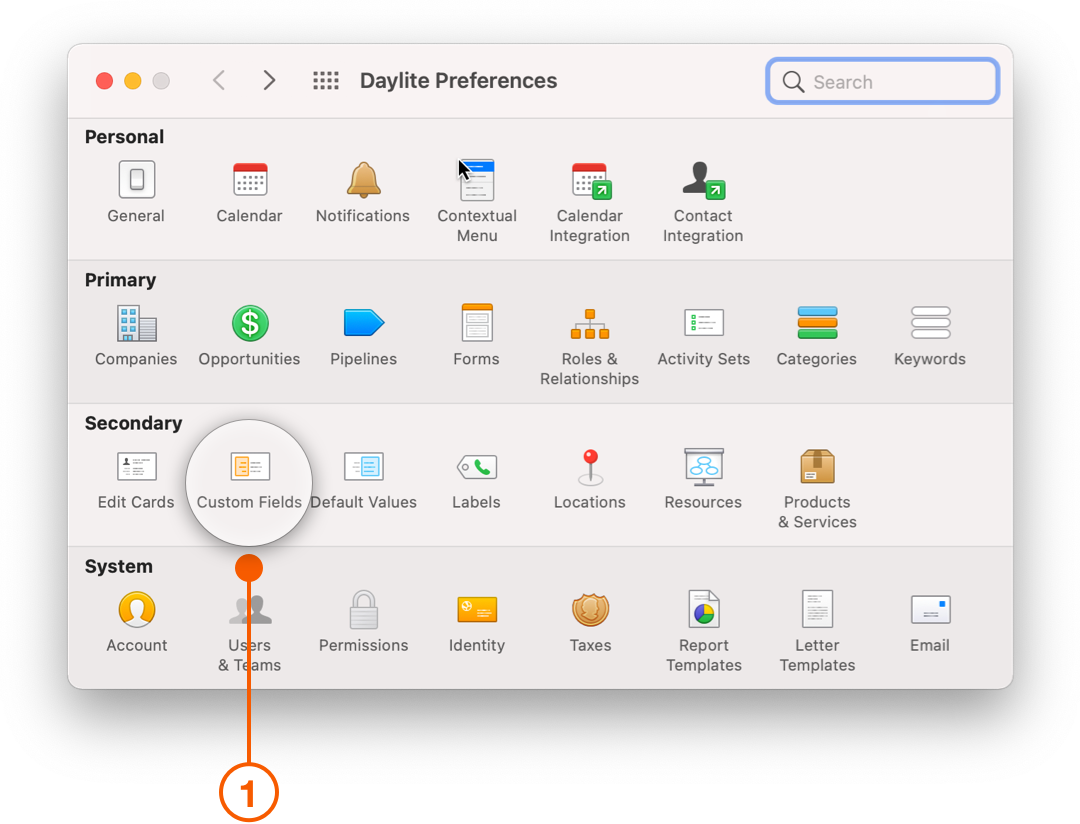
1. Choose **Daylite > Preferences > Custom Fields**
2. Select **Opportunity** and add the names of any custom fields or custom dates you require.
3. Opportunities will now have access to these fields from the **add field** menu.
## Using Forms as Custom Fields
When you link a Form to an Opportunity, you can capture more details and have more flexibility with the type of information you use.
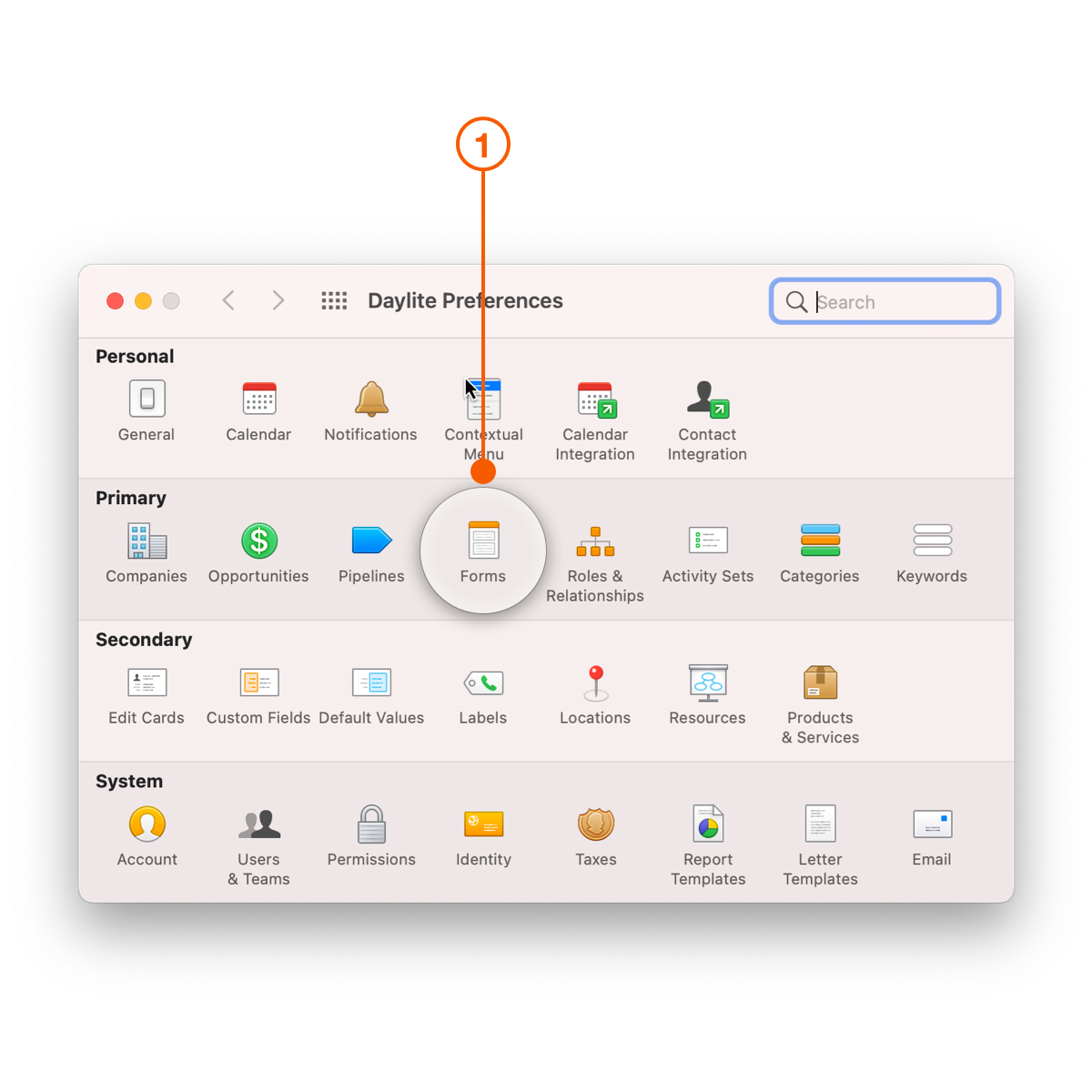
1. To create a Form, go to **Daylite Preferences** and select **Forms**
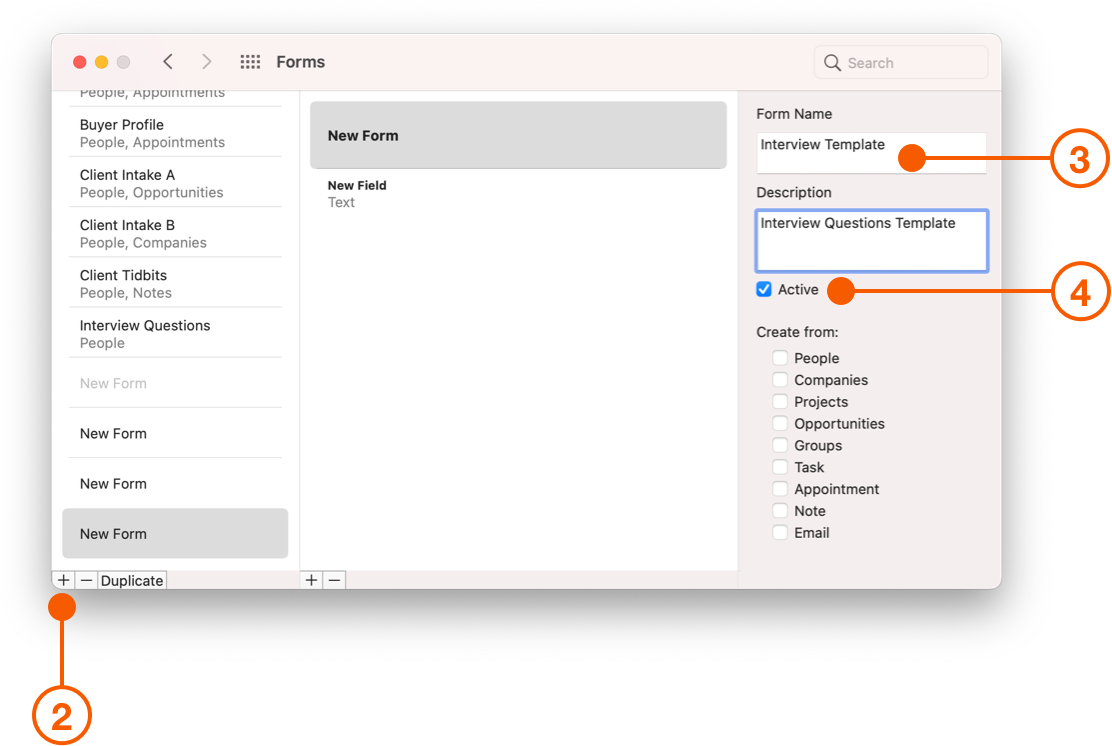
2. Click the **+** sign to create a new Form template.
3. Give your template a name and description.
4. Make it Active.
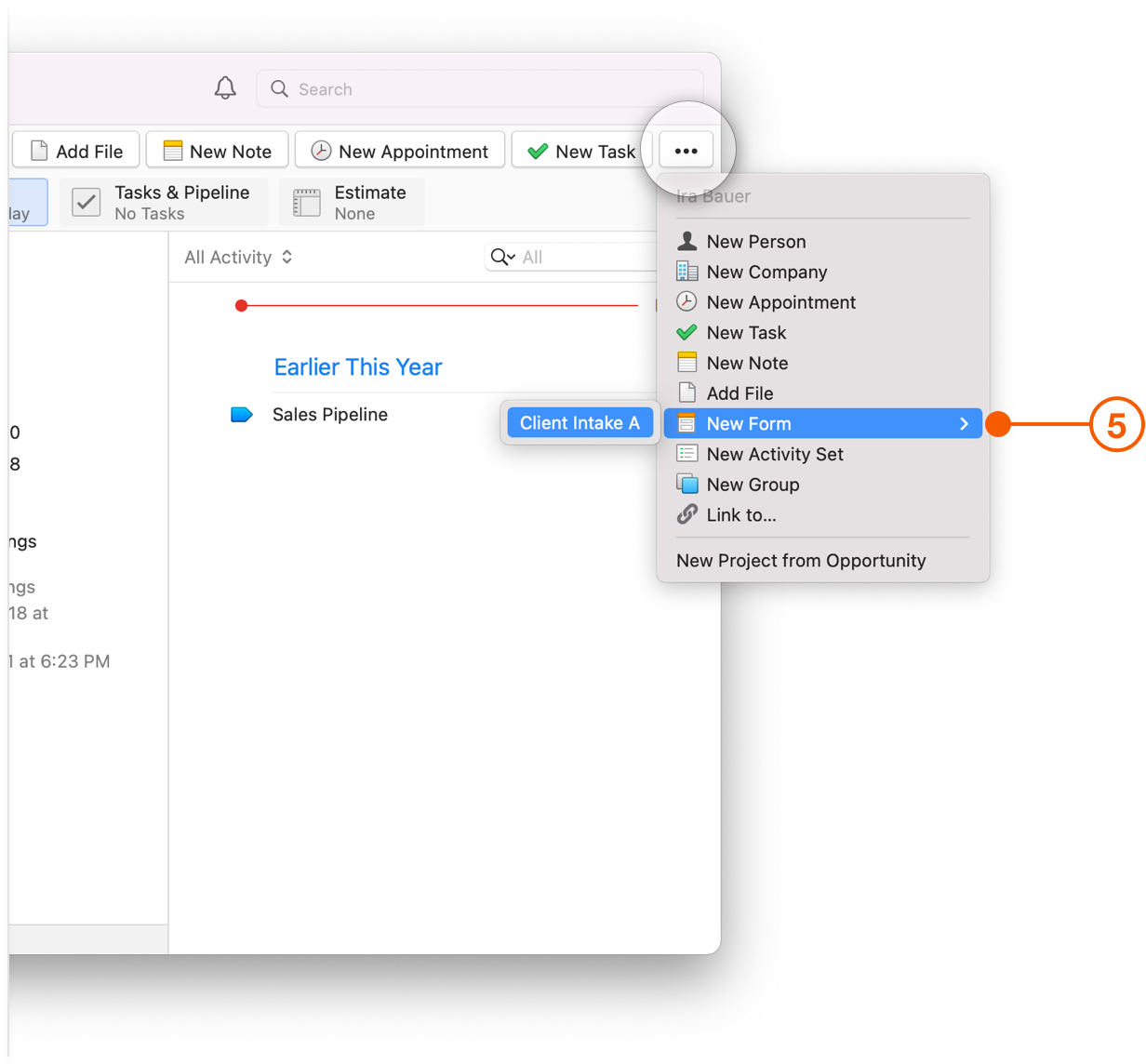
5. Now you can select the Form you just created from the **…** button.
## Opportunity Estimates
Estimates are a way to track the total possible business a new Opportunity offers. This can be used for internal tracking but you can also send a simple quote to a lead as a PDF.
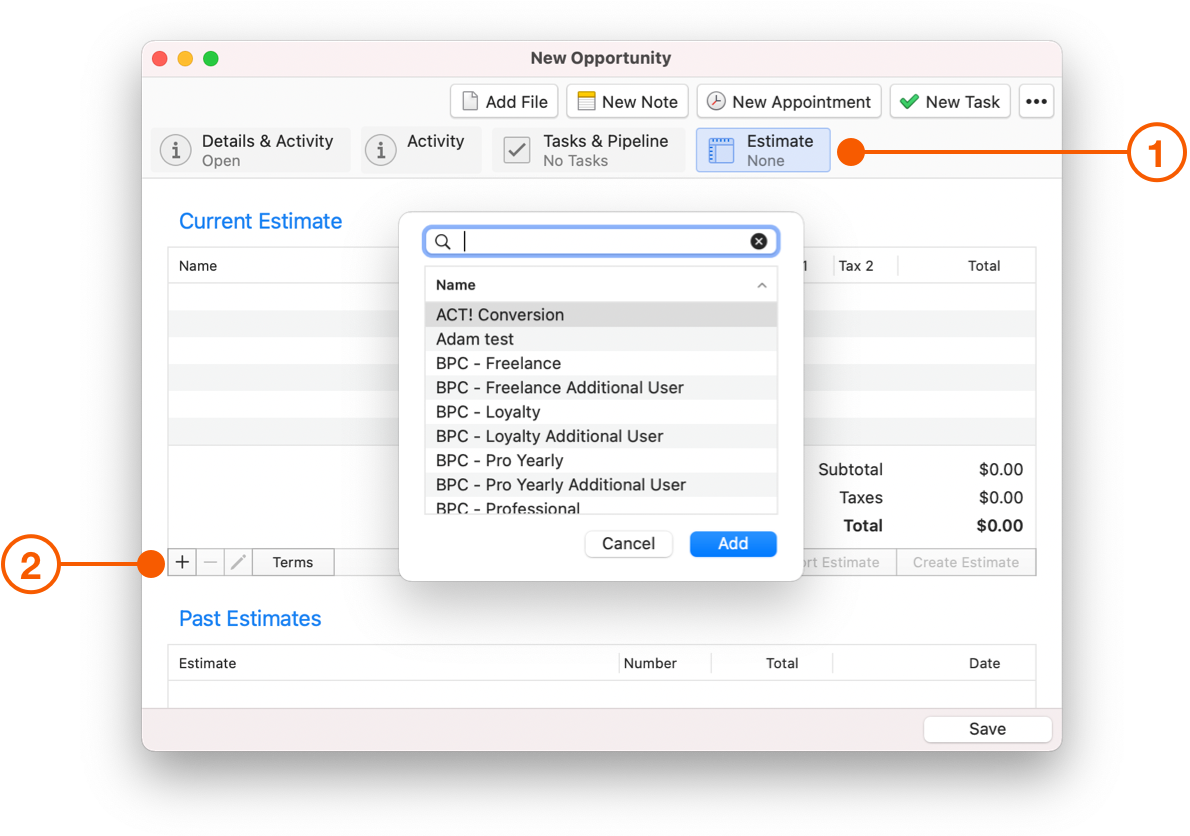
1. Click the **Estimate** tab on an Opportunity.
2. Click the + button to add a custom line item or choose an item from your saved Products and Services.
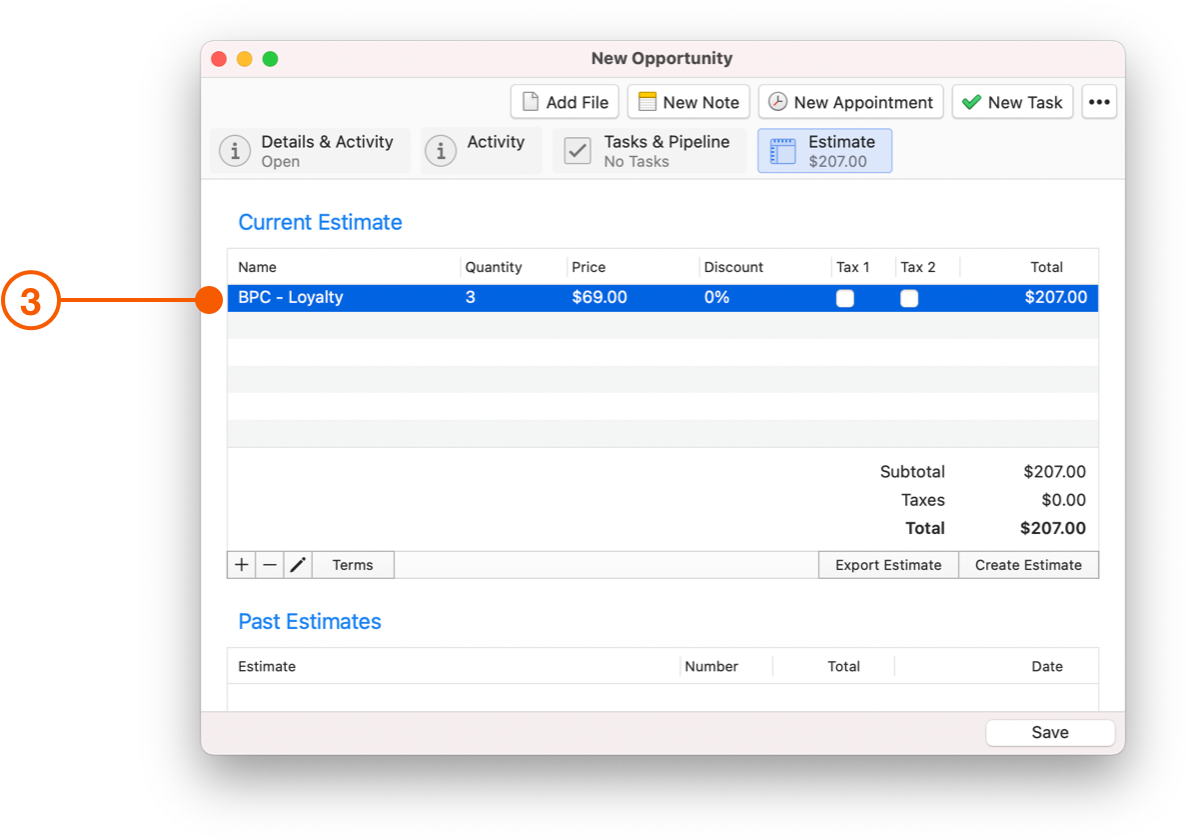
3. You can adjust the number of items, price discount, etc.
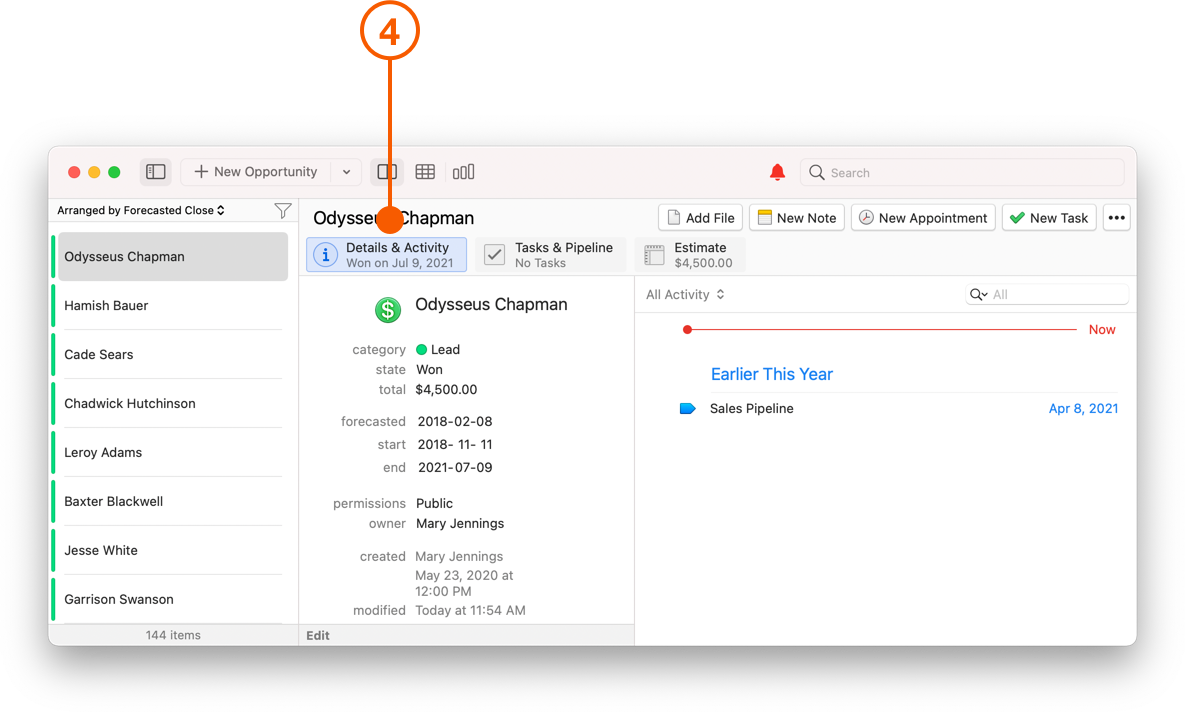
4. Now when you click the **Details & Activity** tab you will see that the total field matches the estimate total.
{% hint style="success" %}
**Pro Tip:**
Frequently adding the same products or services to your Estimates?
Add them as reusable line items in **Daylite > Preferences > Products and Services**.
{% endhint %}
Once you have the basics down, it's time to classify the Opportunity. Classifying your Opportunities is where Daylite sets itself apart. With Categories and Keywords, you can sort, filter, and segment your Opportunities.
## Category
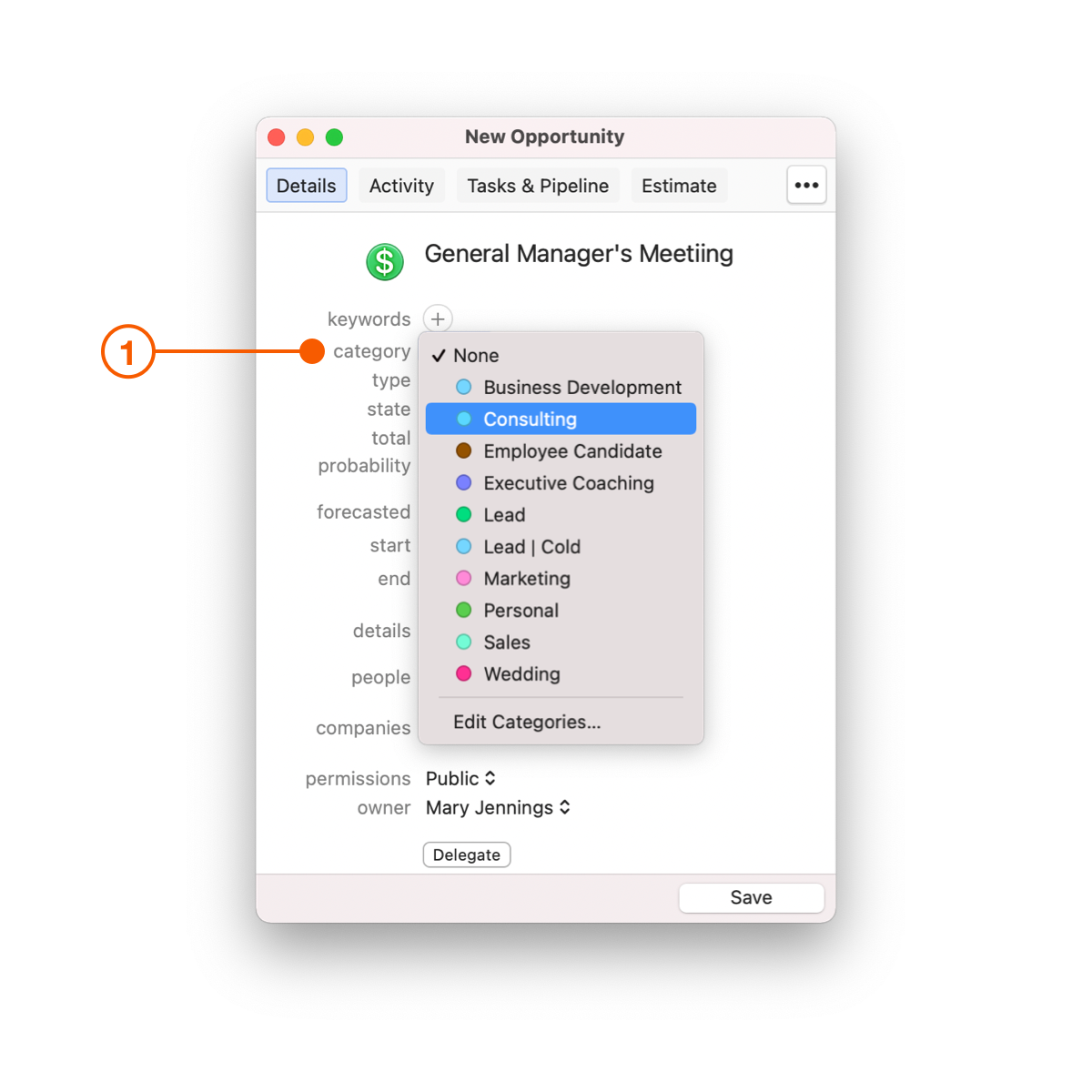
A Category is the top-level classification in Daylite. An Opportunity only has one Category, so think about how you want to organize your Opportunities.
1. To choose a Category, open the Category pop-up menu. If no Category fits, click **Edit Categories...** to open the Daylite Category Preferences and create a new Category.
Here are a few examples of how you can categorize your Opportunities.
* **Products or services your leads are interested in buying**
* Personal Coaching
* Group Training
* Speaking Event
* **Types of leads**
* Hot
* Cold
* **Sources for your leads**
* Facebook
* Email Marketing
* Trade Show 2019
## Keywords
Keywords are a more flexible way to classify your Opportunities. An Opportunity can have as many Keywords as you want, so you can use them for multiple reasons.
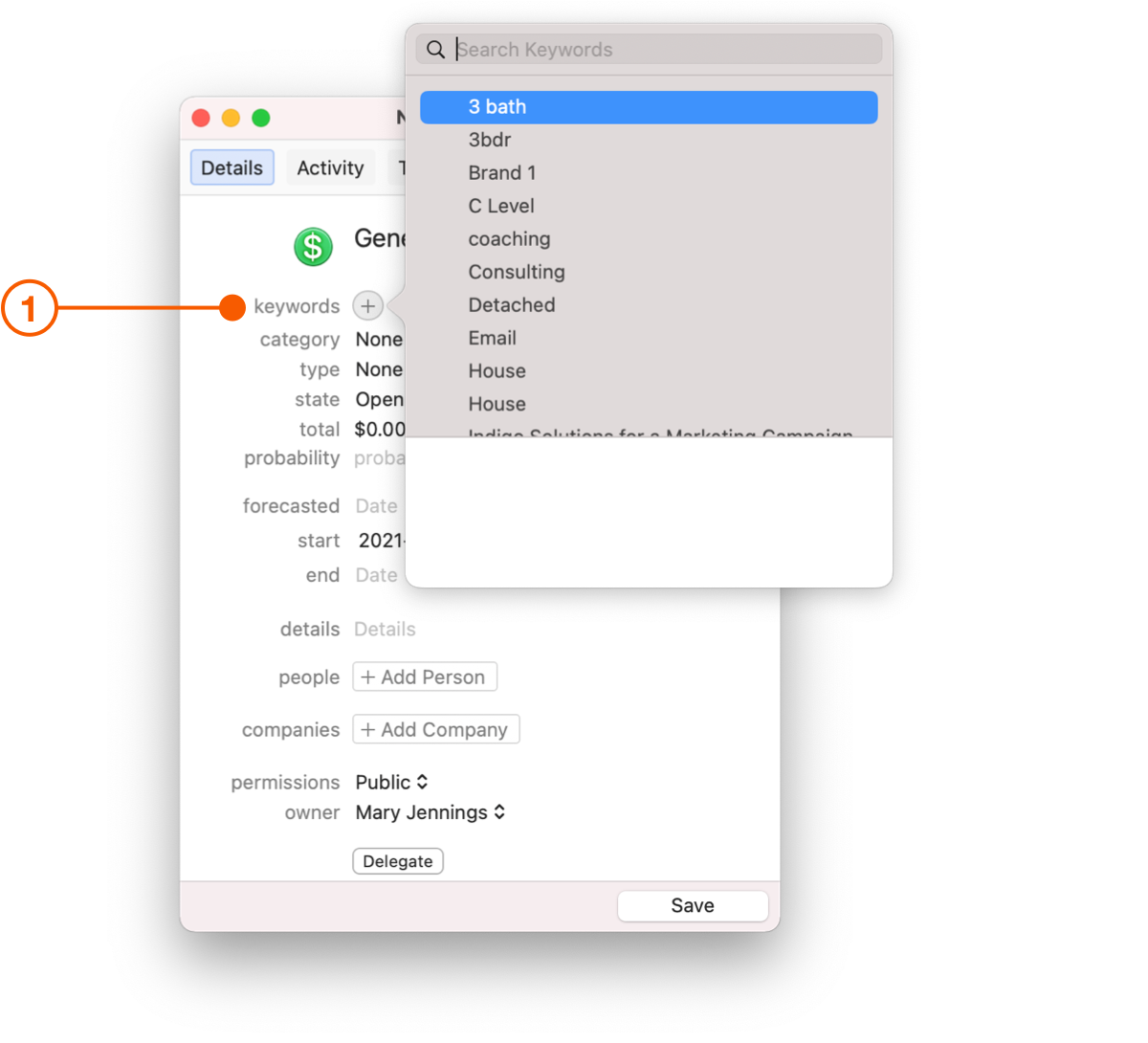
2. To choose a Keyword, click the **+** button.
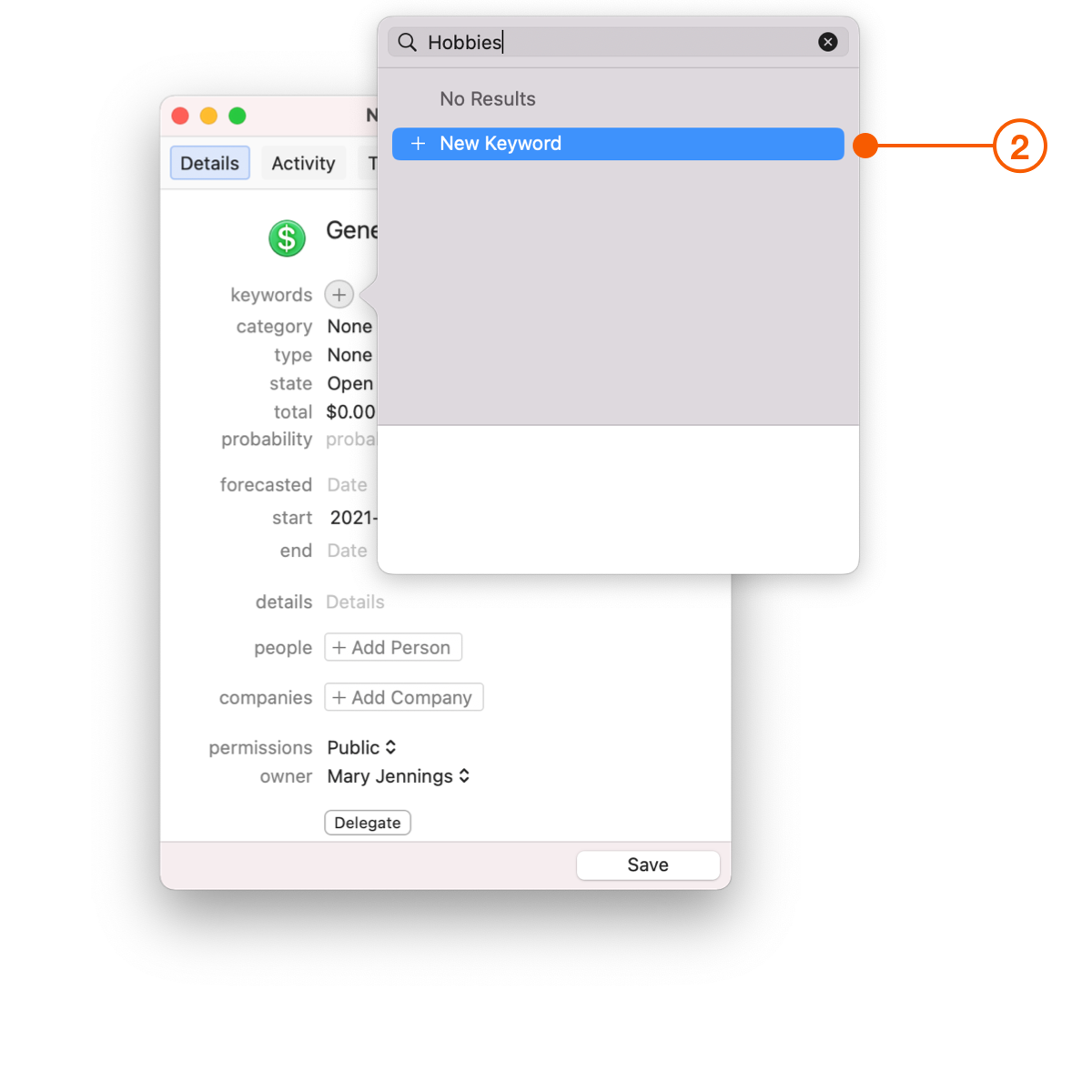
3. If no Keyword fits, type the Keyword you wish to use, then click **New Keyword...** to create and add it to your Opportunity.
Here are a few examples of how you can use Keywords to classify your Opportunities:
* **Type of client**
* VIP
* Repeat customer
* Family/Friend
* **Buying preferences**
* Additional Photographer
* 2 Week coaching session
* 2 bedroom
* **Specific marketing campaigns**
* 10% off referral
* re-targeting ads
* holiday landing page
## Roles
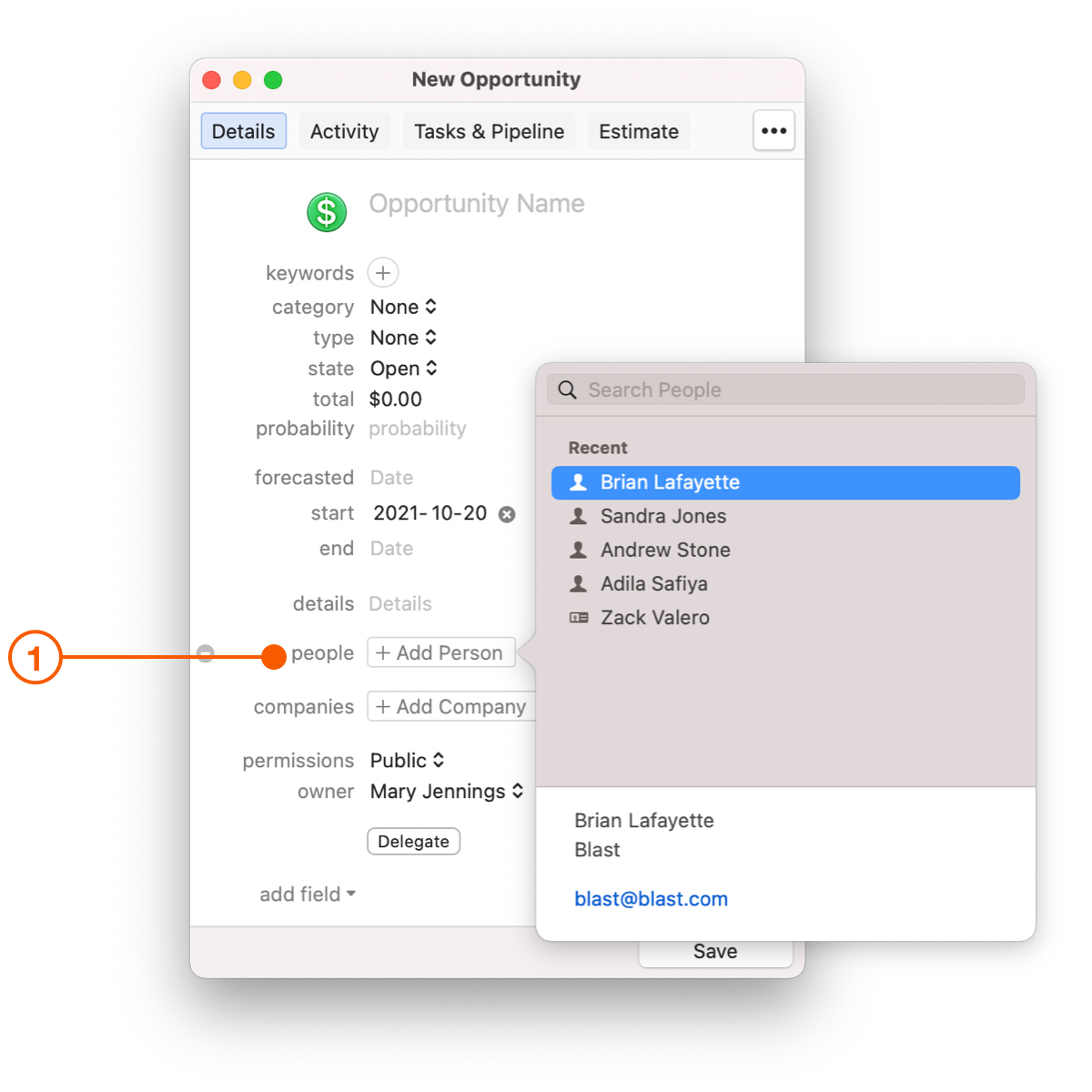
1. When linking people to an Opportunity, you could begin by adding members of your team, like the lead salesperson or account manager, then add your customers.
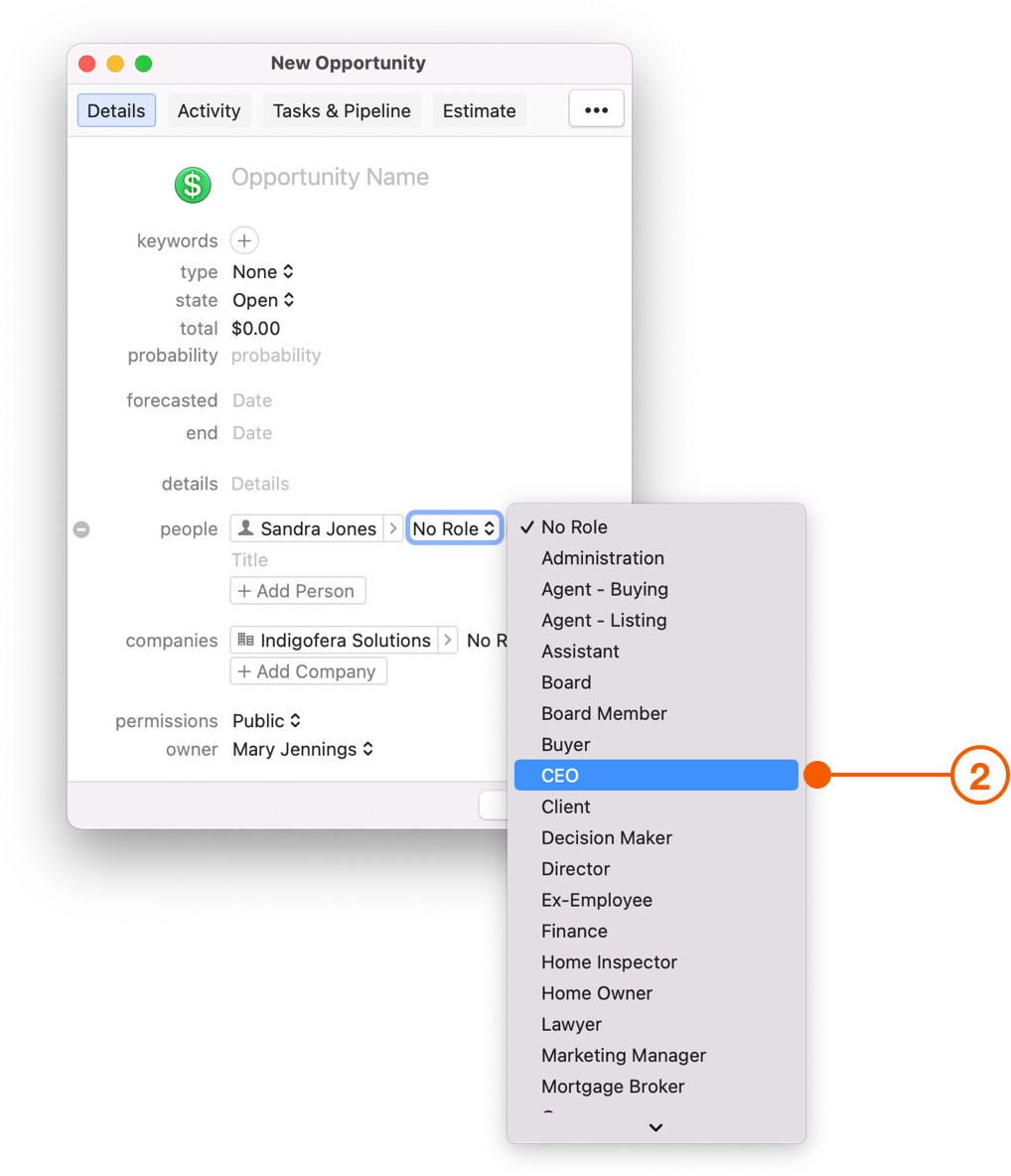
2. Next assign their roles, such as decision maker, or IT Manager. Now when you contact a client, you can make sure you're speaking to the right person at the right time.
Now that you've added all the essential details, classified your Opportunities, and added everyone's roles, go ahead and save your Opportunity.
## Wrap Up
With all the details about an Opportunity captured in one place, your Team now has the tools to close more deals and take your business further.
Click here to [Organize the Moving Pieces In A Deal](/help/learn/close-more-deals/organize-moving-pieces.md) and [Build a Streamlined Sales Process.](/help/learn/execute-on-projects/streamline-projects.md)
---
# Agent Instructions
This documentation is published with GitBook. GitBook is the documentation platform designed so that both humans and AI agents can read, navigate, and reason over technical content effectively. Learn more at gitbook.com.
## Querying This Documentation
If you need additional information that is not directly available in this page, you can query the documentation by asking a question.
Perform an HTTP GET request on the following URL with the `ask` and `goal` query parameters:
```
GET https://docs.daylite.app/help/learn/close-more-deals/capture-new-business.md?ask=&goal=
```
`ask` is the immediate question: it should be specific, self-contained, and written in natural language.
`goal` is what the user is ultimately trying to achieve, the reason they need the answer. Sharing it helps GitBook give you a better, more relevant answer. A goal is most helpful when it describes the outcome the user wants rather than restating the question. For example, with `ask=how do I create an API token`, a goal like `automate deployments from our CI pipeline` lets GitBook tailor the answer to that use case.
The response will contain a direct answer to the question and relevant excerpts and sources from the documentation.
Use this mechanism when the answer is not explicitly present in the current page, you need clarification or additional context, or you want to retrieve related documentation sections.