> For the complete documentation index, see [llms.txt](https://docs.daylite.app/help/llms.txt). Markdown versions of documentation pages are available by appending `.md` to page URLs; this page is available as [Markdown](https://docs.daylite.app/help/learn/build-relationships/organizing-meetings-with-external-invitees/updating-and-cancelling-meetings.md).
# Updating and Cancelling Meetings
### Sending an Update
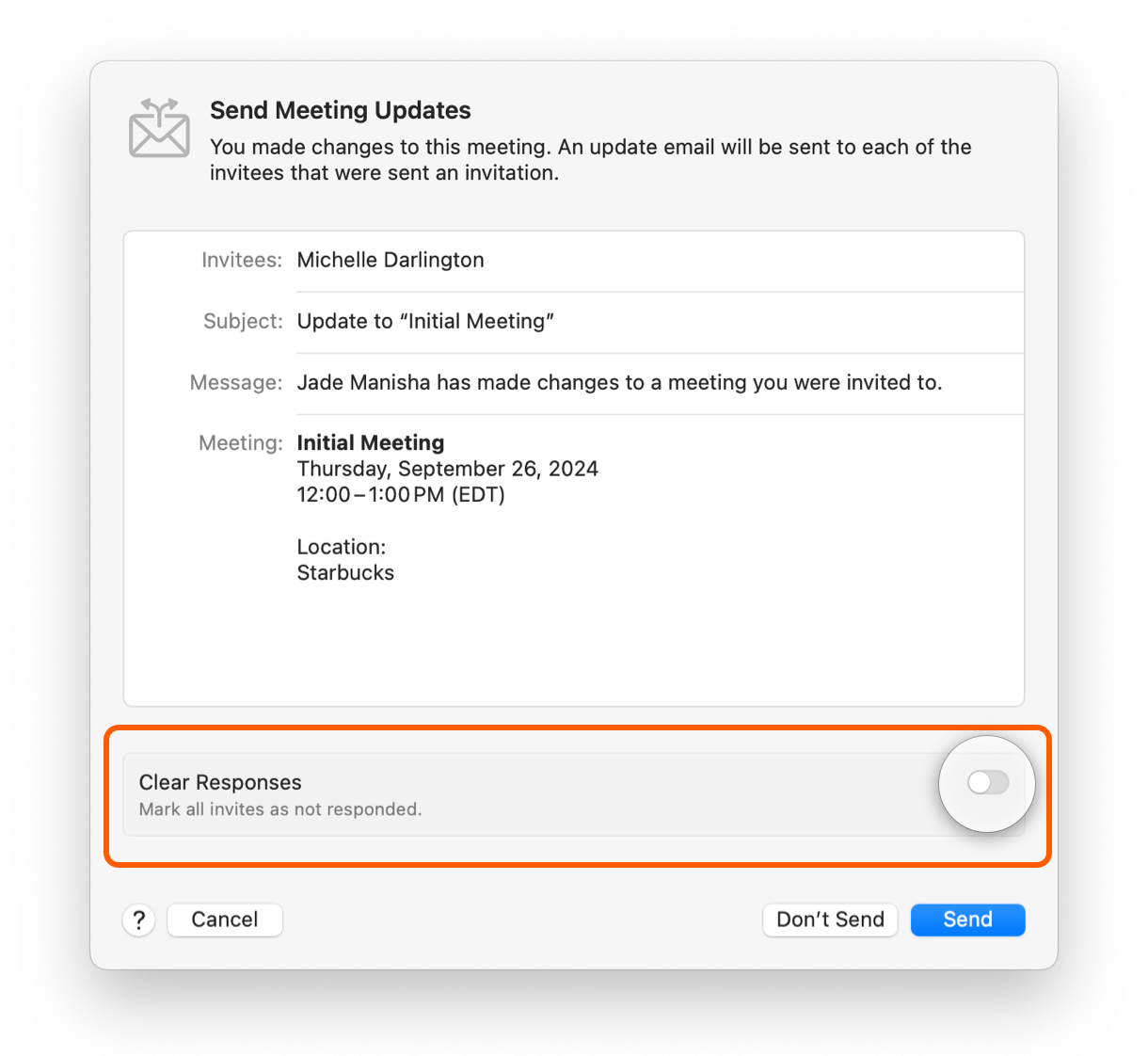
When you cancel or make a change to an appointment for which invitations have already been sent, another email may need to be sent to notify those invitees of the changes.
Not all appointment changes require notifying invitees. Minor changes requiring no update could include updating the category or keyword on the appointment, changing the subject or details.
The more major changes that are important to update invitees about are changes that affect the scheduling, such as the date, time, or location.
### Requesting New Responses to Updates
Sending updates on major changes to an appointment may require invitees to respond again. In this case, when updating, select the option to “Clear Responses” for any invitees that have already responded.
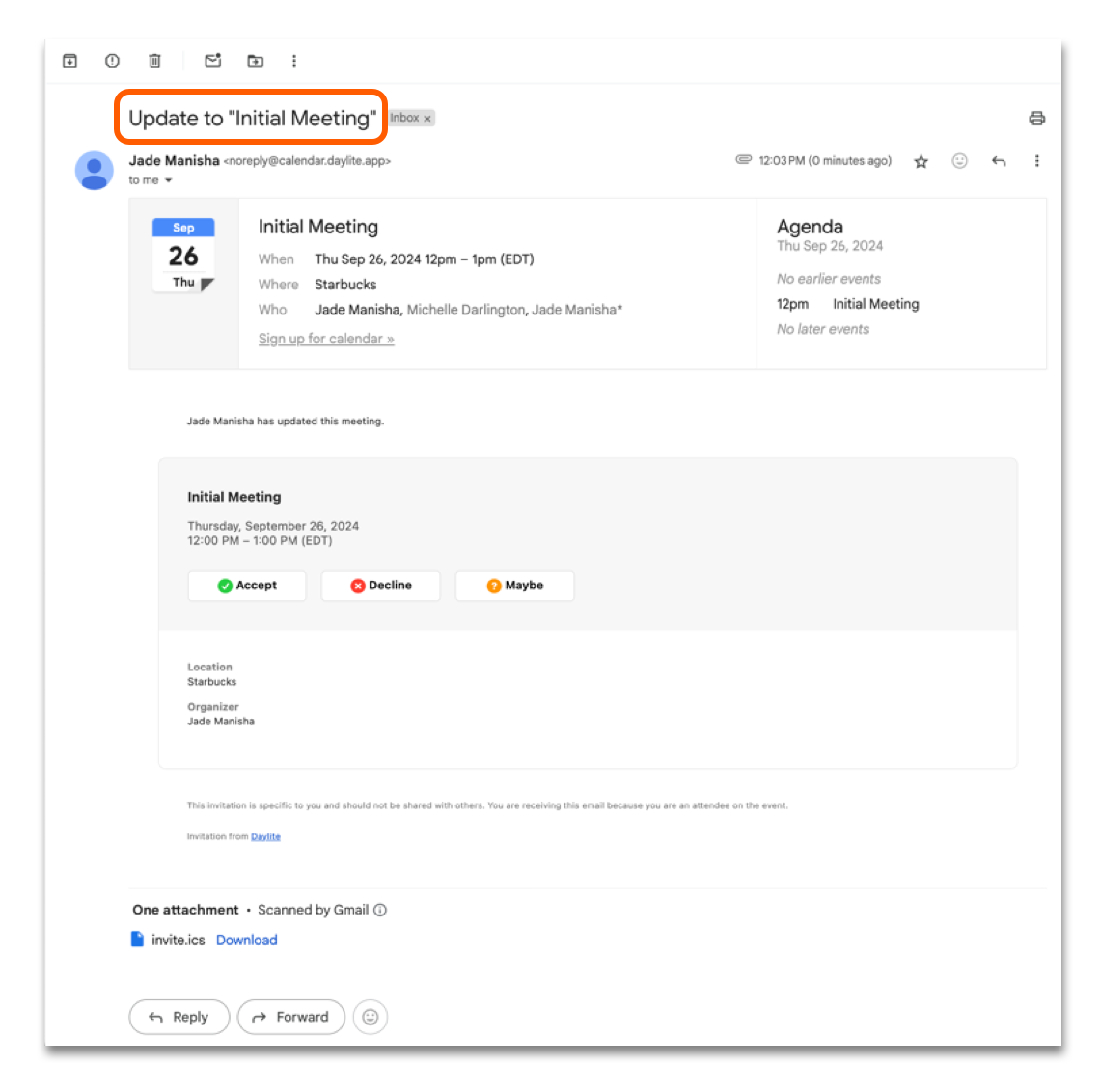
### Update Email
Here is what the update email looks like to the invitee. They can use their calendaring service or application (Outlook, Google, Apple Calendar) to reply.
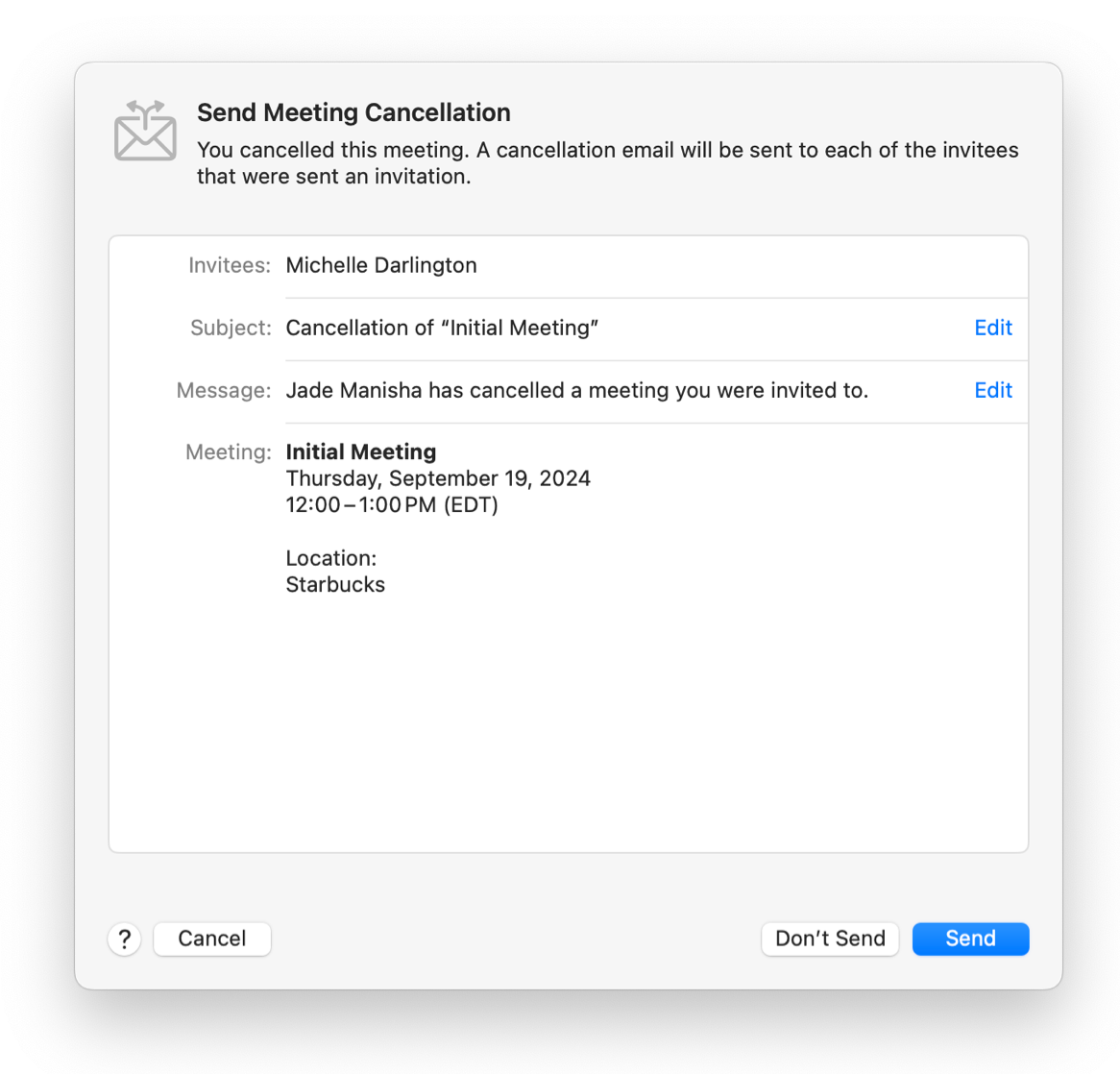
### Sending a Cancellation
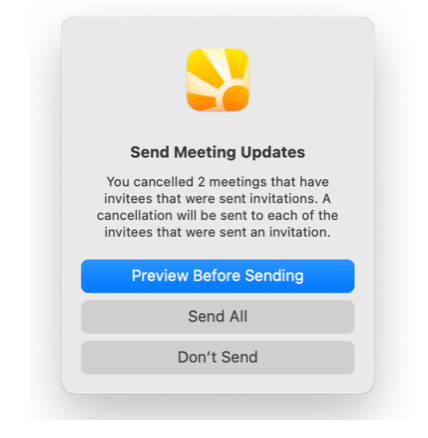
Changing the status of an appointment to cancelled/postponed, putting an appointment in the trash, or removing an external invitee, will require an email to notify the invitee(s) that the meeting is cancelled, so you will be prompted to send a meeting cancellation email.
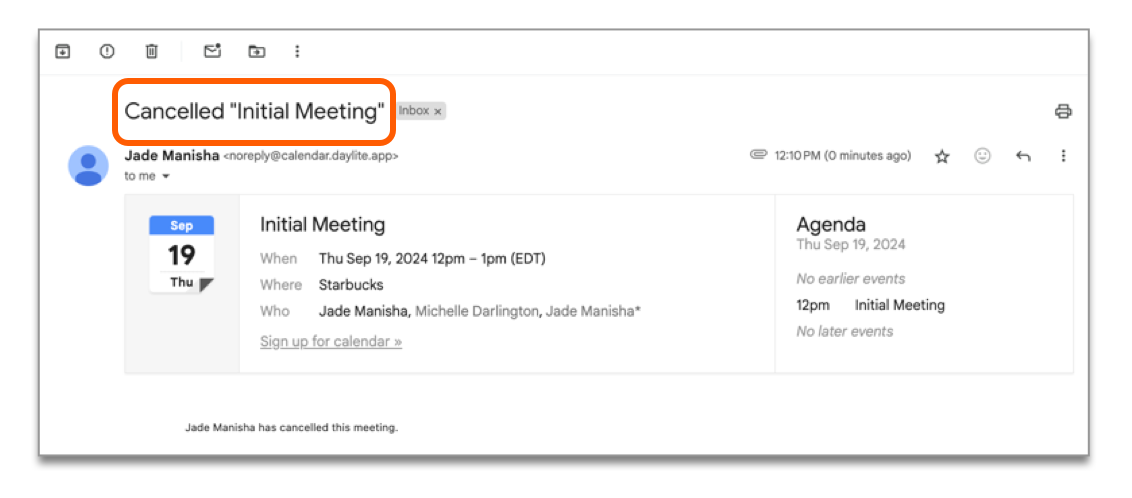
### Cancellation Email
Here is what the cancellation email looks like to the invitee.
{% hint style="warning" %}
If the appointment’s end date/time is in the past, an update or cancellation email will not be sent.
{% endhint %}
### Meeting Status Change from Cancelled
When the status of an appointment is changed from cancelled/postponed to any other status, you will be prompted to send a new invitation to the external invitees.
In the case an appointment is restored from the Trash, there will be no prompts regarding this meeting until the appointment is edited again.
Changes Requiring Invitations/Updates/Cancellations
It is possible to make changes that require different types of emails to be sent out. For example, you could: add an external invitee (requiring invitation email), remove another external invitee (requiring cancellation email), and change the date of an appointment (requiring update email) all at once in an edit card before saving. In this case, you will be prompted to send each email in succession: invitation, update, and cancellation.
**Bulk Changes**
When a change is made to multiple appointments at once, and more than one of them has external invitees that would require sending updates/cancellations, an alert is shown to choose whether to deal with them together or individually.
---
# Agent Instructions
This documentation is published with GitBook. GitBook is the documentation platform designed so that both humans and AI agents can read, navigate, and reason over technical content effectively. Learn more at gitbook.com.
## Querying This Documentation
If you need additional information that is not directly available in this page, you can query the documentation dynamically by asking a question.
Perform an HTTP GET request on the current page URL with the `ask` query parameter, and the optional `goal` query parameter:
```
GET https://docs.daylite.app/help/learn/build-relationships/organizing-meetings-with-external-invitees/updating-and-cancelling-meetings.md?ask=&goal=
```
`ask` is the immediate question: it should be specific, self-contained, and written in natural language.
`goal` is optional and describes the broader end goal you are ultimately trying to accomplish on behalf of the user. GitBook uses it to tailor the answer towards what is most useful for that goal.
The response will contain a direct answer to the question and relevant excerpts and sources from the documentation.
Use this mechanism when the answer is not explicitly present in the current page, you need clarification or additional context, or you want to retrieve related documentation sections.