> For the complete documentation index, see [llms.txt](https://docs.daylite.app/help/llms.txt). Markdown versions of documentation pages are available by appending `.md` to page URLs; this page is available as [Markdown](https://docs.daylite.app/help/learn/build-relationships/organizing-meetings-with-external-invitees/sending-invitations.md).
# Sending Invitations
When you are done editing or creating the appointment, you are prompted to send the invitation email. You can customize this email before sending by editing the subject and message, choosing the language, whether to include the details field, and whether to show the list of invitees to everyone.
(a) If you do not wish to show the invitees, the email will include only the person organizing and the individual person who is receiving the email invitation;
(b) If you select ‘show invitees’, all invitees will be listed at the top.
(c) You can also choose to send reminder emails to external invitees before the meeting. Select **None** to skip reminders, **Default** to use your company's default reminder times, or **Custom** to set specific times for this appointment (up to 2 reminders)
(d)You may also choose not to send out invitations using the “Don’t Send” button, which you might do if you have already discussed when to meet by some other form of communication such as phone or messaging.
(e) Clicking the “Cancel” button will return you to editing or creating the appointment in case you want to make further adjustments before sending out invitations.
### Invitation Email
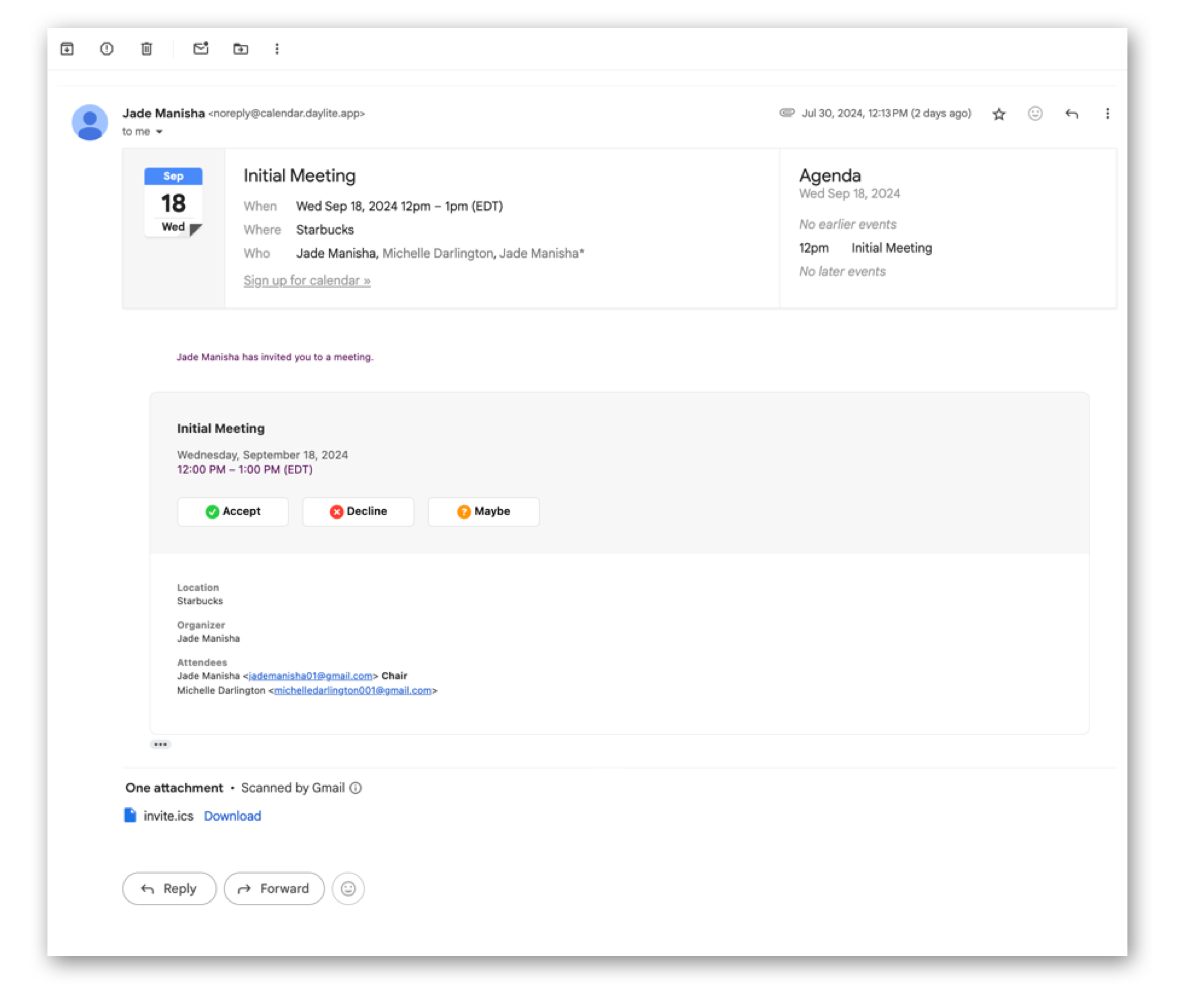
The invitation email will look like this to the invitee. They can use their calendaring service or application to reply.
### Sending Status
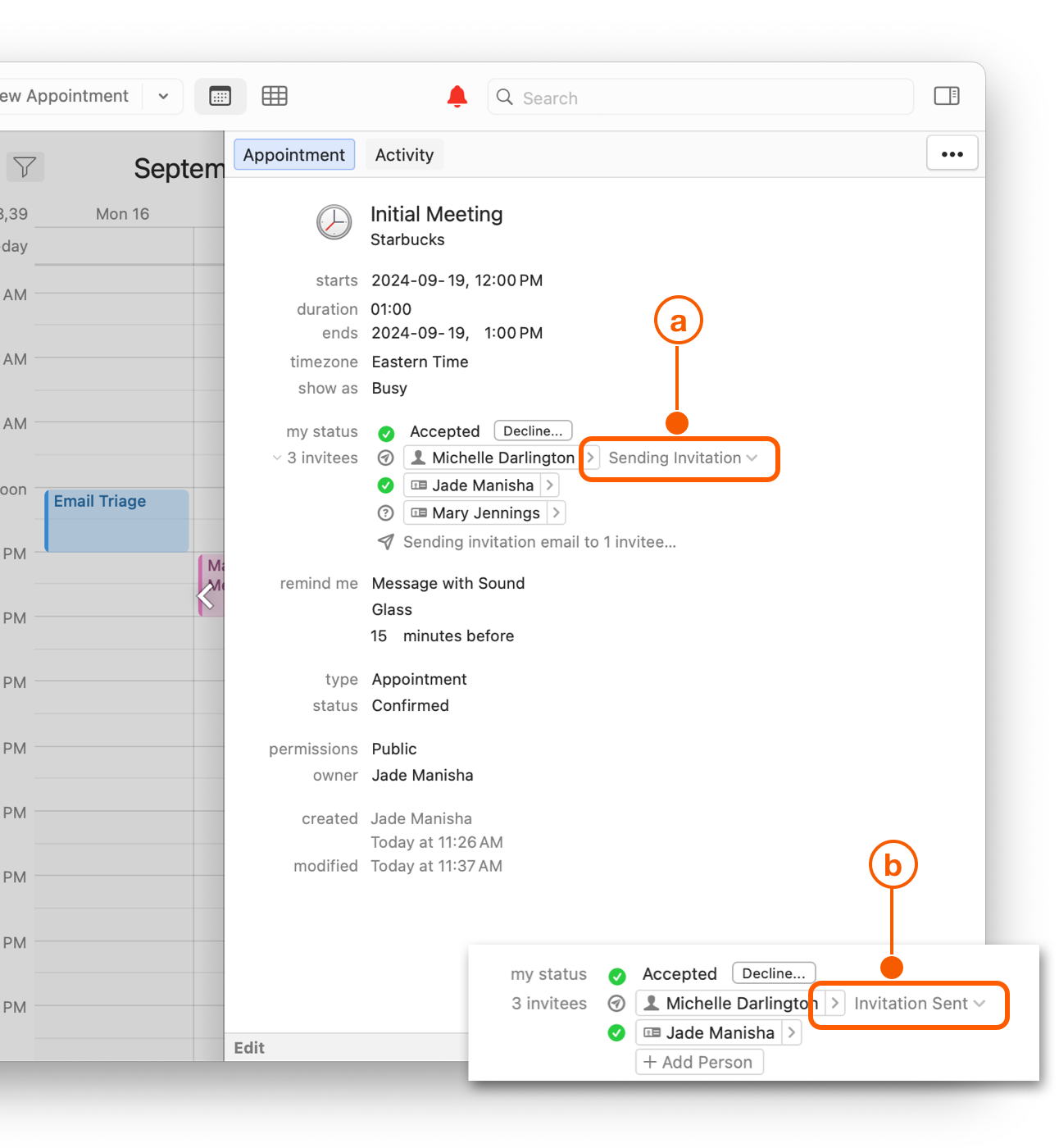
The status can be seen for each invitee in the appointment detail card, and will change from (a) “Sending Invitation” to (b) “Invitation Sent” once the email is sent.
If you choose “Don’t Send”, then the status will show as “No Invitation Sent”.
### Resend Invitations
On occasion, you may need to resend a meeting invitation to a participant(s).
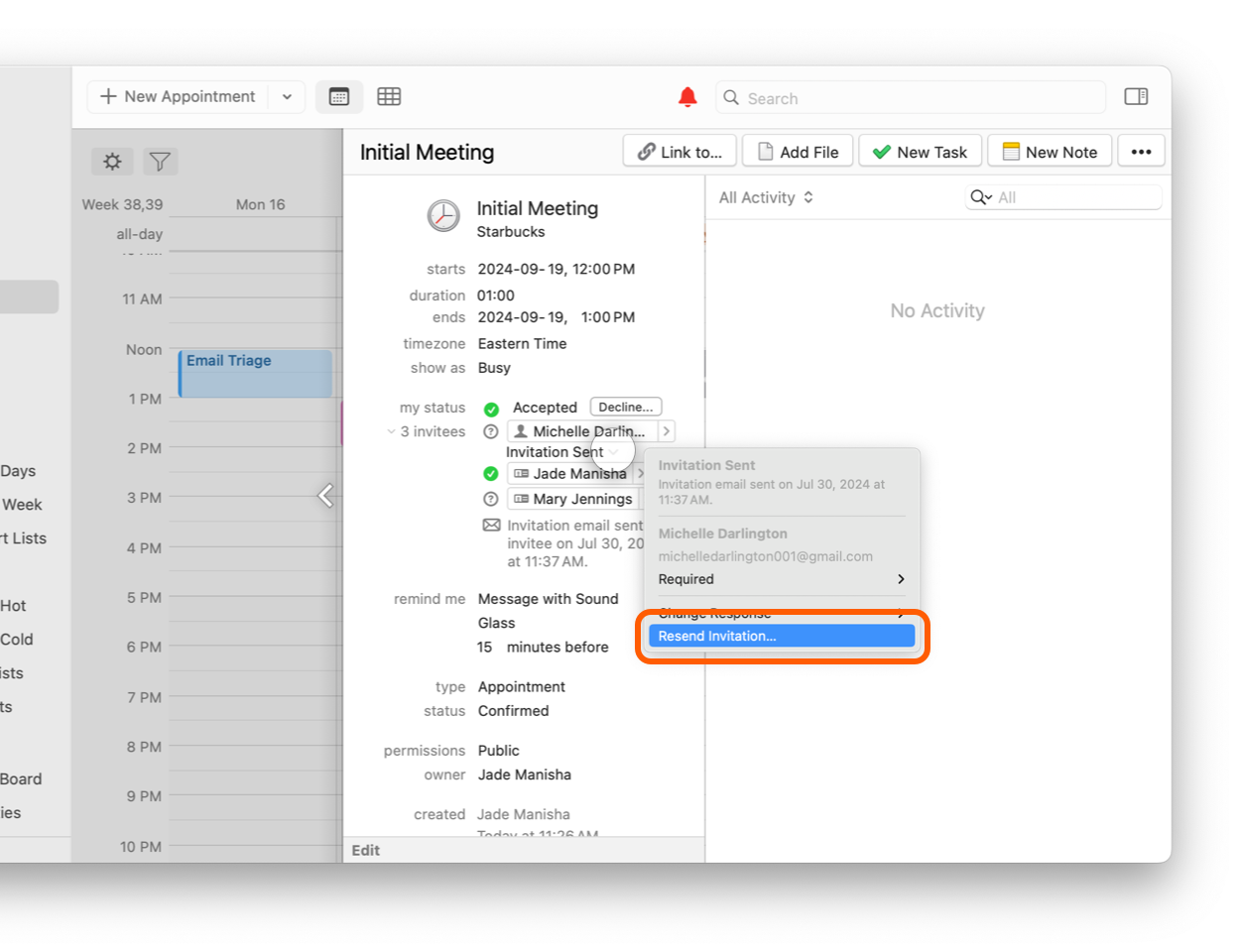
To resend an invitation to **a single invitee**, click on the status text to the right of the invitee token, and choose “Resend Invitation…”
If the invitee(s) have not been sent an invitation before, their option changes to “Send” invitation (rather than “Resend”)
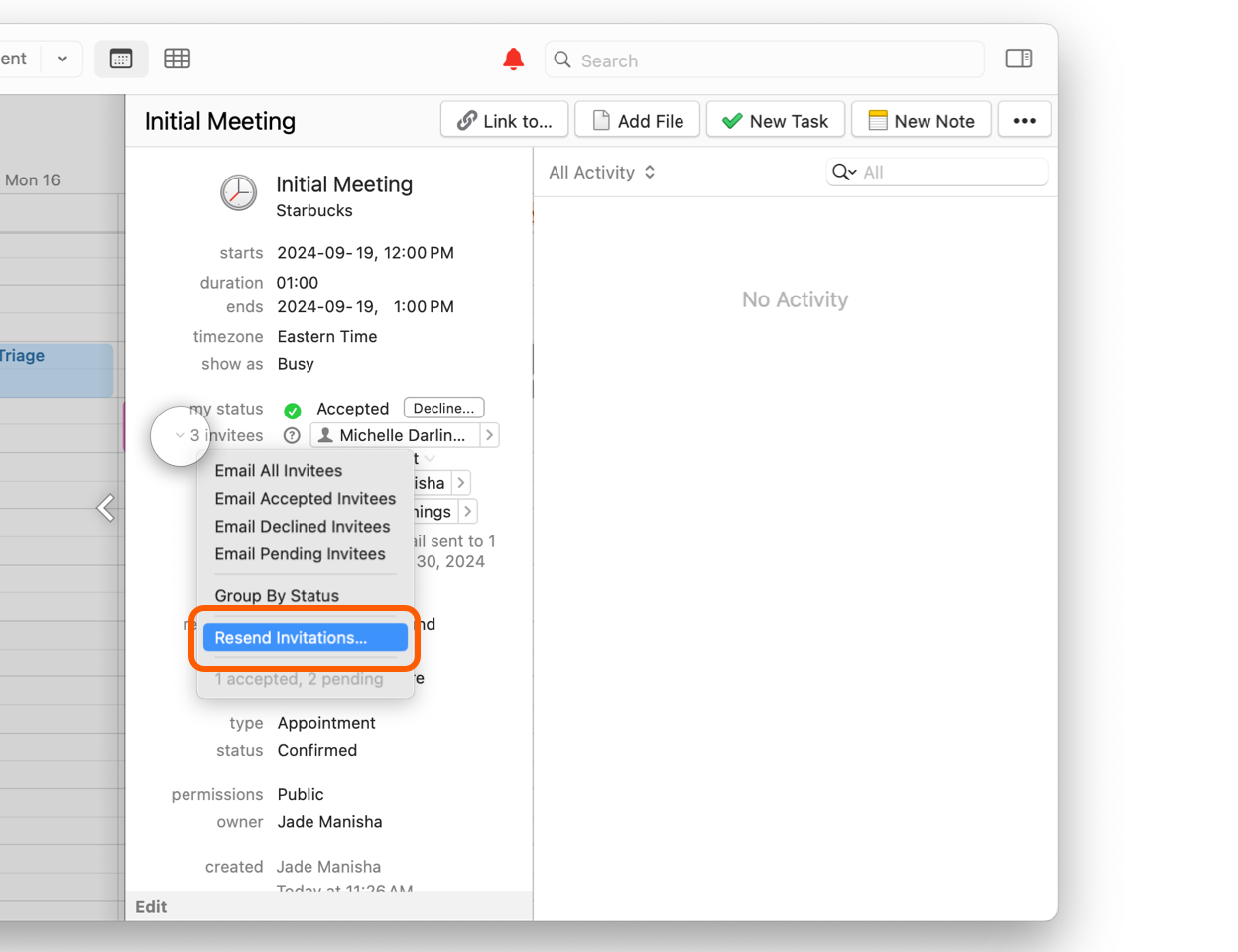
To resend invitations to **all invitees**, click on the “invitees” label in the detail card, and choose “Resend Invitations…”
---
# Agent Instructions
This documentation is published with GitBook. GitBook is the documentation platform designed so that both humans and AI agents can read, navigate, and reason over technical content effectively. Learn more at gitbook.com.
## Querying This Documentation
If you need additional information that is not directly available in this page, you can query the documentation dynamically by asking a question.
Perform an HTTP GET request on the current page URL with the `ask` query parameter, and the optional `goal` query parameter:
```
GET https://docs.daylite.app/help/learn/build-relationships/organizing-meetings-with-external-invitees/sending-invitations.md?ask=&goal=
```
`ask` is the immediate question: it should be specific, self-contained, and written in natural language.
`goal` is optional and describes the broader end goal you are ultimately trying to accomplish on behalf of the user. GitBook uses it to tailor the answer towards what is most useful for that goal.
The response will contain a direct answer to the question and relevant excerpts and sources from the documentation.
Use this mechanism when the answer is not explicitly present in the current page, you need clarification or additional context, or you want to retrieve related documentation sections.