> For the complete documentation index, see [llms.txt](https://docs.daylite.app/help/llms.txt). Markdown versions of documentation pages are available by appending `.md` to page URLs; this page is available as [Markdown](https://docs.daylite.app/help/learn-ipad/getting-started/mail-management.md).
# Mail Management
How many email accounts do you have?
If the answer is more than one, you are not alone. Many of us have multiple email accounts, for both work and personal use. Juggling multiple email accounts can be a challenge, especially when it comes to your business.
Have ever found yourself looking back through those accounts, trying to locate key details about a client interaction, or been left frustrated as you try and locate a conversation thread that you can't find anywhere?
Daylite can help.
By placing all of your email accounts in one convenient location, but keeping all of your email accounts separated within that location, Daylite allows you to easily add new People as Contacts and save a copy of any emails that are sent and received in the Person’s history. You can also add information such as Companies, job titles, phone numbers, addresses and more, by editing the Contact’s information right from within the Daylite app.
## Adding Your Email Accounts
Adding your work and personal email accounts to Daylite is easy, and by keeping each account separated, you avoid the confusion of which account is which.
To add an email account for the first time, select **Mail** from the Sidebar and tap **Add Mail Account**.
Next, select which **Mail Account** you would like to add, then enter your email account information.
{% hint style="success" %}
**Pro Tip:**
Pay special note to the **Name** and **Description** you assign each email account you add to Daylite. The Name field is how others will see you when you send email messages from this account. The Description field helps you distinguish it from any other email accounts you add to Daylite.
{% endhint %}
You will now be able to see each account added separately to Daylite Mail under **Accounts**.
That's it!
You have successfully added your email accounts to Daylite.
## The Power of Daylite in Your Inbox
At first glance Daylite's Mail feature may seem deceptively simple. After all, there are many apps that separate emails into their respective folders.
But let's take a closer look at what Daylite is really doing.
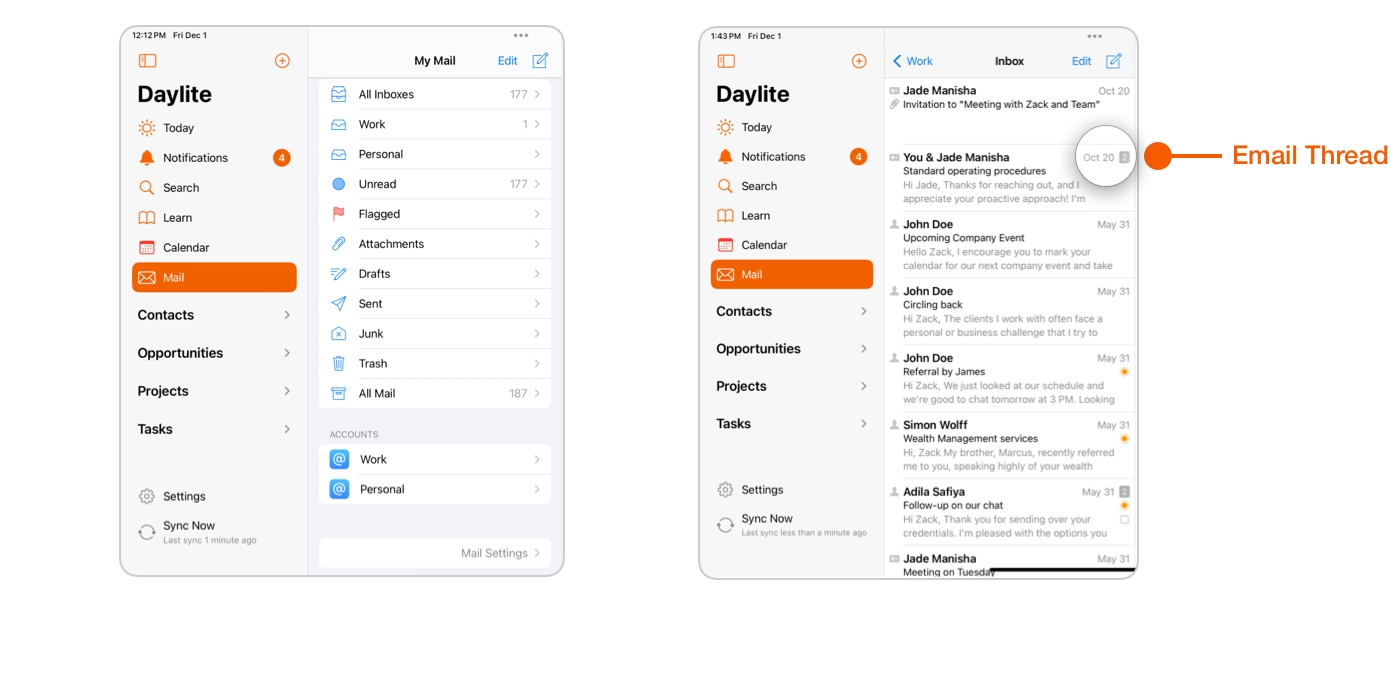
Start by selecting Mail from the Sidebar, then choose an email account.
The screenshot below shows two emails with grey numbers next to the date the email was sent. These indicate an email thread exists, and how many emails are a part of the thread.
The **yellow** **Sunshine icon** shows that an email Contact has been successfully added to Daylite.
A **greyed out Sunshine icon** lets you know that there is at least one email Contact in the thread has been added to Daylite. You must open this thread to add additional email Contacts if needed.
A **paperclip** **icon** shows you there is at least one linked Object attached to this email Contact.
A **file card icon** means the intended recipient of the incoming email has a Daylite record.
A **small square** lets you know there is at least one Task attached to this email Contact.
A **small clock face** lets you know there is at least one Appointment attached to this email Contact.
{% hint style="success" %}
**Pro Tip:**
You can choose which Items to link to an email once it's been added to Daylite, including **Contacts**, **Users**, **Opportunities**, **Projects**, **and** **Attachments**.
Linking your emails to your Contacts, Opportunities, and Projects is especially important, because Daylite will then show your email communication chronologically in the Activity View in Daylite, making it easy to find your client email history later on.
{% endhint %}
## Adding an Email Contact to Daylite
Once you have selected an email to view, it populates on the right hand side of Daylite Mail. If you would like to add this Contact to Daylite, simply tap **Add to Daylite** underneath the email title.
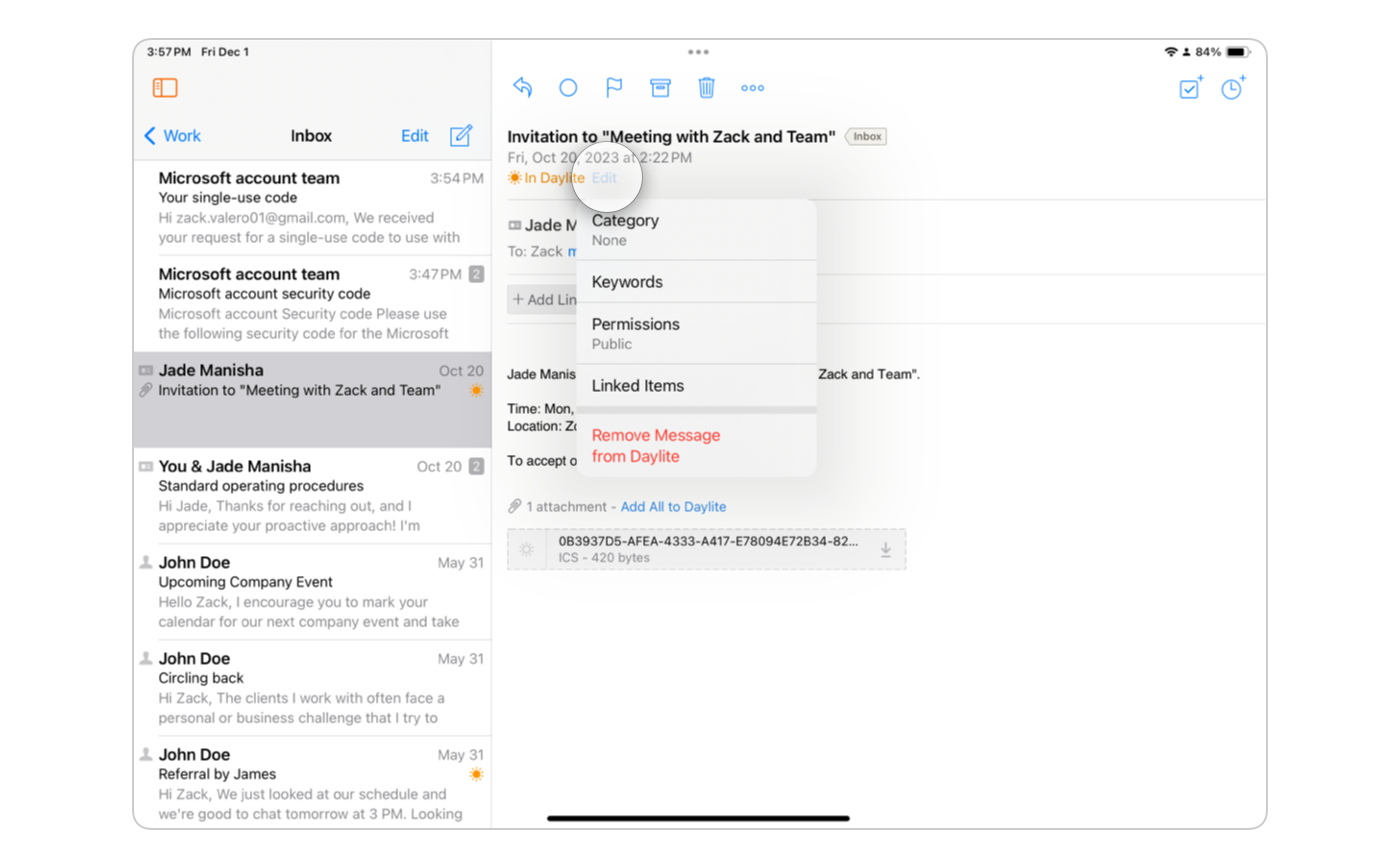
This email Contact has now been added to Daylite, and will be highlighted in orange going forward.
By tapping the **Edit** button beside the orange highlighted **In Daylite**, you can quickly add:
* Category - You can only choose one Category to display. A good way to use Categories is to indicate the type of activity involved. For example is it an email, a phone call, or something you need to do in the office?
* Keywords - You can choose multiple Keywords to display. These are used to help create filtered searches.
* Permissions - Who is allowed to view these records?
* Linked items - Connect related information together.
You can add a **New Task** to this Contact record by tapping the New Task button here. From any email that requires a **follow-up** or a **next action**, simply create a Task and it will be linked to the email and the Person who sent it. Then you can review your Tasks any time you want to, either from the Contact's **Activity View** or from the **My Tasks** section of Daylite. Be sure to add a due date and reminder to your Task so you don't forget about it.
{% hint style="info" %}
**Pro Tip:**
A great practice is to create a New Task reminding yourself to follow up with this email if you haven't heard back within a few days. Make sure to give your task a due date, and when you get your reminder, it will be linked to the email.
{% endhint %}
You can attach a **New Appointment** to this Contact record by tapping the New Appointment button here. This Appointment is then viewable in your Daylite Calendar. The email and the Contact will be linked to the Appointment, making it easy to review the details of your Appointment later.
## The Details View
Once you have added the email Contact to Daylite, you can view and edit this Contact record by tapping the **>** symbol beside their name. This will open up their Contact record in the Details View. Select **Edit** to make any changes.
Here are a few important things to note when viewing a Contact's details:
* When you select **Add to Daylite** the email is linked to the Contact. You can choose to unlink the email at any time.
* A client may have multiple emails just like you do. Be sure to add them here.
* You can adjust **Permissions** so only certain people or departments on your team have access to this record if needed, such as Human Resources.
* Link any **Opportunities** the Contact is involved with. You can view the Opportunity by tapping here.
* **Relationships** can be either hierachy based (work environment), such as David has an assistant named Stephen, or equality based (personal) such as Toby is the brother of Susan.
* **Linking** Linking gives you the ability to connect related information together, sharing the knowledge between two pieces of data. For example, you may have several Contacts at a single Company, or have multiple Contacts linked to a single Project.
## **Projects and Opportunities**
When you add an email to Daylite **from** or **to** a Daylite Contact, that Contact's currently active Project and/or Opportunity will be automatically linked to the email as well. If the Contact has multiple active Projects or Opportunities linked to them, those Projects or Opportunities will be shown as suggested links, and you can click the ones you want to have linked to the email.
## The Activity View
The Activity View is a great way to see everything about your Contact all at once. The Activity View keeps track of all your linked Emails, Appointments, Tasks, Files, Notes and Forms, and displays them in chronological order.
## **Adding a Composed Email to Daylite**
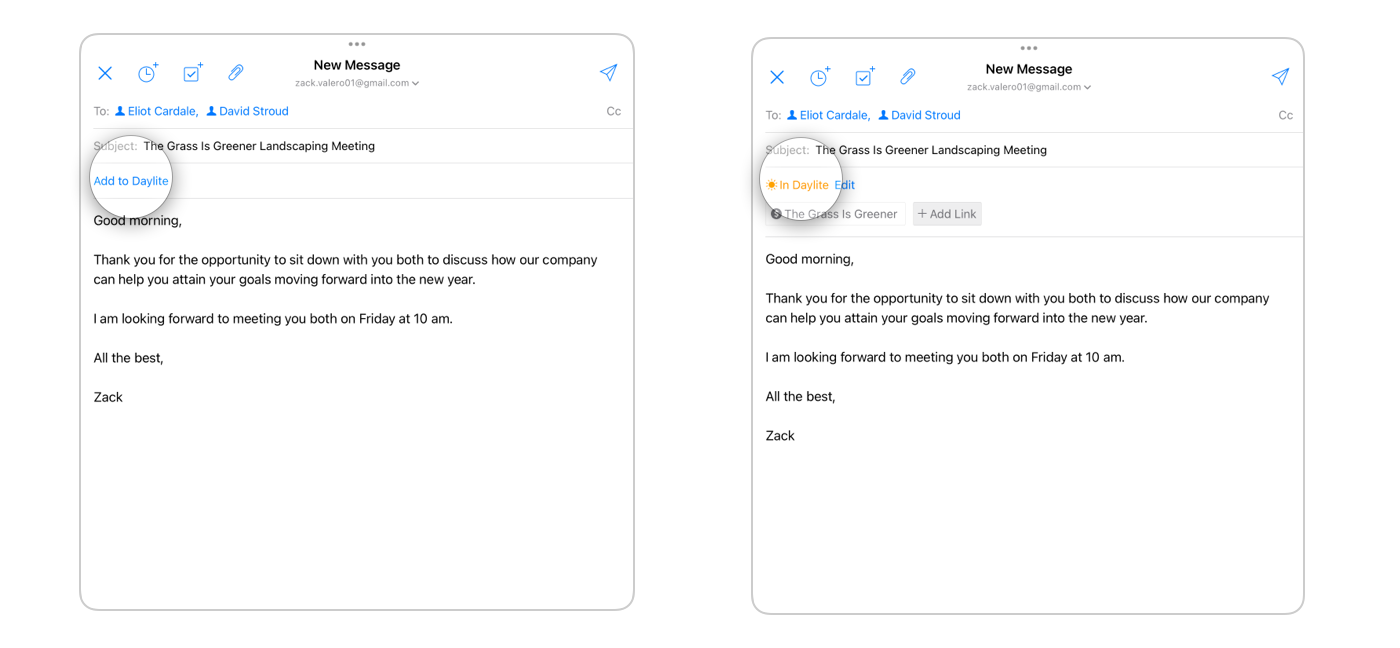
Adding an email to Daylite you're about to send is a quick and easy process, and is encouraged because then you have a record of any outgoing correspondence in one easy-to-view location.
Once you have composed a new message and have added all of your recipients, the outgoing email message can be automatically added to Daylite. This can then be seen under the **Activity View**. Any Daylite Contacts will be automatically linked to the email.
## **Settings**
Daylite Mail's Settings lets you set Mail Accounts, your default Sender and Signature, it lets you set up your Toolbar, and to Ask Before Deleting, just in case.
There are however three other very important features to highlight. They are Compose in Apple Mail, Linking, and Email Storage.
**Compose in Apple Mail** - Any emails you compose outside of the My Mail tab will open in Apple Mail.
**Linking** - When a message is added to Daylite, you can choose to:
* Link All Contacts
* Link Opportunity
* Link Project
* Link Users
**Email Storage** - this is really important depending on whether you are most often in office or out on the road. You can choose to:
* Optimize Storage - great for in office, as email is downloaded as you need it, and the originals are stored in Daylite Cloud.
* Download All Email Content - All emails and content are stored on your device, so you have access even when offline.
## Wrap Up
Daylite Mail perfectly blends of all your email accounts under one easy to use umbrella.
Add brand new email contacts to Daylite with the tap of a button, or let Daylite automatically add incoming and outgoing emails to your Contact's history.
You can link a Contact's email to an upcoming Appointment or Meeting, add a File or a quick Note, and keep a chronological record of all those interactions regarding Oppoortunities and Projects in the Contact's history, including emailed correspondence.
All from one location.
---
# Agent Instructions
This documentation is published with GitBook. GitBook is the documentation platform designed so that both humans and AI agents can read, navigate, and reason over technical content effectively. Learn more at gitbook.com.
## Querying This Documentation
If you need additional information that is not directly available in this page, you can query the documentation dynamically by asking a question.
Perform an HTTP GET request on the current page URL with the `ask` query parameter, and the optional `goal` query parameter:
```
GET https://docs.daylite.app/help/learn-ipad/getting-started/mail-management.md?ask=&goal=
```
`ask` is the immediate question: it should be specific, self-contained, and written in natural language.
`goal` is optional and describes the broader end goal you are ultimately trying to accomplish on behalf of the user. GitBook uses it to tailor the answer towards what is most useful for that goal.
The response will contain a direct answer to the question and relevant excerpts and sources from the documentation.
Use this mechanism when the answer is not explicitly present in the current page, you need clarification or additional context, or you want to retrieve related documentation sections.