> For the complete documentation index, see [llms.txt](https://docs.daylite.app/help/llms.txt). Markdown versions of documentation pages are available by appending `.md` to page URLs; this page is available as [Markdown](https://docs.daylite.app/help/learn-ipad/execute-on-projects/streamlining-your-projects.md).
# Streamlining Your Projects
For a Project to run efficiently, and be completed on time, everyone needs to know what is expected of them, who is involved in the Project, and the timeline. You can track progress, organize your Tasks, and improve your efficiency by using Daylite to streamline your Projects. Improve your workflow by having everything in one place, a simplified process, and a team that understands what's expected of them.
## Staying Focused on Tasks with Pipelines
Pipelines help you visually track which Stage each Project is in, or act as a guide to make sure you or your team are following each step in order.
Focus on the right things at the right time by defining each Stage of your Project. By building Pipelines for your Projects, you can ensure your process is completed in the right order.
{% hint style="info" %}
**Did you know?**
Pipelines and Stages must be set up using an iMac or MacBook before viewing them on your other devices.
{% endhint %}
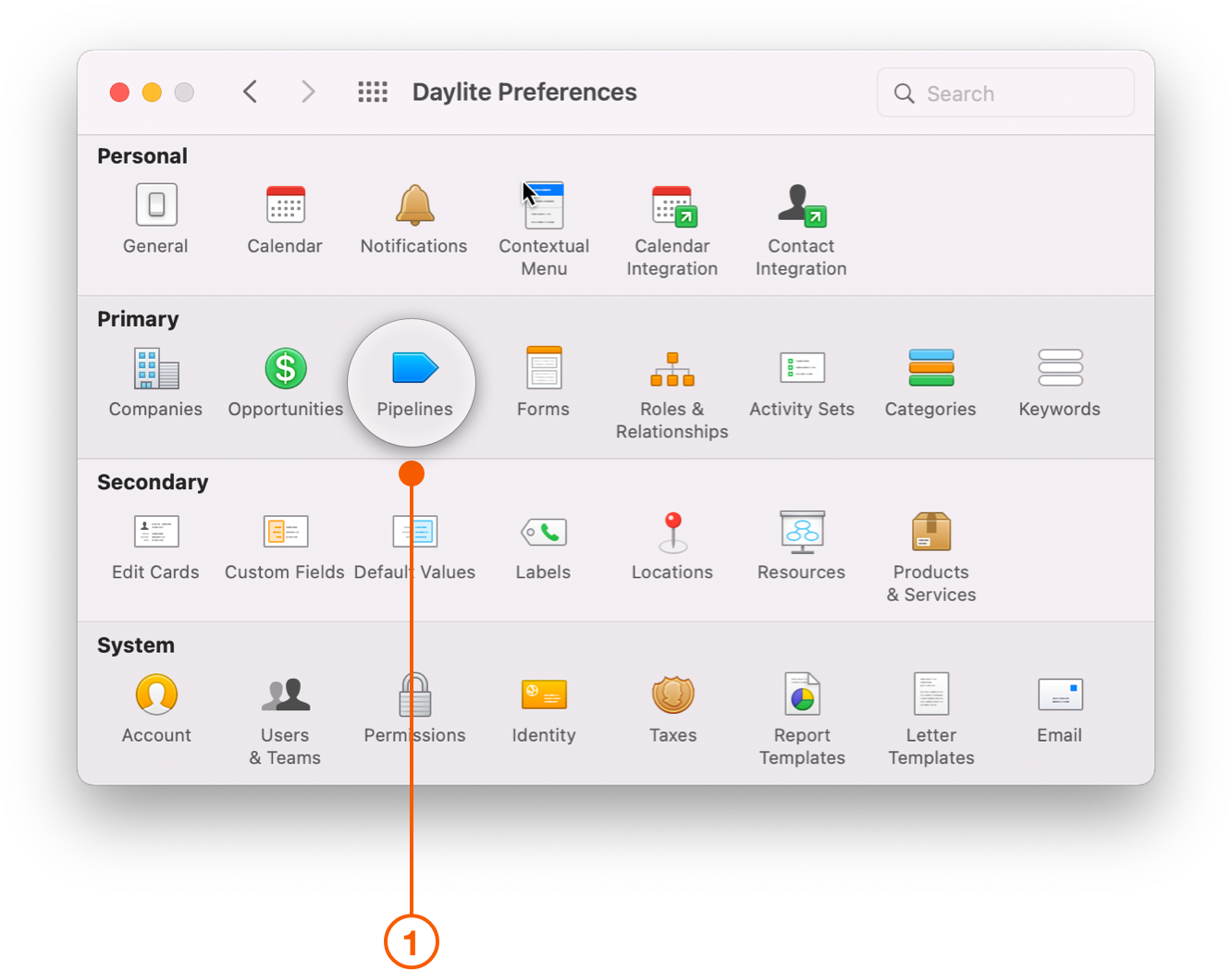
1. Navigate to **Daylite > Preferences > Pipelines**.
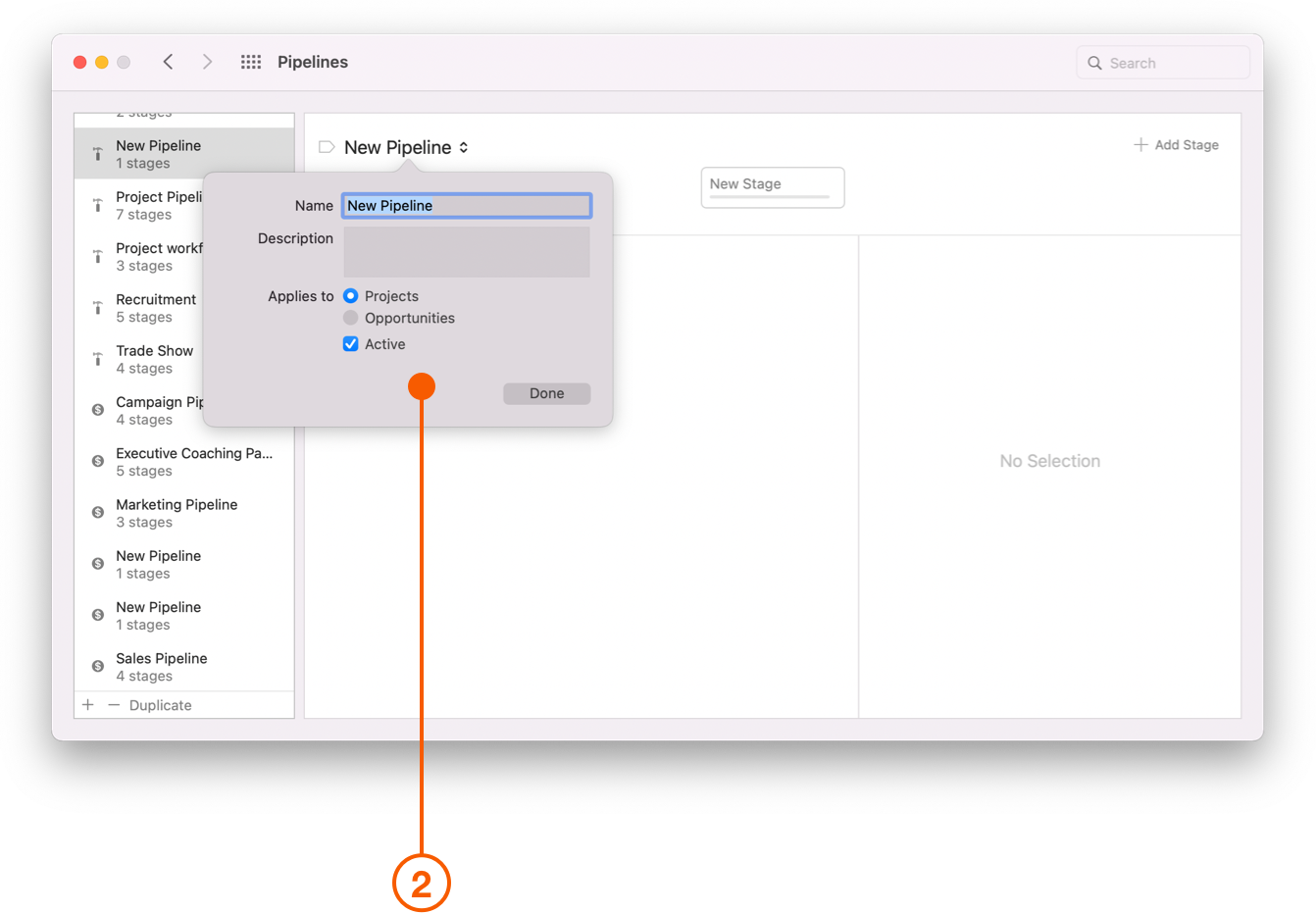
2. Select **New Pipeline** and fill in the Name, Description, and select **Applies to Projects**.
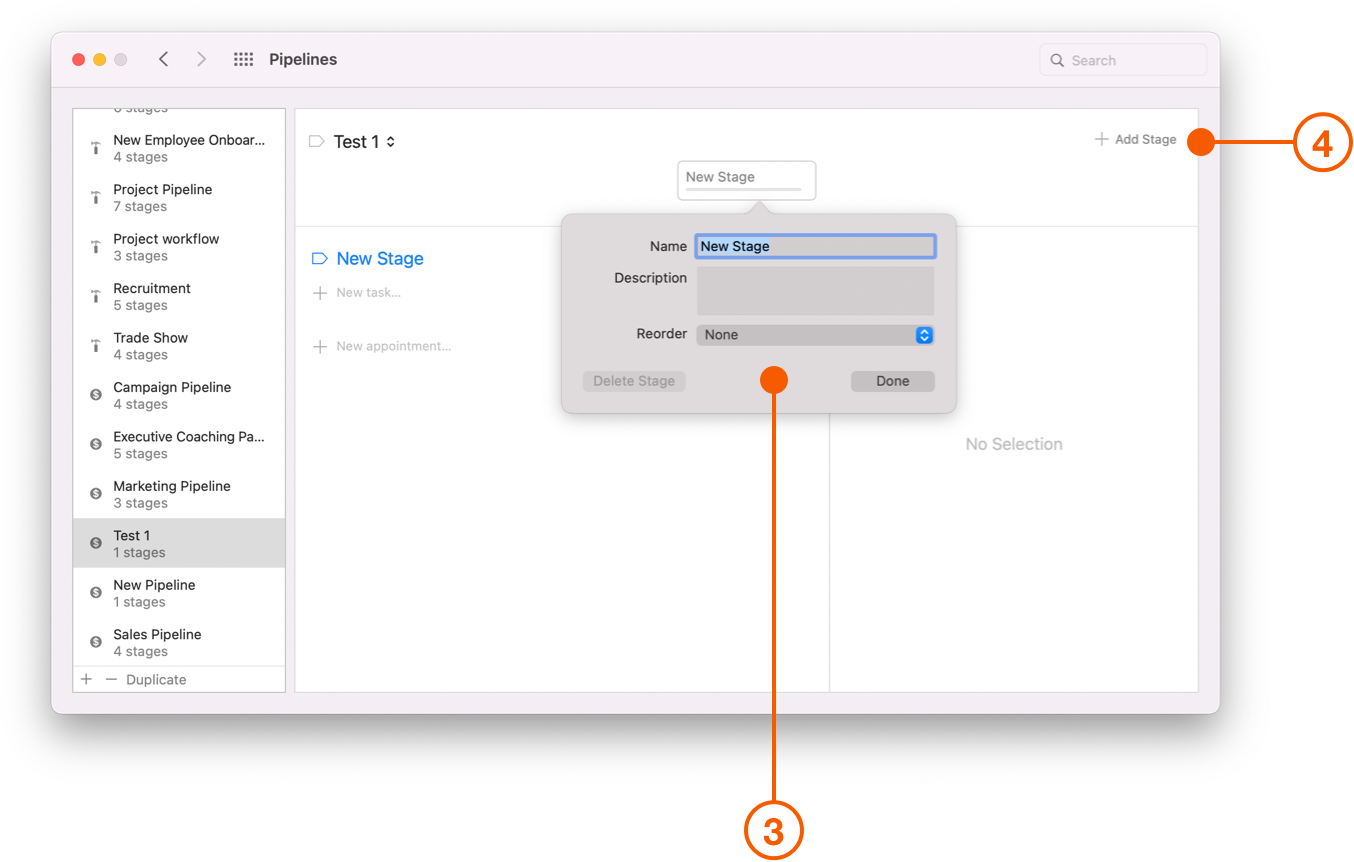
3. Fill in **New Stage** details.
4. You may add additional stages by clicking the **Add Stage** button.
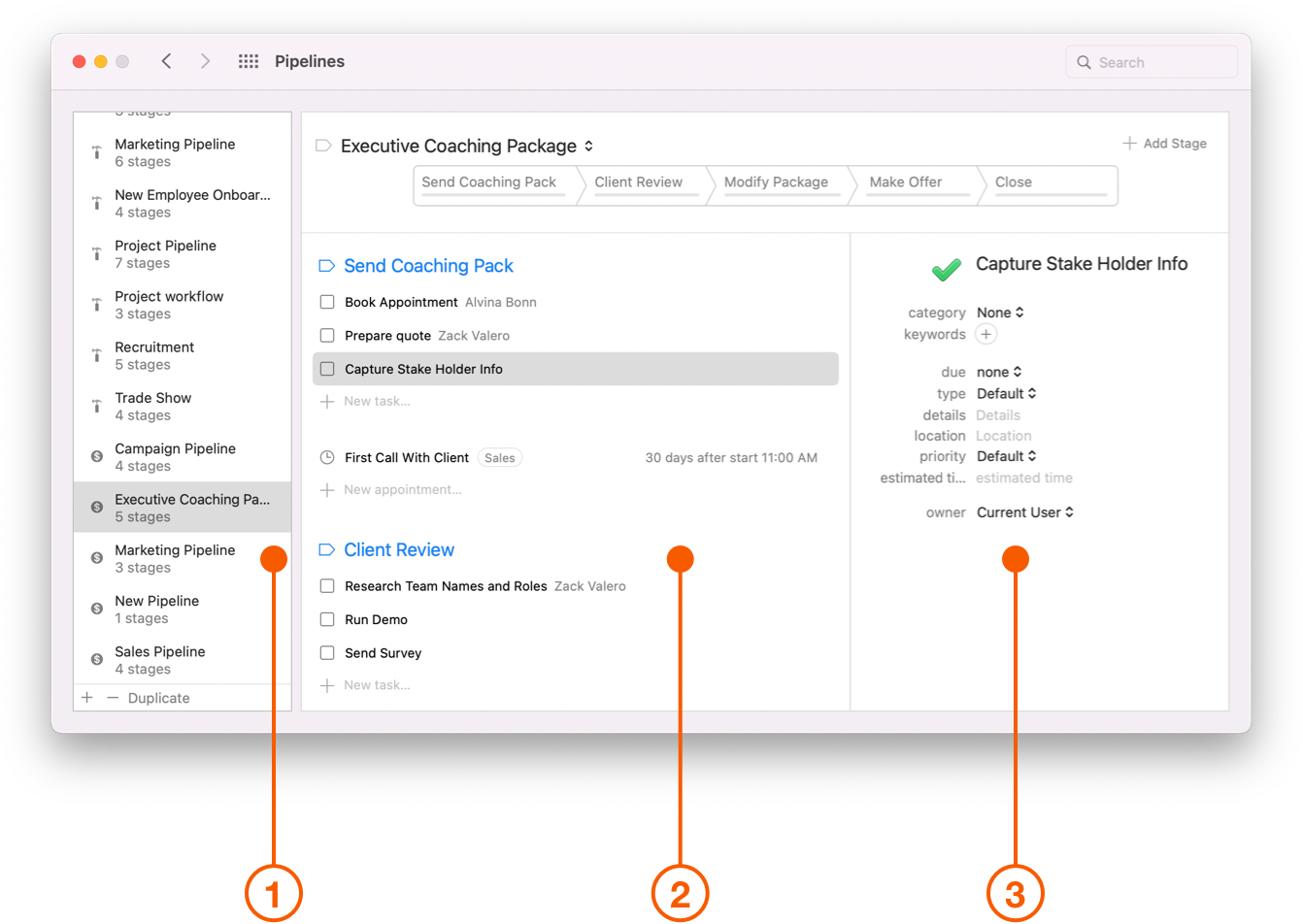
In the following example you can see:
1. A list of **Pipelines**.
2. Tasks lists created for each **Stage** in a **Pipeline**.
3. Details of the selected Task.
## Viewing Pipelines and Stages on your Device
You can now view your newly created Pipelines and Stages by selecting **My Projects** or **All Projects** from the Daylite Sidebar.
Whether creating a **New Project** or viewing an existing one, you will see the Pipelines and Stages are exactly the same as what you created on your iMac or MacBook.
You can see at a glance which Pipeline and Stage your Project is currently at, as well as Tasks, Appointments, Emails etc, that have been linked to this Project.
## Track your Projects and Review your Processes
Projects with better visibility finish on time. Track the progress of Projects and meet your deadlines with streamlined processes.
The **Projects Board** lets you see at a glance where there may be bottlenecks in your currently in-progress Projects. This view can help identify areas of concern, such as Projects that are stuck at a particular Stage, so you can focus on moving them along.
## Filtering your Project Checklists
You can also build Project lists using Filters, which separate the data and show you only what you need to see. For example, you could:
* Filter by the **Status** of the Project - follow up on Abandoned or Deferred Projects.
* Filter by a single **Category** or multiple **Keywords**.
## Wrap Up
Streamline your Projects with documented processes, keeping everything in one place. Track your progress, improve your efficiency, and set the right expectations with your team in Daylite.
Would you like more information on [Using The Projects Board](https://docs.marketcircle.com/learn-ios/execute-on-projects/projects-board), or [Starting a New Project](https://docs.marketcircle.com/learn-ios/execute-on-projects/starting-projects)?
Do you need some assistance coming up the perfect Project workflow? [One of our Daylite Experts](https://www.marketcircle.com/experts) can help fine-tune your business processes by implementing Daylite in your workflows.
---
# Agent Instructions
This documentation is published with GitBook. GitBook is the documentation platform designed so that both humans and AI agents can read, navigate, and reason over technical content effectively. Learn more at gitbook.com.
## Querying This Documentation
If you need additional information that is not directly available in this page, you can query the documentation dynamically by asking a question.
Perform an HTTP GET request on the current page URL with the `ask` query parameter, and the optional `goal` query parameter:
```
GET https://docs.daylite.app/help/learn-ipad/execute-on-projects/streamlining-your-projects.md?ask=&goal=
```
`ask` is the immediate question: it should be specific, self-contained, and written in natural language.
`goal` is optional and describes the broader end goal you are ultimately trying to accomplish on behalf of the user. GitBook uses it to tailor the answer towards what is most useful for that goal.
The response will contain a direct answer to the question and relevant excerpts and sources from the documentation.
Use this mechanism when the answer is not explicitly present in the current page, you need clarification or additional context, or you want to retrieve related documentation sections.