> For the complete documentation index, see [llms.txt](https://docs.daylite.app/help/llms.txt). Markdown versions of documentation pages are available by appending `.md` to page URLs; this page is available as [Markdown](https://docs.daylite.app/help/learn-ipad/execute-on-projects/projects-board.md).
# Using The Projects Board
The Projects Board helps you visually track how your Projects are progressing, identify the bottlenecks, and prioritize what’s most important so you can always deliver on your promises.
## Projects Board User Guide
The **Projects Board** offers an overview of how your Projects are moving through each Pipeline, and helps you identify which ones you should focus on.
The **Projects Board** is located in the Sidebar under Projects.
It is comprised of:
1. The **Pipeline** Filter
2. **Filters**
3. **Sort** and **View Options**
4. **Stages**
5. **Projects**
## How The Projects Board Can Help
The **Projects Board** lets you see at a glance where there may be bottlenecks in your currently in-progress Projects. This view can help identify areas of concern, such as Projects that are stuck at a particular Stage, so you can focus on moving them along.
In the example below, there are five Projects under **Approval** and three **Projects** under **Review/Edit**, meaning these may be areas you want to focus on to prevent a bottleneck in your process.
## Setting Up Pipelines In Daylite Preferences
The **Projects Board** is tied directly to the Pipelines you create in Daylite Preferences.
These Pipelines can only be created and edited from Daylite for Mac.
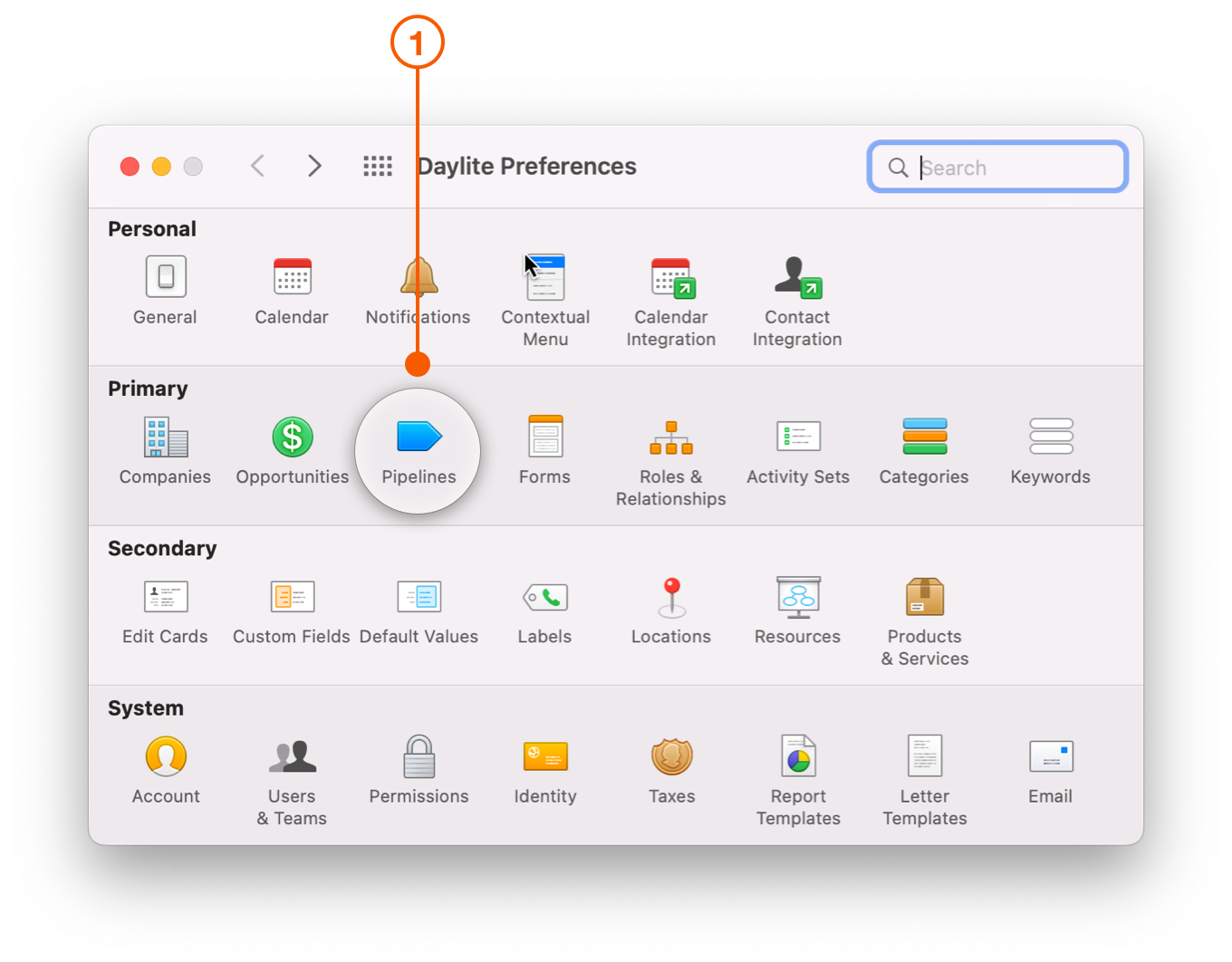
1. In Daylite for Mac, navigate to **Settings > Pipelines**.
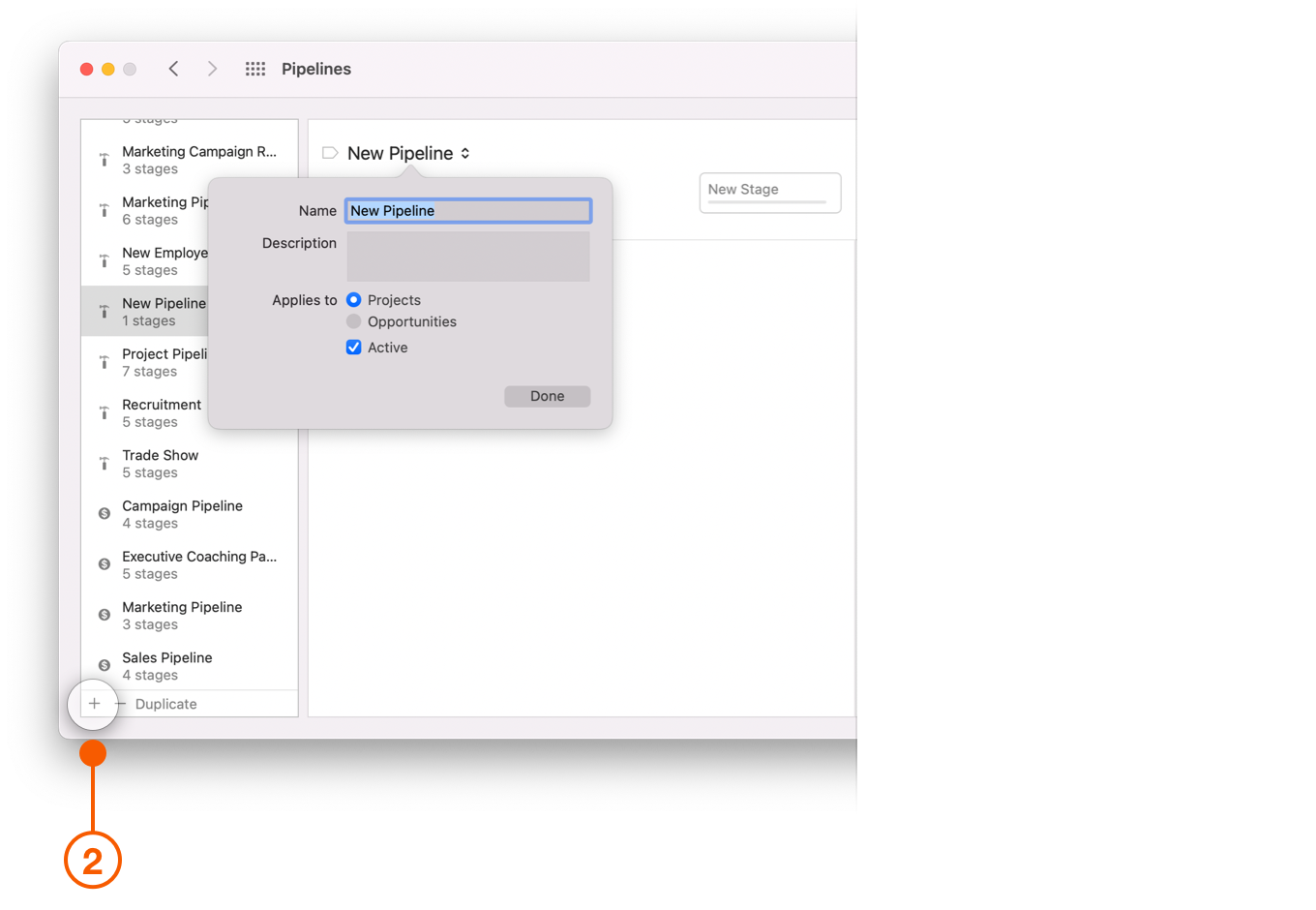
2. Click the **+** button to enter Pipeline information. Be sure to select **Projects** and click **Active** from the **Applies to** section.
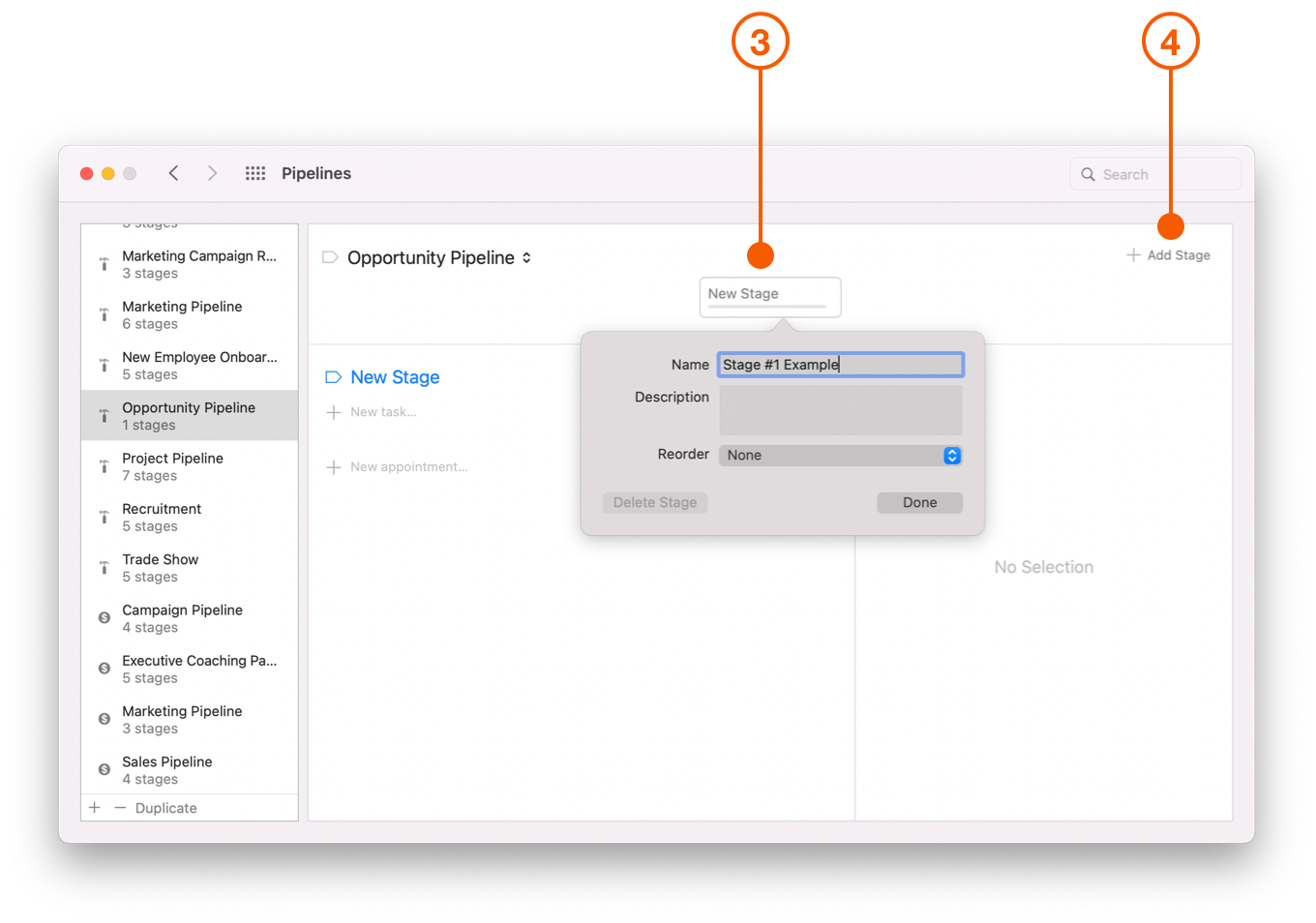
3. Click on **New Stage** to create a Pipeline Stage.
4. Click on **+ Add Stage** to create additional Stages.
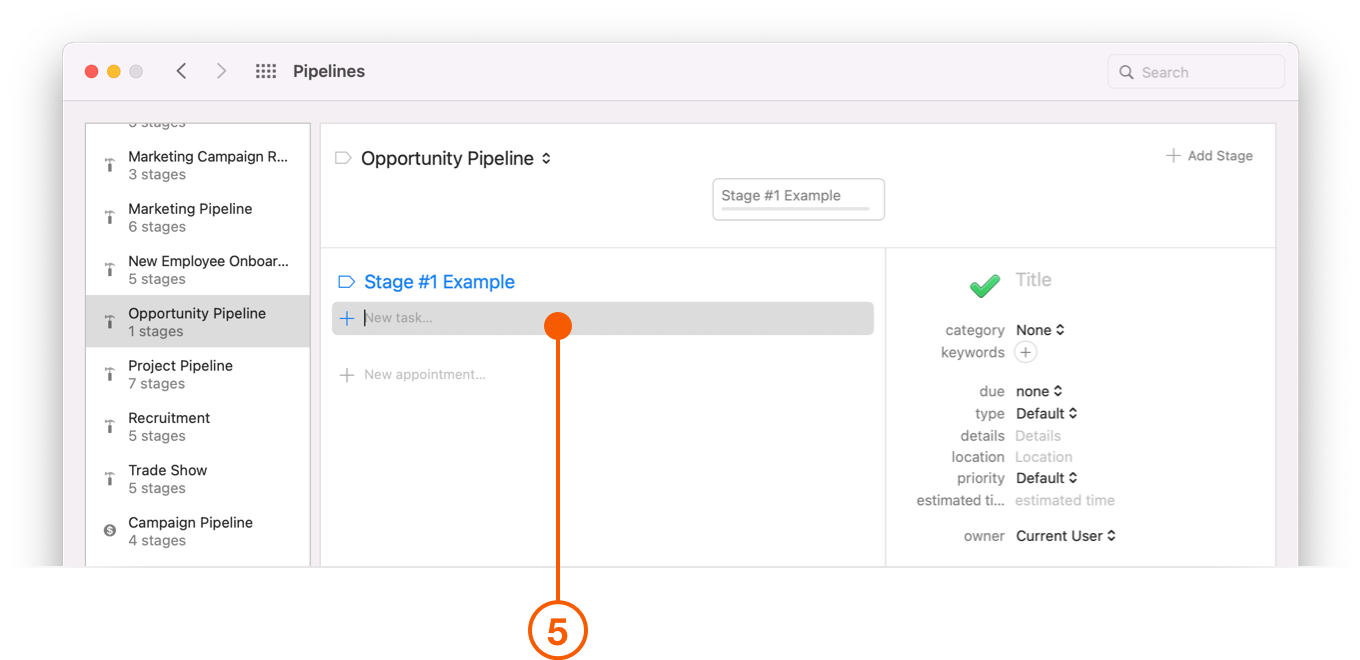
5. Select **New task** to create a Task that needs to be completed for each Stage.
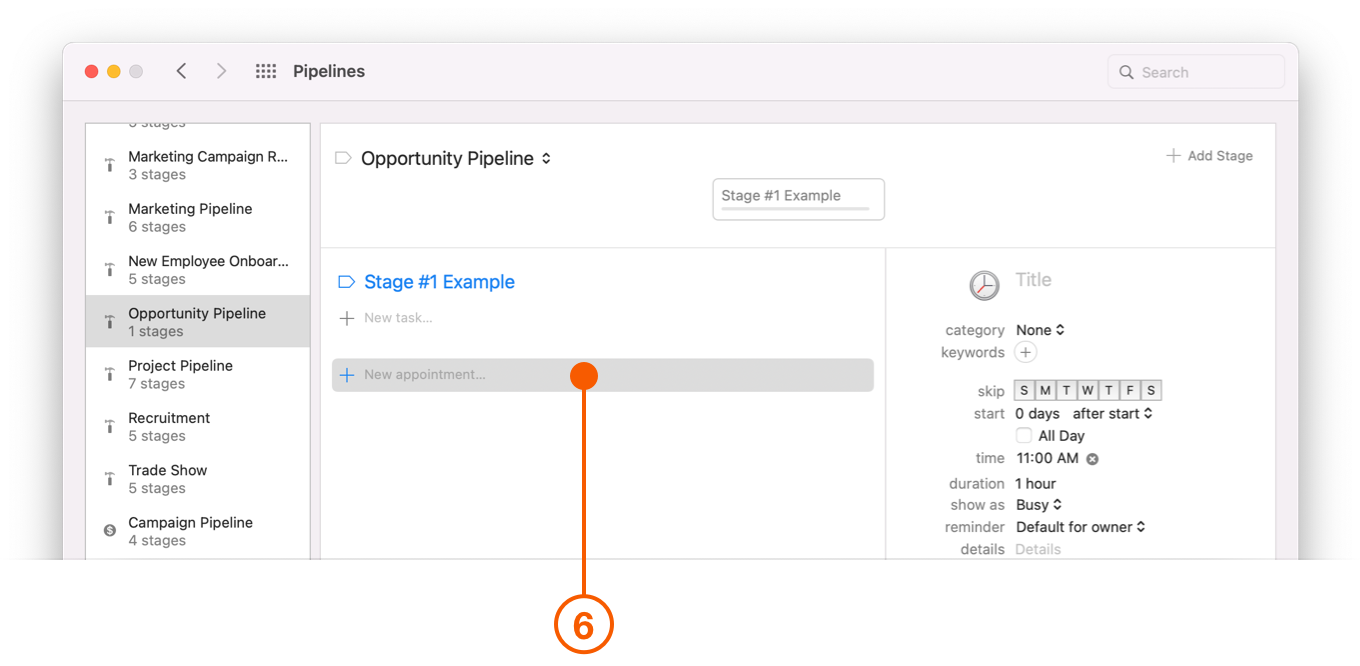
6. Select **New appointment** to create an Appointment that needs to be completed for each Stage.
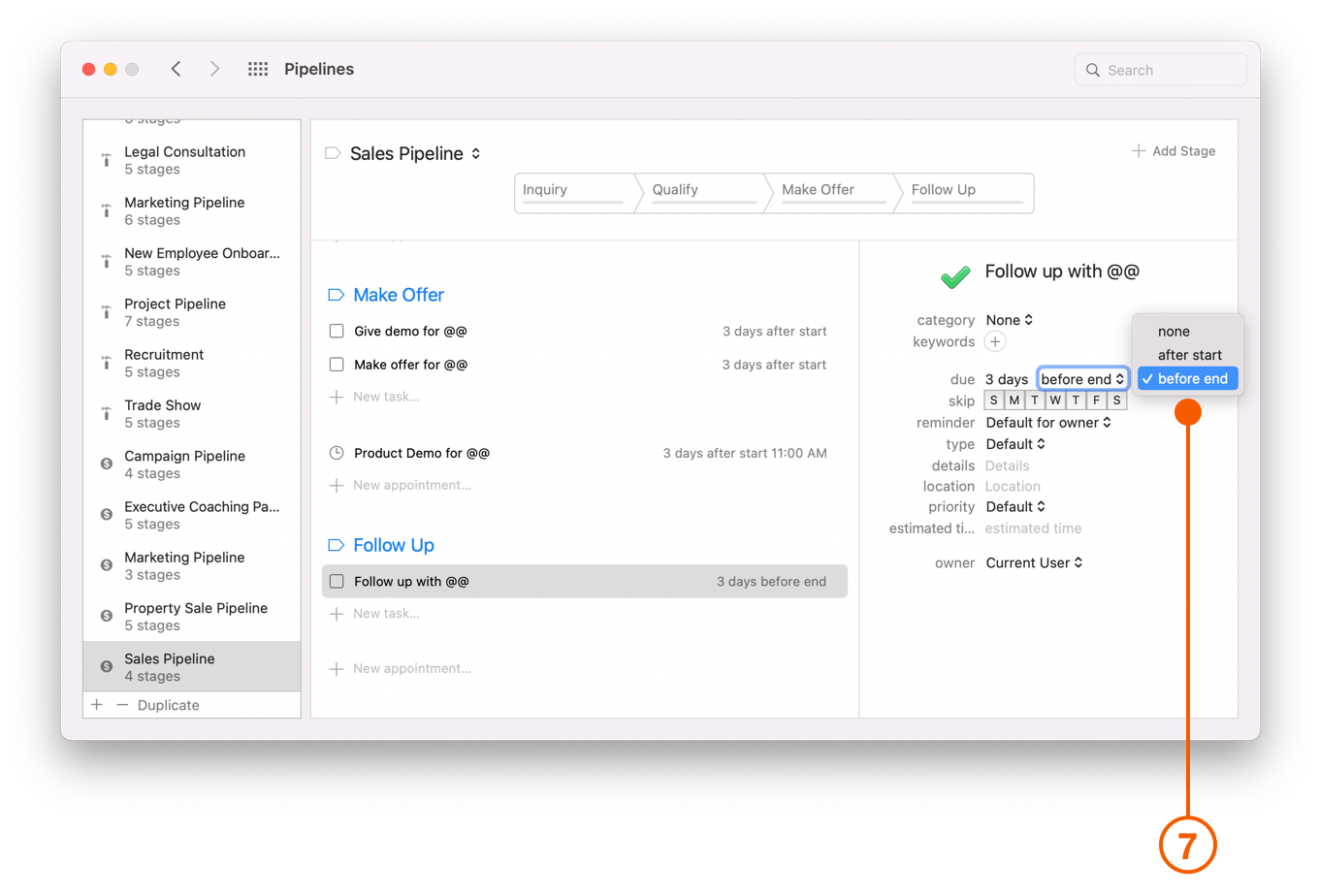
7. Select **due** and set the date to either after the stage starts, or before it ends.
After setting up your Pipelines on your Mac, select the **Projects Board** from the Daylite Sidebar on your iOS device.
The **Pipelines** and **Stages** will match what you have set up in the Preferences menu.
## Starting A New Project In The Projects Board
{% hint style="info" %}
**Did you know?**
A New Project must have a Pipeline assigned for it to be included in the **Projects Board** view.
{% endhint %}
To add a new Project to your Projects Board, begin by navigating to **Projects** in the Sidebar.
Tap the **+ New Item button,** and select New Project from the drop down menu.
Next, select **set pipeline** and then choose the Pipeline you want your Project to appear under.
While you are at it, you can set the **Stage** you want the Project to start at.
Add Activities, Tasks, a Start Date and Notes to the Project as needed.
## Moving Projects To The Next Stage
Move your Projects to the next Stage in your Pipeline by dragging them from one Stage to the next.
Dropping the Project onto a Stage's title prompts an Advance Stage window that lets you verify or change the Start Date and leave Notes.
## Updating A Project's Status
The Projects Board only shows Projects that have a **New** or **In Progress** status. Projects with any other status will not be shown here, but are viewable in the Sidebar under **All Projects**. That is also why Projects disappear from the **Projects Board** when you change the Status to **Cancelled**, **Deferred**, **Abandoned** or **Done**.
As you begin to move your Project from one Stage to another, there are four different Statuses that appear at the bottom of the Projects Board. These Statuses are:
* Cancelled
* Deferred
* Abandoned
* Done
Dropping a Project onto any of these statuses prompts a window at the bottom of the Board to appear, which lets you verify or change the Status.
## Filter by Pipeline
The **Projects Board** can show only one Pipeline at a time, since the Stages for each Pipeline are different.
Select the Pipeline you would like to view by clicking the **Pipeline** filter.
You can also choose to filter your Project by:
* **Owner** - This option filters Projects by the Owner or assignee. You can filter by individual Owner, or view All Owners at one time.
* **Due Date** - This option filters Projects by due date. You can look at due dates up to a year, both past and future.
* **Create Date** - This option filters Projects by the date the Project was created, up to a year, both past and future.
* **Category** - This option filters Projects by Categories, which can be designated in Daylite Preferences.
* **Keywords** - This option filters Projects by Keywords, which can also be designated in Daylite Preferences.
## Sorting Your Projects
You can change how you view Projects by clicking **↑↓ Sort** and choosing from the following:
* **Due Date** organizes each Project by due date.
* **Created** organizes each Project by the date you created it.
* **Name** organizes your Projects alphabetically.
* **Priority** organizes your Projects by priority.
* **Next Activity** organizes your Projects by next scheduled Task or Appointment.
* **Days in Stage** organizes your Projects by the number of days they have remained in one Stage.
## The Project Card
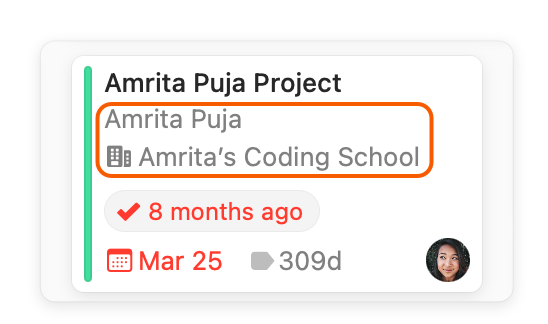
You can view an Project's **Linked People** and **Companies** here:
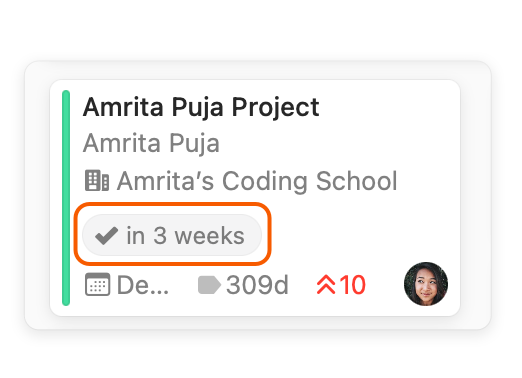
A Project's **Next Activity** will appear here:
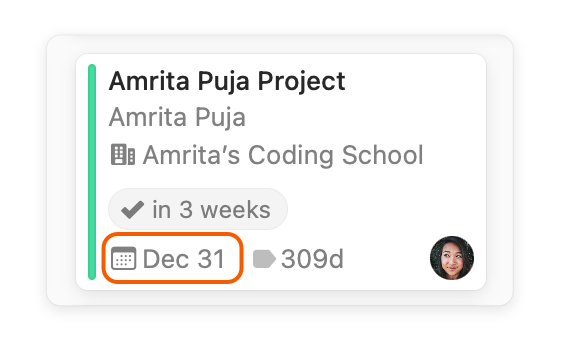
If a Project has a **Due Date** it will appear here:
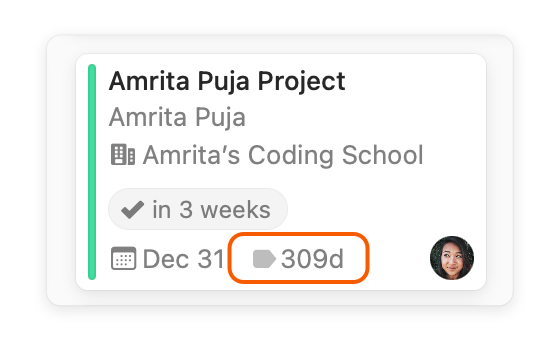
The Projects Board tells you how many days an Project has been at the current **Stage**. This feature helps identify which Project may be getting bottlenecked, and how best to move them along to the next Stage. Moving the Project to the next Stage resets this number.
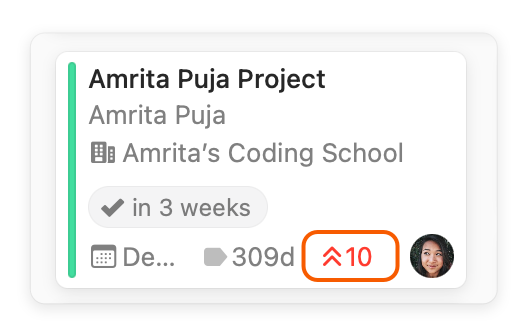
On a scale of 1-10, how important is this Project? You can quickly view the Project's **Priority** here:
You can quickly see who owns or is assigned to a Project by looking at the bottom right side of the Project Card. If applicable, a small photo of the **Owner** will show.
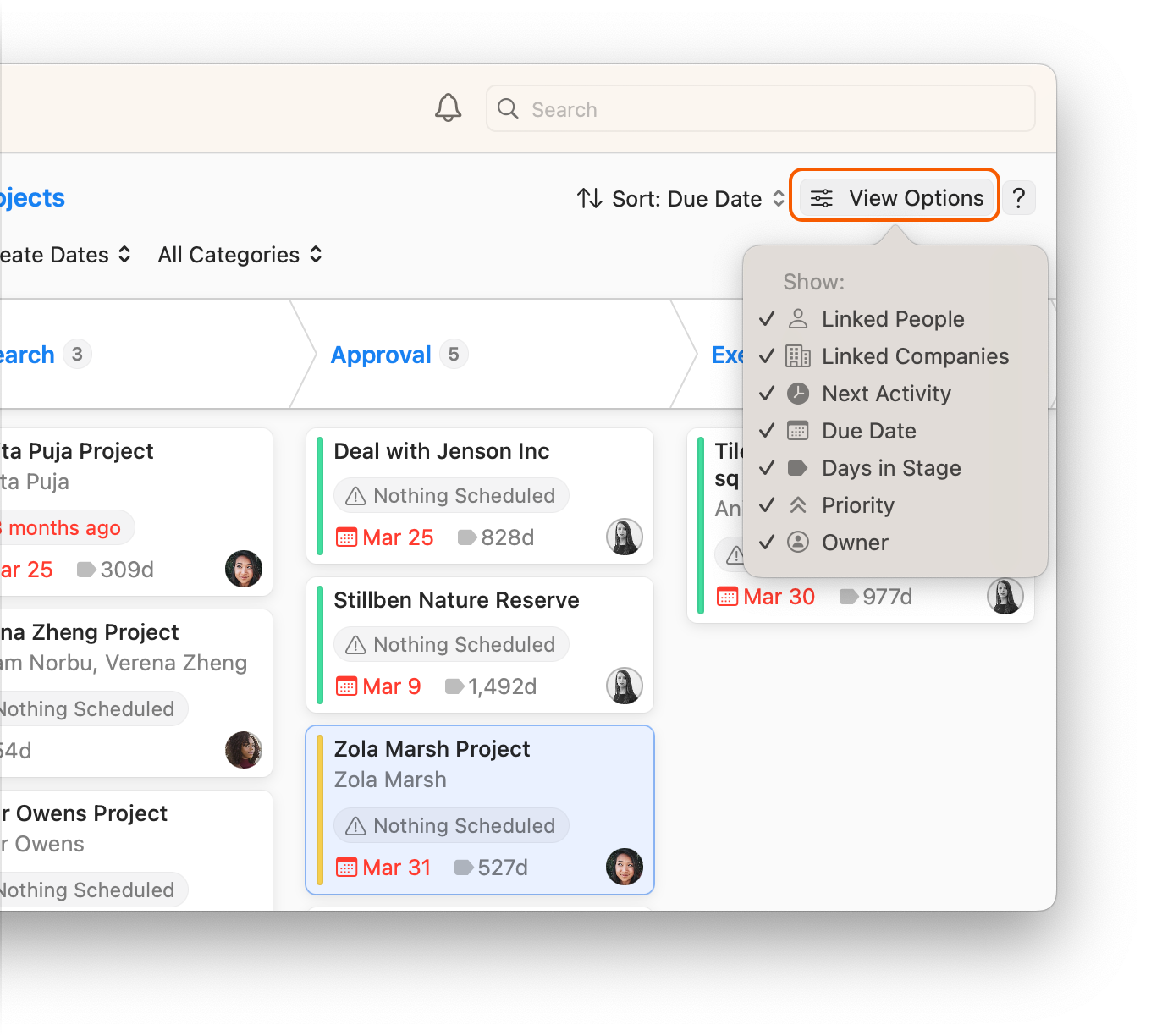
**View Options** allows you to hide or show certain information from a Project's card, to help you focus on what is most important to you.
## Wrap Up
The **Projects Board** offers an exciting new way to view every project in each of your pipelines.
You can view your entire Projects Pipeline at a glance, to help identify areas of concern, focus on your top priorities, and deliver on your promises.
---
# Agent Instructions
This documentation is published with GitBook. GitBook is the documentation platform designed so that both humans and AI agents can read, navigate, and reason over technical content effectively. Learn more at gitbook.com.
## Querying This Documentation
If you need additional information that is not directly available in this page, you can query the documentation dynamically by asking a question.
Perform an HTTP GET request on the current page URL with the `ask` query parameter, and the optional `goal` query parameter:
```
GET https://docs.daylite.app/help/learn-ipad/execute-on-projects/projects-board.md?ask=&goal=
```
`ask` is the immediate question: it should be specific, self-contained, and written in natural language.
`goal` is optional and describes the broader end goal you are ultimately trying to accomplish on behalf of the user. GitBook uses it to tailor the answer towards what is most useful for that goal.
The response will contain a direct answer to the question and relevant excerpts and sources from the documentation.
Use this mechanism when the answer is not explicitly present in the current page, you need clarification or additional context, or you want to retrieve related documentation sections.