> For the complete documentation index, see [llms.txt](https://docs.daylite.app/help/llms.txt). Markdown versions of documentation pages are available by appending `.md` to page URLs; this page is available as [Markdown](https://docs.daylite.app/help/impriving-business-processes/improving-business-processes/streamline-projects.md).

# Streamlining Your Projects

Give your Projects a repeatable process, so your team knows what to do next and you can see where every Project stands.

For a Project to finish on time, everyone involved needs to know what's expected of them, who else is involved, and the timeline. Daylite lets you build your process once and reuse it on every Project: an Activity Set adds a ready-made checklist of Tasks and Appointments, and a Pipeline moves the Project through Stages in order. Once the process is in place, you can track each Project and catch the ones that fall behind.

## Choose a Checklist, a Pipeline, or Both

<table data-view="cards"><thead><tr><th></th><th></th><th data-hidden data-card-target data-type="content-ref"></th></tr></thead><tbody><tr><td><strong>Build a checklist</strong></td><td>Your process is a set of Tasks and Appointments with no required order. An Activity Set creates them all at once, dated from a start or end date.</td><td><a href="#build-a-checklist-for-work-you-repeat">#build-a-checklist-for-work-you-repeat</a></td></tr><tr><td><strong>Keep each Project moving in order</strong></td><td>Your process has steps that happen in order. A Pipeline creates each Stage's work as the Project reaches it and tracks where the Project is.</td><td><a href="#keep-each-project-moving-in-order">#keep-each-project-moving-in-order</a></td></tr><tr><td><strong>Use both</strong></td><td>Your process has an ordered sequence and a one-off batch of dated work. You can use a Pipeline and an Activity Set on the same Project.</td><td><a href="https://docs.daylite.app/help/mac-fundamentals/tools-and-utilities/activity-sets#activity-sets-vs-pipelines">https://docs.daylite.app/help/mac-fundamentals/tools-and-utilities/activity-sets#activity-sets-vs-pipelines</a></td></tr></tbody></table>

## Build a Checklist for Work You Repeat

Projects often share the same small Tasks. A checklist helps you avoid errors, duplicate work, and wasted time. For example, a real estate agent who closes a deal on a house has the same steps to complete for every buyer or seller.

An Activity Set saves that checklist once, so you can add it to any Project in one step. An administrator creates the set, and then anyone on your team can apply it.

1. **Create the Activity Set.** In **Daylite** > **Settings** > **Activity Set**, add a set, select **Active**, and choose **Projects** as a record type it applies to. See [How to Create an Activity Set Template](https://docs.daylite.app/help/mac-fundamentals/tools-and-utilities/activity-sets#how-to-create-an-activity-set-template).
2. **Add the Tasks and Appointments.** Date each one from the Project's start or end date, put them in the order the work happens, and add reminders to the Tasks you need to be reminded about. See [How Activity Sets Calculate Dates](https://docs.daylite.app/help/mac-fundamentals/tools-and-utilities/activity-sets#how-activity-sets-calculate-dates).
3. **Apply it to a Project.** Select the Project, choose **New Activity Set**, pick the set, and enter the start date, end date, or both. See [How to Apply an Activity Set](https://docs.daylite.app/help/mac-fundamentals/tools-and-utilities/activity-sets#how-to-apply-an-activity-set).

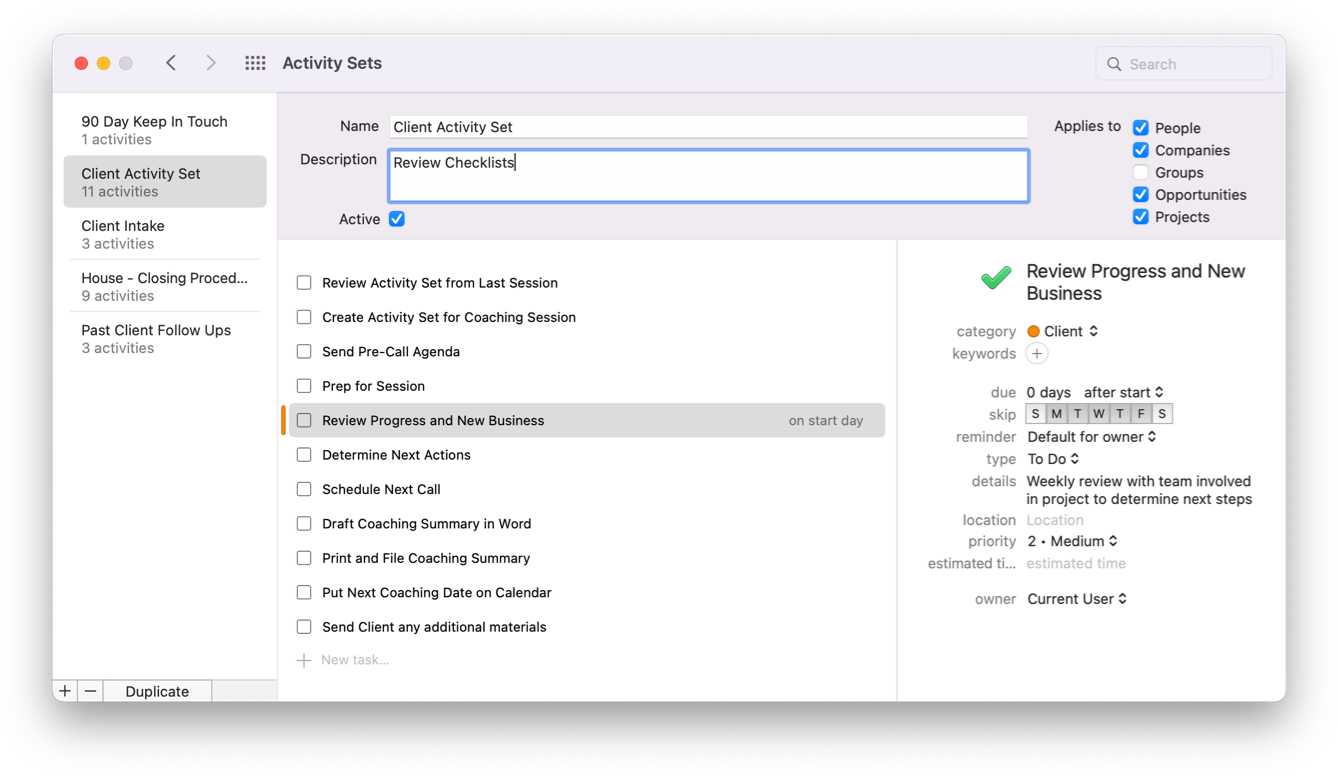
Here's an example of an Activity Set with a completed checklist:

<figure><img src="https://content.gitbook.com/content/4Vlyx6Ym4xu4tinQiFnd/blobs/HJoNTPVTjF17c0WDT2C8/05.png" alt="Activity Set screen showing checklist"><figcaption></figcaption></figure>

{% hint style="info" %}
You can create and apply Activity Sets only on Mac. The Tasks and Appointments they create sync to iPhone and iPad.
{% endhint %}

## Keep Each Project Moving in Order

A Pipeline breaks your Project process into Stages, so you and your team focus on the right work at the right time and complete each step in order. When a Project reaches a Stage, that Stage's Tasks and Appointments are waiting for you.

1. **Build a Pipeline for Projects on Mac.** In **Daylite** > **Settings** > **Pipelines**, create a Pipeline, select **Projects**, and add a Stage for each step of your process. See [How Do I Build a Pipeline?](https://docs.daylite.app/help/mac-fundamentals/tools-and-utilities/pipelines#how-do-i-build-a-pipeline)
2. **Add the work each Stage needs.** Add the Tasks and Appointments that a Stage always calls for. See [Add Tasks and Appointments to a Stage](https://docs.daylite.app/help/mac-fundamentals/tools-and-utilities/pipelines#add-tasks-and-appointments-to-a-stage).
3. **Assign the Pipeline to each Project.** A Project needs a Pipeline before it can move through Stages or appear on the Project Board. See [How Do I Assign or Change a Pipeline?](https://docs.daylite.app/help/mac-fundamentals/tools-and-utilities/pipelines#how-do-i-assign-or-change-a-pipeline) To assign one as you create a Project, start the Project from the Project Board. See [From the Projects Board](https://docs.daylite.app/help/mac-fundamentals/projects/creating-and-configuring-projects#from-the-projects-board).

You can build Pipelines only on Mac. Once you save one, its Stages appear on Mac, iPhone, and iPad, and each Project shows its current Pipeline and Stage. See [From the Record](https://docs.daylite.app/help/mac-fundamentals/tools-and-utilities/pipelines#from-the-record).

## Check How Your Projects Are Progressing

Projects with better visibility finish on time. Review them regularly, so you can find the ones that are stuck and move them along.

1. **Look for bottlenecks on the Project Board.** A Stage holding far more Projects than the Stages around it is where your process is backing up. Sort by **Days in Stage** to find the Projects that have waited longest. See [Spotting Bottlenecks](https://docs.daylite.app/help/mac-fundamentals/projects/projects-board#spotting-bottlenecks).
2. **Check what's left on each Project.** On Mac, the Project's **Tasks and Pipeline** view shows how many Tasks are left, and overdue Tasks appear in red. See [From the Record](https://docs.daylite.app/help/mac-fundamentals/tools-and-utilities/pipelines#from-the-record). The Project's Activity view lists its Tasks alongside its Appointments, Notes, and emails. See [Viewing Your Tasks in Daylite](https://docs.daylite.app/help/mac-fundamentals/task-management/overview#viewing-your-tasks-in-daylite).

## Find the Projects That Need Attention

Filters narrow a Project list to only what you need to see. For example, you can:

* Find Abandoned or Deferred Projects to follow up on, by filtering by Status. On iPhone and iPad, filter **All Projects**.
* Show only the Projects in one Category, or with particular Keywords.
* On Mac, show only the Projects assigned to one team member.

On Mac, you build filters with the **Filter** button and can save them as Smart Lists. On iPhone and iPad, the filters available depend on the list. See [How Do I Create a Filter?](https://docs.daylite.app/help/mac-fundamentals/find-connect-and-organize/filtering-on-mac#how-do-i-create-a-filter) and [What Can I Filter By on iPhone & iPad?](https://docs.daylite.app/help/mac-fundamentals/find-connect-and-organize/filtering-on-iphone-and-ipad#what-can-i-filter-by-on-iphone-and-ipad).


---

# Agent Instructions
This documentation is published with GitBook. GitBook is the documentation platform designed so that both humans and AI agents can read, navigate, and reason over technical content effectively. Learn more at gitbook.com.

## Querying This Documentation
If you need additional information that is not directly available in this page, you can query the documentation by asking a question.

Perform an HTTP GET request on the following URL with the `ask` and `goal` query parameters:

```
GET https://docs.daylite.app/help/impriving-business-processes/improving-business-processes/streamline-projects.md?ask=<question>&goal=<user_goal>
```

`ask` is the immediate question: it should be specific, self-contained, and written in natural language.
`goal` is what the user is ultimately trying to achieve, the reason they need the answer. Sharing it helps GitBook give you a better, more relevant answer. A goal is most helpful when it describes the outcome the user wants rather than restating the question. For example, with `ask=how do I create an API token`, a goal like `automate deployments from our CI pipeline` lets GitBook tailor the answer to that use case.

The response will contain a direct answer to the question and relevant excerpts and sources from the documentation.

Use this mechanism when the answer is not explicitly present in the current page, you need clarification or additional context, or you want to retrieve related documentation sections.