> For the complete documentation index, see [llms.txt](https://docs.daylite.app/help/llms.txt). Markdown versions of documentation pages are available by appending `.md` to page URLs; this page is available as [Markdown](https://docs.daylite.app/help/building-relationships/bulding-relationships/how-to-track-referrals.md).
# Tracking Your Referrals
Customer referrals are an excellent sign that you are doing something right. Strong relationships are one of the cornerstones of a successful business, and when you make a good impression on people you’re likely to get more referrals.
Daylite helps you build strong relationships by letting you see how many referrals your clients are sending you. Acknowledging your best referrers for the business they’ve given you encourages even more referrals, building your "book of business" through the referral process.
## Adding a Referral to a Contact
The easiest way to capture a referral is to create a new **Contact** for the referral, and then link the referrer to that Contact.
As an example:
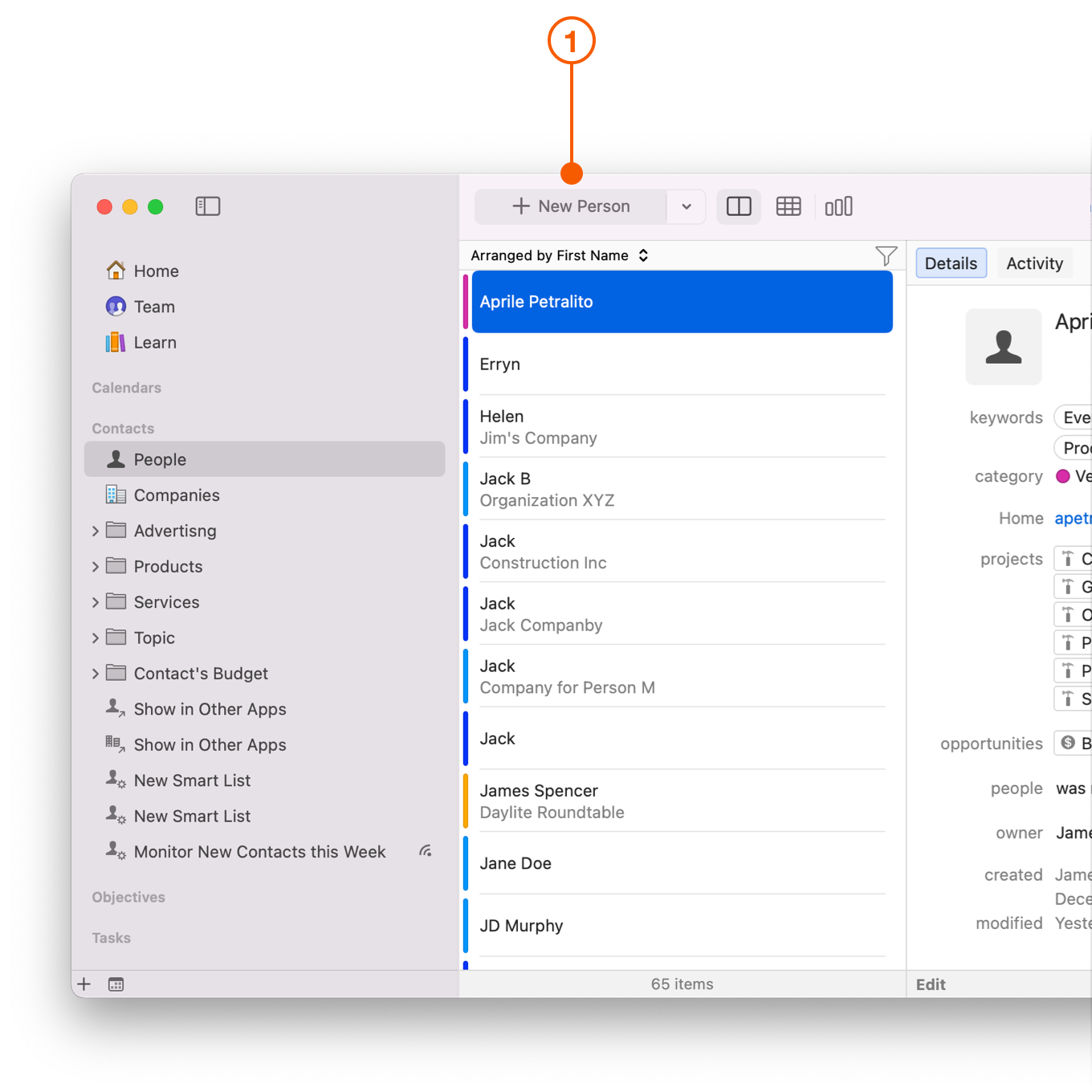
1. Create a new Contact for your referral by choosing the **New Person** button.
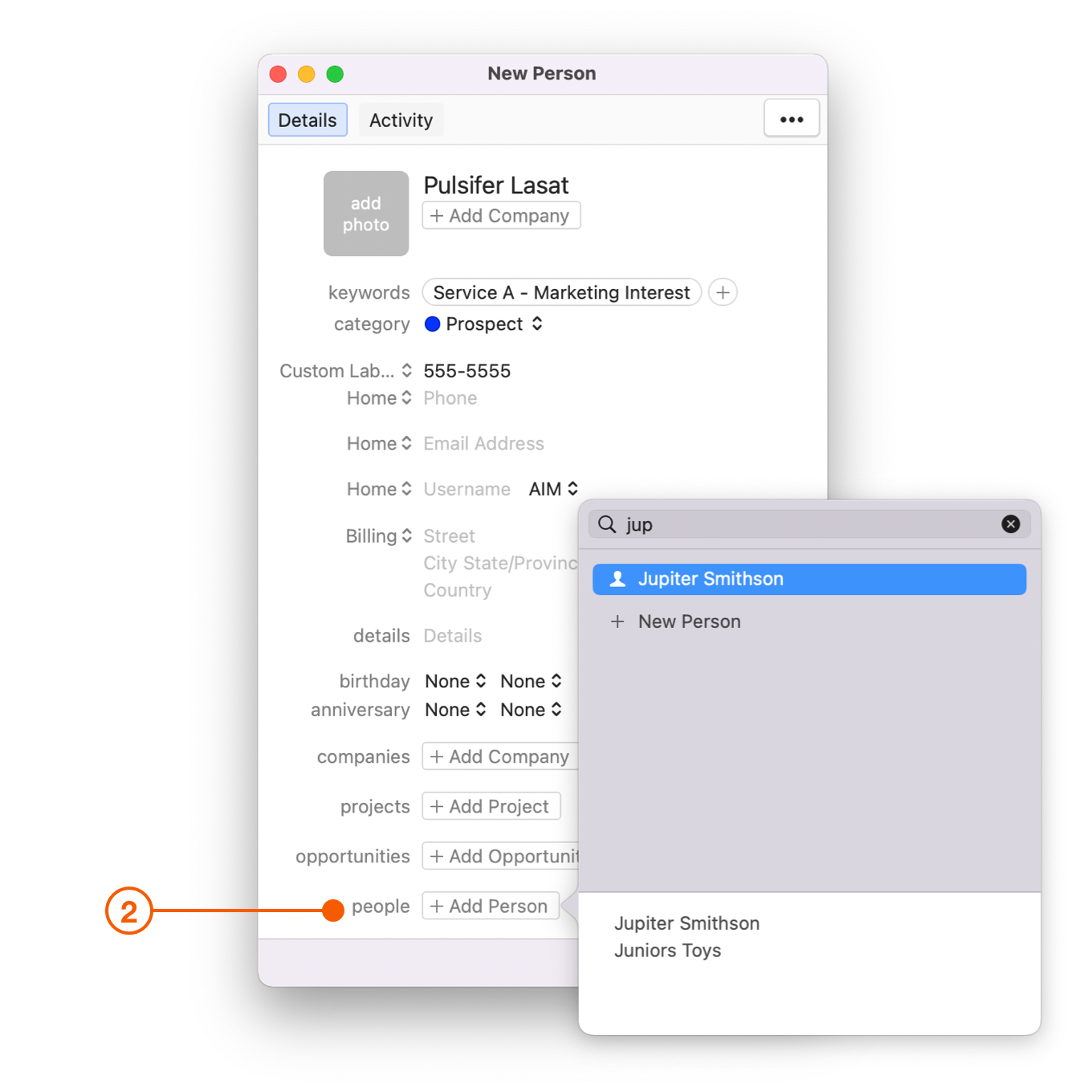
2. Fill in the details for your new referral, then click **Add Person** and choose the existing Contact who referred you to the new Contact.
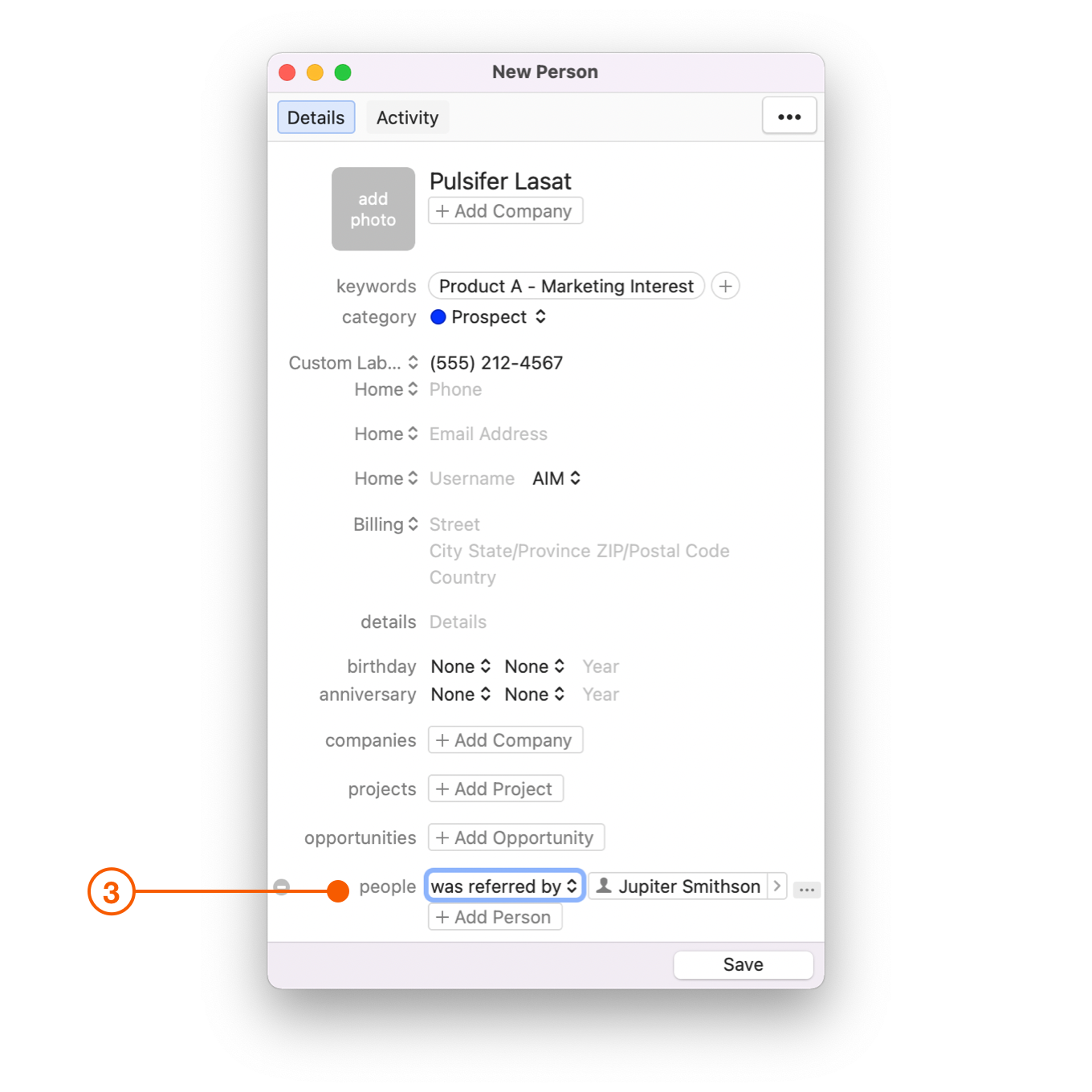
3. Select **was referred by** from the Relationship menu. You can set up your own custom Relationships in the Daylite Settings.
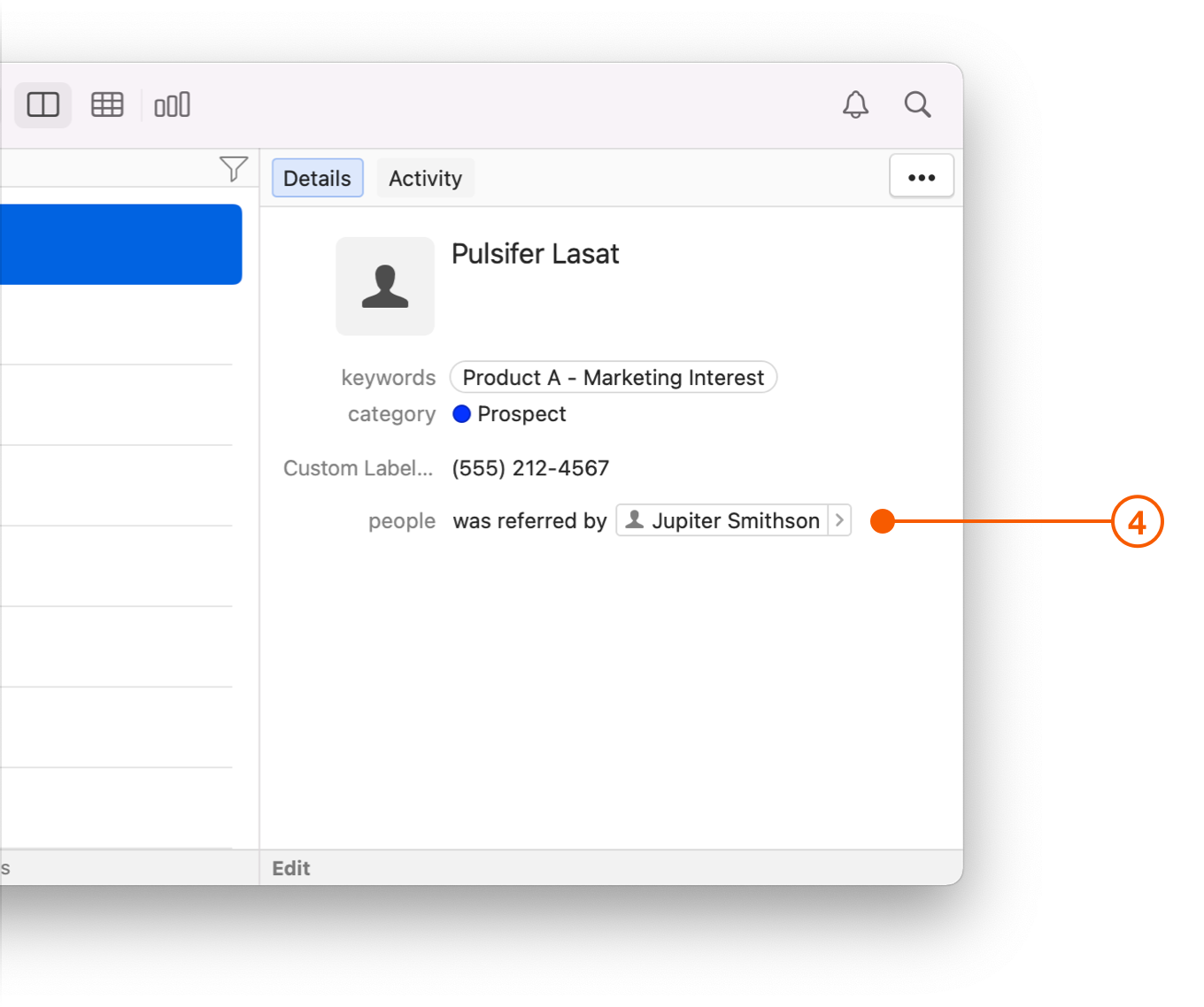
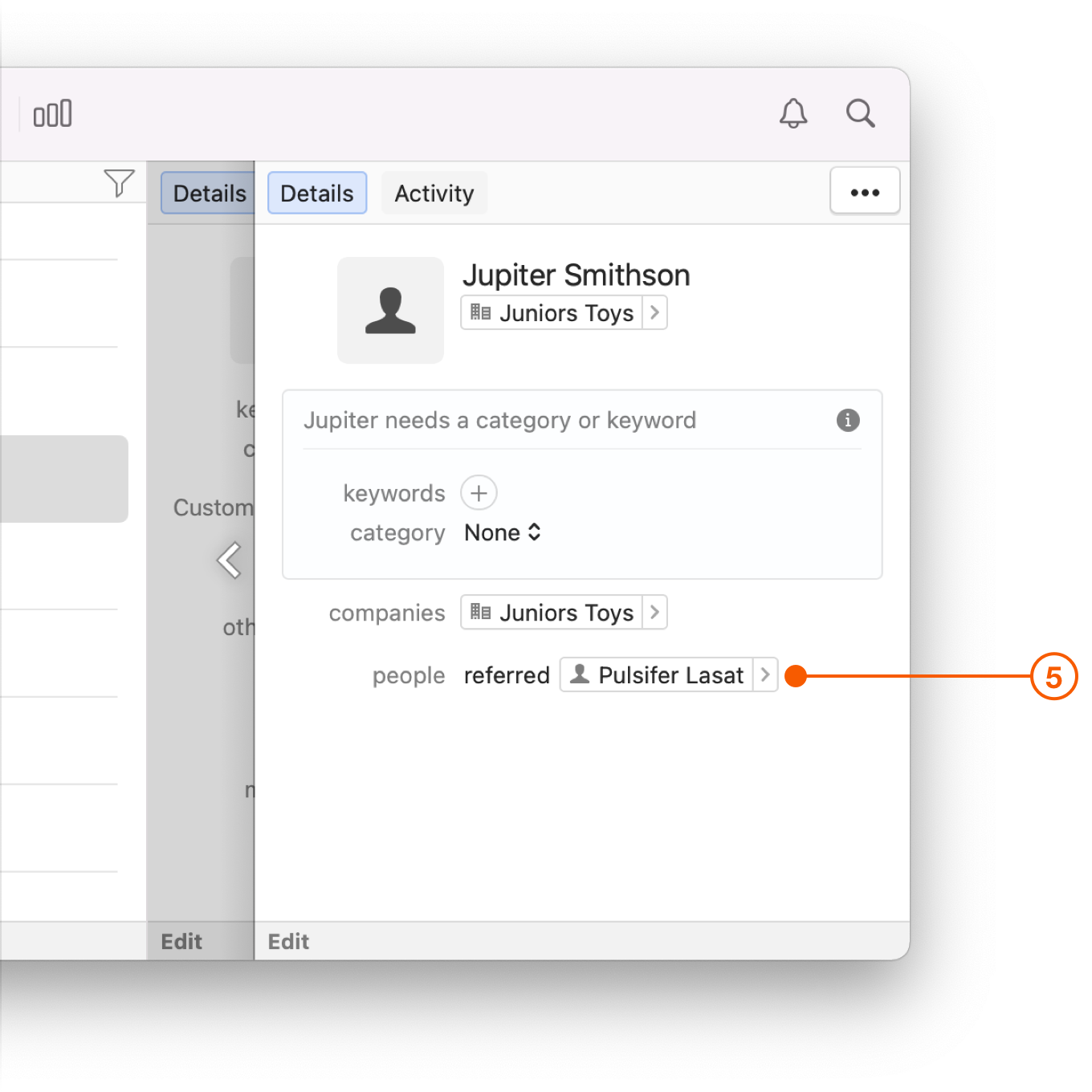
4. You can now see who referred your new Contact by scrolling down to **People** in the Details pane. Click the arrow button beside the referrer's name to view the Contact.
5. You'll notice that the Detail Card of the referrer Contact now also shows who they referred.
## Filtering by Referrals
After you have captured your referral in Daylite, you can filter your referrals to see all the **Contacts** that have been referred by a specific **Person**. This way you can thank the person for their referrals, and be specific about who they referred to you.
As an example:
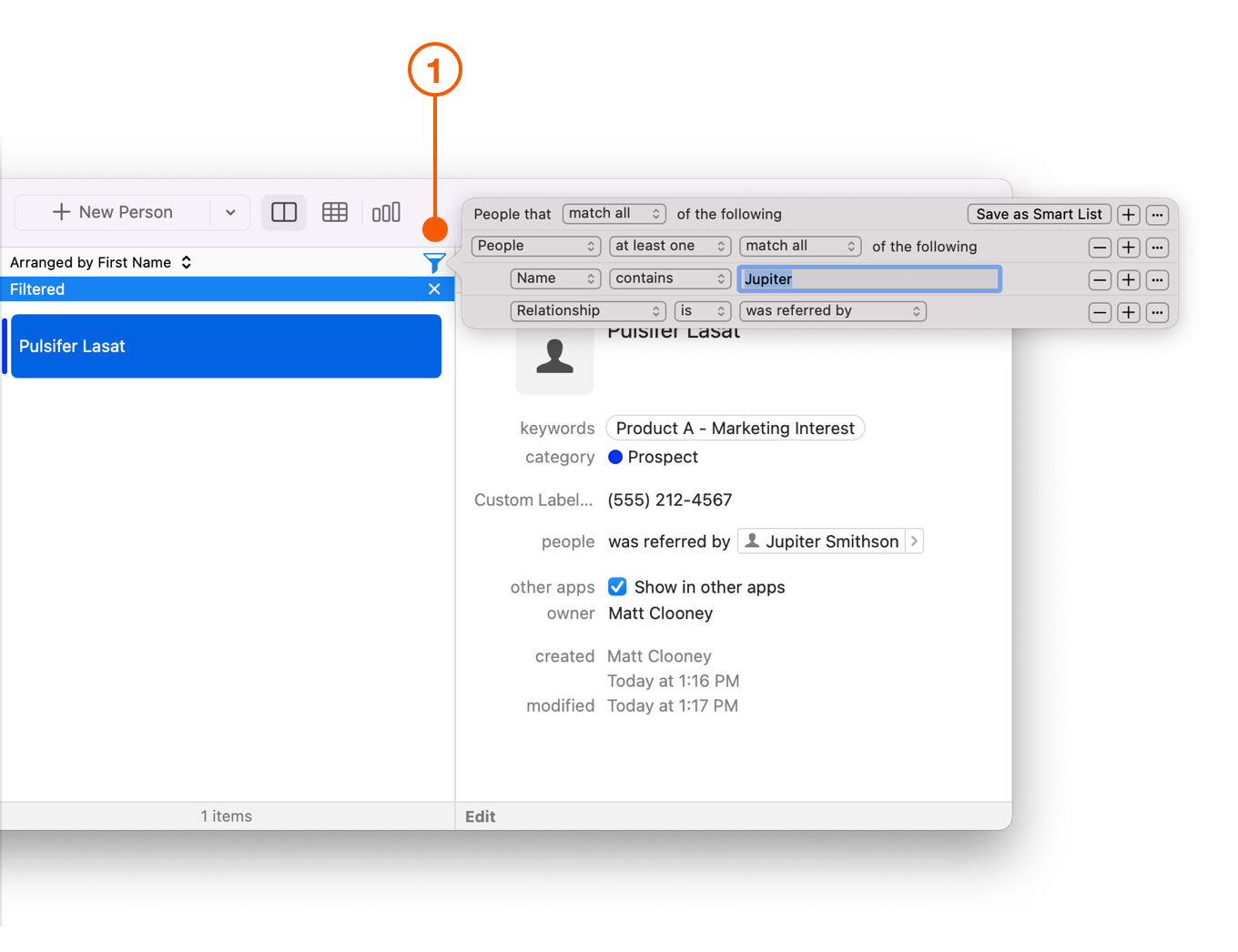
1. Click the **Filter** button.
2. Select **People > at least one > match all > of the following**.
3. Select **Name > contains** and type in the Contact name.
4. Click the **+** to add a row and then select **Relationship > is > was referred by.**
## Wrap Up
Tracking referrals can catapult your business to whole new levels, making you stand out in your client's eyes.
If tracking your referrals is important to your business, you may also want to consider engaging a Daylite Partner to help you customize reports and integration based on your specific needs.
You can [book a call with one of our advisors](https://www.marketcircle.com/book-a-call-with-advisor/) to be paired with the right partner for your needs.
Ready to take things to the next level? For an introduction in creating filters and segments of people, read [How to Segment Your Contact List](https://www.marketcircle.com/learn/how-to-segment-your-contact-list).
---
# Agent Instructions
This documentation is published with GitBook. GitBook is the documentation platform designed so that both humans and AI agents can read, navigate, and reason over technical content effectively. Learn more at gitbook.com.
## Querying This Documentation
If you need additional information that is not directly available in this page, you can query the documentation by asking a question.
Perform an HTTP GET request on the following URL with the `ask` and `goal` query parameters:
```
GET https://docs.daylite.app/help/building-relationships/bulding-relationships/how-to-track-referrals.md?ask=&goal=
```
`ask` is the immediate question: it should be specific, self-contained, and written in natural language.
`goal` is what the user is ultimately trying to achieve, the reason they need the answer. Sharing it helps GitBook give you a better, more relevant answer. A goal is most helpful when it describes the outcome the user wants rather than restating the question. For example, with `ask=how do I create an API token`, a goal like `automate deployments from our CI pipeline` lets GitBook tailor the answer to that use case.
The response will contain a direct answer to the question and relevant excerpts and sources from the documentation.
Use this mechanism when the answer is not explicitly present in the current page, you need clarification or additional context, or you want to retrieve related documentation sections.